Views bookmarking: Use case of a financial technology company
Introduction FlexTrade is a global provider of multi-asset execution and order management systems, supporting trading workflows across asset classes, venues, and strategies. Their platforms generate large volumes of highly detailed data that users rely on for day-to-day analysis and decision-making. Companies like FlexTrade operate in an environment where users need deep, flexible analysis across a wide range of dimensions: asset class, venue, strategy, region, client, trader, time, and more. Pivot tables are a natural fit for this kind of detailed, highly dimensional analysis. However, as the number of dimensions grows, teams quickly hit a trade-off: Putting all dimensions into a single widget becomes expensive to query and difficult to interpret. Creating separate widgets for every dimension (or combination of dimensions) leads to bloated dashboards, slower load times, and a poor user experience. This use case focuses on how BloX was used to solve this problem by introducing view bookmarking, a flexible way for users to switch between different slicing configurations (in this example, a set of four dimensions) within a single widget. It also highlights how BloX can be used not just for custom visualizations, but also for building small, purpose-driven mini apps directly inside a dashboard. What the solution does This solution uses BloX to manage view bookmarks for a pivot table. Instead of permanently adding all dimensions to the widget, BloX acts as a control layer that lets users select dimensions to include in the pivot at a time. Each selected combination can be saved as a view bookmark, representing a specific slicing configuration of the same underlying pivot. With this solution, users can: Select up to four dimensions to apply to the pivot table Save the selected combination as a personal bookmark Load and reuse previously saved bookmarks Delete bookmarks that are no longer needed Up to 20 bookmarks are supported out of the box, and all bookmarks are user-specific, allowing each user to maintain their own set of preferred analytical views. The solution also includes basic validation and error handling, such as preventing empty and duplicate bookmark names. From a technical perspective, BloX dynamically updates the pivot’s metadata. From a user perspective, it feels like switching views within a single widget. This keeps the analysis flexible while the dashboard structure remains simple and performant. Why it’s useful Scales to 10+ dimensions without UI overload Multi-asset trading analysis often requires exploring many dimensions, but not all at the same time. This solution allows FlexTrade users to work with 10+ dimensions while only surfacing the few that matter for the current question, resulting in less visual noise, lower cognitive load, and faster insights. Maintains dashboard performance and keeps dashboards clean and maintainable By avoiding massive pivots with every dimension enabled or dozens of near-duplicate widgets, the solution keeps queries efficient and dashboards responsive, even as analytical depth increases. One widget with dynamic views replaces an entire grid of narrowly focused widgets, resulting in dashboards that are easier to navigate, faster to load, and easier to maintain. Attachments BloX-ViewDimensionBookmarks.dash.txt (example dashboard using the Sample ECommerce cube) BloXActionsForBookmarks.zip (BloX actions' scripts) ViewsBookmarkV2-2025-12-29.json (BloX template for the view bookmark widget, also included in the .dash file above). Note: Remove the .txt extension before importing the dashboard (.dash) file. The BloX widget also includes a script that automatically populates the dropdown menus with the available dimension names and existing bookmarks based on the widget’s metadata. Here is the script: // Dropdown classes used in the BloX code const dropdownClasses = [ "dimensionDropdown", //dropdowns for selecting the four dimensions "bookmarkDropdown" // dropdown for selecting existing bookmarks ]; const valueToDisable = "Select"; // placeholder value to disable widget.on('ready', function() { dimensions = widget.metadata.panels[0].items; dimensionTitles = dimensions .map(i => i.jaql.title); // Add each dimension title to the dimension dropdowns dimensionTitles.forEach(function(title, index) { $('.dimensionDropdown', element).append( '<option value="' + (index + 1) + '">' + title + '</option>' ); }); bookmarks = widget.metadata.panels[1].items; bookmarkTitles = bookmarks .filter(i => !i.disabled) // keep only not disabled .map(i => i.jaql.title); // extract title // Add each existing bookmark title to the bookmark dropdown bookmarkTitles.forEach(function(title) { $('#bookmarkDropdown', element).append( '<option value="' + title + '">' + title + '</option>' ); }); // Disable placeholder values from selection dropdownClasses.forEach(cls => { $(`.${cls}`).each(function () { let $select = $(this); if (!$select.is("select")) { $select = $select.find("select"); } if ($select.length === 0) return; $select.find("option").first().prop("disabled", true); }); }); });63Views0likes1CommentExtending pivot widget panel limits in Sisense using user groups
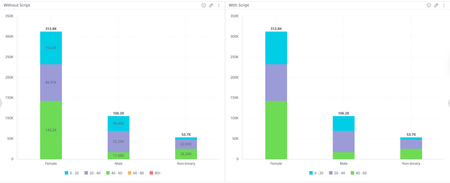
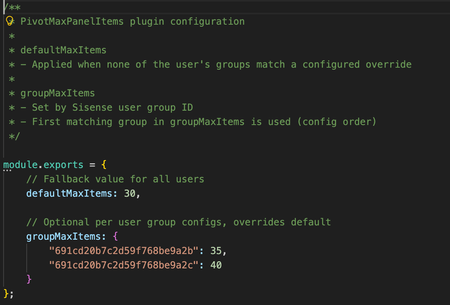
Overview Pivot widgets in Sisense are often used to explore and visualize complex datasets with multiple dimensions and measures. In some scenarios, users need to build very large pivot tables with many rows, columns, values, or filters. However, pivot widgets enforce internal panel item limits that can restrict how many fields and dimensions can be added to each panel. While these limits are useful for protecting performance, load time, and usability in general, they can become a constraint for advanced users working with large datasets or detailed analytical models. At the same time, organizations may want to apply different limits for different groups of users rather than increasing limits globally for everyone. This use case describes a Sisense plugin that automatically increases pivot panel limits as widgets load, with support for both a global default and optional overrides based on user group membership. The challenge By default, pivot widgets in Sisense can reach panel item limits that prevent users from adding additional dimensions or measures. This can affect: Analysts building large exploratory pivot tables Power users working with wide schemas or detailed hierarchies Dashboards that rely on complex pivots with many fields Manually adjusting widget configuration is not scalable, especially when dashboards contain many pivot widgets or when widgets are opened independently outside a dashboard. In addition, organizations often want different limits for different user groups, rather than applying a single global setting. It is important to note that if a very large number of dimensions are used in an individual pivot widget, that widget may have an extended load time. What the solution does The PivotMaxPanelItems plugin automatically sets the panel.metadata.maxitems value for every panel in pivot-type widgets as they load. At a high level, the plugin: Applies only to pivot widgets Updates all pivot panels (rows, columns, values, filters) Works for widgets inside dashboards and for widgets opened directly Supports a configurable default limit for all users Supports optional overrides based on Sisense user group membership The plugin runs on dashboard and widget load events, ensuring that pivot panel limits are applied consistently without requiring manual changes to individual widgets. Role and group-based configuration The plugin can apply different panel limits depending on the user’s Sisense group membership. This allows organizations to: Grant higher limits to advanced users or analysts Keep more conservative limits for general users Control behavior centrally through configuration If a user belongs to multiple configured groups, the plugin applies the first matching group based on the order defined in the configuration file. If no group matches, the default limit is used. This approach provides flexibility while keeping behavior predictable and easy to manage. How it is used Configuration is handled through a simple configuration file included with the plugin. Administrators can define: A default maximum number of items per pivot panel Optional overrides for specific Sisense user groups Once configured and installed, the plugin will likely require minimal ongoing maintenance in most circumstances. It applies automatically whenever pivot widgets are initialized. The full plugin is attached as a Zip file to this article and is available to download. The code is not compressed or obfuscated, and can be modified as needed, or used as example code for similar plugins. The plugin can be installed as a standard plugin by placing the decompressed folder into the plugin folder. The plugin includes a Readme file with further information. Why it’s useful This approach allows organizations to remove artificial constraints on pivot widget design while still maintaining control over performance and usability. Key benefits include: Enabling larger and more flexible pivot tables Reducing manual widget configuration and rework Applying consistent behavior across dashboards and standalone widgets Supporting different usage patterns across user groups Centralized control through a single configuration file The solution is particularly valuable in environments where advanced users need more flexibility without changing defaults for all users. Outcome With the PivotMaxPanelItems plugin in place, pivot widgets can support more dimensions without manually adding widget scripts. Advanced users gain the flexibility they need, while administrators retain control over limits at the group level through simple configuration. By applying limits automatically and consistently at load time, the plugin ensures predictable behavior across dashboards and widgets, supporting scalable group and role-aware analytics and visualization in Sisense. Screenshots Without a plugin, if a panel type includes too many items, the Add Panel Button is hidden With the plugin, the Add Button does not disappear when below the new limit, as many dimensions and fields as needed can be added to the widget.41Views0likes1CommentFAQ-style chatbot with BloX: use case of AI Assistant
Introduction While Sisense AI features (Simply Ask and the newer Dashboard Assistant) support free-text questions, outcomes can vary depending on factors such as data model quality, business terminology, and user familiarity. In practice, this can result in inconsistent questions, ambiguous phrasing, or less predictable results, especially for less technical users or in environments with less than ideal data models. This use case focuses on how Sisense BloX was used to create a guided FAQ-style interface that triggers the AI chatbot automatically, providing a more controlled, consistent, and user-friendly experience. This solution was implemented for a financial technology company to support users with a wide range of recurring business questions related to multi-asset trading and order management. What the solution does This solution uses BloX to create a guided AI chatbot experience. Instead of typing questions manually, users select a question from a dropdown of predefined FAQs and submit it with a button click. BloX then automatically opens the AI chat window (Simply Ask or Dashboard Assistant), populates the question, and submits it to the chatbot. Questions can be defined directly in the BloX code or sourced dynamically from a data model, which allows the team to manage and update the list of supported questions over time. From the user’s perspective, the experience feels like interacting with an FAQ. Under the hood, the AI chatbot handles the analysis and response. Why it’s useful Lower barrier to entry for AI features By guiding users through predefined, curated questions, the solution reduces ambiguity and removes the need to worry about phrasing, terminology, or syntax. This results in more consistent, predictable, and accurate answers, making AI insights accessible to a broader audience, including users with varying technical backgrounds and less mature or optimized data models. Fewer widgets and dashboards to maintain Not every user needs answers to every possible question. By centralizing common questions into a single guided AI experience, the team avoids creating and maintaining excessive widgets and dashboards for individual analysis, improving performance and reducing long-term maintenance effort. Attachments FAQswithSimplyAskOrAIAssistant.dash.txt (example dashboard using the Sample ECommerce cube) BloXActionsForAI-FAQs.zip (BloX actions' scripts) BloXTemplatesForAI-FAQs.zip (BloX templates for the FAQ widgets, also included in the .dash file above). Note: Remove the .txt extension before importing the dashboard (.dash) file.49Views1like0CommentsUsing Git to transfer datasources between Sisense servers when connections differ
Overview Many companies and organizations use Sisense Git Integration to transfer data models between Sisense servers or to promote data models from development or staging environments into production. This approach helps teams manage changes, track history, and deploy data model updates in a controlled, repeatable way. A common challenge arises when different servers or environments, such as development, staging, and production, must connect to different data sources or data warehouse connections. While the underlying schema, tables, and joins may be identical, connection credentials, hosts, or database names can be environment-specific. By default, promoting a data model through Git includes connection configuration, which can unintentionally overwrite production connections during deployment. This use case describes a practical Sisense Git Integration workflow that allows teams to promote data model changes between Sisense environments while preserving environment-specific connection configurations. Terminology To keep the workflow clear, this article uses the following terms: Development environment: The Sisense server used for building and testing data model changes. This can also be any Sisense server where data model schema changes are applied first. Staging environment: An optional intermediate Sisense server used for validation before production. Production environment: The Sisense server is used in production and by most users. This can be any server where data model schema changes are deployed only after being tested in other environments Schema changes: Updates to tables, joins, columns, and relationships within a data model. Connection configuration: Data source connection details stored in connection.json. The challenge A typical setup includes separate Sisense environments for development or staging and production, each potentially connected to a slightly different data source connection, such as differing parameters. Organizations and businesses want to: Promote schema changes such as tables, joins, and column updates from development to production. Use Sisense Git Integration to track, manage, and deploy these changes across servers. Avoid overwriting environment-specific connection details or parameters with development settings. Without a defined Git promotion process, teams often resort to manually fixing connections in production after each import. This manual step takes time, introduces the risk of errors, and becomes increasingly difficult if the number of data models or environments grows. Key insight Sisense stores connection configuration in a single file named connection.json, which is separate from other data model files tracked in Git. As long as this file remains unchanged during a Git pull or merge, each Sisense environment retains its existing data source connection configuration. Sisense Git Integration treats all data model assets as plain text JSON files, so only files that change are applied during a pull or merge operation. This behavior makes it possible to promote schema changes independently of connection settings by carefully controlling how connection.json is handled in Git. What the solution does The solution uses standard Git workflows to promote data model schema changes while excluding connection changes from deployment. At a high level, the approach: Preserves environment-specific connections on each Sisense server. Uses Git branches to separate development data model changes from production-ready data models. Ensures that only schema-related files are promoted between environments. This allows teams to safely deploy updates without risking accidental connection overwrites. Recommended Git strategy A simple and effective approach is to maintain two primary branches in the external Git repository: Development branch: Used for ongoing development and testing, typically connected to the development or staging environment. Production branch: Represents production-ready data models and contains the production connection configuration. Initial setup When a data model is first committed to Git, connection.json is included by design and cannot be excluded. For this reason, the initial commit should be made carefully so that each environment captures the correct baseline connection. In practice, this means ensuring the production branch contains the production connection configuration. Ongoing development workflow Developers make schema changes in the development environment. Before committing, any changes to connection.json are discarded or confined to the development branch. The production branch retains its own connection.json, which may differ from the development connection. During merges, the production connection configuration is never overwritten Only schema-related files are committed to the development branch. When changes are ready for promotion, they are merged or cherry-picked into the production branch, again excluding connection.json. The production environment pulls only from the production branch, ensuring that schema changes are applied while the production connection remains unchanged. On the production server, always perform Git pulls from the production branch only. The production branch contains the production connection.json, ensuring that production connections are never replaced by development settings Why this works Sisense Git Integration applies updates based on file differences. If connection.json is unchanged during a Git pull, Sisense does not modify the existing connection in the target environment. By using Git to control which files are modified in each branch (development and production), teams can cleanly separate schema evolution in a data model from connection configuration. This makes deployments predictable and avoids unintended side effects. Best practices Always verify that connection.json remains unchanged in the production branch before committing schema updates. Use external Git tools for merges or cherry-picks when finer control over files is required. Avoid editing connections in development after the initial baseline unless intentionally changing the connection configuration. Document the workflow clearly so all team members follow the same process. Limitations and notes connection.json cannot be excluded from the initial commit of a data model. Each environment must already have the correct connection configured. In some cases, each environment may maintain its own branch containing its specific connection.json. This approach applies only to data models and does not affect dashboards or other Sisense assets. Outcome By adopting this workflow, teams can safely promote data model schema changes between Sisense environments without overwriting environment-specific data source connections. Production connections remain stable, manual post-import fixes are eliminated, and Git-based promotion becomes a reliable and repeatable process across environments. This approach strengthens governance, reduces deployment risk, and allows teams to scale their Sisense development workflows with confidence. Screenshots: Connection.json in Sisense Git UI Diagram of Example Git Flow Development Environment (Sisense Server) | | 1. Schema changes | - tables | - joins | - columns | (connection.json may differ) | v Development Branch (Git Repository) | | 2. Commit schema files only | - Exclude or discard connection.json changes | v Production Branch (Git Repository) | | 3. Merge or cherry-pick | - Schema changes only | - connection.json unchanged | v Production Environment (Sisense Server) | | 4. Git pull | - Schema updated | - Production connection preserved Discard all unintended changes to connection.json When in the Production Environment, only pull from the Production Git Branch, with the Production connection.json35Views0likes0CommentsHow to find the dashboard I need?
Has anyone found a good solution to help users locate the dashboards they need? Some potential options that come to mind are key-word search or labels. Our reporting suite has grown so large that it’s becoming difficult for users to find what they’re looking for. Aside from streamlining our offerings (which we’re already working on using usage data), what else have you implemented to improve the user experience?55Views0likes2CommentsChange an SVG color in BloX with criteria based on token - and for it to work with the carousel
Hello, my aim is to have a bar grow (change width, seems to be working fine) and change color based on if it exceeds a threshold. The issue is that the threshold will be client dependent. I have this script that works as intended for the initial display with static thresholds, but I want to replace the "parseInt('80')" and "parseInt('65')" in the script with tokens like "{panel:Threshold Good}" and "{panel:Threshold Meh}". It also fails to display the conditional color when I cycle on the carousel. Any assistance would be appreciated! { "style": ".conditional-bar-good{fill:#006100; stroke:#006100} .conditional-bar-meh{fill:#9C6500; stroke:#9C6500} .conditional-bar-bad{fill:#9C0006; stroke:#9C0006} .conditional-bar-na{fill:#000000; stroke:#000000}", "script": "$(document).ready(function(){let barClass = document.getElementById('conditional-bar');let cbw = parseInt(barClass.getAttribute('width'));if(cbw >=parseInt('80')){barClass.className.baseVal = 'conditional-bar-good';}else if(cbw>=parseInt('65')){barClass.className.baseVal = 'conditional-bar-meh';}else{barClass.className.baseVal = 'conditional-bar-bad';};});", "title": "", "showCarousel": true, "body": [ { "type": "Container", "items": [ { "type": "TextBlock", "horizontalAlignment": "center", "spacing": "small", "text": "<svg width='80%' height='25'> <rect width='100%' height=100% rx='15' style='fill:#C6EFCE;stroke-width:1;stroke:#006100' /> <rect width='{panel:Threshold Good}%' height='100%' rx='15' style='fill:#FFEB9C;stroke-width:1;stroke:#9C6500' /> <rect width='{panel: Threshold Meh}%' height='100%' rx='15' style='fill:#FFC7CE;stroke-width:1;stroke:#9C0006' /> <rect id='conditional-bar' class='conditional-bar-na' y='20%' width='{panel:Value 1}%' height='60%' rx='10' style='fill-opacity: 0.7;stroke-width:3;' /></svg>" } ] }, { "spacing": "none", "type": "Container", "items": [ { "spacing": "none", "type": "TextBlock", "class": "condition_data", "text": "{panel:Label 1}", "horizontalAlignment": "center", "size": "medium", "weight": "bold" }, { "spacing": "none", "type": "TextBlock", "class": "condition_data", "text": "{panel:Value 1}%", "horizontalAlignment": "center", "size": "large", "weight": "bold" } ] } ], "actions": [] }Solved114Views0likes5CommentsCreating widgets via the Sisense API
Overview Many companies and organizations use Sisense’s REST API to automate dashboard and widget creation. This can help integrate Sisense with existing automations, dynamically generate dashboards for different users, or manage large scale dashboard and widget deployments programmatically. Sisense provides an API endpoint for creating widgets directly on a dashboard. This allows developers to define widget configurations in JSON and publish them without using the Sisense UI for each new widget. Each widget’s behavior, layout, and data structure are defined in its metadata, mirroring the structure found inside Sisense dashboard export files (.dash files). This use case describes how to create widgets programmatically using the Sisense API and explains how to work with widget metadata and JAQL structures when doing so. What the solution does The Sisense Widget Creation API endpoint allows you to programmatically create widgets on an existing dashboard using a POST request: POST /api/v1/dashboards/{dashboardID}/widgets The request body is a widget metadata object defining the widget’s structure, data query, style, and layout. This metadata format is identical to what Sisense stores within a .dash file. The type property specifies the visualization type (for example, chart/pie, chart/bar, or pivot2), and the metadata section uses the JAQL query format to describe dimensions, measures, and filters. Developers can build widgets dynamically by: Defining visualization type and subtype (e.g., pie chart, bar chart, pivot table) Referencing the correct data source Configuring dimensions and measures within the metadata.panels structure Applying filters or plugin (such as JTD) behaviors Posting the configuration to the API endpoint API Reference: Full documentation for this endpoint and payload structure is available in the Sisense REST API documentation. Understanding widget Metadata Each Sisense widget contains a metadata object that defines the data query (via JAQL), chart style, and layout. A practical way to understand this format is to export a dashboard and inspect the widgets inside the resulting .dash file. Each widget entry includes: type – The widget type (for example, chart/pie, chart/bar, pivot2) datasource – Data model used metadata – A JAQL definition of dimensions, measures, and filters and any other dimensions, equivalent to the left hand panel in widget editor, plus filters style – Visual configuration options such as labels, legends, and axis settings options – Additional behaviors such as filter synchronization or drill options The JAQL format underpins the widget’s data model. It describes how dimensions, measures, and filters are applied when the widget queries the Elasticube or Live data source. References: Sisense JAQL documentation Metadata Item Widget Class Widget Metadata Example payloads Pie Chart Example (Basic Configuration) { "title": "", "type": "chart/pie", "tags": [], "datasource": { "fullname": "localhost/CopyOfECommerce", "id": "localhost_aCopyOfECommerce", "address": "LocalHost", "database": "aCopyOfECommerce", "live": false, "title": "CopyOfECommerce" }, "subtype": "pie/classic", "style": { "legend": { "enabled": false, "position": "left" }, "labels": { "enabled": true, "categories": true, "value": false, "percent": true, "decimals": false, "fontFamily": "Open Sans", "color": "red" }, "convolution": { "enabled": true, "selectedConvolutionType": "byPercentage", "minimalIndependentSlicePercentage": 3, "independentSlicesCount": 7 }, "dataLimits": { "seriesCapacity": 100000 } }, "instanceid": "5466B-AEAE-4D", "drillToDashboardConfig": { "drilledDashboardPrefix": "_drill", "drilledDashboardsFolderPrefix": "", "displayFilterPane": true, "displayDashboardsPane": true, "displayToolbarRow": true, "displayHeaderRow": true, "volatile": false, "hideDrilledDashboards": true, "hideSharedDashboardsForNonOwner": true, "drillToDashboardMenuCaption": "Jump to dashboard", "drillToDashboardRightMenuCaption": "Jump to ", "drillToDashboardNavigateType": 1, "drillToDashboardNavigateTypePivot": 2, "drillToDashboardNavigateTypeCharts": 1, "drillToDashboardNavigateTypeOthers": 3, "excludeFilterDims": [], "includeFilterDims": [], "drilledDashboardDisplayType": 2, "dashboardIds": [], "modalWindowResize": false, "showFolderNameOnMenuSelection": false, "resetDashFiltersAfterJTD": false, "sameCubeRestriction": true, "showJTDIcon": true, "sendPieChartMeasureFiltersOnClick": true, "forceZeroInsteadNull": false, "mergeTargetDashboardFilters": false, "drillToDashboardByName": false }, "realTimeRefreshing": false, "metadata": { "ignore": { "dimensions": [], "ids": [], "all": false }, "panels": [ { "name": "categories", "items": [ { "jaql": { "table": "Brand", "column": "Brand", "dim": "[Brand.Brand]", "datatype": "text", "columnTitle": "Brand", "tableTitle": "Brand", "merged": true, "title": "Brand" }, "instanceid": "749C8-B7DE-7A", "field": { "id": "[Brand.Brand]", "index": 0 }, "format": { "members": {} } } ] }, { "name": "values", "items": [] }, { "name": "filters", "items": [] } ] }, "options": { "dashboardFiltersMode": "select", "selector": true, "triggersDomready": true, "autoUpdateOnEveryChange": true, "drillToAnywhere": true } } This payload demonstrates a simple pie chart with one category (dimension) and a single measure, along with styling options for labels and legends. Bar Chart Example (With Filters and Multiple Dimensions) { "title": "", "type": "chart/bar", "tags": [], "datasource": { "fullname": "localhost/CopyOfECommerce", "id": "localhost_aCopyOfECommerce", "address": "LocalHost", "database": "aCopyOfECommerce", "live": false, "title": "CopyOfECommerce" }, "subtype": "bar/classic", "style": { "legend": { "enabled": true, "position": "bottom" }, "seriesLabels": { "enabled": false, "rotation": 0, "labels": { "enabled": false, "types": { "count": false, "percentage": false, "relative": false, "totals": false }, "stacked": false, "stackedPercentage": false } }, "xAxis": { "enabled": true, "ticks": true, "labels": { "enabled": true, "rotation": 0 }, "title": { "enabled": false }, "x2Title": { "enabled": false }, "gridLines": true, "isIntervalEnabled": false }, "yAxis": { "inactive": false, "enabled": true, "ticks": true, "labels": { "enabled": true, "rotation": 0 }, "title": { "enabled": false }, "gridLines": true, "logarithmic": false, "isIntervalEnabled": true, "hideMinMax": false }, "y2Axis": { "inactive": true, "enabled": true, "ticks": true, "labels": { "enabled": true, "rotation": 0 }, "title": { "enabled": false }, "gridLines": false, "logarithmic": false, "isIntervalEnabled": true, "hideMinMax": false }, "dataLimits": { "seriesCapacity": 50, "categoriesCapacity": 100000 }, "navigator": { "enabled": true }, "narration": { "display": "above", "verbosity": "low", "labels": [ { "id": "category", "title": "Category", "singular": "Category", "plural": "Category" }, { "id": "brand", "title": "Brand", "singular": "Brand", "plural": "Brand" } ] } }, "instanceid": "FF03B-0D74-36", "drillToDashboardConfig": { "drilledDashboardPrefix": "_drill", "drilledDashboardsFolderPrefix": "", "displayFilterPane": true, "displayDashboardsPane": true, "displayToolbarRow": true, "displayHeaderRow": true, "volatile": false, "hideDrilledDashboards": true, "hideSharedDashboardsForNonOwner": true, "drillToDashboardMenuCaption": "Jump to dashboard", "drillToDashboardRightMenuCaption": "Jump to ", "drillToDashboardNavigateType": 1, "drillToDashboardNavigateTypePivot": 2, "drillToDashboardNavigateTypeCharts": 1, "drillToDashboardNavigateTypeOthers": 3, "excludeFilterDims": [], "includeFilterDims": [], "drilledDashboardDisplayType": 2, "dashboardIds": [], "modalWindowResize": false, "showFolderNameOnMenuSelection": false, "resetDashFiltersAfterJTD": false, "sameCubeRestriction": true, "showJTDIcon": true, "sendPieChartMeasureFiltersOnClick": true, "forceZeroInsteadNull": false, "mergeTargetDashboardFilters": false, "drillToDashboardByName": false }, "realTimeRefreshing": false, "metadata": { "ignore": { "dimensions": [], "ids": [], "all": false }, "panels": [ { "name": "categories", "items": [ { "jaql": { "table": "Brand_Category_with_NULLS", "column": "Category", "dim": "[Brand_Category_with_NULLS.Category]", "datatype": "text", "columnTitle": "Category", "tableTitle": "Brand_Category_with_NULLS", "merged": true, "title": "Category" }, "instanceid": "635B0-67BA-AF", "field": { "id": "[Brand_Category_with_NULLS.Category]", "index": 0 }, "format": {}, "panel": "rows" } ] }, { "name": "values", "items": [ { "jaql": { "table": "Brand_Category_with_NULLS", "column": "Brand", "dim": "[Brand_Category_with_NULLS.Brand]", "datatype": "text", "columnTitle": "Brand", "tableTitle": "Brand_Category_with_NULLS", "merged": true, "title": "# of unique Brand", "agg": "count" }, "instanceid": "DDE5F-0407-39", "panel": "measures", "field": { "id": "[Brand_Category_with_NULLS.Brand]", "index": 2 }, "format": { "mask": { "type": "number", "abbreviations": { "t": true, "b": true, "m": true, "k": true }, "separated": true, "decimals": "auto", "abbreviateAll": false, "isdefault": true } } } ] }, { "name": "break by", "items": [ { "jaql": { "table": "Brand_Category_with_NULLS", "column": "Category", "dim": "[Brand_Category_with_NULLS.Category]", "datatype": "text", "columnTitle": "Category", "tableTitle": "Brand_Category_with_NULLS", "merged": true, "title": "Category" }, "instanceid": "C1963-AE15-BF", "panel": "columns", "field": { "id": "[Brand_Category_with_NULLS.Category]", "index": 1 }, "format": { "members": {} } } ] }, { "name": "filters", "items": [ { "jaql": { "table": "Brand", "column": "Brand", "dim": "[Brand.Brand]", "datatype": "text", "columnTitle": "Brand", "tableTitle": "Brand", "merged": true, "isPrimary": false, "isDashboardFilter": false, "datasource": { "fullname": "localhost/CopyOfECommerce", "id": "localhost_aCopyOfECommerce", "address": "LocalHost", "database": "aCopyOfECommerce", "live": false, "title": "CopyOfECommerce" }, "locale": "en-us", "title": "Brand", "collapsed": true, "filter": { "explicit": true, "multiSelection": true, "members": [ "Adbananor WorldWide " ] } }, "instanceid": "7B315-30EC-C0", "panel": "scope" } ] } ] }, "options": { "dashboardFiltersMode": "filter", "selector": true, "triggersDomready": true, "autoUpdateOnEveryChange": true, "drillToAnywhere": true, "previousScrollerLocation": { "min": null, "max": null } } } This example includes multiple JAQL panels (categories, measures, and breakby dimensions), along with explicit filters and advanced style options. It also shows how to define navigation and plugin (such as JTD) configurations. Working with dashboard files Existing dashboard files (.dash) can serve as valuable templates for widget creation. Each widget definition inside a dashboard export can be used as a direct payload for the API. To do this: Export a dashboard from Sisense. Open the .dash file in a text editor. Locate the widget definition under the "widgets" array. Use that widget object as the body of your POST request to the API. This approach allows developers to automate dashboard replication or dynamically add widgets that follow consistent design patterns. Full Dashboard File Example { "title": "TestExport", "oid": "68f924f4b7958b87a83905c3", "desc": "", "source": null, "type": "dashboard", "style": { "palette": { "name": "Vivid", "colors": [ "#00cee6", "#9b9bd7", "#6EDA55", "#fc7570", "#fbb755", "#218A8C" ] } }, "layout": { "instanceid": "87457-1EB6-EA", "type": "columnar", "columns": [ { "width": 100, "cells": [ { "subcells": [ { "elements": [ { "minHeight": 128, "maxHeight": 2048, "minWidth": 128, "maxWidth": 2048, "height": "756px", "defaultWidth": 512, "widgetid": "68f92503b7958b87a83905c5", "autoHeight": "756px" } ], "width": 100, "stretchable": false, "pxlWidth": 647, "index": 0 } ] }, { "subcells": [ { "elements": [ { "minHeight": 96, "maxHeight": 2048, "minWidth": 128, "maxWidth": 2048, "height": 384, "defaultWidth": 512, "widgetid": "68f925dbb7958b87a83905c9" } ], "width": 100, "stretchable": false, "pxlWidth": 647, "index": 0 } ] }, { "subcells": [ { "elements": [ { "minHeight": 96, "maxHeight": 2048, "minWidth": 128, "maxWidth": 2048, "height": 384, "defaultWidth": 512, "widgetid": "68f9269db7958b87a83905cc" } ] } ] } ], "pxlWidth": 647, "index": 0 } ] }, "original": null, "dataExploration": false, "lastOpened": null, "previewLayout": [], "datasource": { "address": "LocalHost", "title": "CopyOfECommerce", "id": "localhost_aCopyOfECommerce", "database": "aCopyOfECommerce", "fullname": "localhost/CopyOfECommerce", "live": false }, "filters": [], "editing": true, "settings": { "autoUpdateOnFiltersChange": true }, "widgets": [ { "title": "", "type": "pivot2", "subtype": "pivot2", "oid": "68f92503b7958b87a83905c5", "desc": null, "source": null, "datasource": { "address": "LocalHost", "title": "CopyOfECommerce", "id": "localhost_aCopyOfECommerce", "database": "aCopyOfECommerce", "fullname": "localhost/CopyOfECommerce", "live": false }, "selection": null, "metadata": { "ignore": { "dimensions": [], "ids": [], "all": false }, "panels": [ { "name": "rows", "items": [ { "jaql": { "table": "Brand", "column": "Brand", "dim": "[Brand.Brand]", "datatype": "text", "columnTitle": "Brand", "tableTitle": "Brand", "merged": true, "title": "Brand" }, "instanceid": "D2FFC-C3EB-81", "panel": "rows", "field": { "id": "[Brand.Brand]", "index": 0 } } ] }, { "name": "values", "items": [] }, { "name": "columns", "items": [] }, { "name": "filters", "items": [] } ], "usedFormulasMapping": {} }, "style": { "scroll": false, "pageSize": 25, "automaticHeight": true, "colors": { "rows": true, "columns": false, "headers": false, "members": false, "totals": false } }, "instanceid": "012C6-D97F-BF", "realTimeRefreshing": false, "options": { "dashboardFiltersMode": "filter", "selector": false, "triggersDomready": true, "drillToAnywhere": true }, "dashboardid": "68f924f4b7958b87a83905c3", "query": { "datasource": { "fullname": "localhost/CopyOfECommerce", "id": "localhost_aCopyOfECommerce", "address": "LocalHost", "database": "aCopyOfECommerce", "live": false, "title": "CopyOfECommerce" }, "format": "pivot", "grandTotals": { "title": "Grand Total" }, "metadata": [ { "jaql": { "table": "Brand", "column": "Brand", "dim": "[Brand.Brand]", "datatype": "text", "columnTitle": "Brand", "tableTitle": "Brand", "merged": true, "title": "Brand" }, "instanceid": "D2FFC-C3EB-81", "panel": "rows", "field": { "id": "[Brand.Brand]", "index": 0 }, "handlers": [] } ], "m2mThresholdFlag": 0 } }, { "title": "", "type": "chart/pie", "subtype": "pie/classic", "oid": "68f925dbb7958b87a83905c9", "desc": null, "source": null, "datasource": { "address": "LocalHost", "title": "CopyOfECommerce", "id": "localhost_aCopyOfECommerce", "database": "aCopyOfECommerce", "fullname": "localhost/CopyOfECommerce", "live": false }, "selection": null, "metadata": { "ignore": { "dimensions": [], "ids": [], "all": false }, "panels": [ { "name": "categories", "items": [ { "jaql": { "table": "Brand", "column": "Brand", "dim": "[Brand.Brand]", "datatype": "text", "columnTitle": "Brand", "tableTitle": "Brand", "merged": true, "title": "Brand" }, "instanceid": "749C8-B7DE-7A", "field": { "id": "[Brand.Brand]", "index": 0 }, "format": { "members": {} } } ] }, { "name": "values", "items": [] }, { "name": "filters", "items": [] } ], "usedFormulasMapping": {} }, "style": { "legend": { "enabled": false, "position": "left" }, "labels": { "enabled": true, "categories": true, "value": false, "percent": true, "decimals": false, "fontFamily": "Open Sans", "color": "red" }, "convolution": { "enabled": true, "selectedConvolutionType": "byPercentage", "minimalIndependentSlicePercentage": 3, "independentSlicesCount": 7 }, "dataLimits": { "seriesCapacity": 100000 } }, "instanceid": "5466B-AEAE-4D", "drillToDashboardConfig": { "drilledDashboardPrefix": "_drill", "drilledDashboardsFolderPrefix": "", "displayFilterPane": true, "displayDashboardsPane": true, "displayToolbarRow": true, "displayHeaderRow": true, "volatile": false, "hideDrilledDashboards": true, "hideSharedDashboardsForNonOwner": true, "drillToDashboardMenuCaption": "Jump to dashboard", "drillToDashboardRightMenuCaption": "Jump to ", "drillToDashboardNavigateType": 1, "drillToDashboardNavigateTypePivot": 2, "drillToDashboardNavigateTypeCharts": 1, "drillToDashboardNavigateTypeOthers": 3, "excludeFilterDims": [], "includeFilterDims": [], "drilledDashboardDisplayType": 2, "dashboardIds": [], "modalWindowResize": false, "showFolderNameOnMenuSelection": false, "resetDashFiltersAfterJTD": false, "sameCubeRestriction": true, "showJTDIcon": true, "sendPieChartMeasureFiltersOnClick": true, "forceZeroInsteadNull": false, "mergeTargetDashboardFilters": false, "drillToDashboardByName": false }, "realTimeRefreshing": false, "options": { "dashboardFiltersMode": "select", "selector": true, "triggersDomready": true, "autoUpdateOnEveryChange": true, "drillToAnywhere": true }, "dashboardid": "68f924f4b7958b87a83905c3" }, { "title": "", "type": "chart/bar", "subtype": "bar/classic", "oid": "68f9269db7958b87a83905cc", "desc": null, "source": null, "datasource": { "address": "LocalHost", "title": "CopyOfECommerce", "id": "localhost_aCopyOfECommerce", "database": "aCopyOfECommerce", "fullname": "localhost/CopyOfECommerce", "live": false }, "selection": null, "metadata": { "ignore": { "dimensions": [], "ids": [], "all": false }, "panels": [ { "name": "categories", "items": [ { "jaql": { "table": "Brand_Category_with_NULLS", "column": "Category", "dim": "[Brand_Category_with_NULLS.Category]", "datatype": "text", "columnTitle": "Category", "tableTitle": "Brand_Category_with_NULLS", "merged": true, "title": "Category" }, "instanceid": "635B0-67BA-AF", "field": { "id": "[Brand_Category_with_NULLS.Category]", "index": 0 }, "format": {}, "panel": "rows" } ] }, { "name": "values", "items": [ { "jaql": { "table": "Brand_Category_with_NULLS", "column": "Brand", "dim": "[Brand_Category_with_NULLS.Brand]", "datatype": "text", "columnTitle": "Brand", "tableTitle": "Brand_Category_with_NULLS", "merged": true, "title": "# of unique Brand", "agg": "count" }, "instanceid": "DDE5F-0407-39", "panel": "measures", "field": { "id": "[Brand_Category_with_NULLS.Brand]", "index": 2 }, "format": { "mask": { "type": "number", "abbreviations": { "t": true, "b": true, "m": true, "k": true }, "separated": true, "decimals": "auto", "abbreviateAll": false, "isdefault": true } } } ] }, { "name": "break by", "items": [ { "jaql": { "table": "Brand_Category_with_NULLS", "column": "Category", "dim": "[Brand_Category_with_NULLS.Category]", "datatype": "text", "columnTitle": "Category", "tableTitle": "Brand_Category_with_NULLS", "merged": true, "title": "Category" }, "instanceid": "C1963-AE15-BF", "panel": "columns", "field": { "id": "[Brand_Category_with_NULLS.Category]", "index": 1 }, "format": { "members": {} } } ] }, { "name": "filters", "items": [ { "jaql": { "table": "Brand", "column": "Brand", "dim": "[Brand.Brand]", "datatype": "text", "columnTitle": "Brand", "tableTitle": "Brand", "merged": true, "isPrimary": false, "isDashboardFilter": false, "datasource": { "fullname": "localhost/CopyOfECommerce", "id": "localhost_aCopyOfECommerce", "address": "LocalHost", "database": "aCopyOfECommerce", "live": false, "title": "CopyOfECommerce" }, "locale": "en-us", "title": "Brand", "collapsed": true, "filter": { "explicit": true, "multiSelection": true, "members": [ "Adbananor WorldWide " ] } }, "instanceid": "7B315-30EC-C0", "panel": "scope" } ] } ], "usedFormulasMapping": {} }, "style": { "legend": { "enabled": true, "position": "bottom" }, "seriesLabels": { "enabled": false, "rotation": 0, "labels": { "enabled": false, "types": { "count": false, "percentage": false, "relative": false, "totals": false }, "stacked": false, "stackedPercentage": false } }, "xAxis": { "enabled": true, "ticks": true, "labels": { "enabled": true, "rotation": 0 }, "title": { "enabled": false }, "x2Title": { "enabled": false }, "gridLines": true, "isIntervalEnabled": false }, "yAxis": { "inactive": false, "enabled": true, "ticks": true, "labels": { "enabled": true, "rotation": 0 }, "title": { "enabled": false }, "gridLines": true, "logarithmic": false, "isIntervalEnabled": true, "hideMinMax": false }, "y2Axis": { "inactive": true, "enabled": true, "ticks": true, "labels": { "enabled": true, "rotation": 0 }, "title": { "enabled": false }, "gridLines": false, "logarithmic": false, "isIntervalEnabled": true, "hideMinMax": false }, "dataLimits": { "seriesCapacity": 50, "categoriesCapacity": 100000 }, "navigator": { "enabled": true }, "narration": { "display": "above", "verbosity": "low", "labels": [ { "id": "category", "title": "Category", "singular": "Category", "plural": "Category" }, { "id": "brand", "title": "Brand", "singular": "Brand", "plural": "Brand" } ] } }, "instanceid": "FF03B-0D74-36", "drillToDashboardConfig": { "drilledDashboardPrefix": "_drill", "drilledDashboardsFolderPrefix": "", "displayFilterPane": true, "displayDashboardsPane": true, "displayToolbarRow": true, "displayHeaderRow": true, "volatile": false, "hideDrilledDashboards": true, "hideSharedDashboardsForNonOwner": true, "drillToDashboardMenuCaption": "Jump to dashboard", "drillToDashboardRightMenuCaption": "Jump to ", "drillToDashboardNavigateType": 1, "drillToDashboardNavigateTypePivot": 2, "drillToDashboardNavigateTypeCharts": 1, "drillToDashboardNavigateTypeOthers": 3, "excludeFilterDims": [], "includeFilterDims": [], "drilledDashboardDisplayType": 2, "dashboardIds": [], "modalWindowResize": false, "showFolderNameOnMenuSelection": false, "resetDashFiltersAfterJTD": false, "sameCubeRestriction": true, "showJTDIcon": true, "sendPieChartMeasureFiltersOnClick": true, "forceZeroInsteadNull": false, "mergeTargetDashboardFilters": false, "drillToDashboardByName": false }, "realTimeRefreshing": false, "options": { "dashboardFiltersMode": "filter", "selector": true, "triggersDomready": true, "autoUpdateOnEveryChange": true, "drillToAnywhere": true, "previousScrollerLocation": { "min": null, "max": null } }, "dashboardid": "68f924f4b7958b87a83905c3" } ], "hierarchies": [] } Why it’s useful Creating widgets through the Sisense API offers significant benefits for developers and system administrators: Automation: Supports large scale or dynamic creation of dashboards and widgets without manual effort. Consistency: Enables teams to apply standardized widget templates across multiple dashboards or environments. Integration: Makes it easy to connect Sisense with external systems or automated workflows. Scalability: Allows for the creation of thousands of widgets or dashboards using consistent metadata. Flexibility: By editing the JAQL and style properties, teams can tailor each widget to specific data or design requirements. Programmatic widget creation is particularly valuable for embedding Sisense into larger analytics workflows, for multi-tenant deployments, or for any scenario where dashboards must be created and maintained dynamically. Outcome Using the Widget Creation API endpoint, organizations can generate Sisense dashboards and visualizations in a consistent, repeatable way. Developers can define complex widgets, including data dimensions, filtering, and styling such as color schemes, entirely through JSON payloads, enabling uniform design and reusable frameworks across a large number of programmatically created widgets. By combining automation with Sisense’s flexible JAQL and metadata structure, teams can scale dashboard and widget deployment while maintaining full control over layout, behavior, and visual standards.55Views0likes0CommentsReplacing values with text: Pivot 2 script
👋 Hello, I have clients doing this in Windows... Replace Values with Text - Pivot Table Widget | Sisense Align A Single Column In Pivot They might end up with a script like this: widget.on('ready', () => { $('td.p-value[val="1"][fidx="2"]').text("First-Time Donor") $('td.p-value[val="0"][fidx="2"]').text("Recurring Donor") }) widget.on('ready', function(sender, ev){ $('td[fidx=2]',element).css('text-align','left') $('td[fidx=2]',element).css('padding-left','5px') $('td[fidx=2]',element).css('vertical-align','middle') }); Can you help me convert this to Pivot 2?Solved55Views0likes1Comment