Connection Tool - Programmatically Remove Unused Datasource Connections, and List All Connections
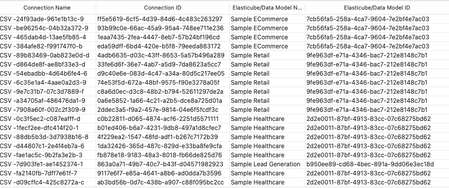
Managing connections within your Sisense environment can become complex over time, if there are a large number of connections, and connections are often added, and replace earlier datasource connections. In some scenarios unused connections can accumulate, potentially cluttering the connection manager UI with no longer relevant connections. Although unused connections typically represent minimal direct security risk, it's considered best practice to maintain a clean, organized list of connections, and in some scenarios it can be desired to remove all unused connections. Sisense prevents the deletion of connections actively used in datasources, safeguarding your dashboards and datasources from disruptions. However, inactive or "orphaned" connections remain after datasources are deleted or a connection is replaced, potentially contributing to unnecessary UI complexity in the connection manager UI. Connections can be of any type Sisense supports, common types include various SQL connections, Excel files, and CSV files, as well as many data providers, such as Big Panda. This tool can also be used to list all connections, with no automatic deletion of unused connections.1KViews4likes4CommentsFinancial Formatting for Pivot Tables on Linux
Financial reports usually have specific styling requirements where negative numbers are shown in parentheses as opposed to having a leading minus sign. They are also usually written in red. The script below formats all the negative numbers in pivot tables exactly as the requirements above. Feel free to modify it if you have different formatting requirements. // Format negative numbers widget.transformPivot({ type: ['value'] }, function(metadata, cell) { if(cell.value >= 0 || !cell.value) { cell.content = cell.value; cell.contentType = 'html'; } else { cell.content ='(' + (-1*cell.value).toString() + ')'; cell.style.color = 'red'; cell.contentType = 'html'; } });3.5KViews4likes3Comments
Enhancing features with N8N
Hi there, I wanted to bring this great app to your attention. We have been using it for a while now and I think its wonderful. N8N is an open-source workflow automation app which can be hosted on-prem or in their cloud. It is similar to Zapier, however in our case the self-hosting capabilities was a necessity. It is easy to use with their WYSIWYG-interface and most can be done with zero-coding. The beauty is that workflows can be downloaded and shared. Ill try to upload a few of mine. We have designed a few, such as; - With a Blox-form authorized users can upload data to a database which is then used in a EC - Send a pulse to N8N which then exports the dashboard to PDF and sends it to the user instead of solely the pulse notification - Asking dashboard access from our dashboard catalog - A simple report manager; authorized users can select dashboards or widgets which needs to be send to any email. This is submitted via Blox and stored in a database. With a Cron in N8N it selects the reports from the database for that timeslot and then sends it. In some cases we expanded this by not only sending a PDF, but also CSV/Excel files. Just wanted to bring this to your attention, since it helped us out a lot 🙂2.6KViews4likes1CommentViews bookmarking: Use case of a financial technology company
Introduction FlexTrade is a global provider of multi-asset execution and order management systems, supporting trading workflows across asset classes, venues, and strategies. Their platforms generate large volumes of highly detailed data that users rely on for day-to-day analysis and decision-making. Companies like FlexTrade operate in an environment where users need deep, flexible analysis across a wide range of dimensions: asset class, venue, strategy, region, client, trader, time, and more. Pivot tables are a natural fit for this kind of detailed, highly dimensional analysis. However, as the number of dimensions grows, teams quickly hit a trade-off: Putting all dimensions into a single widget becomes expensive to query and difficult to interpret. Creating separate widgets for every dimension (or combination of dimensions) leads to bloated dashboards, slower load times, and a poor user experience. This use case focuses on how BloX was used to solve this problem by introducing view bookmarking, a flexible way for users to switch between different slicing configurations (in this example, a set of four dimensions) within a single widget. It also highlights how BloX can be used not just for custom visualizations, but also for building small, purpose-driven mini apps directly inside a dashboard. What the solution does This solution uses BloX to manage view bookmarks for a pivot table. Instead of permanently adding all dimensions to the widget, BloX acts as a control layer that lets users select dimensions to include in the pivot at a time. Each selected combination can be saved as a view bookmark, representing a specific slicing configuration of the same underlying pivot. With this solution, users can: Select up to four dimensions to apply to the pivot table Save the selected combination as a personal bookmark Load and reuse previously saved bookmarks Delete bookmarks that are no longer needed Up to 20 bookmarks are supported out of the box, and all bookmarks are user-specific, allowing each user to maintain their own set of preferred analytical views. The solution also includes basic validation and error handling, such as preventing empty and duplicate bookmark names. From a technical perspective, BloX dynamically updates the pivot’s metadata. From a user perspective, it feels like switching views within a single widget. This keeps the analysis flexible while the dashboard structure remains simple and performant. Why it’s useful Scales to 10+ dimensions without UI overload Multi-asset trading analysis often requires exploring many dimensions, but not all at the same time. This solution allows FlexTrade users to work with 10+ dimensions while only surfacing the few that matter for the current question, resulting in less visual noise, lower cognitive load, and faster insights. Maintains dashboard performance and keeps dashboards clean and maintainable By avoiding massive pivots with every dimension enabled or dozens of near-duplicate widgets, the solution keeps queries efficient and dashboards responsive, even as analytical depth increases. One widget with dynamic views replaces an entire grid of narrowly focused widgets, resulting in dashboards that are easier to navigate, faster to load, and easier to maintain. Attachments BloX-ViewDimensionBookmarks.dash.txt (example dashboard using the Sample ECommerce cube) BloXActionsForBookmarks.zip (BloX actions' scripts) ViewsBookmarkV2-2025-12-29.json (BloX template for the view bookmark widget, also included in the .dash file above). Note: Remove the .txt extension before importing the dashboard (.dash) file. The BloX widget also includes a script that automatically populates the dropdown menus with the available dimension names and existing bookmarks based on the widget’s metadata. Here is the script: // Dropdown classes used in the BloX code const dropdownClasses = [ "dimensionDropdown", //dropdowns for selecting the four dimensions "bookmarkDropdown" // dropdown for selecting existing bookmarks ]; const valueToDisable = "Select"; // placeholder value to disable widget.on('ready', function() { dimensions = widget.metadata.panels[0].items; dimensionTitles = dimensions .map(i => i.jaql.title); // Add each dimension title to the dimension dropdowns dimensionTitles.forEach(function(title, index) { $('.dimensionDropdown', element).append( '<option value="' + (index + 1) + '">' + title + '</option>' ); }); bookmarks = widget.metadata.panels[1].items; bookmarkTitles = bookmarks .filter(i => !i.disabled) // keep only not disabled .map(i => i.jaql.title); // extract title // Add each existing bookmark title to the bookmark dropdown bookmarkTitles.forEach(function(title) { $('#bookmarkDropdown', element).append( '<option value="' + title + '">' + title + '</option>' ); }); // Disable placeholder values from selection dropdownClasses.forEach(cls => { $(`.${cls}`).each(function () { let $select = $(this); if (!$select.is("select")) { $select = $select.find("select"); } if ($select.length === 0) return; $select.find("option").first().prop("disabled", true); }); }); });283Views3likes1CommentDynamically Updating Widget Titles Based on Filter Selections in Sisense (Linux)
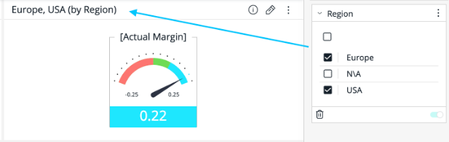
Dynamically Updating Widget Titles Based on Filter Selections in Sisense (Linux) Introduction This article guides how to dynamically change the title of a Sisense widget based on the filter selection. While this is an advanced solution and not natively supported by Sisense functionality, a custom script can be used to achieve this effect. Please proceed with caution, as this is a custom implementation. [ALT Text: A dashboard display titled "Europe, USA (by Region)" showing a gauge indicating an "Actual Margin" of 0.22. The gauge ranges from -0.25 to 0.25. A sidebar lists regions: Europe, N/A, and USA, with checkboxes next to each.] Step-by-Step Guide Navigate to the desired dashboard in Sisense and select the widget you want to change the title dynamically. Open the widget's settings and access the script editor under the 3 dots menu > Edit Script. Copy and paste the following code into the widget's script editor: widget.on("render", function () { let title = "by Region"; // Set a default title // Find the specific filter by its column name let filterUsed = dashboard.filters.$$items.find( (filter) => filter.jaql.column === "Region" ); // Determine the filter text or set default let filterText = filterUsed && filterUsed.jaql.filter.members?.length ? filterUsed.jaql.filter.members.join(", ") : "All Regions"; // Flag to prevent multiple updates let isModified = false; if (!isModified) { widget.title = filterText + ' ' + title; isModified = true; } }); Adjust the filter.jaql.column value instead of "Region" in the script to match the actual filter you intend to use. Update the default title instead of "by Region". Modify the "All Regions" value to be displayed for the “Include All” filter. Save the changes in the script editor. Apply different filter selections on your dashboard to verify that the widget title updates according to the chosen filters. Troubleshooting and Limitations: Ensure that the filter column specified in the script matches an existing filter on the dashboard. The script works only for filters of include type. For excluding filters the additional logic should be implemented. Conclusion By following the steps outlined above, you can set up your Sisense widget titles to dynamically update based on filter selections. While this approach offers flexibility, it involves a custom script and requires careful handling, as modifications made this way are outside Sisense's standard support. Disclaimer: This post outlines a potential custom workaround for a specific use case or provides instructions regarding a specific task. The solution may not work in all scenarios or Sisense versions, so we strongly recommend testing it in your environment before deployment. If you need further assistance with this please let us know.765Views3likes4CommentsCustomizing the Offset Size of Selected Categories in Sisense Pie Chart Widgets
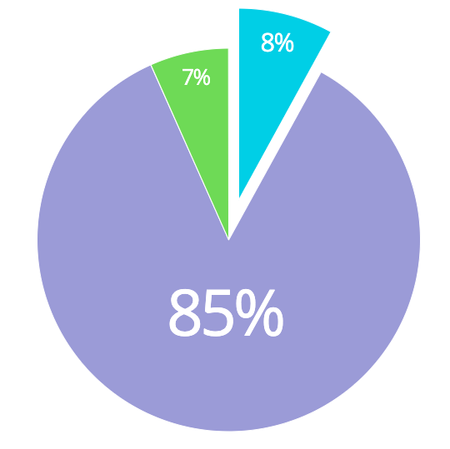
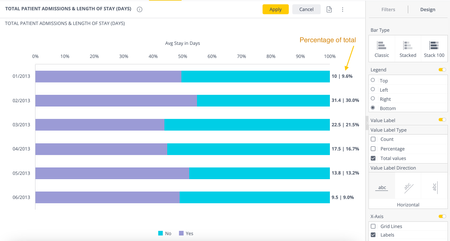
In Sisense, pie chart widgets, including the various pie chart style options such as donut charts, are a common way to visualize data. By default, when a user selects a category within a pie chart, that slice "pops out" to highlight the selection. This article explains how to customize the offset size of selected categories in Sisense pie chart widgets by leveraging Highcharts settings of the widget using Sisense widget scripting capabilities.644Views3likes0Comments
Interactive Time Period Comparison with BloX & Custom Actions
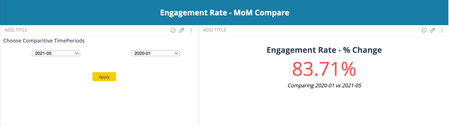
Here is a use case on how to leverage BloX widgets in Sisense to create an interactive dashboard for comparing any KPI between two different time periods. This solution allows users to select two months (or any two time periods) and dynamically calculates the percentage change in the KPI between these selected months.12KViews3likes4CommentsExploring the Potential of Sisense Jump to Dashboard Filter Configurations
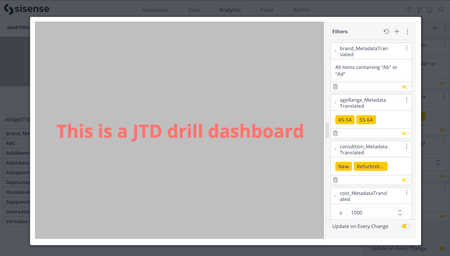
Sisense Jump to Dashboard offers a powerful way to enhance the user experience and streamline data exploration with the help of different filter configurations. By default, all the filters from the parent dashboard, measured values, and widget filters are passed and replaced in the drill dashboard. This guide explains and provides examples of how you can customize the way filters impact the drill dashboard. We'll delve into multiple filter configuration options and provide a step-by-step guide on how to implement them effectively.2.4KViews3likes2Comments