Dashboard script: automatically reset filters to default when a dashboard is opened
Hey everyone 👋 Here's one that comes up more than you'd think. You've got a dashboard with filters. A user applies a bunch of selections, and the next time they (or someone else) opens it, those filters are still there from the last session. Depending on your use case, that might be exactly what you want... but sometimes it isn't. If you'd rather your dashboard always open in a clean, predictable state, with filters resetting to the defaults you set at design time, this dashboard script does exactly that. Every time the dashboard is activated, it removes whatever filters are currently applied and restores the defaults automatically. Here's the full script: dashboard.on("activated", (e, args) => { const dashFilters = args.dashboard.filters; dashFilters.$$items = dashFilters.$$items.splice(0, dashFilters.$$items.length); let filters = args.dashboard.defaultFilters; var options = { save: true, refresh: true, unionIfSameDimensionAndSameType: false, }; if (!Array.isArray(filters)) { filters = [filters]; } dashFilters.update(filters, options); }); Here's what each part is doing: Trigger This fires whenever the dashboard becomes active (when a user opens it or navigates to it). That's the moment everything below kicks off. dashboard.on("activated", (e, args) => { ... }) Step 1: Clear the current filters This grabs the live filter collection and empties it out completely — whatever the user had applied before is gone. const dashFilters = args.dashboard.filters; dashFilters.$$items = dashFilters.$$items.splice(0, dashFilters.$$items.length); Step 2: Grab the default filters defaultFilters is the filter state saved at design time. Whatever you configured as the intended starting point when you built the dashboard. const filters = args.dashboard.defaultFilters; Step 3: Apply the defaults This normalizes the filters into an array, then applies them back with save: true so the reset persists, and refresh: true so the data reloads immediately. The unionIfSameDimensionAndSameType: false setting makes sure it replaces rather than tries to merge with anything. var options = { save: true, refresh: true, unionIfSameDimensionAndSameType: false, }; if (!Array.isArray(filters)) { filters = [filters]; } dashFilters.update(filters, options); When would you actually use this? Shared dashboards where you don't want one user's filter selections to carry over for the next person who opens it Executive or presentation dashboards where the default view is intentional and should always be what people land on Dashboards embedded in portals or apps where a consistent starting state matters Anywhere you've had someone complain that the dashboard "looks different than it usually does" — often it's just leftover filters from a previous session One thing worth knowing The $$items approach in Step 1 is manipulating an internal Sisense array directly. The $$ prefix is a convention for internal Angular properties. It works well, but it's worth keeping in mind that if Sisense changes the internal structure down the road, that line could break without much warning. Something to keep an eye on if you're on this script after an upgrade. Hope this is useful for someone, and happy to answer questions if you run into anything! Mia from QBeeQ, a Sisense Gold Implementation Partner www.qbeeq.io4Views0likes0CommentsWidget script: hide value labels and empty legend items on native bar and column charts
Hey everyone 👋 Ever built a stacked bar or column chart and found yourself wishing you could just... turn the labels off? Maybe you've got a lot of segments, and they're all squishing together, or the chart just doesn't have quite enough room to breathe in your dashboard layout, and the labels end up overlapping and making things harder to read rather than easier. Or, does it bother you that your legend still shows entries for categories that have no data at all for certain dimension values? So you've got these ghost entries sitting in the legend that don't correspond to anything visible in the chart. Sisense doesn't have a native toggle for either of these, so here's a widget script that handles both. It works on bar and column charts (stacked or single value) and does two things: Hides the value labels from displaying on the bars or columns Removes any series from the legend if all of its values are null or zero widget.on("beforeviewloaded", function(w, args){ var allEmpty = arr => arr.every(v => v.y === null || v.y === 0); for (e in args.options.series) { var serie = args.options.series[e]; if (allEmpty(serie.data)) { serie.showInLegend = false; } } }); A few situations where this comes in handy: You have a stacked chart with a lot of segments where the labels are colliding with each other Your dashboard is on the tighter side, and there just isn't room to make the chart large enough for labels to display cleanly Your legend is cluttered with entries for categories that have no data for certain dimension values, which can confuse users into thinking something is missing The chart is more of a visual overview and the exact values aren't the point, users can always hover for tooltips anyway You just prefer a cleaner, less noisy look overall Nothing groundbreaking, just a handy little script if you've ever hit this wall. Mia from QBeeQ, a Sisense Gold Implementation Partner www.qbeeq.io14Views1like0CommentsExtending pivot widget panel limits in Sisense using user groups
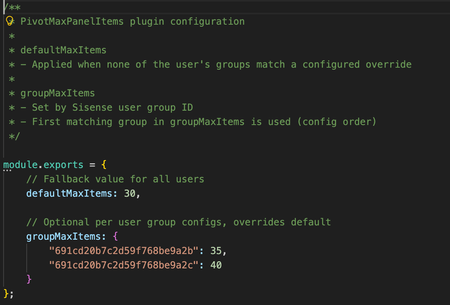
Overview Pivot widgets in Sisense are often used to explore and visualize complex datasets with multiple dimensions and measures. In some scenarios, users need to build very large pivot tables with many rows, columns, values, or filters. However, pivot widgets enforce internal panel item limits that can restrict how many fields and dimensions can be added to each panel. While these limits are useful for protecting performance, load time, and usability in general, they can become a constraint for advanced users working with large datasets or detailed analytical models. At the same time, organizations may want to apply different limits for different groups of users rather than increasing limits globally for everyone. This use case describes a Sisense plugin that automatically increases pivot panel limits as widgets load, with support for both a global default and optional overrides based on user group membership. The challenge By default, pivot widgets in Sisense can reach panel item limits that prevent users from adding additional dimensions or measures. This can affect: Analysts building large exploratory pivot tables Power users working with wide schemas or detailed hierarchies Dashboards that rely on complex pivots with many fields Manually adjusting widget configuration is not scalable, especially when dashboards contain many pivot widgets or when widgets are opened independently outside a dashboard. In addition, organizations often want different limits for different user groups, rather than applying a single global setting. It is important to note that if a very large number of dimensions are used in an individual pivot widget, that widget may have an extended load time. What the solution does The PivotMaxPanelItems plugin automatically sets the panel.metadata.maxitems value for every panel in pivot-type widgets as they load. At a high level, the plugin: Applies only to pivot widgets Updates all pivot panels (rows, columns, values, filters) Works for widgets inside dashboards and for widgets opened directly Supports a configurable default limit for all users Supports optional overrides based on Sisense user group membership The plugin runs on dashboard and widget load events, ensuring that pivot panel limits are applied consistently without requiring manual changes to individual widgets. Role and group-based configuration The plugin can apply different panel limits depending on the user’s Sisense group membership. This allows organizations to: Grant higher limits to advanced users or analysts Keep more conservative limits for general users Control behavior centrally through configuration If a user belongs to multiple configured groups, the plugin applies the first matching group based on the order defined in the configuration file. If no group matches, the default limit is used. This approach provides flexibility while keeping behavior predictable and easy to manage. How it is used Configuration is handled through a simple configuration file included with the plugin. Administrators can define: A default maximum number of items per pivot panel Optional overrides for specific Sisense user groups Once configured and installed, the plugin will likely require minimal ongoing maintenance in most circumstances. It applies automatically whenever pivot widgets are initialized. The full plugin is attached as a Zip file to this article and is available to download. The code is not compressed or obfuscated, and can be modified as needed, or used as example code for similar plugins. The plugin can be installed as a standard plugin by placing the decompressed folder into the plugin folder. The plugin includes a Readme file with further information. Why it’s useful This approach allows organizations to remove artificial constraints on pivot widget design while still maintaining control over performance and usability. Key benefits include: Enabling larger and more flexible pivot tables Reducing manual widget configuration and rework Applying consistent behavior across dashboards and standalone widgets Supporting different usage patterns across user groups Centralized control through a single configuration file The solution is particularly valuable in environments where advanced users need more flexibility without changing defaults for all users. Outcome With the PivotMaxPanelItems plugin in place, pivot widgets can support more dimensions without manually adding widget scripts. Advanced users gain the flexibility they need, while administrators retain control over limits at the group level through simple configuration. By applying limits automatically and consistently at load time, the plugin ensures predictable behavior across dashboards and widgets, supporting scalable group and role-aware analytics and visualization in Sisense. Screenshots Without a plugin, if a panel type includes too many items, the Add Panel Button is hidden With the plugin, the Add Button does not disappear when below the new limit, as many dimensions and fields as needed can be added to the widget.341Views0likes3CommentsHow to Break By with Two Values
I saw this post DRay Benji_PaldiTeam but didn't seem to be resolved. Breakby with multiple Values | Sisense Community Is there a solution to this? I am trying to do a bar chart for the first value and second value to be a line chart with a breaky by. Is there a way to achieve this?240Views0likes0Comments
Enabling Jump to Dashboard on Left-Click in Sisense Column Charts
Afternoon Sisense Community, In a Column chart, a user would like the ability to open a jump to dashboard by left-clicking on a column, rather than the current requirement to right-click for this functionality. Is it possible to enable this feature for left-click actions? I’ve looked at something like seen here, but I couldn't get it to working JTD: https://community.sisense.com/kb/widget_and_dashboard_scripts/customize-onclick-of-column-chart/9245 Any advice on getting a JTD dashboard working on a column chart via left click would be greatly appreciated228Views0likes1CommentConnection Tool - Programmatically Remove Unused Datasource Connections, and List All Connections
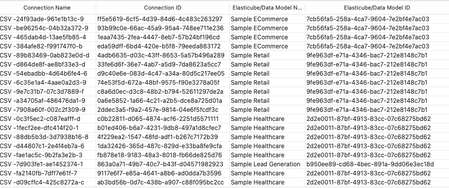
Managing connections within your Sisense environment can become complex over time, if there are a large number of connections, and connections are often added, and replace earlier datasource connections. In some scenarios unused connections can accumulate, potentially cluttering the connection manager UI with no longer relevant connections. Although unused connections typically represent minimal direct security risk, it's considered best practice to maintain a clean, organized list of connections, and in some scenarios it can be desired to remove all unused connections. Sisense prevents the deletion of connections actively used in datasources, safeguarding your dashboards and datasources from disruptions. However, inactive or "orphaned" connections remain after datasources are deleted or a connection is replaced, potentially contributing to unnecessary UI complexity in the connection manager UI. Connections can be of any type Sisense supports, common types include various SQL connections, Excel files, and CSV files, as well as many data providers, such as Big Panda. This tool can also be used to list all connections, with no automatic deletion of unused connections.1KViews4likes4CommentsHow to add Scientific Units to a pivot table
Hello Sisense world, Sometimes you are working with scientific units or any units for that matter that are not available in the number formatting within Sisense. i.e. Currency values, number or percentage. With the widget edit script provided below you can add a scientific unit or any type of symbol that lets your audience know what the measure/value is being calculated by. const myTarget = { type: ['value'], values: [ { title: 'Total Quantity' // desired column } ] }; widget.transformPivot(myTarget, function(metadata, cell) { if (cell.value !== null && cell.value !== undefined) { cell.content = cell.value + " J⋅s"; } }); Here at Cause and Effect we provide a lot of useful solutions to enhance your analytics with Sisense, feel free to reach out to us to enhance your Models, Dashboard, Embedded Dashboards, etc. We have helped out hundreds of clients to produce dashboards that are easily digestable to their audience and bring their KPI's to life. Rafael Ferreira Cause + Effect Strategy [email protected] www.causeandeffectstrategy.com204Views2likes0CommentsEcube build SQL tagging
Hello, We are working with snowflake data source and have requirement to capture meta for ecube build query from data source. Please suggest how I can set query tagging ? SET QUERY_TAG = "{Team_Name:TEAM, Application:Sisense ecubename}" I did check pre build plugins but did not get option to set data source session settings or initial sql settings in python script. Please suggest.120Views1like2CommentsDisabling navigation hover UI for viewer users in Sisense
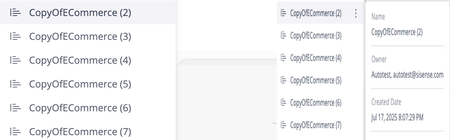
What the Solution Does The RemoveNavigationHoverAndMenu plugin simplifies the Sisense navigation for viewer users by: Hiding the three-dots “more” menu in the left navigation. Hiding the dashboard metadata tooltip that appears on hover. Preventing hover-triggered UI behavior, so menus and tooltips do not activate. Leaving the default navigation fully intact for admins and authors. The plugin automatically detects the user’s base role (prism.user.baseRoleName) and applies these changes only for viewers. It uses scoped JavaScript and CSS to remove the unwanted hover interactions without modifying Sisense core files or affecting navigation performance. How it works: Viewer-only condition: Runs only for viewer users (where prism.user.baseRoleName === "consumer"). Hover interception: Capture-phase event listeners block hover tooltip appearance Scoped CSS: Injects a short style block to hide hover UI elements and remove tooltip styling. Installation: Download RemoveNavigationHoverAndMenu.zip. Extract the folder RemoveNavigationHoverAndMenu into your Sisense plugins directory:/opt/sisense/storage/plugins/Alternatively, upload it through Admin > System Management > File Management to the plugins folder. Refresh dashboards or restart Sisense to activate the plugin. Verification: Log in as a viewer user. Hover over dashboards or folders in the left navigation. Confirm the three-dots menu and metadata tooltip no longer appear. Log in as an admin and confirm the navigation behaves normally. Files included: RemoveNavigationHoverAndMenu/plugin.json RemoveNavigationHoverAndMenu/main.6.js RemoveNavigationHoverAndMenu/README.md Why It’s Useful Simplifying the Sisense interface for viewer users creates a cleaner, more focused environment that emphasizes content rather than controls. By removing hover-based menus and tooltips for viewers while preserving them for admins, this plugin improves usability without compromising functionality. This approach also supports governance and user-experience goals: Governance: Viewers no longer see or interact with features they do not need. Consistency: Admins and authors retain their full toolset for management tasks. Stability: The plugin modifies only the UI layer and requires no changes to data models or access permissions. With this small enhancement, organizations can deliver a more streamlined viewing experience while maintaining full control for those managing dashboards and content. Outcome After installation, viewer users experience a simplified left navigation that shows only essential content. The three-dots menu and dashboard metadata tooltip are removed, and hover-based interactions no longer trigger any UI overlays. Admins and authors retain the complete navigation behavior, ensuring full functionality for management and editing tasks. The result is a cleaner, more predictable interface for viewers and a consistent, role appropriate experience across the Sisense environment. Hover Before Change (for viewers): Hover After Plugin (for viewers): Three Dot Menu Before Change (for viewers): Three Dot After Plugin (Is not visible, for viewers): Side-by-Side Comparison Before and After Comparison:177Views2likes1Comment
Adding Dashboard Descriptions with a Modal Info Icon
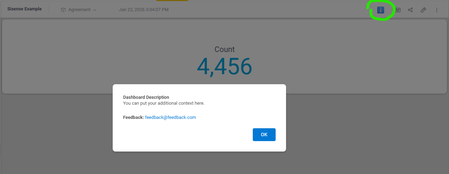
Every widget in Sisense supports descriptions, but what about dashboards themselves? Sometimes you need to explain a dashboard's purpose or guide users on how to interact with it effectively. We solved this by adding an info icon to the top toolbar that triggers a modal with the dashboard description. Add this script at the dashboard level and update the CONFIG object at the top with your custom text. We also included a feedback email in the configuration, making it easy for users to reach out with questions or suggestions. If you'd prefer, you could split this into a separate feedback button instead of including it in the description modal. Another nice touch: you can swap the ℹ️ emoji for a different icon to match the style of Sisense's built-in widget info icons. Let me know if this is helpful or if it this feature already exists and I have missed it. // Configuration - update these values for your dashboard const CONFIG = { feedbackEmail: '[email protected]', description: 'You can put your additional context here.' }; $(document).ready(function() { setTimeout(function() { // Clean up any existing instances $('#dashboard-info-icon, #dashboard-info-modal').remove(); // Create info button const infoButton = $('<button id="dashboard-info-icon" title="Dashboard info">ℹ️</button>').css({ cursor: 'pointer', background: 'none', border: 'none', fontSize: '20px', padding: '5px 10px', color: '#666' }); // Add button to toolbar (after Widget button if found, otherwise append to toolbar) const widgetButton = $('button:contains("Widget")').filter(':visible').first(); if (widgetButton.length) { widgetButton.after(infoButton); } else { $('.dashboard-toolbar').append(infoButton); } // Create modal const modal = $(` <div id="dashboard-info-modal" style="display:none; position:fixed; z-index:10000; left:0; top:0; width:100%; height:100%; background:rgba(0,0,0,0.5);"> <div style="background:white; margin:15% auto; padding:30px; border-radius:8px; width:500px; max-width:90%; box-shadow:0 4px 6px rgba(0,0,0,0.1);"> <h2 style="margin-top:0; color:#333;">Dashboard Description</h2> <p style="line-height:1.6; color:#555;">${CONFIG.description}</p> <p style="line-height:1.6; color:#555; margin-top:20px;"> <strong>Feedback:</strong> <a href="mailto:${CONFIG.feedbackEmail}" style="color:#0078d4; text-decoration:none;">${CONFIG.feedbackEmail}</a> </p> <div style="text-align:right; margin-top:20px;"> <button id="close-modal" style="background:#0078d4; color:white; border:none; padding:10px 24px; border-radius:4px; cursor:pointer; font-size:14px; font-weight:500;">OK</button> </div> </div> </div> `); $('body').append(modal); // Event handlers infoButton.click(function() { modal.fadeIn(200); }); $('#close-modal').click(function() { modal.fadeOut(200); }); // Close when clicking outside modal modal.click(function(e) { if (e.target.id === 'dashboard-info-modal') { modal.fadeOut(200); } }); // Close with ESC key $(document).keydown(function(e) { if (e.key === 'Escape' && modal.is(':visible')) { modal.fadeOut(200); } }); }, 1000); });73Views0likes0Comments