Build Stability Improvements on Heavy Loaded Systems
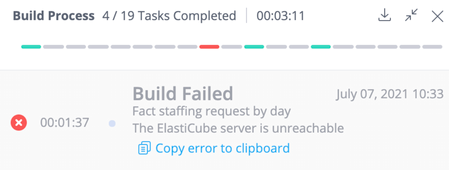
Symptoms Relevant for Linux Below are a couple of select symptoms your system could be experiencing under a big load with simultaneous builds. Please note the list is not exhaustive: Build failures over random cubes or a couple of cubes that are being rebuilt manually successfully CubeIsUnreachable error Failure due to Build Service restart Diagnosis Build flow is connected to three main services: Build: Takes care of triggering builds and moving logs between the Pod and UI Management: Creates ec-bld pod and takes care of Kubernetes level communication over the flow Ec: <name_of_the_cube>-bld - actual cube import process which creates the folder, makes import If memory consumption of the ec-bld pod is being controlled by the DataGroup Max RAM for Build (more in-depth article here) and affects just this cube, then Build/Management works for all builds running on the system. Sometimes when there are 4+ cubes that run in parallel, Build/Management services could be under heavy load and require additional RAM. Since both of the services are Java based they have a default memory limit mechanism that allows 500 MB of RAM to be used. If the service needs more, it could be throttling which can affect defined timeouts or cause service restart. If you want to ensure that this is the case, please check graphana for build/management services when builds fail. Linked is additional information on how to use Grafana to troubleshoot performance issues. Keep in mind that by default services are limited to 500 MB but could consume more since there are additional parts of the service that are not Java-based and Java limits can peak from time to time. However, if you see that the service is under load, it is a good idea to allocate more RAM for stability improvements. Solution Increase the Memory Limits for the Build and Management services. Since this is a Java service there are two places to update: Kubernetes deployment limits Java service on the Sisense Configuration side To update Memory Limits please follow the steps below: 1. SSH to the server 2. Execute line 1 for build or line 2 for management: kubectl edit deployment -n <namespace> build kubectl edit deployment -n <namespace> management 3. Find "resources: limits" and update memory size to 4000 (press “i” on the keyboard to enter edit mode → edit value → ESC to exit edit mode → use “:wq!” to exit and save changes). 4. Build/management pod will automatically restart after deployment modification. 5. Navigate to Admin → System management → Configuration → Build → Memory limit for build pod and Navigate to Admin → System management → Configuration → Advanced Management params → Memory limit for management pod. Set the value to be 1000 lower than the value set in step #3 for the deployment. 6. Save settings. Tips: Please ensure that the Memory Limit value is correctly entered. If there is a problem with the value, the service will not start. Please keep in mind that the Deployment value should be 1000m bigger than the Configuration value. If you need any additional help, please contact Sisense Support.2.1KViews4likes0Comments
Elevate Your Data Product’s Quality with Streamlined Version Control leveraging Our Git Integration
Elevate Your Data Product’s Quality with Streamlined Version Control Leveraging the Sisense Git Integration! In today's CI/CD ecosystems, efficient asset migration from development to production environments is crucial for delivering high-quality data products. Sisense being a leading embedded analytics technology offers a powerful Git integration that simplifies and enhances the migration process. In this blog, we will explore leveraging the Sisense Git Version Control to streamline asset migration, ensuring smooth transitions and maintaining data product integrity. To understand the value of Sisense Git Version Control it is important to understand what Git is. Git offers users (often developers and/or engineers) a structured and efficient approach to managing files, collaborating with others, and maintaining a clear history of changes. Git enhances team productivity, reduces errors, and provides a sense of control over projects. Teams who leverage Git ultimately benefit from better organization, teamwork, and effective management of files and projects. When building your data products in a technology like Sisense, there is massive value in integrating with your developer’s CI/CD workflow for continuity, quality, and time to delivery. Users who leverage the Sisense Git Version Control can collaborate on building data products, manage changes to products over time, and migrate assets across Sisense environments through remote Git repositories. The Sisense Git Integration is a feature that is offered out of the box with Sisense Linux Version(s) 2022.10 and up. To begin leveraging the Sisense Git Integration feature you can click on the Git Logo in the top right of your Sisense environment. The Git GUI will open in a separate browser tab and you will be asked to create a new project. After creating a new project your team will be prompted to name the project, name the default branch, and if you desire to connect to a remote Git repository (further instructions are included in Sisense Git Documentation depending on which Git repository your team leverages). After these steps are complete you can choose to invite others to collaborate with you on the project. If you choose collaborators or decide to lone-wolf a project you will be asked next if you’d like to “add assets” to the project. Do not worry lonely wolves, if you would like to invite collaborators down the road you can share the project after the fact. Assets available to modify/track in Sisense Git Version Control are Data Models and Dashboards, or you can simply continue without if you intend to “Pull” Sisense assets from a remote repository. Once a team has created and defined a project, they can start working. Users familiar with Git will find continuity in terminology and functionality with the Sisense Git GUI and popular Git repositories. Dashboards and Models are compressed into JSON files, allowing users to review, commit, or discard changes. Teams can create branches, checkout branches, and revert changes if needed. When a project is ready to progress to the next stage, users can "Push" the assets/branches to the remote repository. The assets can be reviewed in their JSON format in the remote repository. If a CI/CD pipeline includes QA, Staging, or Production Sisense environments, users can leverage the Git GUI in those environments to "Pull" assets for review or publication. So let’s land this plane! The Sisense Git Integration is a tool that provides tremendous value to your developer/engineering team's workflow, while significantly improving your business with better data product quality and delivery. If your team already leverages Git, this tool will be easy to incorporate and drive value. For users unfamiliar with Git, we strongly recommend adopting this approach, as it only involves a minimal learning curve but offers improved version control, streamlined asset migration, and overall enhanced quality. We hope this information3.9KViews3likes0CommentsUsing "useGetWidgetModel" to Embed an Existing widget in ComposeSDK
Loading Widget Metadata with the useGetWidgetModel function Leveraging the useGetWidgetModel ComposeSDK function provides a middle ground way of embedding existing Sisense widgets. It allows automating return of widget metadata from an existing Sisense widget, facilitating dynamic modifications within ComposeSDK. This method balances somewhat the autonomy of entirely recreating a widget as a native ComposeSDK widget and rendering a widget directly as a Dashboard Widget.1.3KViews2likes0CommentsAn universal way on how to collect logs in EKS clusters
Introduction This guide provides step-by-step instructions on how to collect logs in EKS clusters. By following these steps, logs will be copied to a storage location accessible through the Sisense web UI. This approach avoids the need to explain the process to customers, making it more convenient to request logs for troubleshooting and analysis. Prerequisites Access to the control plane to execute kubectl commands. Appropriate permissions to access Sisense web UI. Steps 1. Connect to the Control Plane Before executing any kubectl commands, ensure that you are connected to the Kubernetes control plane. 2. Copy the .log file to a Temporary Location Execute the following command to copy the desired *.log file to a temporary location: kubectl exec -it -n sisense $(kubectl get po -n sisense -l k8s-app=fluentd -o custom-columns=":metadata.name") -- cp /var/log/sisense/sisense/identity.log /tmp/identity.log 3. Copy the .log File from the Temporary Location to the Current Directory. After copying the log file to the temporary location, use the following command to copy it from the temporary location to the current directory: kubectl cp -n sisense $(kubectl get po -n sisense -l k8s-app=fluentd -o custom-columns=":metadata.name"):/tmp/identity.log ./identity.log 4. Copy the .log File to the Storage Folder Now, copy the *.log file from the current directory to the storage folder, which is accessible from the Sisense web UI: kubectl cp -n sisense ./identity.log sisense/$(kubectl get pod -n sisense -l app=management -o jsonpath='{.items[0].metadata.name}'):/opt/sisense/storage/identity0930.log Note: In the above command, replace /var/log/sisense/sisense/identity.log in the first step with the desired log file name, and change identity0930.log in the latest step with the desired log file name. 5. Access Logs from Sisense Web UI The identity0930.log file is now copied to the storage location and can be accessed and downloaded from the Sisense web UI. Follow these steps to access it: Log in to the Sisense web UI. Navigate to the "Admin" tab. Select "System Management" from the options. Click on "File Management." Look for the identity0930.log file and access or download it as needed. Additional Notes In the steps above, we copied the identity.log file and named it identity0930.log in the last step. You can adjust the naming convention as required. Remember to replace the filename in the commands with the desired log file name when working with different logs. Conclusion Following the steps outlined in this article, you can efficiently request logs from customers using Sisense without the need for them to find and access the logs manually. This streamlined process enhances troubleshooting and data analysis capabilities within Sisense for a more effective and seamless experience. Should you require further assistance, kindly reach out to Sisense Support.1.5KViews2likes0Comments
BloX - A Technical Introduction
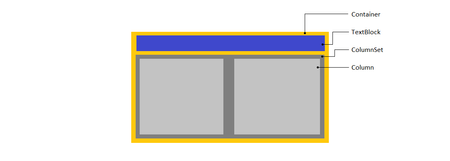
BloX - A Technical Introduction To start, download the attached file ‘BloXTutorial-Styling.dash’ file and import this into your Sisense environment. This dashboard uses the ‘Sample Ecommerce’ data model and contains all iterations of the BloX widget. If connecting the .dash file to your Sample Ecommerce data model does not work, the attached file ‘BloX-Tutorial-ECommerce-DataModel.zip’ contains a version of this data model that will work. Additionally, ensure BloX is already enabled on your Sisense environment. Step 1 - BloX Structure In the first iteration of this BloX widget, we start with a BloX structure as depicted in the image above. In our widget, we have: Country name panel item in the header TextBlock Three TextBlocks in the left column Profit Profit Margin Units Sold Three TextBlocks in the right column Profit panel item Profit Margin panel item Units Sold panel item It is worth noting that with the ‘showCarousel’ attribute set to ‘true’, only one Country will display at a time. Now that we understand the layout of the BloX widget, let’s add some styling to make it look more presentable. Step 2 - Styling I also encourage you to play around with the values of each property to get a better understanding of how these affect the widget. Contai ner style block In our Container, we’ve added a style element with padding, width, and two margin types. We can use these CSS properties to manipulate the Container element of our BloX widget. In this example, they are dictating the position of the container and, therefore all of the text within. Country panel TextBlock In our Country TextBlock, we’ve added three text styling elements: weight, color, and size. We can use these BloX elements to manipulate how a TextBlock is styled rather than using CSS properties. Note that the size element has also been added to the other TextBlocks as well. Notice that the CSS properties need to be used within a style element while the BloX elements do not. The BloX elements provide easy access to commonly used style properties. However, you will see we can accomplish the same using the style element. Step 3 - More Styling The third iteration of our BloX widget adds background coloring and a border radius. This gives our widget a much more presentable ‘card’ feel. Note: we’ve added a second container within our first container because the padding property conflicts with the border-radius property. Container style block 2 Here, we’ve added the border-radius property to give the container’s edges a sleeker, rounded feel. We also added the overflow property to prevent text from leaving the container. TextBlocks In each text block, we’ve removed the TextBlock attributes and replaced them with CSS properties. Using style elements, we have more control over the look and feel with CSS. The background-color property visually separates each row of text. Using the style attributes gives more control over the widget, but the code in our Editor can become redundant, bulky, and difficult to read. We can help alleviate this using CSS classes. Step 3.5 - CSS Classes The widget in this iteration looks identical to the previous version. However, we consolidated the style code and replaced the style elements with the class element. These classes are defined in the style element in our main BloX . The code in our editor is now much more readable and easy to understand. Main style attribute In our BloX main style attribute, we’ve defined several classes. Let's examine the ‘blox-row-odd-key’ class. We see ‘.blox-row-odd-key{css code} in this style attribute with this class referenced in two TextBlocks. We moved the style elements from the previous step within this class definition. This makes the code more readable and manageable. Now, if we want to change the background color for these TextBlocks, we only need to change it once. The downside to defining our classes in the BloX main style element is that the code is limited to one line and difficult to read itself. Using external stylesheets, we can maintain readability for our class definitions. Step 4 - Other Useful BloX elements The following BloX elements are useful and some are sparsely documented. The Step 4 widget in the .dash file has placeholders for all of these in the BloX main section. Changing the values of these will give a good sense of how they affect the widget. showCarousel Setting this element to ‘true’ limits the widget to only show one value of the Items Setting this element to ‘false’ shows multiple values from the Items carouselAnimation With the showCarousel element set to ‘true’, the ‘showButtons’ and ‘delay’ element become applicable Setting ‘showButtons’ element to false hides the carousel buttons Setting ‘delay’ element to an integer cycles through the items. The integer is the number of milliseconds between each cycle i.e. delay = 1000 cycles through the items once per second titleStyle Setting ‘diplay’ element of ‘titlestyle’ to ‘none’ hides the title header row of the BloX widget The ‘fontColor’ element allows changing the text color of the title The ‘backgroundColor’ element allows changing the background color of the title header row The ‘backgroundImage’ element allows changing the background of the title header row to an image with a url disableLazyLoading By default, a limited number of items (10) are loaded when the widget is rendered With showCarousel set to false, setting this element to true loads all values when the widget is rendered. This is most useful to show more than 10 columns Warning: Disabling lazy loading can have performance impacts on the dashboard Hopefully, you feel comfortable enough to jump in and start creating your own custom visualizations. This walkthrough gives users a taste of how styling with CSS can help you create your own BloX widgets and touched on some important BloX elements to be aware of. The only way to get better at something is to practice, so I encourage you to challenge yourself and create your own widget.2.5KViews1like0Comments
Hide a column - Linux Pivot
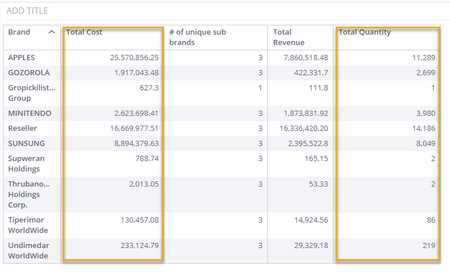
Sometimes we would like to hide a column in our pivot table so we will be able to apply a specific logic or order the table by a column without displaying it. The following script will allow you to hide the needed columns in your Pivot table. To implement it, please make sure to: Adjust the number of columns according to your widget Place 0 for the column you'd like to hide Save the script Refresh the page The following script is adjusted for a pivot table with 5 columns, hiding 2 of them: var newWidth = { 0: 100, 1: 0, 2: 100, 3: 0, 4: 100 } var columnsToRemove = [] var passed = -1 var wasExecuted = false widget.on('processresult', function(widget, args){ if (!wasExecuted) { args.result.metadata.forEach(function(e, index) { e.panel if (e.panel != "scope" ) { index = Object.keys(newWidth).length - index+passed; if ( typeof(newWidth[index]) !== "undefined" ) { e["format"] = {"width":newWidth[index]}; } if (e.format.width === 0) { columnsToRemove.push(index) } } else { passed ++ } }) wasExecuted = true } }) widget.on('ready', function() { columnsToRemove.forEach(function(item) { var selector = "[class*=table-grid__cell--col-" + item +"]"; $(selector, element).each(function(i, lmnt) { $(lmnt).text('') }) }) }) Here is an example of the above script: Before: After:4.5KViews1like6CommentsReverse Proxy with Nginx + SSL configuration
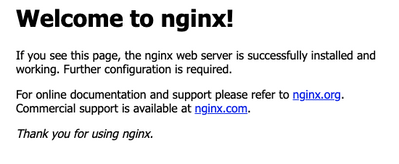
Reverse Proxy with Nginx + SSL configuration Nginx Reverse proxy configuration Step 1. Nginx reverse proxy server set up In this example, we are using nginx, we can install it on the same device as Sisense. To install it run 1. Install nginx for Ubuntu/Debian-like systems: sudo apt install nginx 2. For RHEL systems such a CentOS, use below: sudo yum install nginx 3. Start nginx: sudo systemctl start nginx Step 2. Nginx server configuration 1. Open the browser and go to the IP address of the server. If it's up, you will see the Nginx welcome page– this means nginx is now running on the default port 80. 2. Edit /etc/nginx/sites-enabled/default and add the next configuration under the root server config. Define correct Sisense public IP, and port in the "server {}" section: location /analytics { rewrite /analytics/(.*) /$1 break; proxy_pass http://<sisense-ip>:30845; proxy_http_version 1.1; proxy_set_header X-Forwarded-Proto $scheme; proxy_set_header Upgrade $http_upgrade; proxy_set_header Connection "upgrade"; proxy_set_header X-Real-IP $remote_addr; proxy_set_header X-Forwarded-For $remote_addr; proxy_set_header X-Forwarded-Proto $scheme; proxy_set_header Host $host; proxy_connect_timeout 36000; proxy_send_timeout 36000; proxy_read_timeout 36000; send_timeout 36000; } 3. Before you apply the settings, check that there is no syntax issue by running sudo nginx -t 4. Reload nginx with sudo /etc/init.d/nginx reload or sudo systemctl reload nginx With this configuration, Sisense will be accessed with http://<ip-or-domain-of-nginx-server>/analytics. Also if the https is configured for this nginx server, Sisense would be accessible with https://<ip-or-domain-of-nginx-server>/analytics. If on the proxy level, the HTTPS is enabled, please ensure the application_dns_name has the https prefix to ensure all traffic is used, so something like: application_dns_name: https://company.sisense.com Step 3. Sisense configuration Go to the Admin tab Click on System Management Enter Configuration and choose Web Server In the Proxy URL enter "/analytics" or "http://<ip-or-domain-of-nginx-server>/analytics" as we configured in Nginx. With "/analytics" you will be able to use multiple domains for this instance. Save it and test with a browser by entering http://<ip-or-domain-of-nginx-server>/analytics And now we can configure SSL with our Nginx server, please validate that Nginx is working properly first before moving on. SSL configuration for Nginx Step 1. Obtain self signed SSL certificates You can use a command like this sudo openssl req -x509 -nodes -days 365 -newkey rsa:2048 -keyout /etc/ssl/private/nginx-selfsigned.key -out /etc/ssl/certs/nginx-selfsigned.crt. For an explanation of what the above command does please refer to Setup SSL on Sisense (Linux version) - Link placeholder Step 2. Configure Nginx to use SSL 1. Сreate a new file named self-signed.conf. sudo vi /etc/nginx/snippets/self-signed.conf In self-signed.conf we want to add some variables that will hold the location of our certificate and key files that we generated in Step 1. Like this ssl_certificate /etc/ssl/certs/nginx-selfsigned.crt; ssl_certificate_key /etc/ssl/private/nginx-selfsigned.key; Save and close the file. 2. Now we will create a snippet file to define SSL settings. Start by creating a file like this sudo vi /etc/nginx/snippets/ssl-params.conf In this file, we need to include some SSL settings as below. ssl_protocols TLSv1.3; ssl_prefer_server_ciphers on; ssl_dhparam /etc/nginx/dhparam.pem; ssl_ciphers EECDH+AESGCM:EDH+AESGCM; ssl_ecdh_curve secp384r1; ssl_session_timeout 10m; ssl_session_cache shared:SSL:10m; ssl_session_tickets off; ssl_stapling on; ssl_stapling_verify on; resolver 8.8.8.8 8.8.4.4 valid=300s; resolver_timeout 5s; # Disable strict transport security for now. You can uncomment the following # line if you understand the implications. #add_header Strict-Transport-Security "max-age=63072000; includeSubDomains; preload"; add_header X-Frame-Options DENY; add_header X-Content-Type-Options nosniff; add_header X-XSS-Protection "1; mode=block"; Save and close the file. 3. In this step, we need to modify the Nginx configuration to use SSL. Open up your Nginx configuration file which is usually in a location like /etc/nginx/sites-available/<yourconfig>. Before making changes to this file it is best to back it up first in case we break anything. sudo cp /etc/nginx/sites-available/yourconfig /etc/nginx/sites-available/yourconfig.bak And now we open up our current Nginx config file; vi /etc/nginx/sites-available/<yourconfig> In the first server{} block, at the beginning, add the lines below. You might already have a location {} block so leave that there server { listen 443 ssl; listen [::]:443 ssl; include snippets/self-signed.conf; include snippets/ssl-params.conf; server_name your_domain.com www.your_domain.com; //server_name can be anything location / { try_files $uri $uri/ =404; } } Lastly, we need to add another server{} block at the very bottom of the file, with the following parameters. This is a configuration that listens on port 80 and performs the redirect to HTTPS. server { listen 80; listen [::]:80; server_name default.local www.default.local; //use same name return 302 https://$server_name$request_uri; } Please note that you must add this server_name to your local desktop or laptop hosts file. In this example, I will go to my local laptop or desktop hosts file and add <ip address of nginx server> <space> <default.local> [Optional] Step 3. Adjust the firewall The steps below assume you have a UFW firewall enabled. You need to review available profiles by running sudo ufw app list You can check the current setting by typing sudo ufw status: Output Status: active To Action From -- ------ ---- Nginx HTTP DENY Anywhere Nginx HTTP (v6) DENY Anywhere (v6) We need to allow HTTPS traffic, so update permissions for the “Nginx Full” profile. sudo ufw allow 'Nginx Full' Check the update sudo ufw status Output Status: active To Action From -- ------ ---- Nginx Full ALLOW Anywhere Nginx Full (v6) ALLOW Anywhere (v6) This output above confirms the changes made to your firewall were successful. So you are ready to enable the changes in Nginx. Step 4. Enable to changes in Nginx First, check that there are no syntax errors in the files. Run sudo nginx -t The output will most likely look like Output nginx: [warn] "ssl_stapling" ignored, issuer certificate not found for certificate "/etc/ssl/certs/nginx-selfsigned.crt" nginx: the configuration file /etc/nginx/nginx.conf syntax is ok nginx: configuration file /etc/nginx/nginx.conf test is successful You can disregard the ssl_stapling warning, this particular setting generates a warning since your self-signed certificate can’t use SSL stapling. This is expected and your server can still encrypt connections correctly. If your output matches the out example above, that confirms your configuration file has no errors. If this is true, then you can safely restart Nginx to implement the changes: sudo systemctl restart nginx Step 5. Test the encryption Open up a browser and navigate to https://<server_name>, use the name you set up in Step 2C. Additional information 1. It was reported that File Manager and Grafana doesn't work with reverse proxy. To get the URLs for file manager and grafana to work, following steps should be taken: kubectl -n sisense set env deploy/filebrowser FILEBROWSER_BASEURL='/<baseurl>/app/explore' kubectl -n sisense set env deploy/filebrowser FB_BASEURL='/<baseurl>/app/explore/' kubectl -n sisense set env deploy/sisense-grafana GF_SERVER_ROOT_URL=<baseurl>/app/grafana 2. Once the reverse proxy is enabled, Sisense will still utilize IP addresses as links in their email communications. To setup correct addresses in Sisense e-mails after reverse proxy is configured: in the configuration yaml file set: update: true application_dns_name: "" and start the installation script to update parameters. After update is completed, in Sisense GUI go to Admin -> Server & Hardware -> System management -> Configuration Set the http://YOUR_PROXY_ADDRESS/analytics in the "Proxy URL" field of "Web Server" menu (or https://YOUR_PROXY_ADDRESS/analytics in case of SSL) Go to Admin -> User Management -> Users Try creating a new user or use the "Resend invitation" option for the existing one (if available) Check the inbox of that user for "Sisense account activation" The "Activate Account" link should now redirect to the http://YOUR_PROXY_ADDRESS/analytics/app/account/activate/HASH address25KViews1like4Comments