Views bookmarking: Use case of a financial technology company
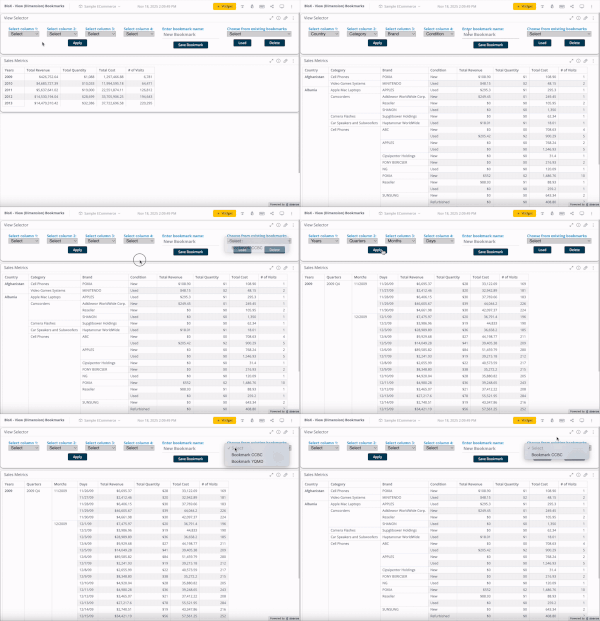
Introduction FlexTrade is a global provider of multi-asset execution and order management systems, supporting trading workflows across asset classes, venues, and strategies. Their platforms generate large volumes of highly detailed data that users rely on for day-to-day analysis and decision-making. Companies like FlexTrade operate in an environment where users need deep, flexible analysis across a wide range of dimensions: asset class, venue, strategy, region, client, trader, time, and more. Pivot tables are a natural fit for this kind of detailed, highly dimensional analysis. However, as the number of dimensions grows, teams quickly hit a trade-off: Putting all dimensions into a single widget becomes expensive to query and difficult to interpret. Creating separate widgets for every dimension (or combination of dimensions) leads to bloated dashboards, slower load times, and a poor user experience. This use case focuses on how BloX was used to solve this problem by introducing view bookmarking, a flexible way for users to switch between different slicing configurations (in this example, a set of four dimensions) within a single widget. It also highlights how BloX can be used not just for custom visualizations, but also for building small, purpose-driven mini apps directly inside a dashboard. What the solution does This solution uses BloX to manage view bookmarks for a pivot table. Instead of permanently adding all dimensions to the widget, BloX acts as a control layer that lets users select dimensions to include in the pivot at a time. Each selected combination can be saved as a view bookmark, representing a specific slicing configuration of the same underlying pivot. With this solution, users can: Select up to four dimensions to apply to the pivot table Save the selected combination as a personal bookmark Load and reuse previously saved bookmarks Delete bookmarks that are no longer needed Up to 20 bookmarks are supported out of the box, and all bookmarks are user-specific, allowing each user to maintain their own set of preferred analytical views. The solution also includes basic validation and error handling, such as preventing empty and duplicate bookmark names. From a technical perspective, BloX dynamically updates the pivot’s metadata. From a user perspective, it feels like switching views within a single widget. This keeps the analysis flexible while the dashboard structure remains simple and performant. Why it’s useful Scales to 10+ dimensions without UI overload Multi-asset trading analysis often requires exploring many dimensions, but not all at the same time. This solution allows FlexTrade users to work with 10+ dimensions while only surfacing the few that matter for the current question, resulting in less visual noise, lower cognitive load, and faster insights. Maintains dashboard performance and keeps dashboards clean and maintainable By avoiding massive pivots with every dimension enabled or dozens of near-duplicate widgets, the solution keeps queries efficient and dashboards responsive, even as analytical depth increases. One widget with dynamic views replaces an entire grid of narrowly focused widgets, resulting in dashboards that are easier to navigate, faster to load, and easier to maintain. Attachments BloX-ViewDimensionBookmarks.dash.txt (example dashboard using the Sample ECommerce cube) BloXActionsForBookmarks.zip (BloX actions' scripts) ViewsBookmarkV2-2025-12-29.json (BloX template for the view bookmark widget, also included in the .dash file above). Note: Remove the .txt extension before importing the dashboard (.dash) file. The BloX widget also includes a script that automatically populates the dropdown menus with the available dimension names and existing bookmarks based on the widget’s metadata. Here is the script: // Dropdown classes used in the BloX code const dropdownClasses = [ "dimensionDropdown", //dropdowns for selecting the four dimensions "bookmarkDropdown" // dropdown for selecting existing bookmarks ]; const valueToDisable = "Select"; // placeholder value to disable widget.on('ready', function() { dimensions = widget.metadata.panels[0].items; dimensionTitles = dimensions .map(i => i.jaql.title); // Add each dimension title to the dimension dropdowns dimensionTitles.forEach(function(title, index) { $('.dimensionDropdown', element).append( '<option value="' + (index + 1) + '">' + title + '</option>' ); }); bookmarks = widget.metadata.panels[1].items; bookmarkTitles = bookmarks .filter(i => !i.disabled) // keep only not disabled .map(i => i.jaql.title); // extract title // Add each existing bookmark title to the bookmark dropdown bookmarkTitles.forEach(function(title) { $('#bookmarkDropdown', element).append( '<option value="' + title + '">' + title + '</option>' ); }); // Disable placeholder values from selection dropdownClasses.forEach(cls => { $(`.${cls}`).each(function () { let $select = $(this); if (!$select.is("select")) { $select = $select.find("select"); } if ($select.length === 0) return; $select.find("option").first().prop("disabled", true); }); }); });40Views0likes0Comments
Add presets to a Blox date filter widget
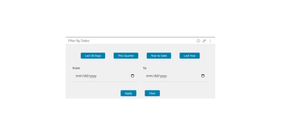
We have some dashboards that have widgets as filters. One of these is a Blox widget that functions as a date filter, which I created with help from the community here. I recently added presets to the date filter to make it easier and faster to apply date filtering. Create a Blox Widget Paste the script below in the script editor section. { "style": ".blox-slides button:hover{background-color:#014E66 !important;} .date-input-container { position: relative; } .date-input-container input[type='date'] { cursor: pointer; } .date-input-container::before { content: ''; position: absolute; top: 0; left: 0; right: 0; bottom: 0; z-index: 1; cursor: pointer; } .date-input-container input::-webkit-calendar-picker-indicator { opacity: 0; position: absolute; right: 10px; width: 20px; height: 20px; cursor: pointer; z-index: 2; }", "title": "", "showCarousel": true, "carouselAnimation": { "showButtons": false }, "script": "setTimeout(function() { const fromInput = document.getElementById('SelectVal_from'); const toInput = document.getElementById('SelectVal_to'); function formatDate(date) { const year = date.getFullYear(); const month = String(date.getMonth() + 1).padStart(2, '0'); const day = String(date.getDate()).padStart(2, '0'); return year + '-' + month + '-' + day; } function setDates(fromDate, toDate) { if (fromInput) fromInput.value = formatDate(fromDate); if (toInput) toInput.value = formatDate(toDate); } function getDateRanges() { const today = new Date(); const currentYear = today.getFullYear(); const currentMonth = today.getMonth(); const currentQuarter = Math.floor(currentMonth / 3); return { last30days: { from: new Date(today.getTime() - 30 * 24 * 60 * 60 * 1000), to: today }, quarter: { from: new Date(currentYear, currentQuarter * 3, 1), to: new Date(currentYear, (currentQuarter + 1) * 3, 0) }, ytd: { from: new Date(currentYear, 0, 1), to: today }, lastyear: { from: new Date(currentYear - 1, 0, 1), to: new Date(currentYear - 1, 11, 31) } }; } const ranges = getDateRanges(); document.querySelectorAll('[data-filter-type]').forEach(function(btn) { btn.addEventListener('click', function() { const filterType = this.getAttribute('data-filter-type'); if (ranges[filterType]) { setDates(ranges[filterType].from, ranges[filterType].to); } }); }); if (fromInput) { fromInput.addEventListener('click', function(e) { if (e.target.tagName === 'INPUT') { e.target.showPicker ? e.target.showPicker() : e.target.click(); } }); fromInput.style.cursor = 'pointer'; } if (toInput) { toInput.addEventListener('click', function(e) { if (e.target.tagName === 'INPUT') { e.target.showPicker ? e.target.showPicker() : e.target.click(); } }); toInput.style.cursor = 'pointer'; } }, 1000);", "body": [ { "type": "Container", "width": "90%", "style": { "margin": "0 auto" }, "items": [ { "type": "ActionSet", "actions": [ { "type": "date-preset", "title": "Last 30 Days", "style": { "color": "white", "background-color": "#007FAA" }, "data": { "FilterType": "last30days", "FilterFields": [ "[Dm_dates.date_data (Calendar)]" ] } }, { "type": "date-preset", "title": "This Quarter", "style": { "color": "white", "background-color": "#007FAA" }, "data": { "FilterType": "quarter", "FilterFields": [ "[Dm_dates.date_data (Calendar)]" ] } }, { "type": "date-preset", "title": "Year to Date", "style": { "color": "white", "background-color": "#007FAA" }, "data": { "FilterType": "ytd", "FilterFields": [ "[Dm_dates.date_data (Calendar)]" ] } }, { "type": "date-preset", "title": "Last Year", "style": { "color": "white", "background-color": "#007FAA" }, "data": { "FilterType": "lastyear", "FilterFields": [ "[Dm_dates.date_data (Calendar)]" ] } } ] }, { "type": "Container", "style": { "display": "flex", "flexDirection": "row", "justifyContent": "space-between", "marginTop": "20px", "gap": "10px" }, "items": [ { "type": "Container", "style": { "width": "48%" }, "items": [ { "type": "TextBlock", "text": "From", "weight": "lighter", "color": "black" }, { "type": "Container", "style": { "position": "relative" }, "items": [ { "type": "Input.Date", "id": "SelectVal_from", "placeholder": "mm/dd/yyyy", "calendar": true, "style": { "width": "100%", "padding": "14px", "background-color": "#F4F4F8", "border-radius": "8px", "border": "1px solid #ccc", "font-size": "16px", "cursor": "pointer" } } ] } ] }, { "type": "Container", "style": { "width": "48%" }, "items": [ { "type": "TextBlock", "text": "To", "weight": "lighter", "color": "black" }, { "type": "Container", "style": { "position": "relative" }, "items": [ { "type": "Input.Date", "id": "SelectVal_to", "placeholder": "mm/dd/yyyy", "calendar": true, "style": { "width": "100%", "padding": "14px", "background-color": "#F4F4F8", "border-radius": "8px", "border": "1px solid #ccc", "font-size": "16px", "cursor": "pointer" } } ] } ] } ] }, { "type": "ActionSet", "style": { "marginTop": "20px", "text-align": "center" }, "actions": [ { "type": "DateX", "id": "submit_btn", "title": "Apply", "style": { "color": "white", "background-color": "#007FAA" }, "data": { "FilterFields": [ "[Dm_dates.date_data (Calendar)]" ] } }, { "type": "filter-date-clear", "title": "Clear", "style": { "color": "white", "background-color": "#007FAA" }, "data": { "FilterFields": [ "[Dm_dates.date_data (Calendar)]" ] } } ] } ] } ] } Create the necessary actions for the buttons to work: date-preset const filterType = payload.data.FilterType; const filterDims = payload.data.FilterFields; const dash = payload.widget.dashboard; const now = new Date(); const yyyy = now.getFullYear(); const mm = String(now.getMonth() + 1).padStart(2, '0'); const dd = String(now.getDate()).padStart(2, '0'); const today = `${yyyy}-${mm}-${dd}`; let fromDate = ''; let toDate = today; //Year to date if (filterType === 'ytd') { fromDate = `${yyyy}-01-01`; //Quarter } else if (filterType === 'quarter') { const q = Math.floor(now.getMonth() / 3); const startMonth = q * 3 + 1; fromDate = `${yyyy}-${String(startMonth).padStart(2, '0')}-01`; //Last Year } else if (filterType === 'lastyear') { fromDate = `${yyyy - 1}-01-01`; toDate = `${yyyy - 1}-12-31`; // Last 30 days: from 30 days ago to today } else if (filterType === 'last30days') { const pastDate = new Date(now); pastDate.setDate(pastDate.getDate() - 30); const pastY = pastDate.getFullYear(); const pastM = String(pastDate.getMonth() + 1).padStart(2, '0'); const pastD = String(pastDate.getDate()).padStart(2, '0'); fromDate = `${pastY}-${pastM}-${pastD}`; } else { console.log('Unknown FilterType:', filterType); if (typeof sendResponse === 'function') sendResponse(false); return; } let newFilter = {}; $('#SelectVal_from').val(fromDate); $('#SelectVal_to').val(toDate); newFilter = { jaql: { dim: "", filter: { from: fromDate, to: toDate } } }; filterDims.forEach(function(dim) { newFilter.jaql.dim = dim; dash.filters.update(newFilter, { refresh: true, save: true }); }); Datex -- Apply button var today = new Date(); var dd = String(today.getDate()).padStart(2, '0'); var mm = String(today.getMonth() + 1).padStart(2, '0'); //January is 0! var yyyy = today.getFullYear(); today = yyyy + '-' + mm + '-' + dd; const filVal_from = payload.data.SelectVal_from == '' ? '1800-01-01' : payload.data.SelectVal_from; const filVal_to = payload.data.SelectVal_to == '' ? '2100-01-01' : payload.data.SelectVal_to; const filterDims = payload.data.FilterFields; const dash = payload.widget.dashboard; let newFilter = {}; console.log(filVal_from); console.log(filVal_to); newFilter = { jaql: { dim: "", filter: { from: filVal_from, to: filVal_to } } }; filterDims.forEach(function (dim) { newFilter.jaql.dim = dim; dash.filters.update(newFilter, { refresh: true, save: true }) }) Clear dates var today = new Date(); var dd = String(today.getDate()).padStart(2, '0'); var mm = String(today.getMonth() + 1).padStart(2, '0'); //January is 0! var yyyy = today.getFullYear(); today = yyyy + '-' + mm + '-' + dd; const filVal_from = "1800-01-01" const filVal_to = '2100-01-01' const filterDims = payload.data.FilterFields; const dash = payload.widget.dashboard; let newFilter = {}; newFilter = { jaql: { dim: "", filter: { from: filVal_from, to: filVal_to } } }; $('#SelectVal_from').val(''); $('#SelectVal_to').val(''); filterDims.forEach(function (dim) { newFilter.jaql.dim = dim; dash.filters.update(newFilter, { refresh: true, save: true }) }) Save everything and try it out.249Views2likes0Comments