Views bookmarking: Use case of a financial technology company
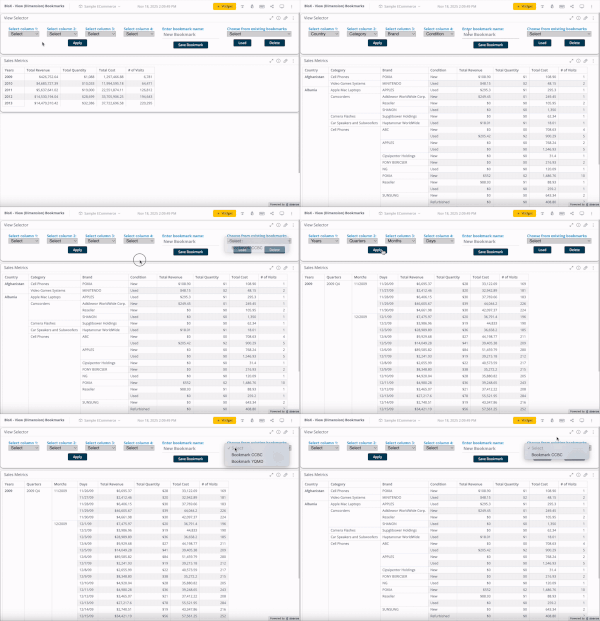
Introduction FlexTrade is a global provider of multi-asset execution and order management systems, supporting trading workflows across asset classes, venues, and strategies. Their platforms generate large volumes of highly detailed data that users rely on for day-to-day analysis and decision-making. Companies like FlexTrade operate in an environment where users need deep, flexible analysis across a wide range of dimensions: asset class, venue, strategy, region, client, trader, time, and more. Pivot tables are a natural fit for this kind of detailed, highly dimensional analysis. However, as the number of dimensions grows, teams quickly hit a trade-off: Putting all dimensions into a single widget becomes expensive to query and difficult to interpret. Creating separate widgets for every dimension (or combination of dimensions) leads to bloated dashboards, slower load times, and a poor user experience. This use case focuses on how BloX was used to solve this problem by introducing view bookmarking, a flexible way for users to switch between different slicing configurations (in this example, a set of four dimensions) within a single widget. It also highlights how BloX can be used not just for custom visualizations, but also for building small, purpose-driven mini apps directly inside a dashboard. What the solution does This solution uses BloX to manage view bookmarks for a pivot table. Instead of permanently adding all dimensions to the widget, BloX acts as a control layer that lets users select dimensions to include in the pivot at a time. Each selected combination can be saved as a view bookmark, representing a specific slicing configuration of the same underlying pivot. With this solution, users can: Select up to four dimensions to apply to the pivot table Save the selected combination as a personal bookmark Load and reuse previously saved bookmarks Delete bookmarks that are no longer needed Up to 20 bookmarks are supported out of the box, and all bookmarks are user-specific, allowing each user to maintain their own set of preferred analytical views. The solution also includes basic validation and error handling, such as preventing empty and duplicate bookmark names. From a technical perspective, BloX dynamically updates the pivot’s metadata. From a user perspective, it feels like switching views within a single widget. This keeps the analysis flexible while the dashboard structure remains simple and performant. Why it’s useful Scales to 10+ dimensions without UI overload Multi-asset trading analysis often requires exploring many dimensions, but not all at the same time. This solution allows FlexTrade users to work with 10+ dimensions while only surfacing the few that matter for the current question, resulting in less visual noise, lower cognitive load, and faster insights. Maintains dashboard performance and keeps dashboards clean and maintainable By avoiding massive pivots with every dimension enabled or dozens of near-duplicate widgets, the solution keeps queries efficient and dashboards responsive, even as analytical depth increases. One widget with dynamic views replaces an entire grid of narrowly focused widgets, resulting in dashboards that are easier to navigate, faster to load, and easier to maintain. Attachments BloX-ViewDimensionBookmarks.dash.txt (example dashboard using the Sample ECommerce cube) BloXActionsForBookmarks.zip (BloX actions' scripts) ViewsBookmarkV2-2025-12-29.json (BloX template for the view bookmark widget, also included in the .dash file above). Note: Remove the .txt extension before importing the dashboard (.dash) file. The BloX widget also includes a script that automatically populates the dropdown menus with the available dimension names and existing bookmarks based on the widget’s metadata. Here is the script: // Dropdown classes used in the BloX code const dropdownClasses = [ "dimensionDropdown", //dropdowns for selecting the four dimensions "bookmarkDropdown" // dropdown for selecting existing bookmarks ]; const valueToDisable = "Select"; // placeholder value to disable widget.on('ready', function() { dimensions = widget.metadata.panels[0].items; dimensionTitles = dimensions .map(i => i.jaql.title); // Add each dimension title to the dimension dropdowns dimensionTitles.forEach(function(title, index) { $('.dimensionDropdown', element).append( '<option value="' + (index + 1) + '">' + title + '</option>' ); }); bookmarks = widget.metadata.panels[1].items; bookmarkTitles = bookmarks .filter(i => !i.disabled) // keep only not disabled .map(i => i.jaql.title); // extract title // Add each existing bookmark title to the bookmark dropdown bookmarkTitles.forEach(function(title) { $('#bookmarkDropdown', element).append( '<option value="' + title + '">' + title + '</option>' ); }); // Disable placeholder values from selection dropdownClasses.forEach(cls => { $(`.${cls}`).each(function () { let $select = $(this); if (!$select.is("select")) { $select = $select.find("select"); } if ($select.length === 0) return; $select.find("option").first().prop("disabled", true); }); }); });40Views0likes0Comments
Change an SVG color in BloX with criteria based on token - and for it to work with the carousel
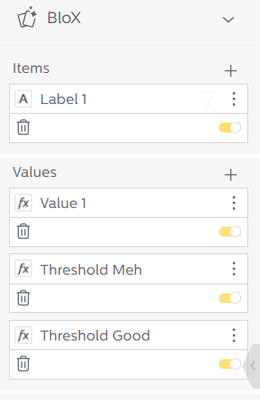
Hello, my aim is to have a bar grow (change width, seems to be working fine) and change color based on if it exceeds a threshold. The issue is that the threshold will be client dependent. I have this script that works as intended for the initial display with static thresholds, but I want to replace the "parseInt('80')" and "parseInt('65')" in the script with tokens like "{panel:Threshold Good}" and "{panel:Threshold Meh}". It also fails to display the conditional color when I cycle on the carousel. Any assistance would be appreciated! { "style": ".conditional-bar-good{fill:#006100; stroke:#006100} .conditional-bar-meh{fill:#9C6500; stroke:#9C6500} .conditional-bar-bad{fill:#9C0006; stroke:#9C0006} .conditional-bar-na{fill:#000000; stroke:#000000}", "script": "$(document).ready(function(){let barClass = document.getElementById('conditional-bar');let cbw = parseInt(barClass.getAttribute('width'));if(cbw >=parseInt('80')){barClass.className.baseVal = 'conditional-bar-good';}else if(cbw>=parseInt('65')){barClass.className.baseVal = 'conditional-bar-meh';}else{barClass.className.baseVal = 'conditional-bar-bad';};});", "title": "", "showCarousel": true, "body": [ { "type": "Container", "items": [ { "type": "TextBlock", "horizontalAlignment": "center", "spacing": "small", "text": "<svg width='80%' height='25'> <rect width='100%' height=100% rx='15' style='fill:#C6EFCE;stroke-width:1;stroke:#006100' /> <rect width='{panel:Threshold Good}%' height='100%' rx='15' style='fill:#FFEB9C;stroke-width:1;stroke:#9C6500' /> <rect width='{panel: Threshold Meh}%' height='100%' rx='15' style='fill:#FFC7CE;stroke-width:1;stroke:#9C0006' /> <rect id='conditional-bar' class='conditional-bar-na' y='20%' width='{panel:Value 1}%' height='60%' rx='10' style='fill-opacity: 0.7;stroke-width:3;' /></svg>" } ] }, { "spacing": "none", "type": "Container", "items": [ { "spacing": "none", "type": "TextBlock", "class": "condition_data", "text": "{panel:Label 1}", "horizontalAlignment": "center", "size": "medium", "weight": "bold" }, { "spacing": "none", "type": "TextBlock", "class": "condition_data", "text": "{panel:Value 1}%", "horizontalAlignment": "center", "size": "large", "weight": "bold" } ] } ], "actions": [] }Solved108Views0likes5CommentsHow to make Switchable Dimension with Radio Buttons
Hi harikm007 DRay I am trying to create a radio button switcable dimensional changer and wanted to see if it can be done with Radio Buttons, my current script is: { "title": "", "style": "", "script": "", "showCarousel": true, "body": [ { "type": "Input.ChoiceSet", "id": "radiotVal", "displayType": "expanded", "layout": "horizontal", "isMultiSelect": false, "value": "1", "choices": [ { "title": "Total Revenue", "value": "1" }, { "title": "Total Quantity", "value": "2" } ] } ], "events": [ { "type": "valueChanged", "elementId": "radiotVal", "actions": [ { "type": "SwitchMeasure", "title": "DEBUG: event fires?", "script": "console.log('[BloX] valueChanged fired, selectVal=', {{radiotVal.value}}); alert('Radio changed to ' + {{radiotVal.value}});" } ] } ], "actions": [] } The radio buttons show up but they do not switch the measures for the widgets I targeted. I am also okay with not specifically targeting widgets but affecting all the widgets on the dashboard. This is the script for the action: var dimIndex = payload.data.selectVal - 1; var dimToSwapTo = payload.widget.metadata.panels[1].items[dimIndex].jaql; var widgetIds = payload.data.widgetToModify; payload.widget.dashboard.widgets.$$widgets .filter(i => widgetIds.includes(i.oid)) .forEach(function (widget) { if (widget.metadata.panels[1].$$widget.type == 'indicator') { widget.metadata.panels[0].items[0].jaql = dimToSwapTo; } else { widget.metadata.panels[1].items[0].jaql = dimToSwapTo; } widget.changesMade('plugin-BloX', 'metadata'); widget.refresh(); }) I am not sure if this is the correct Action script since this is used from: https://community.sisense.com/kb/blox/changing-measures-in-the-entire-dashboard-using-blox-user-interface/8802Solved151Views0likes6Comments
Why Sisense's Visualizations Are a Game-Changer for BI Users
When it comes to business intelligence (BI) platforms, there are tons of options out there. Some offer extensive pre-built design customizations, while others focus more on ease of use. But where Sisense really shines is in its visualization flexibility—something not every BI tool can brag about. Whether you’re a data geek, a business analyst, or just someone looking to make their dashboards pop, Sisense has some tricks up its sleeve that can take your visualizations to the next level. Simple Yet Powerful Customizations Right out of the box, Sisense gives you all the important design options you need to create effective visualizations. But if you’ve ever found yourself wanting more control—like tweaking the smallest details on a chart—Sisense has you covered. The magic lies in its custom scripting capabilities. With just a dash of JavaScript, you can customize your dashboards and widgets in ways most other platforms don’t allow. Let’s say you want to tweak the way your data labels look. Sisense’s bar charts, for example, are built on Highcharts, which means you can tap into all the cool customization options Highcharts offers. Want to format data labels? Easy. Check out this quick guide to Format Data Labels in Sisense Widgets with just a few lines of code. Dashboards with a Personal Touch Customizing individual widgets is just the beginning. With Sisense, you can also tweak the entire dashboard. Need to add a button to refresh your dashboard on command? No problem! A simple script lets you create a Refresh Button that users can click anytime. Check out the step-by-step guide to adding a Refresh Button to your Sisense dashboards. Beyond widgets, Sisense allows you to customize things at a global level. You can even tap into global events and access menus like the dashboard or widget menus. Want to add your own custom menu items that perform specific tasks? With Sisense, you can! This flexibility is a rare find in most BI platforms and makes Sisense ideal for those who want complete control over their dashboards. BloX: Elevating Dashboard Interactivity with Custom HTML and Data One feature that makes Sisense stand out is BloX. Unlike traditional widgets, BloX allows you to create completely custom content by rendering HTML inside the widget. This means you can add interactive elements like buttons, images, and forms—while also incorporating data from your dashboard directly into these elements. Want to see BloX in action? Imagine you want to display some text showing your total revenue and add a button that links to an external website or another dashboard. With BloX, this is an easy and basic example of what’s possible. Plus, there are many built-in templates available that you can use straight away, or you can tailor them to fit your specific needs. Check out an example of a BloX template featuring two interactive cards to see just how flexible and powerful BloX can be. Making Scripts Easier to Manage With great customization comes a little complexity. One challenge you might face is managing all these scripts, especially if you're using the same one across multiple widgets or dashboards. Copy-pasting scripts everywhere can get messy, but thankfully, there’s an easier way to keep things organized. Using a tool like the Widget Script Manager, you can centralize and manage your scripts, applying them globally without having to copy and paste. This not only saves time but also makes your dashboards easier to maintain in the long run. Curious about how to better manage scripts? Here’s more info on handling scripts efficiently: Widget Script Management in Sisense. -Hari863Views1like1CommentConditional Format in BloX using an image
Hi harikm007 , DRay , Liliia_DevX I am using BloX to display a conditon format based on a if a value is above 10% or below 10% and then display a green or red arrow I have in my plugins folder to show. My script goes as follows: { "style": "@import url('https://fonts.googleapis.com/css2?family=Manrope:wght@700;800&display=swap');", "script": "", "title": "", "conditions": [ { "minRange": "-Infinity", "maxRange": 0.10, "image": "/plugins/assets/icons/red_arrow.png", "color": "#D34A4A", "fontSize": "14px", "fontWeight": "600" }, { "minRange": 0.10, "maxRange": "Infinity", "image": "/plugins/assets/icons/green-up-arrow.svg", "color": "#079B65", "fontSize": "14px", "fontWeight": "600" } ], "titleStyle": [ { "display": "none" } ], "showCarousel": false, "body": [ { "type": "ColumnSet", "columns": [ { "type": "Column", "width": "stretch", "style": { "width": "430px", "height": "145px", "box-sizing": "border-box", "padding": "16px" }, "items": [ { "type": "ColumnSet", "columns": [ { "type": "Column", "width": "stretch", "items": [ { "type": "TextBlock", "text": "No shows - last full month", "style": { "font-family": "Inter, sans-serif", "font-size": "16px", "font-weight": "700", "text-align": "left", "color": "#212A31", "margin": "0" } } ] }, { "type": "Column", "width": "auto", "horizontalAlignment": "right", "style": { "text-align": "right", "min-width": "14px" }, "items": [ { "type": "ColumnSet", "style": { "align-items": "center" }, "columns": [ { "type": "Column", "width": "auto", "items": [ { "type": "Image", "url": "{conditions:image}", "altText": "delta", "horizontalAlignment": "right", "style": { "width": "12px", "height": "10px", "margin-right": "6px", "margin-top": "2px" } } ] }, { "type": "Column", "width": "150", "items": [ { "type": "TextBlock", "text": "{panel:# of unique Patient ID}", "style": { "font-family": "Inter, sans-serif", "font-size": "14px", "font-weight": "600", "color": "{conditions:color}", "text-align": "right", "margin": "0" } } ] } ] } ] } ] }, { "type": "TextBlock", "text": "{panel: No Show}", "style": { "margin-top": "16px", "font-family": "Manrope, Inter, sans-serif", "font-size": "28px", "line-height": "32px", "font-weight": "700", "text-align": "left", "color": "#212A31" } }, { "type": "TextBlock", "text": "Avg 10%", "style": { "margin-top": "8px", "font-family": "Inter, sans-serif", "font-size": "12px", "font-weight": "500", "text-align": "left", "color": "#969696" } } ] } ] } ], "actions": [] }Solved150Views1like3CommentsEnsuring Accurate PDF Export Headers When Programmatically Modifying Dashboard Filters in Sisense
When working with Sisense dashboards, programmatically modifying filters upon dashboard load via dashboard scripts for a specific user or circumstance is possible. However, an issue can sometimes occur when exporting these dashboards to PDF immediately after such modifications: the filter header displayed at the top of the exported PDF displaying the current dashboard filter state may not accurately reflect the current state of the dashboard filters. This article explains the cause of this issue and presents a solution to ensure that PDF exports display the correct filter information in the header.611Views1like0Comments
Percentage in formulas
Hello! I'm trying to work out how to get a percentage value in a formaula. The results are not what I'm expecting so i imagine it's my maths letting me down.. The end result needs to be a percentage count of all safeguarding events ever. What my formula is currently looking like is: ([# of unique EventUID], [Was the incident a safeguarding?]) / ([# of unique EventUID]) * 100 With [Was the incident a safeguarding?] being filtered to TRUE. This gives me a result of 266% Base values for objects are: [# of unique EventUID] = 19,761 [Was the incident a safeguarding?] N/A = 18,321 FALSE = 876 TRUE = 564 Any help would be appreciated138Views0likes6Comments
Hide Widget based on grouped by Column Values
Hello I'm looking to hide a specific widget id if a specific value exists within a column value. I started with dashboard.on('widgetrefreshed', function (se, ev) { widgetList = ['682f7ab1602b5d7f74c97e6f', ] if(widgetList.includes(ev.widget.oid)) { $(`widget[widgetid="${ev.widget.oid}"]`).closest('.dashboard-layout-subcell-host').addClass('dontshowme-parent') } }); but I am not sure how to check if the value for a column called test_benchmarks contains 'ctv'136Views0likes9Comments
Help with BloX Widget
Hello, I am hoping to get some guidance on how to use BloX to return a message. I have a field in a table that returns a value of Yes or No. I want to the BloX widget to return a message if the value is No. If the value is Yes, I want the BloX widget hidden. I have exhausted my AI effort attempts. It appears this is something the BloX widget should be able to do, but I just can't get it to work at all. Any advise would be helpful.79Views0likes5Comments