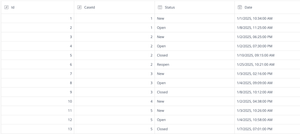
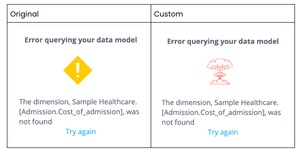
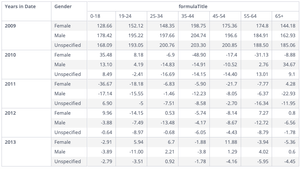
ContributionsMost RecentNewest TopicsMost LikesSolutionsFilter BETWEEN two dates in the model Filter BETWEEN two dates in the model This article explains how to create a filter to return data between two fields in the model. The following cases will be covered: Show only active contracts on the given date; To show the status of the record on the given date. The first challenge is to show only active contracts on the given date. Let’s assume that we have the following columns in the table “History”: Id; From; To. Let's assume that the contract is active if the given date is between [From] and [To]. To filter the dates we will create two filters on the dashboard using these fields. Now, end-users can choose the same date in these filters. This is not a good user experience, because the user will have to update two filters. To improve user experience we will do the following: Lock these filters - a user will not update these filters manually. Use element Input.Date of the widget “BloX” to let a user provide a date; Create a custom action to update the filters [From] and [To]. Let’s create the action “betweenDates”: const { data, widget } = payload; const { selectedDate, fromDateDim, toDateDim } = data; if (!(selectedDate && fromDateDim && toDateDim)) { return; } const fromFilter = widget.dashboard.filters.item(true, fromDateDim); const toFilter = widget.dashboard.filters.item(true, toDateDim); if (!(toFilter && fromFilter)) { return; } setNewDatesInFilters(fromFilter, toFilter, selectedDate); widget.dashboard.refresh(); function setNewDatesInFilters(fromFilter, toFilter, newDate) { toFilter.jaql.filter = { from: newDate }; fromFilter.jaql.filter = { to: newDate }; updateFilter(toFilter.jaql); updateFilter(fromFilter.jaql, true); } function updateFilter(filterObject, save = false) { widget.dashboard.filters.update({ jaql: filterObject }, { save, refresh: false }) } Snippet of this action: { "type": "betweenDates", "title": "Apply", "data": { "selectedDate": "", "fromDateDim": "", "toDateDim": "" } } Let’s use this action in the BloX. Also, we will add the element “Input.Date”. As the result, we will get the following BloX JSON: { "style": "", "script": "", "title": "", "showCarousel": true, "body": [ { "type": "Container", "items": [ { "type": "Input.Date", "id": "data.selectedDate", "class": "" } ] } ], "actions": [ { "type": "betweenDates", "title": "Apply", "data": { "selectedDate": "", "fromDateDim": "[History.From (Calendar)]", "toDateDim": "[History.To (Calendar)]" } } ] } Now, you can choose a date and after clicking “Apply” both filters will be updated with the selected date. The only issue - input field is cleared. We will fix this by adding a simple widget’s script to the widget BloX - this script will persist the selected date in the input field: widget.on('ready', () => { const toFilter = widget.dashboard.filters.item('[History.To (Calendar)]'); const selectedDate = $$get(toFilter, "jaql.filter.from"); if (selectedDate && document.getElementById('data.selectedDate')) { document.getElementById('data.selectedDate').value = selectedDate; } }) Now, when the dashboard is loaded, the script finds the previously selected date and fills in the input field. Also, when a user changes the date, the newly input date is shown. Let’s solve the second challenge to show statuses of the record on the given date. Let’s assume that we have table “Cases”. In this table we have historical information about cases: Id - unique identifier of the record; CaseId - case’s identifier; Status - status of the case; Date - date when case status was changed. Sample of the data in this table: [ALT text: A table displaying case information with the following columns: Id, CaseId, Status, and Date. The table includes rows showing various case entries with status updates such as "New," "Open," "Reopen," and "Closed," along with corresponding timestamps for each case.] Use-case: as an end-user, I want to input the date and Sisense should return the status of the case in the given date. To accomplish this, let’s create a new custom table “History”, where we will compute the first date of the status and its last date. This custom table will be populated with the next SQL query: SELECT CaseId, [Old Status], [New Status], [From], [To] FROM ( SELECT c.[CaseId], c.[Status] "Old status", cc.[Status] "New status", c.[Date] "From", cc.[Date] "To", RankCompetitionAsc(c.CaseId, c.[Status], c.Date, cc.Date) "Rank" FROM Cases c INNER JOIN Cases cc ON c.[CaseId] = cc.[CaseId] and c.date < cc.date ) c WHERE c.Rank = 1 UNION ( SELECT c.[CaseId], c.[Status] "Old Status", '' "New status", c.date "From", CreateDate(2999, 12, 31) "To" FROM Cases c INNER JOIN ( select caseId, max(date) "MaxDate" from cases group by caseId ) latestStatus ON c.[CaseId] = latestStatus.caseId and latestStatus.MaxDate = c.date ) This query contains two parts: The first part returns statuses, which were already changed and we have information about the status after the change; The second part shows the current status of the record. As a result of the data transformation, we will have the following structure: [ALT Text: A table displaying status updates with columns labeled "CaseId," "Old Status," "New Status," "From," and "To." There are five rows of data showing various cases, their old and new statuses, and corresponding timestamps for when the status changes occurred. The "From" and "To" columns indicate the date and time of the changes. Some cases are marked as "New," "Open," "Closed," and "Reopen."] Now, we will use approach from the first part of this article to create dashboard’s filters and utilize BloX to input the date and custom action to update the dashboard’s filters. Conclusion In this article we reviewed a possible way to manipulate date filters. A similar approach you can use for embedding cases. Since the filters will be controlled from the BloX widget and filters will be locked for manual editing, you can even hide these dates filters using the following plugin: https://www.sisense.com/marketplace/add-on/hide-filters Similar Content: Sisense Docs Disclaimer: This post outlines a potential custom workaround for a specific use case or provides instructions regarding a specific task. The solution may not work in all scenarios or Sisense versions, so we strongly recommend testing it in your environment before deployment. If you need further assistance with this please let us know. Custom error notification image Custom error notification image This article explains how to develop the plugin to replace the default error image. Of course, in ideal world there are no errors, but who does live in the ideal one? As a result of this article’s implementation, we will accomplish the following: ALT Text: A comparison table with two columns titled "Original" and "Custom." Each column contains the same message about an error querying a data model, mentioning a specific dimension related to healthcare. The "Original" message features a yellow warning icon, while the "Custom" message has a red explosion icon. Both messages prompt the user to "Try again." To accomplish this we will develop a new plugin. For more details about plugin development please check this article: https://community.sisense.com/t5/knowledge-base/plugin-dev-tutorial/ta-p/9087 To create a new plugin we will need to do the following: Use file manager to navigate to the folder ‘plugins’; In the folder ‘plugins’ create a new folder and name it ‘updateErrorLogo’; Open the newly created folder and create two files: main.6.js; plugin.json. Open the file ‘plugin.json’ and paste there the following content: { "name": "updateErrorLogo", "source": [ "main.6.js" ], "lastUpdate": "2025-01-10T22:36:03.764Z", "folderName": "updateErrorLogo", "isEnabled": true, "version": "1.0.0", "skipCompilation": true, "pluginInfraVersion": 2 } 5. Open the file `main.6.js’ and paste there the following code: //Import your image. Value of the variable newErrorSvg is internal URL to the image import newErrorSvg from './newErrorSvg.svg'; //Subscription at the loading directive slfQueryErrorBrand mod.directive('slfQueryErrorBrand', [ () => { return { restrict: 'C', link: async($scope, lmnt, attrs) => { $(lmnt).hide(); //Hiding default logo await fetch(newErrorSvg).then((response) => { //Load SVG return response.text().then(svgContent => { //Convert response into text lmnt[0].innerHTML = svgContent; //Replace default content with our custom one }); }).catch((error) => { console.error('Error loading SVG:', error); }).finally(() => { $(lmnt).show(); //Show logo }); } }; } ]); 6. Place an image with the name ‘newErrorSvg.svg’ you want to be shown instead of the default. Now, after the plugins rebuild you will see your new image instead of the default one. Enjoy your customized error image. In the attachment, you can find the completed plugin. BloX: replicating action “send me the report now” BloX: replicating action “send me the report now” This article explains how to develop an action to send a dashboard as a report to the end user. This action replicates the action “Send me the report now”. This action is available only to the dashboard’s owner, but we will develop a BloX action, which will be available for other users. To solve this challenge you will need to do the following: Create a widget of the type ‘BloX’ on the dashboard you want to have the ability to send reports to the end-users; Create a custom action with the following code: const { widget } = payload; //Get widget’s object from the payload const internalHttp = prism.$injector.get('base.factories.internalHttp'); //Get internal factory to run API requests internalHttp({ url: '/api/v1/reporting', method: 'POST', contentType: 'application/json', data: JSON.stringify({ assetId: widget.dashboard.oid, assetType: "dashboard", recipients: [ { type: 'user', recipient: prism.user._id } ], preferences: { inline: true } }) }).then(res => console.log(res.data)); This action will have the following snippet: { "type": "sendMeReport", "title": "Send me report" } Use this snippet in the widget you have created: { "style": "", "script": "", "title": "", "showCarousel": true, "body": [], "actions": [ { "type": "sendMeReport", "title": "Send me report" } ] } Now, you have a button on the widget. After clicking this button, Sisense will send a report for the currently authenticated user. Please, note that there will be no indication of the running action. When the action is completed there will be a message in the browser’s console. Feel free to customize the logic of this action to show the end-user that the report is generating. Custom action is a powerful tool, which allows you to create custom interactions. Use this approach to create a new action easily. You can customize the proposed action by adding an indication of the running action or by using custom parameters to change format or size of the generated report (check the description of the endpoint /api/v1/reporting for additional information). Check out related content: Creating customer actions Reporting Send Reports Mastering custom actions in Sisense: debugging and understanding payload properties Custom actions extend the widget BloX's basic functionality. This article explains how to debug custom actions. Developing custom actions requires JavaScript programming experience and familiarity with the browser's developer tool. Usage PivotAPI to Beautify Data On Pivot Usage PivotAPI to Beautify Data On Pivot In this article, we will review the capabilities of PivotAPI to customize cells. Additionally, we will review important properties, as well as some tricks, we can use to visualize data in a more beautiful way. NOTE: Usage of these technics requires minimal knowledge of JavaScript We will review data formatting for two use cases: Changing styles of the cell depending on the value in the cell; Converting seconds to HH:MM:SS format. Changing styles of the cell depending on the value in the cell Code: const myTarget = { type: ['value'], values: [ { title: 'formulaTitle' // put here desired column } ] }; widget.transformPivot(myTarget, (metadata, cell) => { //Exclude 0 and empty rows const isPositive = cell.value > 0; const isNegative = cell.value < 0; cell.style = cell.style || {}; let additionalStyle; if (isPositive) { cell.content = `${cell.content} ↑`; additionalStyle = { color: 'green', fontWeight: 'bold' }; } else if (isNegative) { cell.content = `(${cell.content.replace('-', '')}) ↓`; additionalStyle = { color: 'red', fontSize: '18px' }; } if (additionalStyle) { cell.style = Object.assign(cell.style, additionalStyle); } }); Explanation: We need to define columns where the script will be applied. It's done in the variable [myTarget]. This variable has two properties: type - refers to the type of cells, which will be modified by the script; values - an array of the values, which will be modified by the script. So, our script is targeted to update cells, which shows values computed by the formula 'formulaTitle'. Once we have defined the target of the script, we will need to initiate widget.transformPivot(). As the first argument we are passing the target and as the second argument we send a callback function, that will be executed for the cells. The callback function receives information about the cell as the second argument. It contains several important properties: value - this is a numeric value before formatting (for formulas only); content - this is formatted value, which is shown in a frame; style - additional styles of the cell. In terms of our script, we did the following: Check the value in the cell to understand its sign; After this, depending on the sign we update the styles of the cell and change content by adding an arrow up or arrow down. Before After Converting seconds to HH:MM:SS format. Code: const formulaTitle = 'Formatted'; //Name of the formula, which store integer; const time_separator = ":"; //Delimiter const hourSign = ''; //Symbol for hours if needed const minuteSign = ''; //Symbol for minutes if needed const secondSign = ''; //Symbol for seconds if needed widget.transformPivot( { type: ['value'] //We are going to process values (formulas) only }, processCell ); function processCell(metadata, cell) { if (metadata.measure.title === formulaTitle) { //Find formula with the name defined in a variable [formulaTitle] try { cell.content = computeContent(cell); //Convert value into desired format } catch(err) { console.warn('Unable to process cell'); } }; } function computeContent(cell) { if (!cell.value || isNaN(parseInt(cell.value))) { return cell.content; } else { const value = parseInt(cell.value); const sign = value < 0 ? "-" : ""; const hours = parseInt(value / 3600); const minutes = parseInt((value - (hours * 3600)) / 60); const seconds = value - (hours * 3600) - (minutes * 60); const hoursText = `${hours < 10 ? "0" + hours : hours}${hourSign}`; const minutesText = `${minutes < 10 ? "0" + minutes : minutes}${minuteSign}`; const secondsText = `${seconds < 10 ? "0" + seconds : seconds}${secondSign}`; return `${sign}${hoursText}${time_separator}${minutesText}${time_separator}${secondsText}`; } } Explanation: This script processes all the cells, which are produced by the formulas. If you have multiple formulas in your pivot, then the time of execution can be quite long. If you want to process some particular cells, then check the first example - it shows how to limit columns, which are processed by the script. We are going to process only values defined by the formula with the title 'Formatted', so we add this condition to the function callback. If this condition is not met (another formula computed the value), we will not execute the further logic. The further logic converts an integer from the cell to the format HH:MM:SS. The computed value is returned and set as [cell.content]. Result of execution (original value is stored in the column [Original], the formatted one in the column [Formatted]): I hope you find this article useful and leverage the knowledge shared about PivotAPI capabilities and their usage. Please share your experience in the comments! Exporting a Dashboard Into PDF with SisenseJS Exporting a Dashboard Into PDF with SisenseJS This article explains how to develop the functionality of generating PDF with the shown widgets when Sisense dashboard is embedded with SisenseJS. When the dashboard is exported into PDF, the report is generated on the Sisense server. When a dashboard is embedded with SisenseJS, then developers can create their own layout, which can differ from the layout created by the dashboard’s designer. SisenseJS does not provide an option to export the shown widgets to PDF, because Sisense will not be able to render the same layout that is used in the parent application. Nevertheless, the shown dashboard can be easily exported into PDF. For exporting we need to use the external library [html2pdf.js]. More information about this library can be found at this link. This library should be added to the page: <script src="https://cdnjs.cloudflare.com/ajax/libs/html2pdf.js/0.10.1/html2pdf.bundle.min.js"></script> Once this library is loaded and Sisense widgets are rendered on the page, you can call methods from this library in order to generate PDF reports. To utilize the methods of this library, I created a function exportToPDF() and variable [opt]. Variable [opt] stores settings that will be used to initiate exporting to PDF. In the sample below, the returned file will be named “myfile.pdf”. Function exportToPDF() expects a DOM element that contains the rendered widgets. HTML of the given element will be rendered in the returned PDF: const opt = { filename: 'myfile.pdf', //File name }; function exportToPDF(lmnt) { const dashboardContainer = document.getElementById(lmnt); html2pdf().set(opt).from(dashboardContainer).save(); } Sample of this logic execution: exportToPDF('sisenseApp'); In the generated PDF the widgets will be placed as the developer placed them. Using this approach you can easily implement the functionality of generating PDF reports. Feel free to use this logic and modify them according to your needs! Re: Share dashboard to additional users without republishing There are three types of the dashboard's instances in Sisense: owner - this instance is developed by the dashboard's owner. Only the dashboard's owner has access to this instance. proxy - this is the shared state of the dashboard. If a user has access to the dashboard but do not have an own instance of the dashboard (see the next point), then the user's instance will be created from the proxy instance. user - this is the user's version of the dashboard. All the filters' changes will be saved in this instance. When owner republishes a dashboard (using action in UI), then Sisense updates the proxy instance of the republished dashboard and removes all the users' instances. As a result, users lose their filters. You can share your dashboard using REST API. This solution will require two steps: Updating a dashboard with the new shares list using PATCH request at `/api/v1/dashboards/${dashboard_id}` Republishing a dashboard with POST request at `/api/v1/dashboards/${dashboardId}/publish?force=false` (a query parameter [force] prevents removing the users' instances) Sample of code and detail explanation can be found here. Exporting Options in SisenseJS Snippets of code with explanation what should be done in order to implement exporting if Sisense is embedded with SisenseJS Re: Is there a way to pass specific filters for Jump to Dashboard? Hi Sneak, It looks like you missed space in the dimension. The correct form is below: [NOTES.OldestNoteDateOfVisit (Calendar)] Another point - type of the variable "excludeFilterDims" is "array". So, the whole script will look like this: prism.jumpToDashboard(widget, { excludeFilterDims: [ "[NOTES.OldestNoteDateOfVisit (Calendar)]" ] }