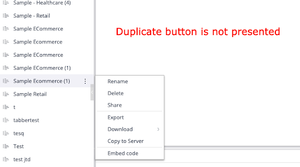
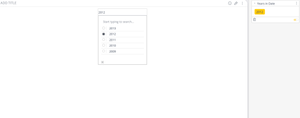
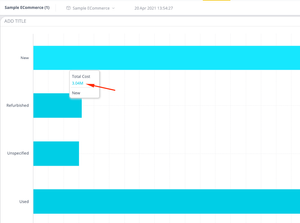
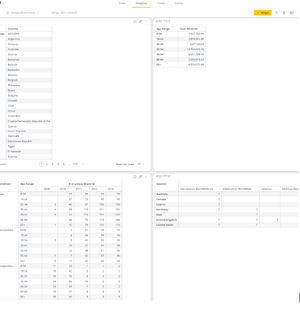
ContributionsMost RecentNewest TopicsMost LikesSolutionsSSO Identity provider for JWT based on Node JS [Linux] or [Windows] This article is going to walk you through and provide basic overview how to implement SSO IDP for JWT authentication into Sisense. Removing the duplicate button for specific dashboards in Sisense This document will guide you through a custom add-on that addresses a specific need: removing the "Duplicate" button from the dashboard options for designated dashboards. This can be useful in scenarios where certain dashboards should not be easily duplicated, such as critical or highly curated reports. This add-on leverages the Sisense plugin framework to manipulate the user interface based on a configuration. Advanced Filter plugin compatible with Latest Sisense versions Advanced Filter plugin compatible with latest Sisense versions Implementation: --------------- 1. Extract the .zip file into the plugins folder on the Sisense directory (Under Admin -> File Management -> Plugins) 2. Open a Sisense dashboard and create a new widget - click the advanced button to get into the widget edit mode. 3. choose from the widgets list the one called "Advanced Filter" 4. Choose a dimension under 'items' in the dimension panel you want to create a filter from. 5. click apply 6. Enjoy Disclaimer: This blog post outlines a potential custom workaround for specific use cases. The solution may not work in all scenarios or Sisense versions, so we strongly recommend testing it in your environment before deployment. The content is provided "as-is" without any warranty, including security or fitness for a particular purpose. Custom coding is involved, which falls outside Sisense's warranty and support. Additional Resources: Sisense Academy: https://academy.sisense.com/master-class-advanced-dashboards-with-plug-ins-and-scripts Sisense Docs: https://docs.sisense.com/main/SisenseLinux/customizing-sisense-using-code.htm Custom Widget/Dashboard script to return full digit numbers Disclaimer: Please note, that this blog post contains one possible custom workaround solution for users with similar use cases. We cannot guarantee that the custom code solution described in this post will work in every scenario or with every Sisense software version. As such, we strongly advise users to test solutions in their own environment prior to deploying them to ensure that the solutions proffered function as desired in their environment. For the avoidance of doubt, the content of this blog post is provided to you “as-is” and without warranty of any kind, express, implied or otherwise, including without limitation any warranty of security and or fitness for a particular purpose. The workaround solution described in this post incorporates custom coding which is outside the Sisense product development environment and is therefore not covered by not covered by Sisense warranty and support services. This article does cover the use case when you would like to display full size of number instead of the default logic approach we use when numbers are shorted, example: After the solution would be applied: Here is the widget script that you could use to effect the specific widget Chart: // Function to convert shortened numbers to full numbers function convertToFullNumber(value) { if (typeof value !== 'string') { throw new Error("Input must be a string."); } let multiplier = 1; let number = parseFloat(value); if (isNaN(number)) { throw new Error("Invalid numeric value."); } const lowerValue = value.toLowerCase(); if (lowerValue.includes('m')) { multiplier = 1e6; // Million } else if (lowerValue.includes('k')) { multiplier = 1e3; // Thousand } else if (lowerValue.includes('b')) { multiplier = 1e9; // Billion } else if (!/^\d+(\.\d+)?$/.test(lowerValue)) { throw new Error("Invalid format. Only numbers with 'k', 'm', or 'b' are allowed."); } return Math.round(number * multiplier); } widget.on('beforedatapointtooltip', (widget, query) => { let value = query.context.points[0].value; try { const convertedValue = convertToFullNumber(value); query.context.points[0].value = convertedValue; } catch (error) { console.error("Conversion error: " + error.message); query.context.points[0].value = value; // Keep the original value if conversion fails } }); Dashboard script which effects many chart widgets: // Function to convert shortened numbers to full numbers function convertToFullNumber(value) { if (typeof value !== 'string') { throw new Error("Input must be a string."); } let multiplier = 1; let number = parseFloat(value); if (isNaN(number)) { throw new Error("Invalid numeric value."); } const lowerValue = value.toLowerCase(); if (lowerValue.includes('m')) { multiplier = 1e6; // Million } else if (lowerValue.includes('k')) { multiplier = 1e3; // Thousand } else if (lowerValue.includes('b')) { multiplier = 1e9; // Billion } else if (!/^\d+(\.\d+)?$/.test(lowerValue)) { throw new Error("Invalid format. Only numbers with 'k', 'm', or 'b' are allowed."); } return Math.round(number * multiplier); } // Widget event handler example prism.on("dashboardloaded", function (e, args) { args.dashboard.on('widgetready', (dashboard, args) => { var array = []; dashboard.widgets.toArray().forEach(widget => { if (widget.type === 'chart/bar') { widget.on('beforedatapointtooltip', (widget, query) => { let value = query.context.points[0].value; try { const convertedValue = convertToFullNumber(value); query.context.points[0].value = convertedValue; } catch (error) { console.error("Conversion error: " + error.message); // Optionally handle the error or show a fallback value query.context.points[0].value = value; // Keep the original value if conversion fails } }) } }); }); }); Troubleshooting the issue with incorrect Pivot Layout for Expand Pivot On Dashboard PDF The reason we have created this guide would be to increase the awareness of our customers on how to properly extend multiple pivot widgets for Expand Pivot On Dashboard PDF to ensure you are doing it properly to avoid potential issues with use cases when you have a couple of Pivot Tables on the same dashboard and some Pivots are extended as expected and some have broken layout. Let’s take as a use case the example of the Sisense dashboard with 4 different Pivot Tables, example below: How to remove an entire column on a table widget with a custom widget script You can use the following widget script, which can hide the specific column from the Table / Table with Aggregation widget Troubleshooting the issue with incorrect Pivot Layout for Expand Pivot On Dashboard PDF The reason we have created this guide is to increase the awareness of our customers on how to properly extend multiple pivot widgets for Expand Pivot On Dashboard PDF to ensure you are doing it properly to avoid potential issues with use cases when you have a couple of Pivot Tables on the same dashboard and some Pivots are extended as expected and some have broken layout. How to properly enable/disable plugins on Sisense guide The reason we have created this guide would be to increase the awareness of our customers on how to properly enable/disable plugins at Sisense to ensure that you are doing it properly to avoid potential issues when changes are not applied as expected and so long.