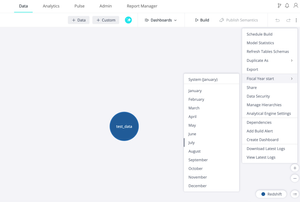
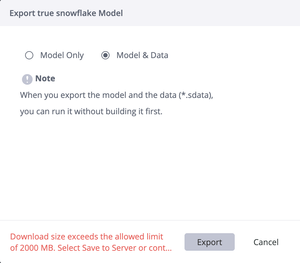
ContributionsMost RecentNewest TopicsMost LikesSolutionsDashboard dates display incorrect years due to fiscal year settings [Linux] Step-by-Step Guide Check your Elasticube fiscal year start month Open Sisense Admin or Elasticube Manager. Navigate to the Elasticube used by the affected dashboard. Locate the Fiscal Year Settings section. 2. Review the fiscal year start month Verify the month configured as the Fiscal Year Start Month. If set incorrectly (e.g., April instead of January), Sisense shifts dates into the next fiscal year, causing dashboards to display dates one year ahead. 3. Adjust the fiscal year start month If the setting is incorrect, change it to the correct start month (typically January, unless your organization uses a non-standard fiscal year). Save your changes. Conclusion Incorrect dashboard dates often result from misconfigured fiscal year settings in the Elasticube. By reviewing and updating the fiscal year start month and rebuilding the model, you can quickly restore accurate date displays across your dashboards. References/Related Content Sisense Documentation: Fiscal Year Settings: https://docs.sisense.com/main/SisenseLinux/fiscal-years.htm How to manage cube file sizes by reducing model data in Sisense [Linux] This article provides a solution for users who need to manage their cube file sizes in a Sisense environment by keeping the cube files while removing the data within them. This can be useful. Resolving model export limitations in Sisense [Linux] As Snowflake transitions to requiring Key Pair authentication, there is uncertainty regarding the compatibility of v2 generated key pairs with Sisense. Sisense documentation currently recommends using v1 key pairs, while Snowflake suggests v2 keys. This article clarifies the compatibility of v2 keys with Sisense and provides guidance on transitioning to these key pairs. Resolving model export limitations in Sisense [Linux] When trying to export a data model from the Data page, if the model exceeds 2 GB in size, the export process fails. Users typically see a generic error message, and the model is not exported successfully. By default, Sisense limits the maximum size of the data export stream. When a model exceeds this threshold (2 GB), the export operation cannot proceed. Troubleshooting 500 internal server error on REST API PATCH: updating connection parameters This article addresses the resolution of a 500 Internal Server Error encountered when attempting to change connections using the PATCH method on Sisense REST API v2 for updating data model schema datasets. If you are experiencing issues following recent upgrades or changes in Connection Manager features, this guide may provide the solution. Re: Does Sisense free up RAM from crashed queries and builds? Thank you for your follow-up question, Tim! I appreciate your curiosity about how Sisense manages RAM allocation. In Sisense, if a cube build or query fails and RAM remains allocated to caching, that memory is typically reserved for performance purposes. However, Sisense does have mechanisms to manage memory dynamically. If another process, cube, or query requires RAM, the system will attempt to deallocate or reassign cached memory to accommodate the new demand. That said, the effectiveness of this reallocation depends on overall system usage and configuration. In scenarios where memory pressure is high, manually stopping a failed cube can proactively free up cached RAM and ensure availability for other operations. Please let me know if you'd like to dive deeper into this or explore any specific examples! Best regards, Ihor Re: Does Sisense free up RAM from crashed queries and builds? Hi Tim, Thank you for reaching out with your question about RAM usage in Sisense. It's great to see you're actively experimenting and exploring the platform's capabilities. When a cube build or query consumes a large amount of RAM and subsequently fails, Sisense does not automatically release the RAM immediately. This is because the RAM remains allocated to caching mechanisms for potential reuse, which helps improve performance for subsequent operations. If you'd like to free up RAM after a failed or canceled build, the best approach is to stop the specific cube. Stopping the cube releases all cached RAM associated with it, ensuring those resources are available for other users or further experiments. To stop a cube, you can follow these steps: Navigate to the Data tab in the Sisense Web Application. Locate the specific cube. Click the Stop option to terminate it. Once stopped, you can restart the cube as needed and continue experimenting. Please let us know if you have additional questions or need further assistance. Best regards, Ihor