UserReplaceTool - Automating Dashboard Ownership Transfers - Useful for Deleting User Accounts
Managing and deleting user accounts in Sisense can create manual processes when users leave an organization or change roles. A frequent issue is the reassignment of dashboard ownership to prevent losing Sisense dashboards when a given user account is deleted, as deleting a Sisense user will delete all dashboards owned by that user. The UserReplaceTool addresses this task by automating the transfer of dashboard ownership of all dashboards owned by a given user, ensuring continuity and data integrity. UserReplaceTool is a Python-based, API-based Tool solution designed to seamlessly transfer the ownership of dashboards and data models from one user to another in Sisense. This tool simplifies and automates this process, allowing organizations to reassign dashboard ownership without manual processes or the risk of losing dashboards and widgets. All components are accomplished by using Sisense API endpoint requests.1.2KViews3likes2CommentsEnsuring Accurate PDF Export Headers When Programmatically Modifying Dashboard Filters in Sisense
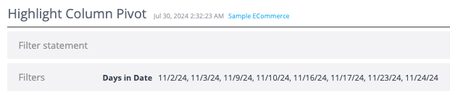
When working with Sisense dashboards, programmatically modifying filters upon dashboard load via dashboard scripts for a specific user or circumstance is possible. However, an issue can sometimes occur when exporting these dashboards to PDF immediately after such modifications: the filter header displayed at the top of the exported PDF displaying the current dashboard filter state may not accurately reflect the current state of the dashboard filters. This article explains the cause of this issue and presents a solution to ensure that PDF exports display the correct filter information in the header.666Views1like0Comments
Introducing Sisense Fusion 2021.11 — Easy-to-use UI, seamless installations, and More!
Dig into the latest features to discover what the new features in Sisense’s analytics platform can do for you. Learn how to install Sisense using Provisioner and Helm, copy theme identifiers, define a time for support access users, and test email server configuration.1.7KViews2likes0Comments
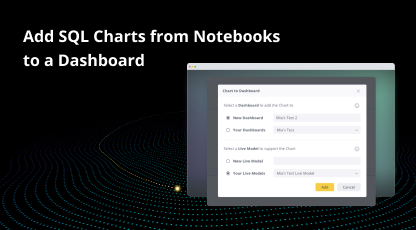
Add SQL Charts from Notebooks to a Dashboard
Sisense is happy to announce added functionality that allows users to add SQL charts to a Dashboard directly from Notebooks. This update significantly reduces the steps required to share insights and eliminates task switching between Notebooks, Dashboards, and Models while maintaining data security and data continuity.3.4KViews1like0CommentsConnection Tool - Programmatically Remove Unused Datasource Connections, and List All Connections
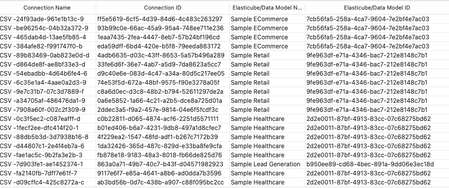
Managing connections within your Sisense environment can become complex over time, if there are a large number of connections, and connections are often added, and replace earlier datasource connections. In some scenarios unused connections can accumulate, potentially cluttering the connection manager UI with no longer relevant connections. Although unused connections typically represent minimal direct security risk, it's considered best practice to maintain a clean, organized list of connections, and in some scenarios it can be desired to remove all unused connections. Sisense prevents the deletion of connections actively used in datasources, safeguarding your dashboards and datasources from disruptions. However, inactive or "orphaned" connections remain after datasources are deleted or a connection is replaced, potentially contributing to unnecessary UI complexity in the connection manager UI. Connections can be of any type Sisense supports, common types include various SQL connections, Excel files, and CSV files, as well as many data providers, such as Big Panda. This tool can also be used to list all connections, with no automatic deletion of unused connections.548Views4likes3CommentsCustomizing the Sisense User Interface with Interactive Buttons and Icons
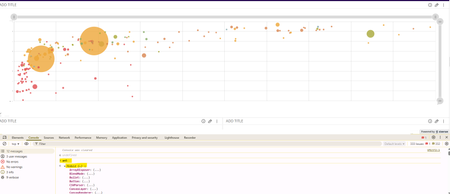
Sisense plugins and scripts enable extensive customization of the Sisense user interface, allowing developers to add interactive elements such as buttons and icons to enhance functionality and user experience. A common use case of plugins involves adding clickable icons or buttons that trigger specific plugin features or open custom UI elements. This article outlines the process for adding these interactive elements using a practical example.250Views0likes0CommentsLoading Amchart5 and Other External Libraries via Script Tags in Plugins
This article explains how to load external libraries, such as Amchart5, into Sisense plugins by dynamically adding script tags to the page header to load the library. This method can avoid potential issues associated with other loading techniques but also offers flexibility such as using an external CDN to reduce plugin size and file count. Previous articles have discussed how to load external libraries and modules for Sisense plugins via adding the file to the plugin folder, and adding the file to the "source" parameter array in the plugin.json.612Views1like1CommentPassing Filters via URL Parameters for Dashboards with Separate Datasources
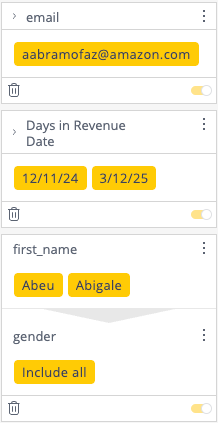
Sisense includes a native included feature and format for passing URL filters via URL parameters, as documented here. By default, this functionality copies filters in full, including the datasource parameter of the filter, and includes every filter automatically. It results in very long URL's, and includes many parameters that are not always required, as the full filter object is included. Previous Knowledge Base articles articles have discussed how similar behavior can be recreated customized via scripting for more flexible usage. However, those approaches applied only to member-type filters, excluding other filter types and multi-level dependent filters. The code shared below demonstrates a more flexible filter modification via URL modification approach. It includes both creating URL parameters and reading URL parameters for filter modification, whether this code is in a script or plugin. This method applies to all filter types and can be used to transfer filters between dashboards using different datasources. This code works in both dashboard and widget scripts as well as plugins. If your datasources use different dimension names, this code can be adopted to map and match the aligned dimensions.440Views1like0CommentsRedirect users to different dashboards based on dashboard filters
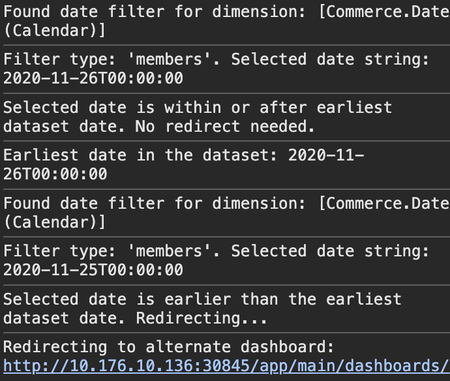
This article discusses and shares the full code of a dashboard script that redirects users to a different dashboard ID based on the user's filter selections or initial loaded filter state. In the particular example shared in this article, the script checks whether the selected date filter (either from a members filter or a from/to filter range) includes an earlier date than the earliest date in the current dashboard's datasource. If this is the case, the script redirects the user to a specified alternate dashboard, preserving any additional URL segments and query parameters in the URL. Any other type of filter state can also be used to determine on when the script should redirect, including non-date filters using similar scripts.548Views1like0CommentsPlugin - RemoveImageDownload - Removing Items From Sisense Menus
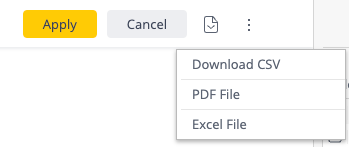
This article discusses a plugin (and an equivalent dashboard script) that removes the “Download as Image” option from Sisense menus. This same approach can be applied to remove any other menu option in Sisense by adjusting the relevant code. Organizations may want to hide or remove specific menu items for several reasons: Security: Prevent certain menu options from being used. Enforcing Best Practices: Remove menu items not used in the standard recommended workflow Streamlined UI: Hide unused menu items to simplify the user experience. Plugin Overview RemoveImageDownload plugin removes the “Download Image” option from all standard Sisense menus which include the:510Views0likes0Comments