Using Grafana to troubleshoot performance issues
Overview Out of the box, Sisense running on Linux comes with embedded monitoring tool Grafana. Sisense created a few dashboards that can be helpful in order to troubleshoot the performance issues. Grafana can be accessed from Admin page->System Settings-> Monitoring (in top right corner) or by https://your_web_site/app/grafana/ The dashboards list is available by navigating on the left-hand side menu on a 4 square button-> manage Navigation Grafana has some base controls that makes it straightforward to gather info about the system over a period of time. Within a dashboard you will see similar headers to the following: 1: Filter dropdowns - such as namespace (by default, Sisense components run in the sisense namespace), pods, and node(s). 2: Time period - can be configured to be relative or absolute (according to browser timezone) 3: Refresh - can manually toggle the refresh or set a refresh rate Within a visualization, you can hover over particular lines or click on one or more values Click and drag over a time period to zoom in on the time period for more accurate values For more information, check out the official Grafana docs - Working with Grafana dashboard UI Available Dashboards We will focus our troubleshooting using 4 dashboards: Nodes All Pods per namespace Kubernetes / Compute Resources / Namespace (Workloads) Import the dashboard 12928 Nodes Dashboard This dashboard is useful for troubleshooting overall node performance during a period of time. It can tell us what the CPU, RAM, Disk I/O, and networking usage of the machine during a period of time. Use the 'instance' drop down to select which node to examine. All Pods per Namespace Dashboard The dashboard header will allow you to filter the pods/nodes, setup the timeframe, specify refresh/autorefresh: The dashboard has 3 widgets (CPU, RAM and Network) and will show the load of a server pod-by-pod (separately) overlapping each other This is useful when checking what the RAM consumption of a pod is. Please note this dashboard not does not show overall RAM consumption by default, it will show the RAM of each pod individually. Click to check how to add Total: In Grafana (hosted on /app/grafana), under dashboard named all pods per namespace , two widgets (Cpu Usage, Memory Usage) need to add the sum of all Pods. This is mandatory information when troubleshooting resource pressure situations. Add the following metric to the memory widget: sum (container_memory_working_set_bytes{job="kubelet", pod_name=~"$pod", container_name!=""}) We can then see more clearly the state of the machine (RAM in this case): using the Pod filter you can filter all the query or build POD by typing "qry" or "bld" in a filter and selecting needed Pods: Hover over on the widget item to see the name of a POD Drag and drop to select needed timeframe: Kubernetes / Compute Resources / Namespace (Workloads) This dashboard has a lot more widgets and will show you the total usage of RAM, CPU etc Useful when need to see total usage to identify Safe-Mode trigger. For multinode see the manual This dashboard additional widgets that can be helpful in monitoring your server performance, network usage, etc. Sisense Cluster Detail Dashboard (#12928) This dashboard is included by default in many recent versions of Sisense on Linux. This dashboard has a lot of pre-set-up widgets that will show you pods, cluster, Drive, RAM etc usage. Before you try to import this dashboard, check to see if the dashboard is already in your Grafana dashboard menu. If your instance is on an older release or you would like to import a dashboard from other users, follow the steps below: 1. Click the 4 square menu icon, then Manage dashboard 2. Press on import dashboard in the top right corner 3. Specify the number of a dashboard 12928 (or other dashboard number) and press load 4. Select Logs Data source "Prometheus" 5. Click import and enjoy3.8KViews2likes0CommentsJumpToDashboard - Troubleshooting the most common configuration issues
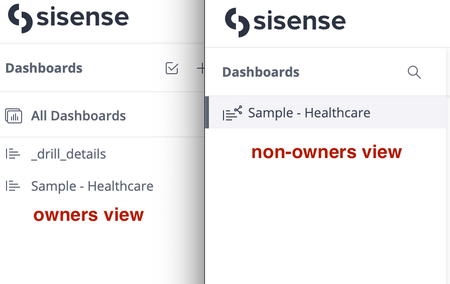
JumpToDashboard - Troubleshooting the most common configuration issues This article provides possible solutions to the most common configuration issues with the JumpToDashboard plugin. Please review the symptom of the issue first (what error/behavior you experience with the JumpToDashboard plugin) and then follow the solution instructions. If this doesn’t solve your issue, feel free to contact our Support Team describing your issue in detail. Symptoms: A target (usually with “_drill” in prefix) dashboard disappeared for non-owner users in the left-hand side panel. Solution: this behavior could be intended and is controlled by the JumpToDashboard parameter called “hideDrilledDashboards”. To make the dashboard visible for the non-owners, please check the following: 1. Log in as a dashboard owner and find the dashboard in question in the left-hand side panel. Click the 3-dots menu and make sure it’s not hidden: 2. If it’s not hidden by the owner intentionally, then navigate to the Admin tab > System Management (under Server & Hardware) > File Management > plugins > jumpToDashboard > js > config.js and check if hideDrilledDashboards set to true. If so, then change it to false and save the changes in the config file. 3. Wait until the JumpToDashboard plugin is rebuilt under the Admin tab > Server & Hardware > Add-ons page and ask your user to refresh the browser page to check if a drill dashboard appears on the left-hand side panel. Symptoms: No "Jump to dashboard" menu appears in a widget edit mode clicking the 3-dots menu. Solution: there could be different reasons for such behavior so check the most common cases below: Double-check if the JumpToDashboard plugin is enabled under the Admin tab > Server & Hardware > Add-ons page. Make sure that both dashboards (parent and target) are based on the same ElastiCube. By default, the JumpToDashboard plugin has sameCubeRestriction: true in the config.js file that prevents the ‘jump to’ menu from appearing when a drill dashboard uses a different data source. Check that the prefix you used for the drill dashboard creation is correct. It could be changed in the config.js file. By default, it uses “_drill”: Symptoms: when clicking on a widget that should open a drill dashboard, nothing happens. Solution: in such cases, we recommend opening your browser console (for example, F12 for Chrome > Console tab) to see if there are any errors that could indicate the issue. For example, a 403 error in the console indicates that the target dashboard is not shared with the user who is experiencing the issue. To fix it, login as an owner of the drill dashboard and share it with the relevant user or group. Symptoms: when clicking on a widget to get the drill dashboard you get a 404 error. Solution: This issue usually happens when the target/drill dashboard is removed from the system. In order to fix it, please follow the steps below: Log in to the system as an owner. Find the parent widget and open it in edit mode. Click the 3 dots menu > choose the ‘Jump to dashboard’ menu and select any other dashboard that exists in the system. Press Apply and publish the changes to other users. Note: if you need just to remove a drill dashboard that doesn’t exist from this widget and not substitute it with another one, try the following: after you choose a new drill dashboard, just unselect it after that and then save the changes. If the jump to dashboard menu doesn’t appear for this widget, try to create a new temporary dashboard with “_drill” in the prefix and do the same. Symptoms: The drill dashboard is not opening for some viewers. Solution: republish the drill dashboard to make sure the updated version is delivered to all end users. Additional Resources: JumpToDashboard Plugin - How to Use and Customize1.7KViews1like2Comments