Connection Tool - Programmatically Remove Unused Datasource Connections, and List All Connections
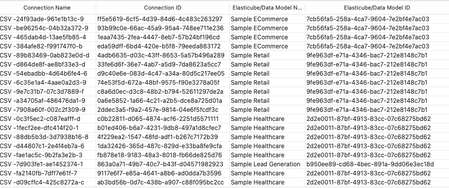
Managing connections within your Sisense environment can become complex over time, if there are a large number of connections, and connections are often added, and replace earlier datasource connections. In some scenarios unused connections can accumulate, potentially cluttering the connection manager UI with no longer relevant connections. Although unused connections typically represent minimal direct security risk, it's considered best practice to maintain a clean, organized list of connections, and in some scenarios it can be desired to remove all unused connections. Sisense prevents the deletion of connections actively used in datasources, safeguarding your dashboards and datasources from disruptions. However, inactive or "orphaned" connections remain after datasources are deleted or a connection is replaced, potentially contributing to unnecessary UI complexity in the connection manager UI. Connections can be of any type Sisense supports, common types include various SQL connections, Excel files, and CSV files, as well as many data providers, such as Big Panda. This tool can also be used to list all connections, with no automatic deletion of unused connections.1KViews4likes4CommentsUserReplaceTool - Automating Dashboard Ownership Transfers - Useful for Deleting User Accounts
Managing and deleting user accounts in Sisense can create manual processes when users leave an organization or change roles. A frequent issue is the reassignment of dashboard ownership to prevent losing Sisense dashboards when a given user account is deleted, as deleting a Sisense user will delete all dashboards owned by that user. The UserReplaceTool addresses this task by automating the transfer of dashboard ownership of all dashboards owned by a given user, ensuring continuity and data integrity. UserReplaceTool is a Python-based, API-based Tool solution designed to seamlessly transfer the ownership of dashboards and data models from one user to another in Sisense. This tool simplifies and automates this process, allowing organizations to reassign dashboard ownership without manual processes or the risk of losing dashboards and widgets. All components are accomplished by using Sisense API endpoint requests.1.4KViews3likes3Comments
Ecube build SQL tagging
Hello, We are working with snowflake data source and have requirement to capture meta for ecube build query from data source. Please suggest how I can set query tagging ? SET QUERY_TAG = "{Team_Name:TEAM, Application:Sisense ecubename}" I did check pre build plugins but did not get option to set data source session settings or initial sql settings in python script. Please suggest.118Views1like2CommentsDoes build failure leave orphaned queries?
My ElastiCube build failed. It was querying a SQL Server database at the time. I looked on that database after the failure: the build still had a query open. Is that normal? Does Sisense attempt to cancel queries as part of a build failure?227Views1like2CommentsWhat does an ElastiCube put in RAM
I heard "An Elasticube, once built and set to the Querying state, is designed to keep its data in memory for fast query access." But I noticed that my cube is 90GB on disk, only 8GB in RAM after I refreshed one dashboard, and the RAM use goes jumped to 21GB when I opened a dashboard that queries a larger quantity of the cube's values. So what's in RAM and what remains on disk? Cached query results? Indexes? Just the rows that have been used since the last build? I'm curious because RAM use of large cubes is sometimes an issue; sometimes we redesign the cube to be smaller and sometimes we get more RAM. The more I understand, the better we can discuss and estimate.108Views0likes1CommentTracking ElastiCube size over time
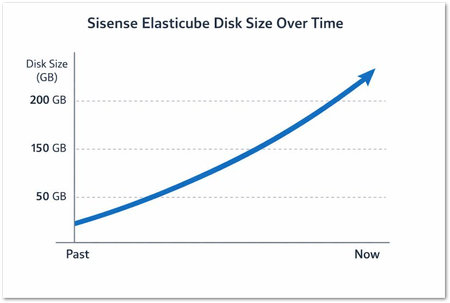
What the solution does ✏️ This solution leverages Custom Code Notebooks and the Sisense REST API to capture ElastiCube size on a desired interval, making the data available for historical analysis. This analysis can be performed via Dashboards, Pulse, or any other method that benefits from a basic flat file structure. Why it’s useful ✅ As mentioned in the Introduction, ElastiCube size is important because it directly impacts performance, hardware resource consumption, build times, and scalability. Efficiently managing cube size is key to maintaining a fast and stable analytics environment. There may also be licensing considerations, requiring the deployment to remain below a sizing threshold. However, it can be challenging to monitor this data on a historical basis for purposes of trending, forecasting, or capturing anomalies. This solution aims to remove that challenge and provide your team with this data in an easy-to-use format. 🔨How it's achieved Create a new ElastiCube and add a Custom Code table. Import the attached Notebook file, getElasticubeSize.ipynb (inside .zip) -- the raw code can also be found below Infer the schema from the Notebook Ensure LastBuildDate and SnapshotDate_UTC are set to DateTime data type “Apply” the schema changes Save the Custom Code table and rename it as desired # Test Cell # When the notebook is executed by the Build process, this cell is ignored. # See the `Test Cell` section below for further details. additional_parameters = '''{}''' from init_sisense import sisense_conn import os import json import requests import pandas as pd from datetime import datetime # Construct the Sisense server base URL server = ( "http://" + os.environ["API_GATEWAY_EXTERNAL_SERVICE_HOST"] + ":" + os.environ["API_GATEWAY_EXTERNAL_SERVICE_PORT"] ) required_columns = [ "ElasticubeName", "TenantId", "SizeInMb", "SizeInGb", "LastBuildDate", "SnapshotDate_UTC", ] def get_elasticube_size(server): """Retrieve Elasticube size and metadata from Sisense API with error handling.""" endpoint = "/api/v1/elasticubes/servers/next" # API call try: response = sisense_conn.call_api_custom("GET", server, endpoint, payload=None) response.raise_for_status() response_json = response.json() except Exception as e: print(f"API error: {e}") return pd.DataFrame(columns=required_columns) # Validate JSON list structure if not isinstance(response_json, list): print(f"Unexpected response format: {type(response_json)}") return pd.DataFrame(columns=required_columns) # Compute snapshot timestamp once for all rows snapshot_timestamp = datetime.utcnow().strftime("%Y-%m-%dT%H:%M:%SZ") ec_size_data = [] for item in response_json: size_mb = item.get("sizeInMb", 0) size_gb = (size_mb or 0) / 1024 ec_size_data.append( { "ElasticubeName": item.get("title") or pd.NA, "TenantId": item.get("tenantId"), "SizeInMb": size_mb, "SizeInGb": size_gb, "LastBuildDate": item.get("lastBuildUtc"), "SnapshotDate_UTC": snapshot_timestamp, } ) df = pd.DataFrame(ec_size_data) # Convert LastBuildDate if not df.empty: df["LastBuildDate"] = pd.to_datetime( df["LastBuildDate"], errors="coerce", utc=True ) # Format to ISO 8601 df["LastBuildDate"] = df["LastBuildDate"].dt.strftime("%Y-%m-%dT%H:%M:%SZ") # Ensure correct column order return df[required_columns] # === Main Execution === df_result = get_elasticube_size(server) print(df_result.head()) # === Write DataFrame to CSV === output_folder = "/opt/sisense/storage/notebooks/ec_size" os.makedirs(output_folder, exist_ok=True) ts = datetime.utcnow().strftime("%Y%m%d_%H%M%S") file_name = f"elasticube_sizes_{ts}.csv" output_path = os.path.join(output_folder, file_name) df_result.to_csv(output_path, index=False) print(f"CSV written: {output_path}") print("Program completed successfully.") This Custom Code hits the Sisense REST API to capture ElastiCube size, along with the capture date (for historical trending purposes). It only serves as a starting point and can be freely edited. Every time the cube is built, it will generate a csv of the data and place it under /opt/sisense/storage/notebooks/ec_size. This location can be accessed in the Sisense UI via File Management – the ec_size folder may need to be created manually. To leverage the data in the csv files, I recommend creating a separate ElastiCube with a csv connection. In the connection: Select “Server Location” Define the Input Folder Path: /opt/sisense/storage/notebooks/ec_size/ Ensure “Union Selected” is enabled. This will combine all of the csv files into a singular data set. The reason I recommend creating a separate data model is so you don’t have to worry about table build order. For example, if the Custom Code and CSV tables exist in the same model, it’s possible for the CSV table to be built before the Custom Code builds/executes, so the latest CSV file’s data would be missed until the next build (and so on). By keeping the Custom Code and csv data models separate, you have more control over the build order by scheduling the builds sequentially. This dataset can be used as-is to build basic historical analyses, or you can enhance it by building separate custom tables that sit on top of it. Further, you can modify the Custom Code table itself to pull whatever data is needed from the Sisense REST API, such as ElastiCube row counts and more. NOTE: Similar data can be sourced from the Usage Analytics data model, using the SummarizeBuild table. But the Custom Code solution provides more flexibility in what is pulled, when, and how long it is retained, without affecting anything else. Additionally, each csv is available for independent review/modification as needed.126Views0likes0Comments
Semantic Layer tables stack up like a deck of cards
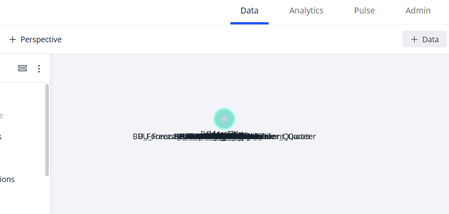
Hi All, About once a month, all of the tables in our semantic layer stack on top of one another. I'm not sure why. It takes me about an hour to put them back in their right places. Has anyone else had this problem, and if so, how did you stop it from recurring? Cheers.236Views0likes8Comments
Connecting to Clickhouse
I was recently speaking with Kat about certified connectors and related status for those connectors – specifically related to Clickhouse, which is listed as a Certified data connector for Sisense. Are there any Sisense customers out there that are using Clickhouse successfully with Sisense? To us, "successfully" would at a minimum include: Being able to connect using a Live Connection for interactive query and aggregation via Sisense Notebooks Being able to load data from Clickhouse into Elasticubes Thanks all!6KViews0likes11Comments
Choosing the Right Data Model
This post has become outdated. You can find guidance on choosing a data model on our documentation site here. https://docs.sisense.com/main/SisenseLinux/choosing-the-right-data-model.htm Introduction Customers often run into the question of which data model they should use (an ElastiCube, a Live model, or a Build-to-Destination). The following article presents some of the aspects you should consider when choosing between them. Sisense recommends that you discuss your needs and requirements with Sisense's technical team during the Jumpstart process, so the result will best meet your business expectations. Table of Contents Definitions The ElastiCube Data Model Importing data into an ElastiCube data model allows the customer to pull data from multiple data sources on-demand or at a scheduled time, and create a single source of truth inside Sisense. The imported data can then be transformed and aggregated to meet your business needs. Once imported, the data snapshot is used to generate analytical information. The process of importing the data, known as a "Build", includes the following steps: Extract the data: Query the different data source(s) for data. Load the data: Write the data extracted to Sisense (the local MonetDB). Transform the data: Transform the local MonetDB (using SQL queries). To read more about ElastiCubes, see Introducing ElastiCubes. The Live Data Model Using a Live data model does not require importing data. Only the data's schema needs to be defined. Once configured, analytical information required by the user is queried directly against the backend data source. To read more about Live models, see Introducing Live Models. Determining Factors Refresh Rate One of the most fundamental aspects of determining your data model is your data's refresh rate. The data refresh rate refers to the age of the data in your dashboards: For Live models, the data displayed on your dashboards is near-real-time, as every query is passed directly to the backend database. A good example of using a live model (due to refresh rate requirements) is a dashboard that shows stock prices. For ElastiCubes, the data displayed on your dashboard is current to the last successful build event. Every query is passed to the local database for execution. A good example of using an ElastiCube (due to refresh rate requirements) is a dashboard that shows historical stock prices. In this case, a daily ETL process will provide results that are good enough. To make a choice based on this factor, answer the following questions: How frequently do I need to pull new data from the database? Do all my widgets require the same data refresh frequency? How long does an entire ETL process take? Data Transformation Options The ETL process includes a "Transformation" phase. This transformation phase usually includes: Migrating the data tables into a dim-fact schema Enriching your data Pre-aggregating the data to meet your business needs The amount of data transformation on Sisense helps determine the suitable data model: For Live models, Sisense allows minimal to no data transformation. Data is not imported before a query is issued from the front end. Therefore, data cannot be pre-conditioned or pre-aggregated. Most data sources used by Live models are data warehouses that may perform all data preparations themselves. For ElastiCubes, data is imported before a query is issued from the front end. Therefore, it may be pre-conditioned and pre-aggregated. A user may customize the data model to optimally answer their business questions. To make a choice based on this factor, answer the following questions: Is my data in a fact-dim schema? Does my data require enriching or pre-conditioning? Can my data be pre-aggregated? Operational Database Load Your operational databases do more than serve your analytical system. Any application loading the operational databases should be closely examined: For Live models, Sisense will constantly query information from your operational databases, and feed it into your dashboard widgets. This occurs every time a user loads a dashboard. For ElastiCubes, Sisense highly stresses your operational databases during an ETL process while reading all tables. To make a choice based on this factor, answer the following questions: Does the analytical system stress my operational database(s)? Can the query load be avoided by using a "database replica"? Operational Database Availability Your operational database(s) availability is critical for collecting information for your analytical system. For Live models, all queries are redirected to your data sources. If the data source is not available, widgets will generate errors and not present any data. For ElastiCubes, data source availability is critical during the ETL process. If the data source is not available, the data in your widgets will always be available, but not necessarily be up to date. To make a choice based on this factor, answer the following questions: How frequently are analytical data sources offline? How critical is my analytical system? Is being offline (showing out-of-date information) acceptable? Additional Vendor Costs Various database vendors use a chargeback charging model, meaning that you will be charged by the amount of data you pull from the database or the computational power required to process your data. For Live models, every time a user loads a dashboard, each widget will trigger (at least) one database query. A combination of a chargeback charging model and a large user load may result in high costs. For ElastiCubes, every time the user triggers an ETL process, a large amount of data is queried from the database and loaded into Sisense. To make a choice based on this factor, answer the following questions: What is the number of users using my dashboards / What is my "build" frequency? Which data model will result in lower costs? What is the tipping point? Are you willing to pay more for real-time data? Database Size For ElastiCubes, please refer to these documents: Introducing ElastiCubes Minimum Requirements for Sisense in Linux Environments For Live models, there is no limitation as data is not imported to Sisense, only the data's schema. To make a choice based on this factor, answer the following questions: What is the amount of data I need in my data model? What is the amount of history I need to store? Can I reduce the amount of data (e.g., trimming historical data? reducing the number of columns? etc.) Query Performance Query performance depends on the underlying work required to fetch data and process it. Although every widget generates a query, the underlying data model will determine the work necessary to execute it. For ElastiCubes, every query is handled inside Sisense: The client-side widget sends a JAQL query to the Sisense analytical system. The query Is translated into SQL syntax, and run against an internal database. The query result is transformed back to JAQL syntax and returned to the client-side. For Live models, every query is forwarded to an external database and then processed internally: The client-side widget sends a JAQL query to the Sisense analytical system. The query Is translated into SQL syntax, and run against an external database. Sisense waits for the query to execute. Once returned, the query result is transformed back into JAQL syntax and returned to the client-side. To make a choice based on this factor, answer the following questions: How sensitive is the client to a delay in the query's result? When showing real-time data, is this extra latency acceptable? Connector Availability Sisense supports hundreds of data connectors (see Data Connectors). However, not all connectors are available for live data models. The reasoning behind this has to do with the connector's performance. A "slow connector" or one that requires a significant amount of processing may lead to a bad user experience when using Live models (that is, widgets take a long time to load): For ElastiCubes, Sisense allows the user to utilize all the data connectors. For Live models, Sisense limits the number of data connectors to a few high-performing ones (including most data warehouses and high-performing databases). To make a choice based on this factor, answer the following questions: Does my data source's connector support both data model types? Should I consider moving my data to a different data source to allow live connectivity? Caching Optimization Sisense optimizes performance by caching query results. In other words, query results are stored in memory for easier retrieval, in case they are re-executed. This ability provides a great benefit and improves the end-user experience: For ElastiCubes, Sisense recycles (caches) query results. For Live models, Sisense performs minimal caching to make sure data is near real-time. (Note that caching can be turned off upon request.) To make a choice based on this factor, answer the following questions: Do I want to leverage Sienese's query caching? How long do I want to cache data? Dashboard Design Limitations Specific formulas (such as Mode and Standard Deviation) and widget types (such as Box plots or Whisker plots) may result in "heavy" database queries: For Live models, Sisense limits the use of these functions and visualizations as the results of these formulas and visualizations may take a long time, causing a bad user experience. For ElastiCubes, Sisense allows the user to use them, as processing them is internal to Sisense. To make a choice based on this factor, answer the following questions: Do I need these functions and visualizations? Can I pre-aggregate the data and move these calculations to the data source instead of Sisense? See also Choosing a Data Strategy for Embedded Self-Service.3.8KViews2likes1Comment