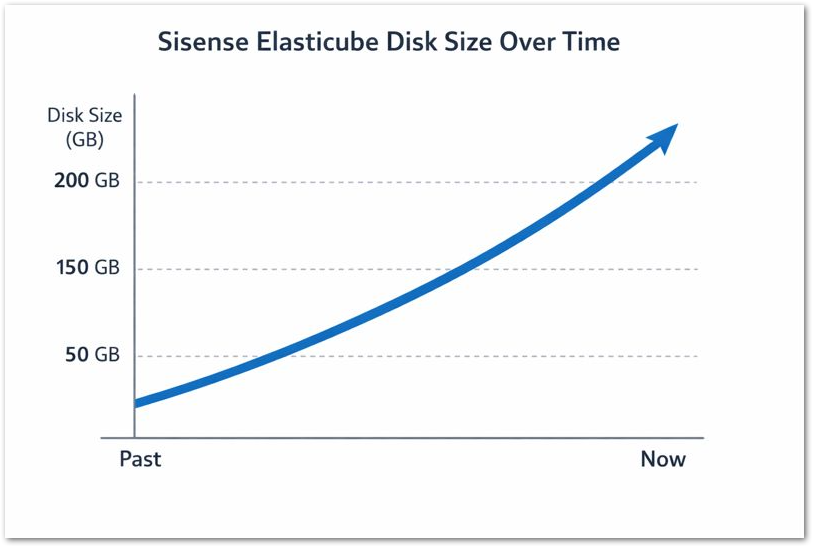
👋 ElastiCube Size is important to monitor. From licensing to hardware implications, there are many reasons to stay up-to-date on both your current and future ElastiCube sizes. It’s easy enough to see cube size in the Sisense Analytics UI, but how can this be tracked on a historical basis?
What the solution does
✏️ This solution leverages Custom Code Notebooks and the Sisense REST API to capture ElastiCube size on a desired interval, making the data available for historical analysis. This analysis can be performed via Dashboards, Pulse, or any other method that benefits from a basic flat file structure.
Why it’s useful
✅ As mentioned in the Introduction, ElastiCube size is important because it directly impacts performance, hardware resource consumption, build times, and scalability. Efficiently managing cube size is key to maintaining a fast and stable analytics environment. There may also be licensing considerations, requiring the deployment to remain below a sizing threshold. However, it can be challenging to monitor this data on a historical basis for purposes of trending, forecasting, or capturing anomalies. This solution aims to remove that challenge and provide your team with this data in an easy-to-use format.
🔨How it's achieved
- Create a new ElastiCube and add a Custom Code table.
-
Import the attached Notebook file, getElasticubeSize.ipynb (inside .zip) -- the raw code can also be found below
- Infer the schema from the Notebook
- Ensure LastBuildDate and SnapshotDate_UTC are set to DateTime data type
- “Apply” the schema changes
- Save the Custom Code table and rename it as desired
# Test Cell
# When the notebook is executed by the Build process, this cell is ignored.
# See the `Test Cell` section below for further details.
additional_parameters = '''{}'''
from init_sisense import sisense_conn
import os
import json
import requests
import pandas as pd
from datetime import datetime
# Construct the Sisense server base URL
server = (
"http://"
+ os.environ["API_GATEWAY_EXTERNAL_SERVICE_HOST"]
+ ":"
+ os.environ["API_GATEWAY_EXTERNAL_SERVICE_PORT"]
)
required_columns = [
"ElasticubeName",
"TenantId",
"SizeInMb",
"SizeInGb",
"LastBuildDate",
"SnapshotDate_UTC",
]
def get_elasticube_size(server):
"""Retrieve Elasticube size and metadata from Sisense API with error handling."""
endpoint = "/api/v1/elasticubes/servers/next"
# API call
try:
response = sisense_conn.call_api_custom("GET", server, endpoint, payload=None)
response.raise_for_status()
response_json = response.json()
except Exception as e:
print(f"API error: {e}")
return pd.DataFrame(columns=required_columns)
# Validate JSON list structure
if not isinstance(response_json, list):
print(f"Unexpected response format: {type(response_json)}")
return pd.DataFrame(columns=required_columns)
# Compute snapshot timestamp once for all rows
snapshot_timestamp = datetime.utcnow().strftime("%Y-%m-%dT%H:%M:%SZ")
ec_size_data = []
for item in response_json:
size_mb = item.get("sizeInMb", 0)
size_gb = (size_mb or 0) / 1024
ec_size_data.append(
{
"ElasticubeName": item.get("title") or pd.NA,
"TenantId": item.get("tenantId"),
"SizeInMb": size_mb,
"SizeInGb": size_gb,
"LastBuildDate": item.get("lastBuildUtc"),
"SnapshotDate_UTC": snapshot_timestamp,
}
)
df = pd.DataFrame(ec_size_data)
# Convert LastBuildDate
if not df.empty:
df["LastBuildDate"] = pd.to_datetime(
df["LastBuildDate"], errors="coerce", utc=True
)
# Format to ISO 8601
df["LastBuildDate"] = df["LastBuildDate"].dt.strftime("%Y-%m-%dT%H:%M:%SZ")
# Ensure correct column order
return df[required_columns]
# === Main Execution ===
df_result = get_elasticube_size(server)
print(df_result.head())
# === Write DataFrame to CSV ===
output_folder = "/opt/sisense/storage/notebooks/ec_size"
os.makedirs(output_folder, exist_ok=True)
ts = datetime.utcnow().strftime("%Y%m%d_%H%M%S")
file_name = f"elasticube_sizes_{ts}.csv"
output_path = os.path.join(output_folder, file_name)
df_result.to_csv(output_path, index=False)
print(f"CSV written: {output_path}")
print("Program completed successfully.")This Custom Code hits the Sisense REST API to capture ElastiCube size, along with the capture date (for historical trending purposes). It only serves as a starting point and can be freely edited. Every time the cube is built, it will generate a csv of the data and place it under /opt/sisense/storage/notebooks/ec_size. This location can be accessed in the Sisense UI via File Management – the ec_size folder may need to be created manually.
- To leverage the data in the csv files, I recommend creating a separate ElastiCube with a csv connection. In the connection:
- Select “Server Location”
- Define the Input Folder Path: /opt/sisense/storage/notebooks/ec_size/
- Ensure “Union Selected” is enabled. This will combine all of the csv files into a singular data set.
The reason I recommend creating a separate data model is so you don’t have to worry about table build order. For example, if the Custom Code and CSV tables exist in the same model, it’s possible for the CSV table to be built before the Custom Code builds/executes, so the latest CSV file’s data would be missed until the next build (and so on). By keeping the Custom Code and csv data models separate, you have more control over the build order by scheduling the builds sequentially.
This dataset can be used as-is to build basic historical analyses, or you can enhance it by building separate custom tables that sit on top of it. Further, you can modify the Custom Code table itself to pull whatever data is needed from the Sisense REST API, such as ElastiCube row counts and more.
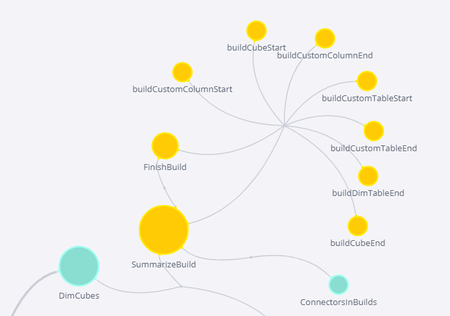
NOTE: Similar data can be sourced from the Usage Analytics data model, using the SummarizeBuild table. But the Custom Code solution provides more flexibility in what is pulled, when, and how long it is retained, without affecting anything else. Additionally, each csv is available for independent review/modification as needed.