UserReplaceTool - Automating Dashboard Ownership Transfers - Useful for Deleting User Accounts
Managing and deleting user accounts in Sisense can create manual processes when users leave an organization or change roles. A frequent issue is the reassignment of dashboard ownership to prevent losing Sisense dashboards when a given user account is deleted, as deleting a Sisense user will delete all dashboards owned by that user. The UserReplaceTool addresses this task by automating the transfer of dashboard ownership of all dashboards owned by a given user, ensuring continuity and data integrity. UserReplaceTool is a Python-based, API-based Tool solution designed to seamlessly transfer the ownership of dashboards and data models from one user to another in Sisense. This tool simplifies and automates this process, allowing organizations to reassign dashboard ownership without manual processes or the risk of losing dashboards and widgets. All components are accomplished by using Sisense API endpoint requests.1.3KViews3likes3CommentsUpdate and add new Highcharts modules for use in Sisense plugins
Update and add new Highcharts modules for use in Sisense plugins The JavaScript library framework Highcharts is natively included in Sisense and is utilized in many native Sisense widgets as well as in numerous Sisense plugins. Although Sisense typically does not alter the Sisense Highcharts library version with every release, the versions of Highcharts included in Sisense may change when upgrading to a new major version release. Highcharts can load additional chart types and other types of functionality via JS module files that contain code-adding features such as additional chart types, which can be used within plugins along with additional code to create additional widget types. If a plugin utilizes a Highcharts module, you can source the module directly in the "plugin.json" file's source parameter, as shown in this example: "source": [ "HighchartModule.js", ], To determine the current Highcharts version being used in your Sisense version, you can use the "Highcharts" command in the web console while viewing any page on your Sisense server. After identifying the current Highcharts version, you can find the corresponding module hosted on the Highcharts code hosting website using the following URL format: https://code.highcharts.com/${Highcharts_Version}/modules/${module_name}.js For example: https://code.highcharts.com/6.0.4/modules/heatmap.js You can save this module and upload it to the plugin folder or replace the older module JS file simply by copying and pasting the code directly. Be sure to update the "plugin.json" file to point to the new module file if the file name has changed or if this is the first time the module is included. Simply sourcing the module file in the "plugin.json" file is sufficient to load the module into Highcharts; no further code is required to load the module.1.5KViews2likes2Comments
Pivot 2.0 - Manipulating a Pivot Chart
Pivot 2.0 - Manipulating a Pivot Chart Introduction The following article discusses how to manipulate the data and styling of your Pivot 2.0 widget. Please refer to the following article first: https://sisense.dev/guides/customJs/jsApiRef/widgetClass/pivot2.html. Cell Identification To manipulate a pivot cell, we'll have to learn the different identifiers of each cell in the table. Cell Types Each cell is linked with a 'type' that represents the data it contains: A member cell refers to a Column/Row header A value cell refers to a table value cell A subtotal cell refers to a subtitle row (title + values) A grandtotal cell refers to a grand-total rows & columns (titles + values) A cell may have more than one 'type': A cell that has a subtotal and a member type represents the subtitle row title A cell that has a subtotal and a value type represents the subtitle row values (including values + column grand total values) A cell that has a grandtotal' and a member type represents the grand-total row and column titles A cell that has a grandtotal' and a value type represents the grand-total values (including row & column grand total values) A cell that has a grandtotal, a subtotal, and a value type represents the grand total values in the subtitle rows See the following pivot table and the corresponding cell types Original Table Cell Types Manipulating a Cell (Based on its Type) Here are two examples of how to manipulate a cell based on its type: widget.transformPivot( { type: ['value'] }, function (metadata, cell) { // Manuipulation code } ); widget.transformPivot( {}, function (metadata, cell) { if (metadata.type.includes('value')) { // Manuipulation code } } ); H2 - Cell Indexes Each cell is represented by three indexes: Metadata Index - Representing the logical column ID in the table (aligns with the selected rows/values/columns) Column Index - Representing the column number in the table Row Index - Representing the row number in the table Metadata Index See the following pivot table, the pivot configuration pane, and the corresponding metadata indexes: Original Table Metadata Index Here is an example of how to manipulate a cell based on its metadata index: widget.transformPivot( {}, function (metadata, cell) { if (metadata.index == 1) { // Manuipulation code } } ); Column/Row Index See the following pivot table and the corresponding row/column indexes Original Table Row/Column Indexes Here is an example of how to manipulate a cell based on its columns/row index: widget.transformPivot( {}, function (metadata, cell) { if (metadata.colIndex == 3 && metadata.rowIndex == 2) { // Manuipulation code } } ); Cell Row/Column/Measure Name Each cell may be affiliated with three metadata values: Measure - The measure calculated in this cell (name & formula) Column(s) - The column(s) this cell is under (field, title, & value) Row(s) - The rows(s) this cell belongs to (field, title, & value) Manipulating a Cell (Based on their Measure) Here is an example of how to manipulate a value cell based on the measure's name: widget.transformPivot( {}, function (metadata, cell) { if (metadata.measure.title === 'SUM') { // Manuipulation code } } ); Manipulating a Cell (Based on Their Row) Here is an example of how to manipulate a value cell based on the row's value: widget.transformPivot( {}, function (metadata, cell) { // Format based on the value of the a row's name and value metadata.rows.forEach(function(row) { if (row.title === 'Year' && row.member === '2012-01-01T00:00:00.000') { // Manuipulation code } }) } ); Manipulating a Cell (Based on Their Column) Here is an example of how to manipulate a value cell based on the column's value: widget.transformPivot( {}, function (metadata, cell) { // Format based on the value of the a row's name and value metadata.columns.forEach(function(column) { if (column.title === 'Online' && column.member === 'False') { // Manuipulation code } }) } ); Cell Manipulation The possible manipulation options of a cell include: value - Raw value of the cell from query response (manipulating this value is useless) content - The HTML contents of this cell style - The cell formatting Here is an example of how to manipulate value cells' style: widget.transformPivot( {}, function (metadata, cell) { cell.style = { backgroundColor : 'lightgray', fontSize : 14, fontWeight : 'bold', fontStyle : 'italic', textAlign : 'center', color : 'black', borderColor : 'black', borderWidth : '3px', minWidth : '150px', maxWidth : '200px' }; } ); Here is an example of how to manipulate value cells' value: widget.transformPivot( {}, function (metadata, cell) { if (cell.content == '') cell.content = '---' } ); Check out this related content1.5KViews1like2Comments
Limiting Date Range Filters in Sisense Dashboards
Wide date ranges in Sisense dashboards can lead to performance issues, especially when using live models or querying large datasets. For live data models, large queries increase costs as more data is pulled from the data warehouse. For Elasticubes, this can cause performance bottlenecks. To avoid these issues, here is a quick solution to "limit" the date range users can select, ensuring both cost-efficiency and smooth performance. Read more to find out how!852Views1like0Comments
Generating a HAR file for troubleshooting Sisense
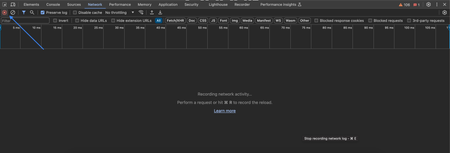
When troubleshooting complex issues in Sisense such as PDF export, widget not loading etc., it is sometimes necessary for our support team to obtain additional information about the network requests that are generated in your browser while an issue occurs. A technical solutions engineer may request you to record a .HAR file, or a log of network requests, while that issue is occurring and then provide that to them for further analysis. Below are some instructions about how you can easily generate a HAR file using different browsers. Note: Keep in mind that HAR files contain sensitive data, including content of the pages you downloaded while recording and your cookies. This allows anyone with the HAR file to impersonate your account and all the information that you submitted while recording (personal details, passwords, credit card numbers, etc.). To generate the HAR file for Chrome Open Google Chrome and go to the page where the issue is occurring. Look for the Vertical ellipsis button and select More Tools > Developer Tools. From the panel opened, select the Network tab. Look for a round Record button in the upper left corner of the tab, and make sure it is red. If it is grey, click it once to start recording. Check the box Preserve log. Click the Clear button to clear out any existing logs from the Network tab. Reproduce the issue that you were experiencing before, while the network requests are being recorded. Once you have reproduced the issue, in Chrome, click Download. Then save the file to your computer: Save as HAR with Content Upload your HAR file to your ticket or attach it to your email so that our Support team can analyze it. The instructions are the same for a MAC computer or a Windows computer. Here is a brief animation showing this process: To generate the HAR file for Firefox Open Firefox and go to the page where you are experiencing trouble. Select the Firefox menu (three horizontal parallel lines) at the top-right of your browser window, then select Web Developer > Network. The Developer Network Tools opens as a docked panel at the side or bottom of Firefox. Click the Network tab. The recording autostarts when you start performing actions in the browser. Once you have reproduced the issue and you see that all of the actions have been generated in the Developer Network Panel (should just take a few seconds), right-click anywhere under the File column, and click on Save all as Har. Save the HAR file somewhere convenient. Upload your HAR file to your ticket or attach it to your email so that we may analyze it. The instructions are the same for a MAC computer or a Windows computer. To generate the HAR file for Edge Edge natively produces HAR files. For more instructions, see the instructions from the Microsoft website. Open the Network tool in F12 developer tools. Reproduce the issue. Export captured traffic as a HAR (CTRL + S). To generate the HAR file for Internet Explorer Open Internet Explorer and go to the page where the issue is occurring. Press F12 on your keyboard (or click the gear icon > F12 Developer Tools) Click the Network tab. Reproduce the issue that you were experiencing before, while the network requests are being recorded. Once done click the Save button. Give the trace a filename and click the Save button which will save it as a .har file or .xml file. Upload your HAR file to your ticket or attach it to your email so that we may analyze it. The instructions are the same for a MAC computer or a Windows computer. Please NOTE: You need to be aware that HAR files contain sensitive data, including the content of the pages you downloaded while recording and your cookies. Examples of information contained in the HAR file include personal details, user ID, passwords, and credit card numbers. You can always when the file is downloaded, replace the sensitive data.15KViews1like2CommentsAdvanced Pivot Widget Scripting - Combining Custom JAQL and the Pivot 2.0 API
While the Pivot Table Widget Type is a highly customizable and flexible Sisense widget for representing data in tabular form, certain use cases may be best achieved through custom code and scripting. The Pivot 2.0 JavaScript API facilitates the modification of existing pivot table cells, including updating cell values and adding data to cells not present in the initial results.1.6KViews1like0CommentsAlert on a M2M Risk
Introduction This article describes how to enable an alert* when there is a risk of Many-To-Many relationship (M2M) between two or more tables. * This implementation involve the use of Pulse and it's supported in Sisense v6.5 and above. Motivation Almost every Data Model designer that dealt with a bit more advanced modeling at some point ran into data\performance issue and after a long troubleshoot process he\her found out that the root cause came from M2M. M2M can occur due to the following**: Connecting 2 tables with a pure M2M relationship such as two Fact tables with a non-unique key. A unique key became a non-unique due to changes or data issue within the source system. A business need to have M2M between two entities. From the described scenario you can assume that the M2M can be identified not only during the EC design but also during its ongoing use. Therefore, having a proactive alert for the EC designer can prevent from the user experiencing poor dashboard performances, wrong result sets and save many hours of troubleshooting, panicking users and general feeling of frustration. ** There can be other more complex cases of M2M which we won't describe here as the mechanism of the M2M alert is less relevant for them. Please refer to this article for a more detailed description of M2M relationship Implementation As an Data Model designer, during the design and after the final version of my schema is completed, I want to track on my connection and make sure that my assumptions of uniqueness on one side of the relationship (to get 1:M relationship) is being captured. Step 1 - Build a M2M Detection Table We'll create a table that will reflect the uniqueness of each table within the final schema that has to be unique according to its relevant primary or surrogate key. Basically we'll count the number of total rows within a table, the number of unique values of the table key and compare between them. if they are equal then the key is unique within the table, but if not there is a risk for M2M and so we'll raise a flag as you can see here: We can learn from the output of the table that for our case we have only one table that is not unique (Cost). Here's the query I used in order to create this table: SELECT 'DimDates' AS Table, 'Date' AS Key, count(t.[Date]) [Total Count], DISTINCT_count(t.[Date]) [Distinct Count], count(t.[Date])-DISTINCT_count(t.[Date]) AS [Duplicated Records], ifint(count(t.[Date])-DISTINCT_count(t.[Date])>0,1,0) AS M2M_Flag FROM DimDates t UNION ALL SELECT 'Customer' AS Table, 'CustomerID' AS Key, count(t.CustomerID) [Total Count], DISTINCT_count(t.CustomerID) [Distinct Count], count(t.CustomerID)-DISTINCT_count(t.CustomerID) AS [Duplicated Records], ifint(count(t.CustomerID)-DISTINCT_count(t.CustomerID)>0,1,0) AS M2M_Flag FROM Customer t UNION ALL SELECT 'SalesPerson' AS Table, 'BusinessEntityID' AS Key, count(t.BusinessEntityID) [Total Count], DISTINCT_count(t.BusinessEntityID) [Distinct Count], count(t.BusinessEntityID)-DISTINCT_count(t.BusinessEntityID) AS [Duplicated Records], ifint(count(t.BusinessEntityID)-DISTINCT_count(t.BusinessEntityID)>0,1,0) AS M2M_Flag FROM SalesPerson t UNION ALL SELECT 'Product' AS Table, 'ProductID' AS Key, count(t.ProductID) [Total Count], DISTINCT_count(t.ProductID) [Distinct Count], count(t.ProductID)-DISTINCT_count(t.ProductID) AS [Duplicated Records], ifint(count(t.ProductID)-DISTINCT_count(t.ProductID)>0,1,0) AS M2M_Flag FROM Product t UNION ALL SELECT 'SalesOrderHeader' AS Table, 'SalesOrderID' AS Key, count(t.SalesOrderID) [Total Count], DISTINCT_count(t.SalesOrderID) [Distinct Count], count(t.SalesOrderID)-DISTINCT_count(t.SalesOrderID) AS [Duplicated Records], ifint(count(t.SalesOrderID)-DISTINCT_count(t.SalesOrderID)>0,1,0) AS M2M_Flag FROM SalesOrderHeader t --Example for uniqueness by surrogate key UNION ALL SELECT 'Cost' AS Table, 'Size + Weight' AS Key, count(t2.Key) [Total Count], DISTINCT_count(t2.Key) [Distinct Count], count(t2.Key)-DISTINCT_count(t2.Key) AS [Duplicated Records], ifint(count(t2.Key)-DISTINCT_count(t2.Key)>0,1,0) AS M2M_Flag FROM ( SELECT t.Size + '|' + tostring(t.Weight) AS Key FROM Cost t) t2 --Example for checking uniqueness for a table which not in the final schema but effects another table (as a source of a lookup custom field) UNION ALL SELECT 'Store' AS Table, 'BusinessEntityID' AS Key, count(t.BusinessEntityID) [Total Count], DISTINCT_count(t.BusinessEntityID) [Distinct Count], count(t.BusinessEntityID)-DISTINCT_count(t.BusinessEntityID) AS [Duplicated Records], ifint(count(t.BusinessEntityID)-DISTINCT_count(t.BusinessEntityID)>0,1,0) AS M2M_Flag FROM Store t Step 2 - Create relevant KPI within a widget We'll create an indicator with the following formula: if([Total M2M_Flag]>0,1,0) This widget can be temporary as it only will serve us for alerting when the total of M2M flags is bigger than 0. Step 3 - Add the KPI to Pulse After Adding the widget to the Pulse, we'll mark the condition according the threshold 'Greater than' 0. Feel free to adjust the notification mode and other preferences according your requirements.1KViews0likes0CommentsElasticube Modeling With Data Security: Best Practices
Adding Data Security to an existing Elasticube Model can have little to great effect on the performance of the system. It is important to already have planned the Elasticube Model with the intention to apply Data Security in the future. This article will detail modeling strategies to overcome Data Security pitfalls. The Problem: Since Data Security forces "join" between tables that are not normally joined together it can produce inaccurate results or create instability in the system. The above-mentioned problem is particularly for the dashboard filters if your business use case requires you to limit the members that are displayed on the filter, using Data Security. Scenario: Elasticube Model for Analyzing Sales and Inventory In the above scenario, we want to limit our employees to only see the Sale and Purchases corresponding to themselves. We facilitate this by applying data security on the EmployeeId column and joining the DimEmployees to Fact_Sale_Orders and Fact_Purchase_Orders tables. Now when a user logs into a dashboard sourced from our sales Elasticube they will only see data relevant to themselves. This model now presents us with a problem. Sisense has two options to produce the members' results when a dashboard filter is created using the following dimension tables: DimProducts / DimCountries / DimDate. The Data Security will try and join Dim_Employees (where the Data Security is defined) and one of the other three dimension tables. Sisense can either join through the Fact_Sale_Orders or Fact_Sale_Orders tables, which is a random path problem. Because of this, a user could see inaccurate results on the dashboard filter members - reduced members or members that they are not supposed to see. Eg: The following screenshot illustrates what happens when a dashboard filter is created on a field from the DimCountries table. There are two paths that are possible from the security table (DimEmployees) to the dashboard filter's table (DimCountries). Sisense chooses between paths (1) and (2) in random as both the query paths are tied for the shortest path. Solution 1 - Key Table: The Key table is a central table that stores all the relationships between the primary key values. This solution solves our problem because the key table has all the possible combinations, so when we join to produce results, we will have all the possible options available from the Fact tables. You can find more details on Key Tables here. Downsides: Key Table Size - Because the key table is essentially a cross join between the dimension tables it can grow exponentially in size. Dashboard Performance - The Key Table increase the path length between our dimension and fact tables which will result in slower dashboard performance Maintenance - Iterating on an Elasticube Model containing a Key Table could be challenging because planning is key when creating a key table. Build Time - Additional build time will be needed to calculate Key Table Best Practices: Keep the Key table size below 50M records Try creating partial key tables instead of including all your dimensions if not needed Plan your Key Table! Security Exception on certain Dimension Tables: Sometimes it is not necessary to apply security on all the dimension tables - hence, with the approach of Key Table, you need not include those dimension tables to the Key table and they can be directly connected to the Fact tables. Refer to the screenshot below - usually, it is the DimDate table that need not be protected. After this, while setting up Data Security, you need to ensure you set the scope correctly. DimDate table should be excluded from the Data Security's scope. Refer to the screenshot below - this means that, when you create a dashboard filter using the DimDate table or a widget just using fields from the DimDate table, the Data Security will not take effect. You can read more about "Scope Limitations" in Row-level Data Security from here to understand all the different options in detail. (Scope Limitations are available from version 8.2.1 and above) Solution 2 - Consolidation: If our fact tables are on the smaller side (<100M records) we could look to consolidate our fact tables into a single fact table. You can create a Custom SQL table to union the two fact tables together. A flag can be created to differentiate the fact tables. In this example, we have created the "Type" field that has two values: Sale or Purchase. Now, the data security is defined on the DimEmployees table (Security) and if there is a dashboard filter created off of DimCountries / DimDate / DimProducts (Filter), there is only one path for Sisense to reach from the Security dimension table to the Filter dimension table which is via the only fact table in the model - Fact_Sales_Purchase. Thus, there is no random path issue here. Downsides: Additional Build time to process Custom SQL Table All Dashboard formulas will need to contain a value filter on Type Best Practices: Consolidated Elasticube record size does not exceed 250M records Solution 3 - Bridge Table: An intermediary table can be created to increase the path length between dimensions and facts to control query routing. Generally, to create a query path from table 1 to table 2, Sisense uses the shortest path algorithm. When we have two fact tables in the model, we choose one of them as the preferred fact table and we try to force the Sisense query path through that fact table. To force the query path, we manipulate the length of the paths by adding one extra table to the path involving the non-preferred fact table, thus indirectly routing Sisense to choose the path involving the preferred fact to reach from the Dimension dimension table to the Filter dimension table. Creating Bridge Table and setting up the path: For every Dimension table that needs to be filtered by Data Security (DimEmployees), we need to create one bridge table. In our example, we need DimCountries and DimProducts to be filtered by Security dimension. For each of these tables, follow the steps below: (Steps below for DimProducts) Step1: Duplicate the key in the DimProducts table and name it "Product ID (1)" Step2: Create a custom table with the following SQL and name it "Product_Bridge" Step3: Join DimProducts table and Fact_Sale_Orders table (preferred fact table) directly using DimProducts.Product ID and Fact_Sale_Orders.Product ID Step4: Join DimProducts table and Product_Bridge table using DimProducts.Product ID (1) and Product_Bridge.Product ID (1). Then join Product_Bridge and Fact_Purchase_Orders (non-preferred fact table) on Product_Bridge.Product ID and Fact_Purchase_Orders.Product ID. Similarly, repeat the above steps for the DimCountries table as well by creating the Country_Bridge table. The other dimension table in the data model that doesn't have a bridge table is the DimDates table which will not be affected by Data Security as the data in the table is insensitive. So, use Scope Limitation (as explained in the "Security Exception on certain Dimension Tables" part of Solution 1) to exclude DimDates from the Data Security's effect. How does the Query Path work? You can see from the above image that two tables have been created to increase the path length. The DimProduct table is directly joined to the Fact_Sales_Orders table but joined to the Product_Bridge table to reach SalesOrderDetail. Alternatively, the DimCountries table is directly joined to the Fact_Sales_Orders table but joined to the Country_Bridge table to reach SalesOrderDetail. So, when DimProducts is used as the Filter Dimension for a dashboard filter and DimEmployees is the security dimension table, taking the query path through Fact_Sale_Orders (in green - 2 joins) will be shorter than the query path through the Fact_Purchase_Orders (in blue - 3 joins) table as the addition of Product_Bridge table increases the query path's length of the latter. Refer to the screenshot below. Downsides: Potential Many 2 Many joins could occur through query routing created by the Sisense Translator Best Practices: Duplicate the Primary Key in the Dimension table so Sisense does not create a join through the bridge table to both Fact tables. Also, create two copies of keys in the bridge table where one is used to connecting to the dimension table and the other is used to connect to the fact table - this will not create a direct join between the dimension table and the fact table (non-preferred fact) Solution 4 - Dual Bridge: There would be two intermediary tables - one on the Fact tables' side (Fact_Bridge) and the other on the Dimension tables' side (Dim_Bridge). These intermediary tables are identical copies of the Security Dimension table and will act as a "bridge" between the Security Dimension table and all Fact tables & all Dim tables. The only constraint to use this approach is that the foreign key to the security dimension table should be present in all the sensitive tables - Fact and Dimension tables whose data is to be securely maintained by data security. Creating two Bridge Tables and setting up their path: Remove all the connections on the Security Dimension table and duplicate the Security Dimension table twice - Fact_Bridge and Dim_Bridge. Just keep the primary key field + another few copies of the primary key (ID -> ID_Sec1, ID_Sec2 in both Bridge tables - equivalent to the number of Fact Tables and Dim Tables to be secured) in the duplicated (bridge) tables. Also, make two copies of the primary key on the Security Dimension table and name them ID_FB and ID_DB. All the following three tables will have the same column but duplicated 'n' times to create independent joins: DimCustomers - Duplicate the ID field -> ID_FB & ID_DB => Fact_Bridge & Dim_Bridge respectively Fact_Bridge - Total of 3 Columns -> ID, ID_Sec1, ID_Sec2 => to connect to two Dim Tables Dim_Bridge - Total of 3 Columns -> ID, ID_Sec1, ID_Sec2 => to connect to two Fact Tables *If you have more fact tables / dim tables to secure, then duplicate the ID field accordingly In the example below, the above steps have been performed to the data model. The Security Dimension table is: DimCustomers (CustomerID) and the foreign key to Dim_Customers is available on sensitive dimension tables (DimProducts and DimEmployees) and all the fact tables. The Fact_Bridge will be between the Security Dimension table and all the Dim tables in the data model. The Dim_Bridge will be between the Security Dimension table and all the Fact tables. Perform the following steps: Connect DimCustomers and Fact_Bridge on [DimCustomers.ID_FB] & [Fact_Bridge.ID] Connect DimCustomers and Dim_Bridge on [DimCustomers.ID_DB] & [Dim_Bridge.ID] Connect Dim_Bridge and all the Fact tables on [Dim_Bridge.ID_Sec1] & [Dim_Bridge.ID_Sec2] to Fact Tables' Customer_ID (Fact_Sale_orders & Fact_Purchase_Orders) Connect Fact_Bridge and all the sensitive Dimension tables on [Fact_Bridge.ID_Sec1] & [Fact_Bridge.ID_Sec2] to Sensitive Dimension Tables' Customer_ID. (Only on DimEmployees & DimProducts) After making the above connections, the model will look like the one on the following screenshot: The other dimension tables in the data model that don't have the CustomerID are DimDate and DimCountries tables which will not be affected by Data Security as the data in the table is insensitive - hence, they are not connected to the Fact_Bridge table. So, use Scope Limitation (as explained in the "Security Exception on certain Dimension Tables" part of Solution 1) to exclude DimDate & DimCountries tables from the Data Security's effect. Here is the Scope Limitation setting: How does the Query Path work? When you create a dashboard filter using the table DimEmployees table, Data Security will come into effect and hence Sisense would create a query path between DimCustomers and DimEmployees table. In our data model (as in the screenshot below), there are three possible paths where #1 is through the Fact_Bridge and #2 and #3 are through the Dim_Bridge table. Going through the Dim_Bridge table is a longer route compared to taking the Fact_Bridge table in this case - So Sisense will prefer the shortest path here ending up taking query path #1, which is the desired path. Now, when you create a widget with Fact_Sale_Orders, Sisense would try to create a query path between DimCustomers and Fact_Sales_Orders - there will be three paths possible in our data model (as in the screenshot below) where #1 will go through the Dim_Bridge and the other two will go through Fact_Bridge and then, each of the sensitive dimension tables. Sisense will obviously choose the path through the Dim_Bridge which is the shortest path here in this scenario and is the desired one. With the help of the Bridge, we could play with the length of the query paths and force Sisense to take the desired path in different scenarios. Downsides: Potential Many 2 Many joins could occur through query routing created by the Sisense Translator when there are complicated front-end formula functions used - like ALL() in certain scenarios and PAST/NEXT/GROWTH functions when applied on the date field that's a part of the sensitive dimensions in the data model. (ex: If DimDate is made sensitive to data security in the example and then PAST/NEXT/GROWTH functions are used in the context of DimDate.Date field) The Dependent filters (dashboard filters) on two different dimension tables doesn't work properly due to Many 2 Many joins Best Practices: Duplicate the Primary Key in the Security Dimension table twice - one to connect to Dim_Bridge and the other to connect to Fact_Bridge Also, create the required number of copies of keys in each of the bridge tables where each copy is used to independently connecting to the dimension tables and fact tables that need to be secured. The Conclusion: One could use one of the above approaches depending on factors like how the model is structured, how the fact tables in the model are related, what is the desired fact table to apply the security on the dimensions, whether the sensitive dimension tables are directly related to the security dimension table and what the specific usecase is. If you need more assistance on setting up Data Security on your elasticube, please reach out to your Customer Success Manager (CSM).4KViews1like0CommentsQuickBooks DESKTOP - Generating Tables For Profit & Loss Report
In order to generate a profit and loss report from the QuickBooks Desktop Connector, you will need the following tables. Account Custom Profit & Loss Detail The Account table is a standard table available with the CData connector, while the custom table requires a custom stored procedure run to create the RSD schema file Sisense can use to generate a table. This documentation describes how to generate an RSD file for another connector. To generate the RSD use the following query and make sure you enter your own date ranges. You can use the "as of" syntax described in the CData documentation. EXEC CreateReportSchema @ReportName = 'ProfitAndLossDetail', @ReportType = 'PROFITANDLOSSDETAIL', @IncludeColumns = 'ACCOUNT,NAME,DATE, AMOUNT, DEBIT, CREDIT', @DetailLevel = 'ALL', @ReportPeriod = 'YYYY-MM-DD:YYYY-MM-DD'; Use the account numbers from the account tables to group the various line items found in the custom table.978Views0likes0Comments