Connection Tool - Programmatically Remove Unused Datasource Connections, and List All Connections
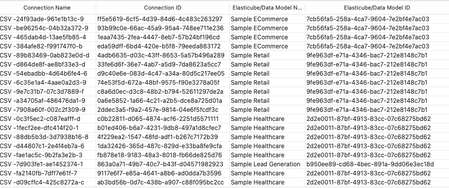
Managing connections within your Sisense environment can become complex over time, if there are a large number of connections, and connections are often added, and replace earlier datasource connections. In some scenarios unused connections can accumulate, potentially cluttering the connection manager UI with no longer relevant connections. Although unused connections typically represent minimal direct security risk, it's considered best practice to maintain a clean, organized list of connections, and in some scenarios it can be desired to remove all unused connections. Sisense prevents the deletion of connections actively used in datasources, safeguarding your dashboards and datasources from disruptions. However, inactive or "orphaned" connections remain after datasources are deleted or a connection is replaced, potentially contributing to unnecessary UI complexity in the connection manager UI. Connections can be of any type Sisense supports, common types include various SQL connections, Excel files, and CSV files, as well as many data providers, such as Big Panda. This tool can also be used to list all connections, with no automatic deletion of unused connections.953Views4likes4CommentsUserReplaceTool - Automating Dashboard Ownership Transfers - Useful for Deleting User Accounts
Managing and deleting user accounts in Sisense can create manual processes when users leave an organization or change roles. A frequent issue is the reassignment of dashboard ownership to prevent losing Sisense dashboards when a given user account is deleted, as deleting a Sisense user will delete all dashboards owned by that user. The UserReplaceTool addresses this task by automating the transfer of dashboard ownership of all dashboards owned by a given user, ensuring continuity and data integrity. UserReplaceTool is a Python-based, API-based Tool solution designed to seamlessly transfer the ownership of dashboards and data models from one user to another in Sisense. This tool simplifies and automates this process, allowing organizations to reassign dashboard ownership without manual processes or the risk of losing dashboards and widgets. All components are accomplished by using Sisense API endpoint requests.1.3KViews3likes3CommentsHow To Troubleshoot Build Failures (Linux OS)
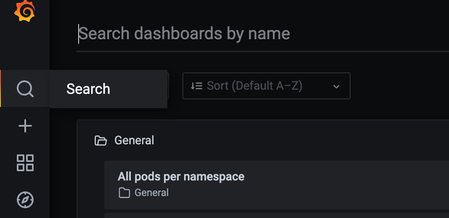
HOW TO TROUBLESHOOT BUILD FAILURES (Linux OS) Building an ElastiCube imports the data from the data source(s) that have been added. The data is stored on the Sisense instance, where future dashboard queries will be run against it. You must build an ElastiCube at least once before the ElastiCube data can be used in a dashboard. This article will help you understand and troubleshoot common build failures and covers the following: Steps of the Build Process Troubleshooting Tools Troubleshooting Techniques Common Errors & Resolutions Please note the following was written for Sisense on Linux as version L2022.5. Steps of the Build Process 1. Initialization: The initialization stage of the build process prepares the platform for the data import, which includes checking and deploying the resources geared towards performing the build. 2. Table Import: This step imports the data from the external data platforms into the ElastiCube. The ec-bld Pod runs two to three concurrent containers, meaning that two to three pods can be processed simultaneously. The build pod, which uses the given connector frameworks (old or new, based on the connector used), connects to the given source(s). By default, 100,000 lines of data are read and imported per cycle during this phase. The MServer is responsible for getting the data from the connectors and writing it to storage into Sisense’s database (MonetDB). While importing the data, the process uses the given query assigned to the given data source (either the default Select All or a custom query). 3. Custom Table Columns: This step of the build process runs the data enrichment logic defined in the ElastiCube modeling. There are three types of custom elements: Custom Columns (Expressions) Custom Tables (SQL) Custom Code Tables (Python-based Jupyter Notebooks) Custom Elements uses the data previously imported during the Base Tables phase as its input. The calculations/data transformation happens sequentially one after the other based on the Build Plan/Dependencies generated earlier in the process between finalizing the Initialization phase and at the starting of the Base Tables phase. Calculations occur locally based on the data in the ElastiCube, and can consume lots of CPU and RAM based on the complexity of the Expressions/SQL/Python Jupyter Notebooks. 4. Finalization: These steps in the process finalize the ElastiCube’s build and readies it for use. The steps include: I. The current (up-to-date) data of the ElastiCube is written to a disk. II. The management pod stops the current ElastiCube running in Build Mode (ec-bld Pod, and its ReplicaSet + Deployment controllers). III. The management pod creates a new ElastiCube running in Query Mode (ec-qry Pod, and its ReplicaSet + Deployment controllers). IV. Once the new ElastiCube is ready, it becomes active and available to answer data queries (e.g., dashboard requests). V. The management pod stops the previous ElastiCube running in Query Mode (ec-qry Pod, and its ReplicaSet + Deployment controllers). Builds may be impacted by several factors. It is recommended to test your build process and tune accordingly when changes are made to the following: Hardware Sisense architecture Middleware Data source Connectivity, networking, and security policies Sisense upgrade/migration from Windows to Linux Sisense configuration Increase in data volume Data model schema (i.e., number and complexity of custom tables and import queries) Troubleshooting Tools Leverage the following when troubleshooting build issues: Inspect log files Each log contains information related to a different part of the build process and can help identify the root cause of your build issue. Depending on your Sisense deployment, logs may be located in different directories. The default path for Single Node is /var/log/Sisense/Sisense. For Multi Node, it’s on the application node inside the Management pod. If you need to collect logs, make sure to do so soon after the build failure, as logs will be trimmed after they reach a certain size. Log name Description Build.log General build logs will contain information for all the Elasticubes. Query.log General query logs will contain information for all the queries. Management.log Elaborate log file, which contains service communication requests. (Build will reach out to Management to fetch info from MongoDB etc.) Connector.log General information for all builds and connectors. Translation.log All the logs related to the translation service. ec-<cube name>-bld-<...>.log This contains the latest build log for each cube. It can also be viewed through the UI, as shown here. ec-<cube name>-qry-<...>.log Contain logs related to specific Elasticubes’ queries. build-con-<cube name>-<...>.log More verbose logs provide connector-related details for specific builds. Combined.log Aggregation of all logs in one file. It can be downloaded via the Sisense UI, as shown here. Please note if you are a Managed Services customer, only the combined log and latest build log for each cube are available. Use Grafana to check System Resources Grafana is a tool that comes packaged with Sisense that can be used to monitor system resources across pods. Every build has its own pod. This allows you to see the CPU and RAM that each build uses, as well as what is used by your whole Sisense instance. Excessive CPU and RAM usage is a common cause of build failures. 1. Go to Admin > System Management > Click on Monitoring. Click on the Search icon and then select All pods per namespace and then select namespace where Sisense is deployed (by default is “sisense”). 2. In the Pod dropdown, search for “bld” and select the cube you want to observe. *You may need to reduce the timeframe to get results: 3. Observe CPU and RAM over the duration of the build. *In the CPU graph, 1 core is represented by 100% See this article for additional information on using Grafana. Use Usage Analytics to observe build metrics Usage Analytics contains build data and pre-built dashboards to assist you in identifying build issues and build performance across cubes over time. See here for documentation on this feature. Ensure you have usage analytics turned on and configured to keep the desired history! Troubleshooting Techniques Below are some common issues and suggestions for build errors. The first step is to read and understand the error message on the Sisense portal. This will help resolve the exact build issue. 1. Whenever you face build issues, check the Memory consumption. Options include either ssh to your Linux machine and run “top” command to check the process and memory consumption, or you can also open grafana/logz.io and check memory consumption by the pod. If you see high memory usage, then please try to schedule builds in the off hours to see if that helps. 2. If the cube is too big, try to break the cube into multiple cubes by sharding the data or separating use cases. 3. Check the data groups first to see if one specific cube is very large or if you only have a default data group. If all the cubes are part of that data group, then create a different group for the large cube. 4. If the error message is related to Safe Mode (“Your build was aborted due to abnormal memory consumption (safe mode)”), then check the Max RAM value set in the data groups. You can increase the Max RAM value and verify the build. (https://support.sisense.com/kb/en/article/how-to-fix-safe-mode-on-build-dashboard) See the following two articles for details on managing data groups: https://documentation.sisense.com/docs/creating-data-groups https://community.sisense.com/t5/knowledge/how-to-configure-data-groups/ta-p/2142 5. Running concurrent build processes can also be an issue. Try to not run multiple builds at the same time. If that is the issue, then open the Configuration Manager (/app/configuration), expand the Build section, Change the value of Base Tables, Max Threads to 1 and save. (Relevant pod should restart automatically, but you can also restart the build Pod manually using “kubectl -n sisense delete pod -l app=build” 6. Lack of sufficient storage space to create a new ElastiCube (either in Full or Accumulative build) can also result in build failure. It is recommended to free up some space and then check the build. 7. Check the log files and the query running in the backend to try to break down complex queries to avoid memory consumption. 8. The below items outline the configurations that affect troubleshooting: -Base Tables Max Threads: Limits the number of Base Tables that are built simultaneously in the SAME ElastiCube -Timeout for Base Table: Will probably “forcefully” fail the build if any Base Table takes more than this amount of time to build, available via the “Build” configuration Remember that making any changes to these settings might require pod restart: To restart the pod, run the following command: kubectl -n sisense delete pod -l app=build Check the pod restarted based on the pod age: Kubectl -n sisense get pods -l app=build 9. If you have many custom tables, try to use the import query (move the custom table query into the custom import query). Documentation: Importing Data with Custom Queries - Introduction to Data Sources 10. Please check your data model design and confirm that it conforms to Sisense best practices. For example, M2M takes more memory and can result in build failures. https://support.sisense.com/kb/en/article/data-relationships-introduction-to-a-many-to-many 11. Builds can also fail because of the network connection between data sources and the Sisense server. Perform a Telnet test to verify connectivity from the Sisense server to the data server. Common Build Errors and Resolutions Error Description Resolution BE#468714 Management response: ElastiCube failed to start - failed to detect the EC; Failed to create ElastiCube for build process. This means the process does not have enough resources to bring up the build pod. If the Kubernetes process is still running for creating the Pod, the following command will allow you to monitor the given Build pods being brought up and check once they are healthy, up, and running. Command: kubectl -n sisense get pods -l mode=build -w If the value for that pod in the restarts column is greater than 0, it means that the Pod is not able to be initialized properly and will retry 5 times until it fails and terminates the process. If the build process had already terminated in the past, view the Kubenetes journal to find out the reason for failure. Command: sudo journalctl --since=” <how long ago>” | grep -i oom For example, if the build occurred within the past hour or so, a “50M” ago and grep on “oom” will show if an out of memory issue occurred for the given build. Example: sudo journalctl --since=” 50M ago” | grep -i oom, which would indicate an oom_kill_process was put into place due to out-of-memory reasons. BE#196278 failed to get sessionId for dataSourceId This error indicates that the user running the build does not have permission to run the build for the given ElastiCube. The ElastiCube needs to be shared with the user with “Model Edit” permission. BE#470688 The reason for this issue is a cumulative build is being performed, which relies on having the ElastiCube stored in the farm fails because either access to the directory in the farm storage location or directory/files are corrupted or are not there. The only way to resolve it is to either restore the farm directory from a backup for the ElastiCube or re-build the ElastiCube with a full build. BE#313753 Circular dependency detected This happens when you have a lot of custom tables and custom columns which depend on each other Please check the below articles on how to avoid loops: https://documentation.sisense.com/docs/handling-relationship-cycles#gsc.tab=0 Error: Failed to read row:xxxxxxx, connector Sisense is importing data from the database using a Generic JDBC connector. Why did this fail suddenly? The data added recently is not in the correct format or as expected in the table. If you are using a Generic JDBC connector, then it’s worth checking the connector errors online where you may find useful information to resolve the issue related to the connector. BE#640720 Build failed: base table <table name> was not completed as expected. Failed to read row: 0, Connector (SQL compilation error: invalid number of result columns for set operator input branches, expected 46, got 45 in branch 2). Most likely issue in the custom import query or on the target table. Please check if there are right amount of columns used in the query and refresh table schema. Build failed: BE#636134 Task not completed as expected: Table TABLE_NAME : copy_into_base_table build Error -6: Exception for table TABLE_COLUMN_NAME in column COLUMN_NAME at row ROW_NUMBER: count X is larger than capacity Y This could be resolved by changing BaseTableMax (parallel table imports) from 4 to 1 in the Configuration Manager. Conclusion Understanding the exact error message is the first step towards resolution. Based on the symptom you can try some of the suggestions listed above and can quickly resolve build failure issues. If you need any additional help, please contact Sisense Support or create a Support Case with all the log files listed above, and a Support Engineer will be able to assist you. Remember to include all relevant log files for an efficient troubleshooting process! Krutika Lingarkar, Technical Account Manager in Customer Success, wrote this article in collaboration with Chad Solomon, Technical Account Manager, Senior in Customer Success, and Eran Ganot, Tech Enablement Lead in Field Engineering.12KViews6likes15Comments
BI Solutions: High Level Design
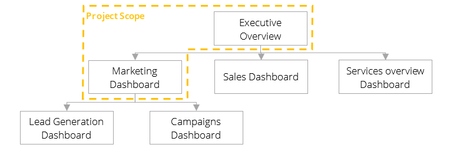
Based on the business requirements summary you've created in the previous step, you can now design the high-level overview of your BI Solution. This step aims to translate the business strategy into operational terms and associate it with the required data. For that, we will use the Dashboard Planning Document. The document will assist you to define the business goals and objectives and break it down into specific KPIs and measures. Then, we will be able to link each measure to its relevant data and formula. The following template will assist you in planning your dashboard. You can download the template at the bottom of the document. Dashboard Hierarchy Creating a dashboard flow chart is recommended while planning any BI project. Dashboard Outline This section describes the dashboard objective, the different types of users that will be using the dashboards and the expected call to action, based on this dashboard. Business Objectives - Main Business Questions A Business Objective is a Sub-goals, the steps to achieve the main goals, Medium or small in size, Concrete Shorter term, SMART. For Example: Increase the number of qualified leads Reduce marketing cost Dashboard Mockup A freestyle sketch of the final dashboard, to illustrate the dashboard layout, the selected visualization for each KPI, and additional information such as filters, plugins, etc. KPIs Architecture Break each objective into KPIs and measures, and specify the formula and data tables that are required for achieving the KPIs. Key performance indicators - Business metrics which support decision making. KPIs are used to evaluate factors which are crucial to achieving the business objectives. Measures - Quantifiable values which can stand alone or when composed with other measures form KPIs. For Example: ElastiCube Design Maps, in detail, the data elements that are required for analyzing the above KPIs. This map will help you to plan the ElastiCube structure and connections between the data elements in your model Implementation Constraints: This is the place to mention any general constraints you have on your analysis and limitation in terms of the data model (such as data security, the frequency of use, special business logic, etc.)4.2KViews0likes2CommentsGIT Instruction How To
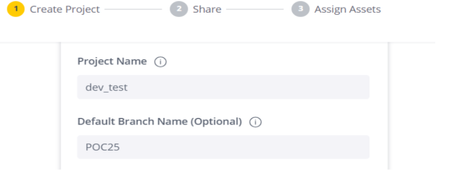
Learn how to seamlessly migrate Sisense assets between environments using GIT with our step-by-step guide. This tutorial covers creating projects, adding and committing assets, and pulling updates to ensure smooth transitions across instances. For additional details, explore our linked resources on Sisense GIT integration.1.1KViews0likes3Comments
Choosing the Right Data Model
This post has become outdated. You can find guidance on choosing a data model on our documentation site here. https://docs.sisense.com/main/SisenseLinux/choosing-the-right-data-model.htm Introduction Customers often run into the question of which data model they should use (an ElastiCube, a Live model, or a Build-to-Destination). The following article presents some of the aspects you should consider when choosing between them. Sisense recommends that you discuss your needs and requirements with Sisense's technical team during the Jumpstart process, so the result will best meet your business expectations. Table of Contents Definitions The ElastiCube Data Model Importing data into an ElastiCube data model allows the customer to pull data from multiple data sources on-demand or at a scheduled time, and create a single source of truth inside Sisense. The imported data can then be transformed and aggregated to meet your business needs. Once imported, the data snapshot is used to generate analytical information. The process of importing the data, known as a "Build", includes the following steps: Extract the data: Query the different data source(s) for data. Load the data: Write the data extracted to Sisense (the local MonetDB). Transform the data: Transform the local MonetDB (using SQL queries). To read more about ElastiCubes, see Introducing ElastiCubes. The Live Data Model Using a Live data model does not require importing data. Only the data's schema needs to be defined. Once configured, analytical information required by the user is queried directly against the backend data source. To read more about Live models, see Introducing Live Models. Determining Factors Refresh Rate One of the most fundamental aspects of determining your data model is your data's refresh rate. The data refresh rate refers to the age of the data in your dashboards: For Live models, the data displayed on your dashboards is near-real-time, as every query is passed directly to the backend database. A good example of using a live model (due to refresh rate requirements) is a dashboard that shows stock prices. For ElastiCubes, the data displayed on your dashboard is current to the last successful build event. Every query is passed to the local database for execution. A good example of using an ElastiCube (due to refresh rate requirements) is a dashboard that shows historical stock prices. In this case, a daily ETL process will provide results that are good enough. To make a choice based on this factor, answer the following questions: How frequently do I need to pull new data from the database? Do all my widgets require the same data refresh frequency? How long does an entire ETL process take? Data Transformation Options The ETL process includes a "Transformation" phase. This transformation phase usually includes: Migrating the data tables into a dim-fact schema Enriching your data Pre-aggregating the data to meet your business needs The amount of data transformation on Sisense helps determine the suitable data model: For Live models, Sisense allows minimal to no data transformation. Data is not imported before a query is issued from the front end. Therefore, data cannot be pre-conditioned or pre-aggregated. Most data sources used by Live models are data warehouses that may perform all data preparations themselves. For ElastiCubes, data is imported before a query is issued from the front end. Therefore, it may be pre-conditioned and pre-aggregated. A user may customize the data model to optimally answer their business questions. To make a choice based on this factor, answer the following questions: Is my data in a fact-dim schema? Does my data require enriching or pre-conditioning? Can my data be pre-aggregated? Operational Database Load Your operational databases do more than serve your analytical system. Any application loading the operational databases should be closely examined: For Live models, Sisense will constantly query information from your operational databases, and feed it into your dashboard widgets. This occurs every time a user loads a dashboard. For ElastiCubes, Sisense highly stresses your operational databases during an ETL process while reading all tables. To make a choice based on this factor, answer the following questions: Does the analytical system stress my operational database(s)? Can the query load be avoided by using a "database replica"? Operational Database Availability Your operational database(s) availability is critical for collecting information for your analytical system. For Live models, all queries are redirected to your data sources. If the data source is not available, widgets will generate errors and not present any data. For ElastiCubes, data source availability is critical during the ETL process. If the data source is not available, the data in your widgets will always be available, but not necessarily be up to date. To make a choice based on this factor, answer the following questions: How frequently are analytical data sources offline? How critical is my analytical system? Is being offline (showing out-of-date information) acceptable? Additional Vendor Costs Various database vendors use a chargeback charging model, meaning that you will be charged by the amount of data you pull from the database or the computational power required to process your data. For Live models, every time a user loads a dashboard, each widget will trigger (at least) one database query. A combination of a chargeback charging model and a large user load may result in high costs. For ElastiCubes, every time the user triggers an ETL process, a large amount of data is queried from the database and loaded into Sisense. To make a choice based on this factor, answer the following questions: What is the number of users using my dashboards / What is my "build" frequency? Which data model will result in lower costs? What is the tipping point? Are you willing to pay more for real-time data? Database Size For ElastiCubes, please refer to these documents: Introducing ElastiCubes Minimum Requirements for Sisense in Linux Environments For Live models, there is no limitation as data is not imported to Sisense, only the data's schema. To make a choice based on this factor, answer the following questions: What is the amount of data I need in my data model? What is the amount of history I need to store? Can I reduce the amount of data (e.g., trimming historical data? reducing the number of columns? etc.) Query Performance Query performance depends on the underlying work required to fetch data and process it. Although every widget generates a query, the underlying data model will determine the work necessary to execute it. For ElastiCubes, every query is handled inside Sisense: The client-side widget sends a JAQL query to the Sisense analytical system. The query Is translated into SQL syntax, and run against an internal database. The query result is transformed back to JAQL syntax and returned to the client-side. For Live models, every query is forwarded to an external database and then processed internally: The client-side widget sends a JAQL query to the Sisense analytical system. The query Is translated into SQL syntax, and run against an external database. Sisense waits for the query to execute. Once returned, the query result is transformed back into JAQL syntax and returned to the client-side. To make a choice based on this factor, answer the following questions: How sensitive is the client to a delay in the query's result? When showing real-time data, is this extra latency acceptable? Connector Availability Sisense supports hundreds of data connectors (see Data Connectors). However, not all connectors are available for live data models. The reasoning behind this has to do with the connector's performance. A "slow connector" or one that requires a significant amount of processing may lead to a bad user experience when using Live models (that is, widgets take a long time to load): For ElastiCubes, Sisense allows the user to utilize all the data connectors. For Live models, Sisense limits the number of data connectors to a few high-performing ones (including most data warehouses and high-performing databases). To make a choice based on this factor, answer the following questions: Does my data source's connector support both data model types? Should I consider moving my data to a different data source to allow live connectivity? Caching Optimization Sisense optimizes performance by caching query results. In other words, query results are stored in memory for easier retrieval, in case they are re-executed. This ability provides a great benefit and improves the end-user experience: For ElastiCubes, Sisense recycles (caches) query results. For Live models, Sisense performs minimal caching to make sure data is near real-time. (Note that caching can be turned off upon request.) To make a choice based on this factor, answer the following questions: Do I want to leverage Sienese's query caching? How long do I want to cache data? Dashboard Design Limitations Specific formulas (such as Mode and Standard Deviation) and widget types (such as Box plots or Whisker plots) may result in "heavy" database queries: For Live models, Sisense limits the use of these functions and visualizations as the results of these formulas and visualizations may take a long time, causing a bad user experience. For ElastiCubes, Sisense allows the user to use them, as processing them is internal to Sisense. To make a choice based on this factor, answer the following questions: Do I need these functions and visualizations? Can I pre-aggregate the data and move these calculations to the data source instead of Sisense? See also Choosing a Data Strategy for Embedded Self-Service.3.8KViews2likes1CommentResolving "Internal Server Error" When Importing Model with Generic JDBC Connector
This article addresses the issue of encountering an "Internal Server Error" when importing a model from a local desktop to a production environment using the Generic JDBC connector in Sisense. This error often arises due to compatibility issues with older JDBC frameworks. Here, we provide a solution to resolve this error by updating the JDBC connector and connections.352Views1like0CommentsRedirect users to different dashboards based on dashboard filters
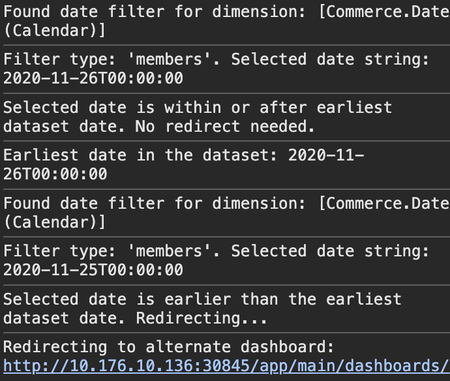
This article discusses and shares the full code of a dashboard script that redirects users to a different dashboard ID based on the user's filter selections or initial loaded filter state. In the particular example shared in this article, the script checks whether the selected date filter (either from a members filter or a from/to filter range) includes an earlier date than the earliest date in the current dashboard's datasource. If this is the case, the script redirects the user to a specified alternate dashboard, preserving any additional URL segments and query parameters in the URL. Any other type of filter state can also be used to determine on when the script should redirect, including non-date filters using similar scripts.575Views1like0Comments
Creating a Year-Over-Year Chart in Sisense
This article addresses the issue of creating a year-over-year comparing chart in Sisense that shows a Key Performance Indicator (KPI) for the current calendar year against the previous calendar year. The chart should display KPI data for the current year's months that have passed and the full previous year.3.8KViews2likes7CommentsPivot and Table Widget Scripting for Replacing Values with Colored Arrows
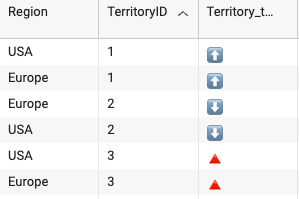
Sisense table and pivot widgets offer extensive customization options for data presentation, allowing developers to tailor widget content to specific needs, as discussed in detail in previous articles. While the Pivot 2.0 API includes a built-in transformPivot function for data transformation, Table widgets typically require direct DOM manipulation. This article provides a step-by-step guide for replacing numeric (or other) values in both widget types with arrow characters via scripting. It also demonstrates how to assign colors or apply conditional logic to these transformations. Examples include the use of Unicode arrow characters, though any other characters or combinations of characters can of course be utilized.957Views2likes0Comments