Widget script: hide value labels and empty legend items on native bar and column charts
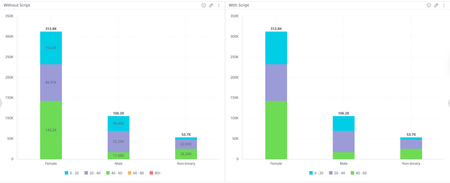
Hey everyone 👋 Ever built a stacked bar or column chart and found yourself wishing you could just... turn the labels off? Maybe you've got a lot of segments, and they're all squishing together, or the chart just doesn't have quite enough room to breathe in your dashboard layout, and the labels end up overlapping and making things harder to read rather than easier. Or, does it bother you that your legend still shows entries for categories that have no data at all for certain dimension values? So you've got these ghost entries sitting in the legend that don't correspond to anything visible in the chart. Sisense doesn't have a native toggle for either of these, so here's a widget script that handles both. It works on bar and column charts (stacked or single value) and does two things: Hides the value labels from displaying on the bars or columns Removes any series from the legend if all of its values are null or zero widget.on("beforeviewloaded", function(w, args){ var allEmpty = arr => arr.every(v => v.y === null || v.y === 0); for (e in args.options.series) { var serie = args.options.series[e]; if (allEmpty(serie.data)) { serie.showInLegend = false; } } }); A few situations where this comes in handy: You have a stacked chart with a lot of segments where the labels are colliding with each other Your dashboard is on the tighter side, and there just isn't room to make the chart large enough for labels to display cleanly Your legend is cluttered with entries for categories that have no data for certain dimension values, which can confuse users into thinking something is missing The chart is more of a visual overview and the exact values aren't the point, users can always hover for tooltips anyway You just prefer a cleaner, less noisy look overall Nothing groundbreaking, just a handy little script if you've ever hit this wall. Mia from QBeeQ, a Sisense Gold Implementation Partner www.qbeeq.io11Views1like0CommentsHow to Break By with Two Values
I saw this post DRay Benji_PaldiTeam but didn't seem to be resolved. Breakby with multiple Values | Sisense Community Is there a solution to this? I am trying to do a bar chart for the first value and second value to be a line chart with a breaky by. Is there a way to achieve this?240Views0likes0Comments
Enabling Jump to Dashboard on Left-Click in Sisense Column Charts
Afternoon Sisense Community, In a Column chart, a user would like the ability to open a jump to dashboard by left-clicking on a column, rather than the current requirement to right-click for this functionality. Is it possible to enable this feature for left-click actions? I’ve looked at something like seen here, but I couldn't get it to working JTD: https://community.sisense.com/kb/widget_and_dashboard_scripts/customize-onclick-of-column-chart/9245 Any advice on getting a JTD dashboard working on a column chart via left click would be greatly appreciated228Views0likes1CommentHow to add Scientific Units to a pivot table
Hello Sisense world, Sometimes you are working with scientific units or any units for that matter that are not available in the number formatting within Sisense. i.e. Currency values, number or percentage. With the widget edit script provided below you can add a scientific unit or any type of symbol that lets your audience know what the measure/value is being calculated by. const myTarget = { type: ['value'], values: [ { title: 'Total Quantity' // desired column } ] }; widget.transformPivot(myTarget, function(metadata, cell) { if (cell.value !== null && cell.value !== undefined) { cell.content = cell.value + " J⋅s"; } }); Here at Cause and Effect we provide a lot of useful solutions to enhance your analytics with Sisense, feel free to reach out to us to enhance your Models, Dashboard, Embedded Dashboards, etc. We have helped out hundreds of clients to produce dashboards that are easily digestable to their audience and bring their KPI's to life. Rafael Ferreira Cause + Effect Strategy [email protected] www.causeandeffectstrategy.com204Views2likes0CommentsEcube build SQL tagging
Hello, We are working with snowflake data source and have requirement to capture meta for ecube build query from data source. Please suggest how I can set query tagging ? SET QUERY_TAG = "{Team_Name:TEAM, Application:Sisense ecubename}" I did check pre build plugins but did not get option to set data source session settings or initial sql settings in python script. Please suggest.119Views1like2Comments
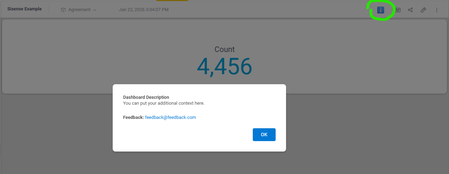
Adding Dashboard Descriptions with a Modal Info Icon
Every widget in Sisense supports descriptions, but what about dashboards themselves? Sometimes you need to explain a dashboard's purpose or guide users on how to interact with it effectively. We solved this by adding an info icon to the top toolbar that triggers a modal with the dashboard description. Add this script at the dashboard level and update the CONFIG object at the top with your custom text. We also included a feedback email in the configuration, making it easy for users to reach out with questions or suggestions. If you'd prefer, you could split this into a separate feedback button instead of including it in the description modal. Another nice touch: you can swap the ℹ️ emoji for a different icon to match the style of Sisense's built-in widget info icons. Let me know if this is helpful or if it this feature already exists and I have missed it. // Configuration - update these values for your dashboard const CONFIG = { feedbackEmail: '[email protected]', description: 'You can put your additional context here.' }; $(document).ready(function() { setTimeout(function() { // Clean up any existing instances $('#dashboard-info-icon, #dashboard-info-modal').remove(); // Create info button const infoButton = $('<button id="dashboard-info-icon" title="Dashboard info">ℹ️</button>').css({ cursor: 'pointer', background: 'none', border: 'none', fontSize: '20px', padding: '5px 10px', color: '#666' }); // Add button to toolbar (after Widget button if found, otherwise append to toolbar) const widgetButton = $('button:contains("Widget")').filter(':visible').first(); if (widgetButton.length) { widgetButton.after(infoButton); } else { $('.dashboard-toolbar').append(infoButton); } // Create modal const modal = $(` <div id="dashboard-info-modal" style="display:none; position:fixed; z-index:10000; left:0; top:0; width:100%; height:100%; background:rgba(0,0,0,0.5);"> <div style="background:white; margin:15% auto; padding:30px; border-radius:8px; width:500px; max-width:90%; box-shadow:0 4px 6px rgba(0,0,0,0.1);"> <h2 style="margin-top:0; color:#333;">Dashboard Description</h2> <p style="line-height:1.6; color:#555;">${CONFIG.description}</p> <p style="line-height:1.6; color:#555; margin-top:20px;"> <strong>Feedback:</strong> <a href="mailto:${CONFIG.feedbackEmail}" style="color:#0078d4; text-decoration:none;">${CONFIG.feedbackEmail}</a> </p> <div style="text-align:right; margin-top:20px;"> <button id="close-modal" style="background:#0078d4; color:white; border:none; padding:10px 24px; border-radius:4px; cursor:pointer; font-size:14px; font-weight:500;">OK</button> </div> </div> </div> `); $('body').append(modal); // Event handlers infoButton.click(function() { modal.fadeIn(200); }); $('#close-modal').click(function() { modal.fadeOut(200); }); // Close when clicking outside modal modal.click(function(e) { if (e.target.id === 'dashboard-info-modal') { modal.fadeOut(200); } }); // Close with ESC key $(document).keydown(function(e) { if (e.key === 'Escape' && modal.is(':visible')) { modal.fadeOut(200); } }); }, 1000); });73Views0likes0CommentsHow to find the dashboard I need?
Has anyone found a good solution to help users locate the dashboards they need? Some potential options that come to mind are key-word search or labels. Our reporting suite has grown so large that it’s becoming difficult for users to find what they’re looking for. Aside from streamlining our offerings (which we’re already working on using usage data), what else have you implemented to improve the user experience?105Views0likes2Comments
Change an SVG color in BloX with criteria based on token - and for it to work with the carousel
Hello, my aim is to have a bar grow (change width, seems to be working fine) and change color based on if it exceeds a threshold. The issue is that the threshold will be client dependent. I have this script that works as intended for the initial display with static thresholds, but I want to replace the "parseInt('80')" and "parseInt('65')" in the script with tokens like "{panel:Threshold Good}" and "{panel:Threshold Meh}". It also fails to display the conditional color when I cycle on the carousel. Any assistance would be appreciated! { "style": ".conditional-bar-good{fill:#006100; stroke:#006100} .conditional-bar-meh{fill:#9C6500; stroke:#9C6500} .conditional-bar-bad{fill:#9C0006; stroke:#9C0006} .conditional-bar-na{fill:#000000; stroke:#000000}", "script": "$(document).ready(function(){let barClass = document.getElementById('conditional-bar');let cbw = parseInt(barClass.getAttribute('width'));if(cbw >=parseInt('80')){barClass.className.baseVal = 'conditional-bar-good';}else if(cbw>=parseInt('65')){barClass.className.baseVal = 'conditional-bar-meh';}else{barClass.className.baseVal = 'conditional-bar-bad';};});", "title": "", "showCarousel": true, "body": [ { "type": "Container", "items": [ { "type": "TextBlock", "horizontalAlignment": "center", "spacing": "small", "text": "<svg width='80%' height='25'> <rect width='100%' height=100% rx='15' style='fill:#C6EFCE;stroke-width:1;stroke:#006100' /> <rect width='{panel:Threshold Good}%' height='100%' rx='15' style='fill:#FFEB9C;stroke-width:1;stroke:#9C6500' /> <rect width='{panel: Threshold Meh}%' height='100%' rx='15' style='fill:#FFC7CE;stroke-width:1;stroke:#9C0006' /> <rect id='conditional-bar' class='conditional-bar-na' y='20%' width='{panel:Value 1}%' height='60%' rx='10' style='fill-opacity: 0.7;stroke-width:3;' /></svg>" } ] }, { "spacing": "none", "type": "Container", "items": [ { "spacing": "none", "type": "TextBlock", "class": "condition_data", "text": "{panel:Label 1}", "horizontalAlignment": "center", "size": "medium", "weight": "bold" }, { "spacing": "none", "type": "TextBlock", "class": "condition_data", "text": "{panel:Value 1}%", "horizontalAlignment": "center", "size": "large", "weight": "bold" } ] } ], "actions": [] }Solved236Views0likes5Comments