Improvise, adapt, overcome! How to increase the adoption and user satisfaction of dashboards
Discover the art of creating user-friendly dashboards that truly resonate with your audience. Drawing from six years of experience with Sisense, this article dives into dashboard design. Learn practical tips on improving dashboard readability, integrating advanced filters, and using dynamic widgets. Whether you're a seasoned designer or just starting, this guide offers invaluable insights to ensure your dashboards are not only functional but also a delight to use.1.5KViews4likes1CommentInput Parameters using BloX for What-If Analysis
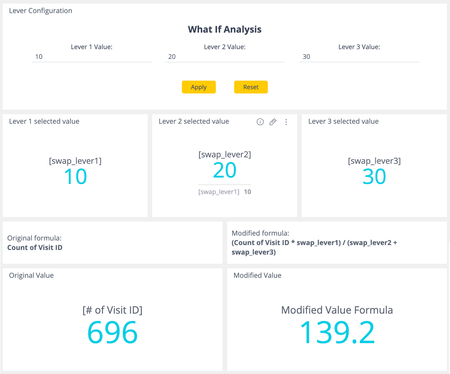
Input Parameters using BloX for What-If Analysis This is an alternative to the paid or community Input Parameter plugins. This new BloX Input Parameter custom action: supports multiple levers (input parameters) with just one Apply button supports all widget types remembers previous selections even after refreshing/closing the dashboard loops through all widgets so dashboard designers do not have to specify widget IDs in the BloX code. Note: Be mindful of performance when considering this option as this will execute the BloX action on all widgets including those that the input parameters may not necessarily be relevant to. Input Parameter Implementation Instructions: Import the example dashboard attached below. Before importing the file, change the file extension from .txt to .dash. Make sure that you still have the Sample ECommerce Elasticube for this dashboard to properly display the data. Open the BloX Lever Configuration widget, then add the custom action given below to your Sisense environment. Go to the Actions tab, click the three-dot menu, then click Create Action. Copy the custom action code from below and paste it into your BloX custom action editor. Give this name for the action: ParameterSwap_V2_AllWidgets. You can also use a different name, but make sure the name of the action matches with the name referenced in the BloX code. Click Next, then Create. Click the Apply button to close the widget. Enter values to the levers and click Apply. The number on the widgets is now recalculated based on your input. There are three input parameters in this example. To add another input parameter: In the BloX code of the Lever Configuration widget, modify the number of input parameters in the BloX code under the paramsToModify parameter. For example, if you need 4 input parameters (levers), update the value to 4. On the left panel, add the additional swap_levers to the Values panel, i.e. swap_lever4, swap_lever5, etc. You can assign any arbitrary hard-coded number to these swap levers. To add the input box to the widget, copy one of the column elements then add it to the BloX code. Modify the id parameter to selectVal<lever number>, e.g. if this is the fourth lever, the id should be selectVal4. Similarly, modify the value parameter to match the swap_lever name you added in the previous step, e.g. [swap_lever4]. Update the title text as well and give it a meaningful description. Save the widget by clicking the Apply button. Add the additional levers to your widget formulas as needed so that they get recalculated when you enter the input values. Input Parameter BloX action: //initialize variables var swapParam = []; //create an array of swap_levers for (d = 0; d < payload.data.paramsToModify; d++) { swapParam[d] = "swap_lever" + (d + 1); } //loop through each of the specified widgets payload.widget.dashboard.widgets.$$widgets .forEach(function (widget) { //loop through each panel in the widget //exclude the filter panel (last panel) for (p = 0; p < widget.metadata.panels.length - 1; p++) { //loop through each item in the panel for (i = 0; i < widget.metadata.panels[p].items.length; i++) { //check if the panel item contains context (i.e. a formula) if (widget.metadata.panels[p].items[i].jaql.context != undefined) { var queryContext = widget.metadata.panels[p].items[i].jaql.context; //loop through each context in the item for (let [k, v] of Object.entries(queryContext)) { //loop through each swap_lever for (s = 0; s < swapParam.length; s++) { //check if the formula contains the swap_lever if (v.title == swapParam[s]) { var val = 'selectVal' + (s + 1); //update the formula with the swap_lever value that the user entered v.formula = payload.data[val]; } } } } } } //apply and save changes to the widget widget.changesMade('plugin-BloX', ['metadata']) //refresh the widget widget.refresh(); }) Resetting to Default Values The attached dashboard example includes a Reset button to reset the input parameters to pre-set default values. If you do not need this option, you can remove the second action from the BloX code, as shown in the highlighted part of the screenshot below. Instructions to implement the Reset button: Open the BloX Lever Configuration widget, then add the custom action given below to your Sisense environment. Go to the Actions tab, click the three-dot menu, then click Create Action. Copy the custom action code from below and paste it into your BloX custom action editor. Give this name for the action: ParameterSwap_V2_AllWidgets_Reset. You can also use a different name, but make sure the name of the action matches with the name referenced in the BloX code. Click Next, then Create. In the BloX code, update the defaultValues array with your required default values. See screenshot below for reference. There are three input parameters in this example, if you have more/less parameters, update the paramsToModify value to the correct number of parameters that you have. See screenshot below for reference. Click the Apply button to close the widget. Reset Input Parameter BloX action: //initialize variables var leverValues = payload.data.defaultValues; var swapParam = []; //create an array of swap_levers for (d = 0; d < payload.data.paramsToModify; d++) { swapParam[d] = "swap_lever" + (d + 1); } //loop through all widgets in the dashboard payload.widget.dashboard.widgets.$$widgets .forEach(function (widget) { //loop through each panel in the widget //exclude the filter panel (last panel) for (p = 0; p < widget.metadata.panels.length - 1; p++) { //loop through each item in the panel for (i = 0; i < widget.metadata.panels[p].items.length; i++) { //check if the panel item contains context (i.e. a formula) if (widget.metadata.panels[p].items[i].jaql.context != undefined) { var queryContext = widget.metadata.panels[p].items[i].jaql.context; //loop through each context in the item for (let [k, v] of Object.entries(queryContext)) { //loop through each swap_lever for (s = 0; s < swapParam.length; s++) { //check if the formula contains the swap_lever if (v.title == swapParam[s]) { var val = 'selectVal' + (s + 1); //update the formula with the default value v.formula = leverValues[s]; } } } } } } //apply and save changes to the widget widget.changesMade('plugin-BloX', ['metadata']) //refresh the widget widget.refresh(); }) We hope this is a helpful article and would love to hear about your experience in the comments!16KViews4likes12CommentsViews bookmarking: Use case of a financial technology company
Introduction FlexTrade is a global provider of multi-asset execution and order management systems, supporting trading workflows across asset classes, venues, and strategies. Their platforms generate large volumes of highly detailed data that users rely on for day-to-day analysis and decision-making. Companies like FlexTrade operate in an environment where users need deep, flexible analysis across a wide range of dimensions: asset class, venue, strategy, region, client, trader, time, and more. Pivot tables are a natural fit for this kind of detailed, highly dimensional analysis. However, as the number of dimensions grows, teams quickly hit a trade-off: Putting all dimensions into a single widget becomes expensive to query and difficult to interpret. Creating separate widgets for every dimension (or combination of dimensions) leads to bloated dashboards, slower load times, and a poor user experience. This use case focuses on how BloX was used to solve this problem by introducing view bookmarking, a flexible way for users to switch between different slicing configurations (in this example, a set of four dimensions) within a single widget. It also highlights how BloX can be used not just for custom visualizations, but also for building small, purpose-driven mini apps directly inside a dashboard. What the solution does This solution uses BloX to manage view bookmarks for a pivot table. Instead of permanently adding all dimensions to the widget, BloX acts as a control layer that lets users select dimensions to include in the pivot at a time. Each selected combination can be saved as a view bookmark, representing a specific slicing configuration of the same underlying pivot. With this solution, users can: Select up to four dimensions to apply to the pivot table Save the selected combination as a personal bookmark Load and reuse previously saved bookmarks Delete bookmarks that are no longer needed Up to 20 bookmarks are supported out of the box, and all bookmarks are user-specific, allowing each user to maintain their own set of preferred analytical views. The solution also includes basic validation and error handling, such as preventing empty and duplicate bookmark names. From a technical perspective, BloX dynamically updates the pivot’s metadata. From a user perspective, it feels like switching views within a single widget. This keeps the analysis flexible while the dashboard structure remains simple and performant. Why it’s useful Scales to 10+ dimensions without UI overload Multi-asset trading analysis often requires exploring many dimensions, but not all at the same time. This solution allows FlexTrade users to work with 10+ dimensions while only surfacing the few that matter for the current question, resulting in less visual noise, lower cognitive load, and faster insights. Maintains dashboard performance and keeps dashboards clean and maintainable By avoiding massive pivots with every dimension enabled or dozens of near-duplicate widgets, the solution keeps queries efficient and dashboards responsive, even as analytical depth increases. One widget with dynamic views replaces an entire grid of narrowly focused widgets, resulting in dashboards that are easier to navigate, faster to load, and easier to maintain. Attachments BloX-ViewDimensionBookmarks.dash.txt (example dashboard using the Sample ECommerce cube) BloXActionsForBookmarks.zip (BloX actions' scripts) ViewsBookmarkV2-2025-12-29.json (BloX template for the view bookmark widget, also included in the .dash file above). Note: Remove the .txt extension before importing the dashboard (.dash) file. The BloX widget also includes a script that automatically populates the dropdown menus with the available dimension names and existing bookmarks based on the widget’s metadata. Here is the script: // Dropdown classes used in the BloX code const dropdownClasses = [ "dimensionDropdown", //dropdowns for selecting the four dimensions "bookmarkDropdown" // dropdown for selecting existing bookmarks ]; const valueToDisable = "Select"; // placeholder value to disable widget.on('ready', function() { dimensions = widget.metadata.panels[0].items; dimensionTitles = dimensions .map(i => i.jaql.title); // Add each dimension title to the dimension dropdowns dimensionTitles.forEach(function(title, index) { $('.dimensionDropdown', element).append( '<option value="' + (index + 1) + '">' + title + '</option>' ); }); bookmarks = widget.metadata.panels[1].items; bookmarkTitles = bookmarks .filter(i => !i.disabled) // keep only not disabled .map(i => i.jaql.title); // extract title // Add each existing bookmark title to the bookmark dropdown bookmarkTitles.forEach(function(title) { $('#bookmarkDropdown', element).append( '<option value="' + title + '">' + title + '</option>' ); }); // Disable placeholder values from selection dropdownClasses.forEach(cls => { $(`.${cls}`).each(function () { let $select = $(this); if (!$select.is("select")) { $select = $select.find("select"); } if ($select.length === 0) return; $select.find("option").first().prop("disabled", true); }); }); });289Views3likes1Comment
Interactive Time Period Comparison with BloX & Custom Actions
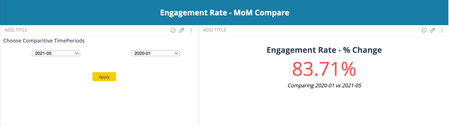
Here is a use case on how to leverage BloX widgets in Sisense to create an interactive dashboard for comparing any KPI between two different time periods. This solution allows users to select two months (or any two time periods) and dynamically calculates the percentage change in the KPI between these selected months.12KViews3likes4CommentsData Doesn’t have to Look Boring: Brag about it with BloX
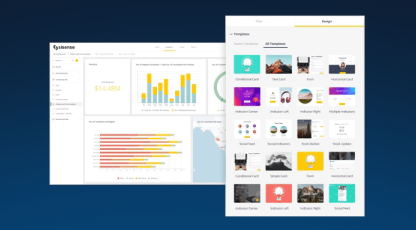
One of the biggest learning curves with presenting data is the internal question of “How can we excite our stakeholders in our data storytelling?” Let's talk about how Shedd Aquarium uses BloX to beautify data and condense multiple widgets into one.2.6KViews3likes0CommentsUsing Native Javascript Date Calculations To Modify Sisense Date Filters
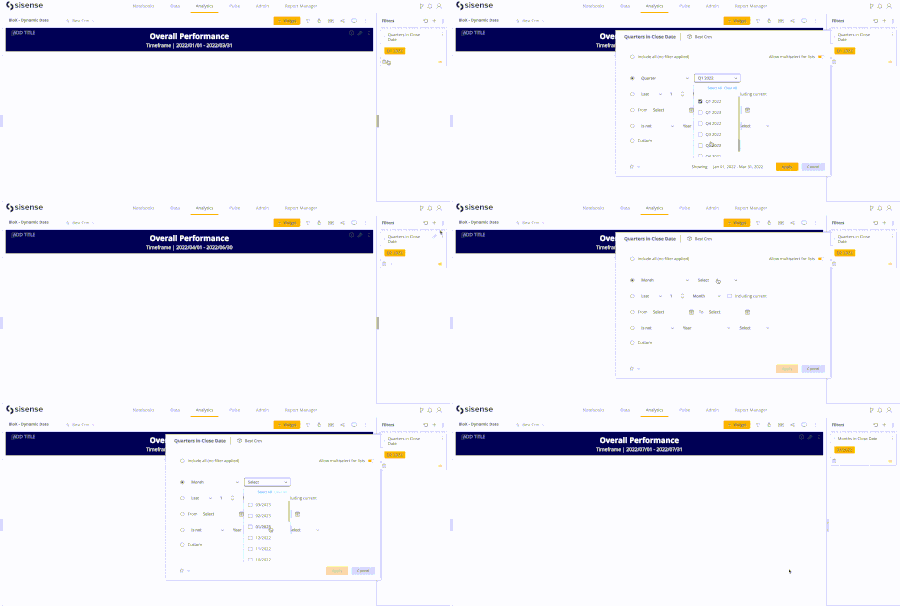
Sisense natively supports various types of date filter functionalities. However, there are instances where a dynamically updating date filter is desired based on dynamically changing conditions such as the current date. Such a filter may not precisely align with the filters provided in the Sisense UI. One approach to achieve this custom behavior of a dynamically updating filter is through the use of dashboard or widget scripting.6.3KViews3likes13Comments
Filter selections in Blox widget
Question How to show the values selected in the dashboard filter as a Blox widget? Answer Our example uses a filter/field called "Divison_name". First, in your BloX widget's Editor tab: 1. Set "showCarousel" to "true", but add the following option to make the navigation arrows go away: "showCarousel": true, "carouselAnimation": { "showButtons": false }, 2. Within the specific Text Block / container you want to change, give it an "id" attribute of "text-to-change" and "wrap" attribute as shown in the bolded section below: "type": "TextBlock", "text": "{panel:Divison_name}", "id": "text-to-change", "wrap": "true", (Explanation: the "id" helps the widget script in the next steps run properly, and the "wrap" helps all the selected options show up if your user selects lots of them). Next, edit your widget's script by doing this: 3. Copy and paste the whole script below: const filterTitle = "Divison_name"; widget.on("ready", (scope, args) => { let text = `${filterTitle}: All`; try { let foundFilter; const filter = scope.dashboard.filters.$$items.forEach((item) => { if (item.levels) { item.levels.forEach((level) => { if (level.title === filterTitle) { foundFilter = level; } }); } else if (item.jaql.title === filterTitle) { foundFilter = item.jaql; } }); const { filter: myFilter } = foundFilter; /* In Sisense we have different structures of the filter. For more details about possible options, please, check this article: https://sisense.dev/guides/querying/jaqlSyntax/#filtering */ text = myFilter.members ? `${filterTitle}: ${myFilter.members.join(", ")}` : myFilter.exclude ? `${filterTitle} excludes: ${myFilter.exclude.members.join(", ")}` : myFilter.contains ? `${filterTitle} contains: ${myFilter.contains}`: `${filterTitle}: custom filter`; $("#text-to-change", element).text(text); } catch(err) { console.warn(`Filter with title ${filterTitle} was not found`); $("#text-to-change", element).text(text); } }); Change the variable filterTitle to whatever your dashboard filter's title is instead of "Divison_name" - presumably something like "Country". Save all the changes, then refresh the dashboard. Important: the structure of the JAQL filter is explained in the article below, so the script should be updated accordingly to the structure that is defined in the filter: https://sisense.dev/guides/querying/jaqlSyntax/#filtering3.9KViews2likes4Comments
Blox documentation?
How do people learn Blox? Is there a resource that I'm missing out on? The embedded playground has very few examples, and the documentation doesn't tell you which attributes are applicable to which types. For instance, there is no reference to an attribute called "width", but from reading through another post, I found that it can be used on a "type":"Column". There doesn't appear any information about attributes.1.5KViews2likes1Comment