How to Implement a Sisense Landing Page for Popular Dashboards via BloX and Data Security
Requirement In this article, we will look to create a personalized dashboard navigation landing page that shows: The logged user's most popular dashboards. Most popular dashboards on the company level. Consider further enhancing the logic presented in this article. Solution Steps: 1) To address the need, we will first need to learn how to implement a landing page - Follow this article to learn more on that. The reasoning behind it is we will use data-security where we will give a logged user permissions to see: His own records - Retrieving his popular dashboards The dummy user records - Retrieving the most popular dashboards on a company level. 4) Add data-security rules to the model that enables the user to see his own UserID/UserName from DimUsers table + UserId/UserName '-1'. 5) Find the attached BloX template that introduced action buttons to jump to a specific dashboard. LandingPage.json: { "card": { "style": "", "script": "", "title": "", "showCarousel": false, "body": [ { "spacing": "", "type": "Container", "items": [ { "type": "TextBlock", "text": "{panel:Dashboard Name}", "horizontalAlignment": "center", "size": "medium", "style": { "color": "#117899" } }, { "spacing": "small", "type": "TextBlock", "text": "{panel:Total Column} # of Actions", "color": "default", "horizontalAlignment": "center" } ] } ], "actions": [ { "type": "Action.OpenUrl", "title": "{panel:Dashboard Name}", "url": "http://10.50.57.72:30845/app/main#/dashboards/{panel:Dashboard ID}" } ] }, "config": { "fontFamily": "Open Sans", "fontSizes": { "default": 16, "small": 12, "medium": 22, "large": 32, "extraLarge": 50 }, "fontWeights": { "default": 500, "light": 100, "bold": 1000 }, "containerStyles": { "default": { "backgroundColor": "lightgrey", "foregroundColors": { "default": { "normal": "#3A4356" }, "white": { "normal": "#ffff" }, "grey": { "normal": "#5C6372" }, "orange": { "normal": "#f2B900" }, "yellow": { "normal": "#ffcb05" }, "black": { "normal": "#000000" }, "lightGreen": { "normal": "#3ADCCA" }, "green": { "normal": "#54a254" }, "red": { "normal": "#dd1111" }, "accent": { "normal": "#2E89FC" }, "good": { "normal": "#54a254" }, "warning": { "normal": "#e69500" }, "attention": { "normal": "#cc3300" } } } }, "imageSizes": { "default": 40, "small": 40, "medium": 80, "large": 160 }, "imageSet": { "imageSize": "medium", "maxImageHeight": 100 }, "actions": { "color": "", "backgroundColor": "#10a5F5", "maxActions": 5, "spacing": "small", "buttonSpacing": 20, "actionsOrientation": "horizontal", "actionAlignment": "center", "showCard": { "actionMode": "inline", "inlineTopMargin": 16, "style": "default" } }, "spacing": { "default": 5, "small": 20, "medium": 40, "large": 60, "extraLarge": 40, "padding": 25 }, "separator": { "lineThickness": 1, "lineColor": "#eeeeee" }, "factSet": { "title": { "size": "default", "color": "default", "weight": "bold", "warp": true }, "value": { "size": "default", "color": "default", "weight": "default", "warp": true }, "spacing": 20 }, "supportsInteractivity": true, "height": 842, "imageBaseUrl": "" } } 6) Import the attached dashboard example NavigationDashboard (1).dash. You can learn more on how to customize BloX in the following documentation page: https://www.sisense.com/marketplace/blox-widgets/ That's it!2.5KViews1like1CommentAdvanced Dynamic Filtering
Get quick, comparative insights from large datasets by creating flexible pivot tables or widgets. Whether comparing time periods, countries, or sales figures, you can leverage a single filter to handle multiple comparisons without clutter. This method uses custom fields, measured values, ranking filters, and the smart label plugin to streamline comparisons across various dimensions for clean, dynamic visualizations.3.7KViews1like1CommentCreating 'From-To' Date using BloX
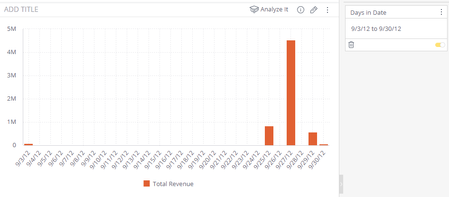
Analytical Need Attached below is a BloX template. A common request is to have a 'From To' input at the top of the dashboard to affect a calendar range selection of dates. To achieve this need we can utilize BloX's form capabilities. Picking a date range in a calendar of a 'Date' filter and looking into the jaql created by it shows the following: We can use input fields to change the date range values selected in the from:to keys. Solution We will use the skeleton that creates an action that affects the selected filters: Make sure to change the "filterName" to the right filter column name. Also, make sure to use the right jaql that needs to be populated. Example: { "type": "ActionSet", "actions": [ { "type": "Filters", "title": "Submit", "data": { "filters": [ { "filterName": "Days in Date", "filterJaql": { "from": "", "to": "", "custom": true } } ] } } ] } Then, make sure to create the required Input field to pass on the input value and populate the from/to: { "type": "Input.Date", "id": "data.filters[0].filterJaql.from", "placeholder": "yyyy-mm-dd", "defaultValue": "", "style": { "width": "100%" }, "borderRadius": "4px", "borderStyle": "none", "backgroundColor": "#F4F4F8" } The "id" should hold the entire path of the key that needs to be populated with the value. If you prefer you can use this JSON template file for the full script: json script { "card": { "style": "", "script": "", "title": "", "showCarousel": true, "body": [ { "type": "Container", "width": "90%", "style": { "margin": "0 auto" }, "items": [ { "spacing": "large", "type": "TextBlock", "text": "From Date", "weight": "light", "color": "black" }, { "type": "Input.Date", "id": "data.filters[0].filterJaql.from", "placeholder": "yyyy-mm-dd", "defaultValue": "", "style": { "width": "100%" }, "borderRadius": "4px", "borderStyle": "none", "backgroundColor": "#F4F4F8" }, { "spacing": "medium", "type": "TextBlock", "text": "To Date", "color": "black" }, { "type": "Input.Date", "id": "data.filters[0].filterJaql.to", "placeholder": "yyyy-mm-dd", "defaultValue": "", "style": { "width": "100%" }, "borderRadius": "4px", "borderStyle": "none", "backgroundColor": "#F4F4F8" }, { "type": "ActionSet", "actions": [ { "type": "Filters", "title": "Submit", "data": { "filters": [ { "filterName": "Days in Date", "filterJaql": { "from": "", "to": "", "custom": true } } ] } } ] } ] } ] }, "config": { "fontFamily": "Open Sans", "fontSizes": { "default": 16, "small": 14, "medium": 22, "large": 32, "extraLarge": 50 }, "fontWeights": { "default": 400, "light": 100, "bold": 800 }, "containerStyles": { "default": { "backgroundColor": "#ffffff", "foregroundColors": { "default": { "normal": "#3A4356" }, "white": { "normal": "#ffffff" }, "grey": { "normal": "#9EA2AB" }, "orange": { "normal": "#f2B900" }, "yellow": { "normal": "#ffcb05" }, "black": { "normal": "#000000" }, "lightGreen": { "normal": "#93c0c0" }, "green": { "normal": "#2BCC7F" }, "red": { "normal": "#FA5656" }, "accent": { "normal": "#2E89FC" }, "good": { "normal": "#54a254" }, "warning": { "normal": "#e69500" }, "attention": { "normal": "#cc3300" } } } }, "imageSizes": { "default": 40, "small": 40, "medium": 80, "large": 120 }, "imageSet": { "imageSize": "medium", "maxImageHeight": 100 }, "actions": { "color": "", "backgroundColor": "", "maxActions": 5, "spacing": "large", "buttonSpacing": 20, "actionsOrientation": "horizontal", "actionAlignment": "right", "margin": "0", "showCard": { "actionMode": "inline", "inlineTopMargin": 16, "style": "default" } }, "spacing": { "default": 5, "small": 5, "medium": 10, "large": 20, "extraLarge": 40, "padding": 0 }, "separator": { "lineThickness": 1, "lineColor": "#D8D8D8" }, "factSet": { "title": { "size": "default", "color": "default", "weight": "bold", "warp": true }, "value": { "size": "default", "color": "default", "weight": "default", "warp": true }, "spacing": 20 }, "supportsInteractivity": true, "imageBaseUrl": "", "height": 197 } }3.3KViews1like4CommentsGroup values are on the column chart by day of the week.
Transform your column chart into a week-based revenue visualization with this guide! Learn how to group data by day of the week (Monday to Sunday) using custom code in Sisense. Follow our step-by-step instructions to edit your widget, implement the script, and display total revenue for each day. Perfect for users looking to enhance their data analysis and insights. Note: Test the solution in your environment to ensure compatibility.1.3KViews1like0CommentsHaving difficulty with Dashboard performance
Struggling with slow-loading dashboards? Optimize performance by reducing widget count to 6-8 per dashboard, utilizing plugins like Jump to Dashboard and Switchable Dimensions, and minimizing data load through filters and pre-aggregation. Avoid heavy pivot tables and complex graph functions, and streamline data models by joining on integers and applying data security in a single location. For detailed guidance, check out our performance troubleshooting and optimization resources.807Views0likes0CommentsHow to Calculate Absolute Sum
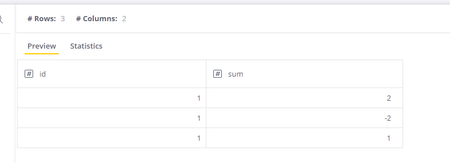
How to Calculate Absolute Sum We have a table with data and we are going to calculate the absolute SUM for [sum] column. We divide this into two parts. First of all, we SUM all positive values with the formula ([Total sum],[sum1]) The first argument is a SUM and second is a filter With the help of it, we select all positive values. The second part of the formula will be ABS(([Total sum],[sum1])) The first argument is the SUM of the values, the second filter of all negative values And all this calculation wraps with the function ABS (you can read more here). The whole formula will have a look: ([Total sum],[sum])+ABS(([Total sum],[sum1])) And the final result of it will be 5 Check out this related content: Academy course Sisense Documentation742Views0likes0CommentsCompare A Time Window Against The Immediately Preceding Time Window Of The Same Size.
Users could sometimes want to compare performance on a particular time period vs the immediately preceding period. Sometimes those periods are not of a common size like months or quarters. It could be a campaign that lasts a few days, or an arbitrary date range based on topics trending on social media. In those cases, you would want to select any time range and be able to compare to a previous period of the same arbitrary size, and be able to change that time range and see the comparison adjust dynamically. Challenges In Sisense, the RANGE function receives literal numbers, but it doesn’t accept numeric expressions (like Count([Days in Date]). Sisense has last, next and offset operators for filters, but no out of the box ways to adjust them according to the number of members in a filter. Solution: By using the Javascript API and in formula filters, we can make a formula go back the number of days in the filter, and also apply an offset of the same number of days, to get the same data for the preceding time window. Example: We want to be able to get the number of orders in an N day date range, and the growth vs the previous N days. For example, if the filter is 2/11/2020 to 2/20/2020, we want the growth vs the 2/1/2020 to 2/10/2020 period. We'll use an indicator widget for this, with the next formulas: Value: Count([OrderID) Secondary: (Count([OrderID]) - (Count([OrderID]),[Days in Date]))/(Count([OrderID]),[Days in Date]) And set the formula filters to one of the predefined “Last N” options: To learn about filtering in formulas, check the documentation: Document Here Finally, open the Edit Script editor for the widget, and enter the following script. The script will search for formula filters that use the table and column specified at the beginning of the script (and use the last operator), and replace the count and offset with the number of members in the filter. If the calendar was used to set a days filter, it will calculate the difference in days to come up with the number of members: If you change the filter to a different date range, the filters in the growth formula will adjust dynamically to the new time window. Script: var TABLE = "Date"; var COLUMN = "Date"; widget.on("beforequery", function(scope, widget) { // getting item var item = widget.query.metadata.find(function(i) { return i.panel === "scope" && $$get(i, "jaql.table") === TABLE && $$get(i, "jaql.column") === COLUMN }); if (!defined(item)) { console.log("DynamicLastX: Can't find a filter item with '" + TABLE + "." + COLUMN +"' dimension. Aborting."); return; } var calFilter = false; var calCount = 0; var dateTo = null; // getting member var members = $$get(item, "jaql.filter.members"); if (!defined(members)) { console.log("DynamicLastX: No item filter. Assuming calendar was used."); calFilter=true; var dateFrom = new Date(item.jaql.filter.from + "T00:00:00"); var dateTo = new Date(item.jaql.filter.to + "T00:00:00"); var diffTime = dateTo.getTime() - dateFrom.getTime(); calCount = diffTime / (1000 * 3600 * 24) + 1; } var formulaFilters = []; var filterMember = 0 var filterCount = 0 if (!calFilter) { filterMember = members[0]; filterCount = members.length } else { filterMember = item.jaql.filter.to + "T00:00:00"; filterCount = calCount; } widget.query.metadata.forEach(function(item) { if ((item.source === 'value' || item.source === 'secondary') && item.jaql && item.jaql.context) { for (var lmnt in item.jaql.context) { if (item.jaql.context[lmnt].table === TABLE && item.jaql.context[lmnt].column === COLUMN && item.jaql.context[lmnt].filter && item.jaql.context[lmnt].filter.last) { formulaFilters.push(item.jaql.context[lmnt].filter); } } } }) if (formulaFilters && filterMember) { formulaFilters.forEach(formulaFilter => { formulaFilter.last = { offset: filterCount, count: filterCount, anchor: filterMember }; }); } });3.5KViews0likes8CommentsChange multiple dashboards owner
In case when you need to change the owner of multiple dashboards there are few ways: 1) In case all the dashboards are in 1 folder then you can select the folder and export the dashboards. After what, import the dashboards back under the user to whom you would like to transfer the dashboards. In this case you will need to republish the dashboards to users to whom they were shared before. 2) Change the user email in the user profile under Admin tab-> Users - ONLY to a new user. This option will not merge the accounts! 3)Use the script below under Sys.Admin in Web Developers console (F12 in Chrome) Note, Dashboards and Elasicubes must be shared in advance! var newOwnersId = "5e5cdc80ecebb629e0c8de85" //New owner, use the REST API to get user ID $.ajax({ url: '/api/v1/dashboards?fields=oid,owner', success: function(res) { console.log(res) var dashboards = res.filter(function(dash) { return prism.user._id === dash.owner }) var dashboardsList = []; dashboards.forEach(function(dashboard) { dashboardsList.push(dashboard.oid) }) if (dashboardsList.length) { changeOwnership(dashboardsList) } } }) function changeOwnership(dashboardsList) { var succeed = []; var failed = [] dashboardsList.forEach(function(dash) { $.ajax({ method: 'POST', contentType: 'application/json', data: JSON.stringify( { "ownerId": newOwnersId, "originalOwnerRule": "edit" } ), url: '/api/v1/dashboards/' + dash + '/change_owner?adminAccess=true', async: false, success: function(res) { succeed.push(dash) }, error: function(res) { failed.push(dash) } }) }); console.log('Dashboard\'s owner was changed successfully for: '); console.log(succeed); console.log('Dashboard\'s owner wasn\t changed successfully. Please, try to change owner manually for: '); console.log(failed); }3KViews1like4CommentsSharing a file from a local machine in a dashboard
Sisense has the capability to share a local file (excel, word, pdf etc.) with dashboard users. Note: The file must be saved on the server in the following path: %programfiles%\Sisense\PrismWeb. You can create a new folder or save it under 'Resources'. Solution: Add a text widget and select to add a hyperlink. Under 'Target URL' in the following format: http\\:<IP adress:Port>/folder_path/file (The ip can be obtained from the 'ipconfig' command or copying the link under dashboard republish) Example: The URL for the file 'widget.csv' that in located at %programfiles%\Sisense\PrismWeb\Documents is: http://192.168.5.124:8081/documents/widget.csv.961Views0likes0CommentsReorder pivot columns by viewers
Need A common requirement for self service BI is to enable the viewers to save their own report. This can be achievable in Sisense if you are a designer of a dashboard. However, when you are a viewer, you cannot even re-order the pivot columns as you please. Challenge The default behaviour of the viewer is only to interact with the filters and view the numbers. No layout changes are allowed for a viewer. Solution We can change the default behaviour of the viewer and allow him to re-order the rows, values & columns. Using the API of custom roles we can achieve that. Solution: Go to Admin ==> REST API ==> 0.9 PUT /roles/{idOrName}/manifest/{path} API Fill in the following parameters: idOrName: consumer path: /widgets.items manifest: { "reorder": true } Execute the API and that's it! Note: the re-order option is enabled for all widget types (not just pivots), however, pivots are the main use case for this need.1.2KViews0likes0Comments