Ensuring Accurate PDF Export Headers When Programmatically Modifying Dashboard Filters in Sisense
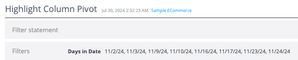
When working with Sisense dashboards, programmatically modifying filters upon dashboard load via dashboard scripts for a specific user or circumstance is possible. However, an issue can sometimes occur when exporting these dashboards to PDF immediately after such modifications: the filter header displayed at the top of the exported PDF displaying the current dashboard filter state may not accurately reflect the current state of the dashboard filters. This article explains the cause of this issue and presents a solution to ensure that PDF exports display the correct filter information in the header.594Views1like0CommentsMastering custom actions in Sisense: debugging and understanding payload properties
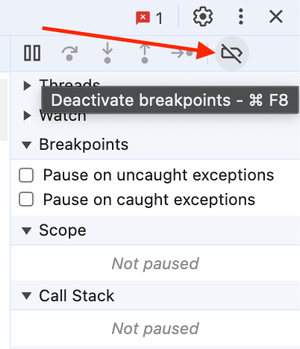
Custom actions extend the widget BloX's basic functionality. This article explains how to debug custom actions. Developing custom actions requires JavaScript programming experience and familiarity with the browser's developer tool.590Views1like0CommentsSetting Date Filter Members to Specific Days of the Week in Sisense Programmatically
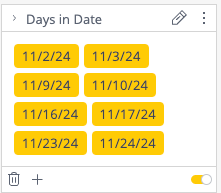
Sisense natively supports a wide range of date filter functionalities and formats. However, certain scenarios may call for unusual custom programmatic forms of date filtering, such as filtering to specific days of the week within a defined date range. For example, focusing a dashboard view on only Wednesdays in a given period, or on weekend dates, can yield valuable insights in time-sensitive analyses. This cannot be directly configured with standard Sisense UI filters when only one date dimension is present in the data source. In the previous article, the concept of date calculations was demonstrated by leveraging JavaScript date objects, modifying filter parameters programmatically via dashboard or widget scripting, and converting those date objects into formats Sisense expects. (For reference, see: Using Native Javascript Date Calculations To Modify Sisense Date Filters) The same principle can be applied to "Day of the Week" based filtering. Sisense allows defining a custom set of date members as a filter. By dynamically constructing a list of dates that fall on certain days of the week within a chosen date range, it is straightforward to pass these custom members into Sisense filters, setting them as members of a date member filter and creating a selective date filter. In the snippet below, JavaScript generates a list of dates falling on specified weekdays—such as Saturdays and Sundays—within a given start and end date range. It then formats them into the string format Sisense expects for filter members. These can be applied within the filter object just as demonstrated in the previously linked article on programmatic date filter modification.686Views0likes0CommentsUsing Native Javascript Date Calculations To Modify Sisense Date Filters
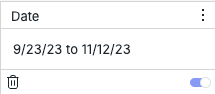
Sisense natively supports various types of date filter functionalities. However, there are instances where a dynamically updating date filter is desired based on dynamically changing conditions such as the current date. Such a filter may not precisely align with the filters provided in the Sisense UI. One approach to achieve this custom behavior of a dynamically updating filter is through the use of dashboard or widget scripting.5.8KViews3likes13CommentsAdvanced Scripting for Sisense’s Simply Ask NLQ: Adding Currency Symbols to Pivot Tables
Sisense’s Simply Ask feature empowers users to create visualizations instantly by asking natural language questions, simplifying data exploration without needing technical expertise or manual widget configuration. This Natural Language Query (NLQ) capability accelerates insights generation without the need to manually create new Sisense widgets through the standard UI for each question or data relationship of interest. In a previously published article , it was discussed how to customize Simply Ask NLQ-generated widgets using scripting, providing multiple examples of basic modifications and more detail on the basic mechanics of scripting Simply Ask widgets. In this article a more complex example wil be shared to show how widgets can be customized in more complex conditional ways: programmatically adding currency symbols to specific data columns in pivot table widgets generated by Simply Ask.684Views1like0CommentsModifying Simply Ask Natural Language Query Generated Widgets with Scripting
Sisense's Simply Ask feature empowers users to create visualizations instantly by asking natural language questions, simplifying data exploration without needing technical expertise or manual widget configuration. This Natural Language Query (NLQ) capability accelerates data exploration and insights generation without needing to manually create new Sisense widgets through the standard UI for each question or data relationship of interest. However, these automatically generated widgets differ from standard widgets in that they do not trigger typical widget scripting events, which poses a challenge for applying custom modifications. This limitation can hinder the application of standard dashboard and widget scripting customizations directly to these widgets. Fortunately, it is possible to modify NLQ-generated widgets programmatically by using JavaScript to manipulate the HTML of the fully rendered widgets without relying on Sisense-specific widget scripting events. This approach involves observing changes in the Simply Ask modal DOM and applying custom code when new widgets are rendered. This article explores how to implement such customizations, providing code examples and notes to help customize NLQ-generated Simply Ask widgets.616Views2likes0CommentsPlugin - customLogoLink
Plugin - Set Custom Link Overriding default In Top Left Logo Icon Description This plugin allows changing the link of the top-left Sisense or white-labeled logo on the server's home page to a custom URL. Disabling the plugin will restore the logo link to its default behavior. Installation To install this plugin, download and unzip the attachment. Then drop the disableLogoLink folder into your plugins folder (/opt/sisense/storage/plugins). Enable the plugin on the Add-ons tab in the Admin section, wait for the plugin to build, and the plugin will be enabled. The plugin API and file management UI can also be used. Config Options - URL - URL navigated to on logo click - iframeLogoLinkChangeParentAddress - Boolean option allows logo click to change the parent address of a Sisense Iframe. It should be noted that JTD uses an iframe Notes This plugin is similar to the DisableLogoLink plugin which is documented here this page includes notes on creating plugins similar to this one. Learn more: https://docs.sisense.com/main/SisenseLinux/pre-post-build-plugins.htm https://academy.sisense.com/master-class-advanced-dashboards-with-plug-ins-and-scripts303Views1like0Comments
Sisense Compose SDK
Sisense Compose SDK The Future is Composable In the fast-paced world of data-driven applications, developers are constantly seeking innovative ways to create customized data products that seamlessly integrate into their projects. Sisense has stepped up to the challenge with its groundbreaking Compose SDK, which has fundamentally changed the game. This powerful toolkit empowers developers to harness the full potential of Sisense components, enabling them to craft data products that are not only highly customized but also perfectly tailored to their applications. Traditionally, the embedded analytics market constrained developers within the boundaries of their chosen tools. However, Compose SDK breaks free from this limitation. Instead of merely embedding a third-party tool, developers now have the freedom to build bespoke data products by selecting from a rich library of Sisense components and seamlessly integrating them with a wide range of other tools within their Integrated Development Environment (IDE). A Practical Example In the world of UI design, consistency is key. Imagine your company has chosen the Material UI framework to style your application. It provides a sleek and uniform look, but now you need to populate Material UI tables with dynamic data from Sisense. Enter Compose SDK. With it, you can seamlessly merge Material UI's aesthetics with Sisense's analytical power. Start with Material UI tables that align perfectly with your design guidelines. Then, using the Compose SDK's ExecuteQuery component, you effortlessly infuse these tables with real-time data from Sisense. The result? Stunning, data-rich components that not only adhere to your design principles but also deliver invaluable insights. Your users get the best of both worlds - visually appealing design and powerful data. Get Started with Compose SDK Excited to explore the potential of the Compose SDK? Good news - it's currently in Beta and available to all Sisense partners, ready for you to harness its capabilities today. To embark on your journey, you can begin by cloning the example repository from GitHub listed below. To install the necessary packages for your sample application, follow the user-friendly Compose SDK Quickstart Guide. Keep in mind that, for the time being, these packages are accessible on GitHub, requiring a personal access token for access. In conclusion, Sisense's Compose SDK represents a revolutionary leap forward in the world of data product development. It empowers developers to break free from the constraints of traditional embedded analytics and build highly customized, seamlessly integrated data products. With the Compose SDK, the possibilities are limitless, and the power to transform your applications lies at your fingertips. So, why wait? Dive into the world of Compose SDK, unleash your creativity, and revolutionize your data products today. Your applications will thank you for it! Credit: Sample Application initially developed by Sisense Senior Director of Field Engineering: Tom Linton Compose SDK -- Material UI Example Sisense Quick Start Guide Sisense Github2KViews3likes1Comment