Ensuring Accurate PDF Export Headers When Programmatically Modifying Dashboard Filters in Sisense
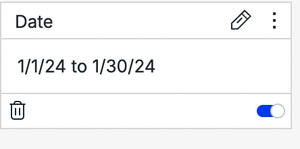
When working with Sisense dashboards, programmatically modifying filters upon dashboard load via dashboard scripts for a specific user or circumstance is possible. However, an issue can sometimes occur when exporting these dashboards to PDF immediately after such modifications: the filter header displayed at the top of the exported PDF displaying the current dashboard filter state may not accurately reflect the current state of the dashboard filters. This article explains the cause of this issue and presents a solution to ensure that PDF exports display the correct filter information in the header.593Views1like0CommentsSetting Date Filter Members to Specific Days of the Week in Sisense Programmatically
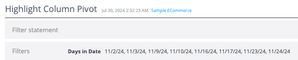
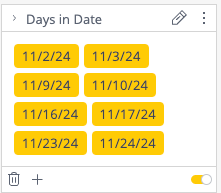
Sisense natively supports a wide range of date filter functionalities and formats. However, certain scenarios may call for unusual custom programmatic forms of date filtering, such as filtering to specific days of the week within a defined date range. For example, focusing a dashboard view on only Wednesdays in a given period, or on weekend dates, can yield valuable insights in time-sensitive analyses. This cannot be directly configured with standard Sisense UI filters when only one date dimension is present in the data source. In the previous article, the concept of date calculations was demonstrated by leveraging JavaScript date objects, modifying filter parameters programmatically via dashboard or widget scripting, and converting those date objects into formats Sisense expects. (For reference, see: Using Native Javascript Date Calculations To Modify Sisense Date Filters) The same principle can be applied to "Day of the Week" based filtering. Sisense allows defining a custom set of date members as a filter. By dynamically constructing a list of dates that fall on certain days of the week within a chosen date range, it is straightforward to pass these custom members into Sisense filters, setting them as members of a date member filter and creating a selective date filter. In the snippet below, JavaScript generates a list of dates falling on specified weekdays—such as Saturdays and Sundays—within a given start and end date range. It then formats them into the string format Sisense expects for filter members. These can be applied within the filter object just as demonstrated in the previously linked article on programmatic date filter modification.686Views0likes0CommentsUsing Native Javascript Date Calculations To Modify Sisense Date Filters
Sisense natively supports various types of date filter functionalities. However, there are instances where a dynamically updating date filter is desired based on dynamically changing conditions such as the current date. Such a filter may not precisely align with the filters provided in the Sisense UI. One approach to achieve this custom behavior of a dynamically updating filter is through the use of dashboard or widget scripting.5.8KViews3likes13CommentsAdvanced Scripting for Sisense’s Simply Ask NLQ: Adding Currency Symbols to Pivot Tables
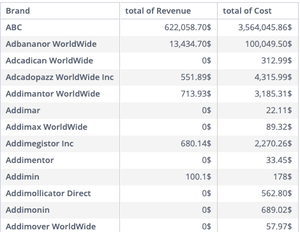
Sisense’s Simply Ask feature empowers users to create visualizations instantly by asking natural language questions, simplifying data exploration without needing technical expertise or manual widget configuration. This Natural Language Query (NLQ) capability accelerates insights generation without the need to manually create new Sisense widgets through the standard UI for each question or data relationship of interest. In a previously published article , it was discussed how to customize Simply Ask NLQ-generated widgets using scripting, providing multiple examples of basic modifications and more detail on the basic mechanics of scripting Simply Ask widgets. In this article a more complex example wil be shared to show how widgets can be customized in more complex conditional ways: programmatically adding currency symbols to specific data columns in pivot table widgets generated by Simply Ask.684Views1like0CommentsModifying Simply Ask Natural Language Query Generated Widgets with Scripting
Sisense's Simply Ask feature empowers users to create visualizations instantly by asking natural language questions, simplifying data exploration without needing technical expertise or manual widget configuration. This Natural Language Query (NLQ) capability accelerates data exploration and insights generation without needing to manually create new Sisense widgets through the standard UI for each question or data relationship of interest. However, these automatically generated widgets differ from standard widgets in that they do not trigger typical widget scripting events, which poses a challenge for applying custom modifications. This limitation can hinder the application of standard dashboard and widget scripting customizations directly to these widgets. Fortunately, it is possible to modify NLQ-generated widgets programmatically by using JavaScript to manipulate the HTML of the fully rendered widgets without relying on Sisense-specific widget scripting events. This approach involves observing changes in the Simply Ask modal DOM and applying custom code when new widgets are rendered. This article explores how to implement such customizations, providing code examples and notes to help customize NLQ-generated Simply Ask widgets.616Views2likes0CommentsConditional Coloring with Scripting in Sisense Polar Bar Charts
Enhance Sisense polar charts with custom conditional coloring using a script. Apply dynamic colors to bars based on value thresholds (e.g., red for high, yellow for medium, green for low) to improve data visualization and interpretation.473Views0likes0CommentsExpanding on Using Native Javascript Date Calculations To Modify Sisense Date Filters
Sisense offers native support for various types of date filter functionalities, and also allows users to create and modify dynamic filters entirely using dashboard or widget scripting. This article expands upon the code samples discussed in the previous article on this subject, showcasing additional examples. These examples further demonstrate how to leverage JavaScript date objects (which use Unix time) for advanced date filtering in Sisense. Sisense date filters typically utilize dates in standard calendar-based string date formats. To expand on the code samples shared in the previous examples which were based on a filter based on a set time period from today, and based on user comments in the previous article, three additional examples are included in the article.1.5KViews2likes0CommentsUsing the Color Palette Parameter of Sisense Dashboards in Scripts and Plugins
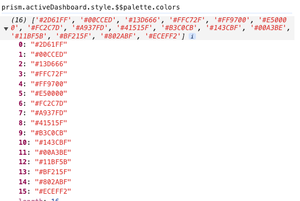
Like many other dashboard parameters, the color palette of a Sisense dashboard can be accessed and modified in scripts and plugins for customization and additional use cases. Sisense plugins, especially those creating new widget types, commonly utilize the dashboard palette attribute to ensure visual consistency with other widgets on the dashboard. Native Sisense widgets also employ the dashboard palette color attribute for uniform default coloring throughout the dashboard.1.2KViews1like0CommentsAnimating Sisense Title Elements and Widgets Using CSS Animations
Animating Sisense widget elements and dashboard and widget titles is a possible way to enhance the visual appeal and user experience of a Sisense dashboard, or highlight a particular part of a dashboard or widget. Sisense widgets and titles are standard HTML elements, making it possible to apply animation using solely standard CSS stylesheets, much like other HTML elements on non-Sisense pages. Animations can include effects like fading widgets in or out and cyclic changes in text color of widgets or titles.1.5KViews1like0Comments