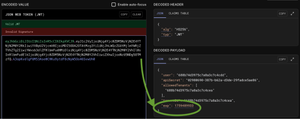
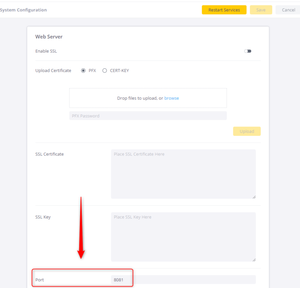
ContributionsMost RecentNewest TopicsMost LikesSolutionsAPI Bearer token lifecycle in Sisense [Linux] Background Personal API Bearer tokens allow you to authorize your requests to the Sisense API endpoints. See Using REST API for more details. Creation Each API Bearer Token is bound to a user who creates it and inherits permissions and access level. One user may create multiple tokens using one of the three APIs: POST /api/v1/authentication/login - generates a Bearer token based on the provided username/password. Only available to users who have Sisense credentials. GET /api/v1/authentication/tokens/api - generates a Bearer token of the currently logged-in user. Can be used by users who do not have Sisense native credentials, such as the SSO-integrated users. POST /api/v1/authentication/tokens/api/renew - invalidates all previously issued Bearer tokens of the user and creates a new one. Revocation The user's API Bearer token can be invalidated due to certain user-level or system-level events. It is important to note that there is no way to invalidate a particular token of a user while keeping their other tokens valid, except by waiting for the token to expire. All events mentioned below invalidate all tokens for a particular user (user-level events) or all users in the system (system-level events). User events: Sending a POST /api/v1/authentication/tokens/api/renew request. Sending a DELETE /api/v1/authentication/admin/tokens/{tokenType} request (tokenType = api, users = userId). For SSO JWT users: If the [User Profile] > [API Token] feature is turned off: When a user logs out of Sisense, by either clicking the Logout button or calling a logout endpoint, such as /api/auth/logout. The Bearer token may be invalidated during a build of the Elasticube that is owned by an SSO JWT user and has Custom Code tables. System events: Changing the [Support Cross-Site Cookies for Embedding] mode in the [Security Settings] (e.g., from Default to None). Switching the [Session Management] mode from [Cookie] to [Session Inactivity] and vice versa. Sending the POST /api/v1/authentication/admin/logout_all_users request. Changing the secret in the extended [Security Settings]. Expiration The expiration of Bearer tokens is a system-wide setting introduced in the L2024.1 version. The state of this feature can be viewed by running the GET /api/v1/settings/system request. The corresponding parameter is called [apiTokenExpiration] under the [authentication] section. When [apiTokenExpiration] is enabled, the token expiration is defined based on the Session Management duration in the Security Settings (either Cookie or Session Inactivity, depending on the selected mode). You can view the expiration time of a particular API Bearer token by JWT-decoding it and checking the ‘exp’ field. More details: https://docs.sisense.com/main/SisenseLinux/sisense-bearer-tokens.htm. Renew The API bearer tokens include the expiration date in their structure. As such, it is not possible to renew a particular API Bearer Token. Instead, you can either generate a new token, or use a renew endpoint to invalidate all previously generated tokens for this user and create a new token. What [User profile > API Token] controls The [User Profile] > [API Token] system-wide parameter controls a few aspects of the Bearer tokens. When you enable the token, the following changes are applied in the system: All users will see an API Token in their User Profile. Users can view and renew (rotate and create a new one) their API Bearer tokens. Logout no longer invalidates all API Tokens for the SSO JWT users. Execution of the Custom Code table no longer invalidates all API Tokens of the SSO JWT users. POST /api/v1/authentication/tokens/api/renew endpoint becomes available in the system. Best practices If you build an API integration, you may want to consider creating a dedicated Sisense user to execute API requests. Finish configuring the authentication and cookie settings in your environment before proceeding to develop API integration to avoid unexpected system-wide API Token revocations. If you plan to enable token expiration, carefully consider the session duration, as it will also affect the API Bearer Tokens. If you plan to use the API Bearer tokens as JWT SSO users, consider enabling [User Profile] > [API Token] setting to avoid token invalidations after some user actions. In case of the token expiration, implement logic that would regularly renew the token in your external integration. Conclusion API Bearer tokens in Sisense are user-specific, inherit user permissions, and can be created via three different API endpoints, including SSO users. All tokens of a user can be invalidated due to specific user/system events; individual token revocation is not supported except via expiration. Expiration is controlled by a system-wide setting (“apiTokenExpiration”) and is linked to session management configurations. The [User Profile] > [API Token] setting modifies how tokens work for SSO JWT users, improving persistence after logout or custom code execution. References/Related Content https://sisense.dev/guides/restApi/using-rest-api.html https://docs.sisense.com/main/SisenseLinux/sisense-bearer-tokens.htm https://community.sisense.com/kb/apis/beginner-sisense-rest-api-tips/9043 https://community.sisense.com/kb/apis/curl-api-usage/9049 https://community.sisense.com/kb/apis/access-sisense-api-from-postman/9048 Disclaimer: This post outlines a potential custom workaround for a specific use case or provides instructions regarding a specific task. The solution may not work in all scenarios or Sisense versions, so we strongly recommend testing it in your environment before deployment. If you need further assistance with this, please let us know. Change Sisense web application port [Windows] Sisense Windows Version 7.2 and above Sisense Web Application is installed by default on port 8081 (HTTP). To customize the port of the web application, you can do the following: On the Sisense server, navigate to the http://localhost:3030 page and update to the port number you would like to use. If you enabled SSL, the usual port number is 443. For installations without SSL, the recommended port is 80, but you can configure Sisense to use another custom port. Once complete, click the 'Save' button. You will be prompted to confirm the restart of Sisense services to apply the changes. Sisense Version 7.1.3 and below You can change the port of the web application by conducting the following steps: Make sure the port is not being used by the IIS default website; if it is, change it to a different port, such as 81. Go to Control Panel -> Programs and Features. Find Sisense, right-click it, and select “Change”. Choose your account and press “Change Features”. Select the required port number and run the Sisense update. Conclusion: This article explains how to change the port of the Sisense Windows web application. References/Related Content Add links and related resources for further reading. (doc, academy, other blogs, etc.) - https://docs.sisense.com/win/SisenseWin/windows-port-settings.htm Disclaimer: This post outlines a potential custom workaround for a specific use case or provides instructions regarding a specific task. The solution may not work in all scenarios or Sisense versions, so we strongly recommend testing it in your environment before deployment. If you need further assistance with this, please let us know. Enable sending Sisense monitoring logs [Windows] Sisense Windows collects data when you or your users install or use Sisense products or services. Sisense uses the data collected for internal and support-related purposes such as improving our products and services, improving customer engagement, conducting research, and resolving technical issues. This article outlines how to resolve issues with logs not reaching the monitoring service. Re: Configure Sisense for multiple domains Hi chriskerrison21 First of all, you should avoid changing any settings in IIS. IIS hosts an internal Sisense component rather than a web application, and must remain with the default settings. Any changes to IIS will likely result in application inaccessibility. Regarding your task, I see three options: Redirect users from the old DNS to a new one instead of assigning both to the same server. This is a common practice - you can host a simple redirection web server on another machine that will redirect users to a new one. This option does not require complex configurations, and you can shut down the redirection server once all users have become accustomed to the new DNS. Create a multi-domain SSL certificate and use it to configure SSL in Sisense on the application level. With the multi-domain certificate in place, you can simply assign another DNS name to the same server via CNAME. The SSL configuration in Sisense is done via http://localhost:3030 on the Sisense server. Details: https://docs.sisense.com/win/SisenseWin/setting-up-ssl-for-sisense-windows.htm. Configure SSL termination on the Azure side and reconfigure the Sisense application to listen on HTTP. Moving Sisense from SSL to HTTP is also done on the http://localhost:3030 page. At first glance, it appears possible to configure two certificates on the Azure side via Application Gateway (https://learn.microsoft.com/en-us/azure/application-gateway/multiple-site-overviewhttps://learn.microsoft.com/en-us/azure/application-gateway/multiple-site-overview), but you may want to double-check with the Azure support team on the best approach to achieve this task. Please note that on the Sisense application side, there is an Alias parameter configured on the Admin page. This parameter controls the hyperlinks to Sisense assets in Sisense-generated emails. You will have to set the Alias to one of the domains, as it does not allow multiple entries. How to troubleshoot backup failures on Linux This article will cover how to troubleshoot common backup failures in Sisense. How to activate Sisense license on Linux without web access This article explains how you can activate a license in your new Sisense installation without access to the Sisense website in the browser. Reverting the proxy URL (base URL) setting in Sisense Linux L2021.1.0+ Sisense allows configuring the application to be accessed behind a reverse proxy. There are two main steps to do so: Create and configure a reverse proxy server (e.g. Nginx or Apache) to proxy traffic from the desired URL to the Sisense server. Update the Proxy (Base) URL in the Sisense settings. In cases when the first step was not finished or was misconfigured, proceeding with the second step may lock you out of the application, preventing you from reverting the Proxy URL changes in Sisense. This guide explains how to revert the changes via REST API and Sisense admin credentials. For more details about the proxy configurations please refer to https://community.sisense.com/t5/knowledge-base/reverse-proxy-with-nginx-ssl-configuration/ta-p/5358