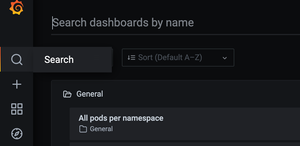
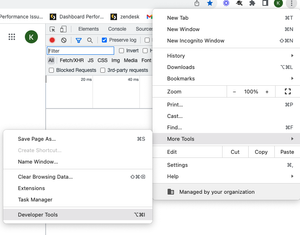
ContributionsMost RecentNewest TopicsMost LikesSolutionsHow To Troubleshoot Build Failures (Linux OS) HOW TO TROUBLESHOOT BUILD FAILURES (Linux OS) Building an ElastiCube imports the data from the data source(s) that have been added. The data is stored on the Sisense instance, where future dashboard queries will be run against it. You must build an ElastiCube at least once before the ElastiCube data can be used in a dashboard. This article will help you understand and troubleshoot common build failures and covers the following: Steps of the Build Process Troubleshooting Tools Troubleshooting Techniques Common Errors & Resolutions Please note the following was written for Sisense on Linux as version L2022.5. Steps of the Build Process 1. Initialization: The initialization stage of the build process prepares the platform for the data import, which includes checking and deploying the resources geared towards performing the build. 2. Table Import: This step imports the data from the external data platforms into the ElastiCube. The ec-bld Pod runs two to three concurrent containers, meaning that two to three pods can be processed simultaneously. The build pod, which uses the given connector frameworks (old or new, based on the connector used), connects to the given source(s). By default, 100,000 lines of data are read and imported per cycle during this phase. The MServer is responsible for getting the data from the connectors and writing it to storage into Sisense’s database (MonetDB). While importing the data, the process uses the given query assigned to the given data source (either the default Select All or a custom query). 3. Custom Table Columns: This step of the build process runs the data enrichment logic defined in the ElastiCube modeling. There are three types of custom elements: Custom Columns (Expressions) Custom Tables (SQL) Custom Code Tables (Python-based Jupyter Notebooks) Custom Elements uses the data previously imported during the Base Tables phase as its input. The calculations/data transformation happens sequentially one after the other based on the Build Plan/Dependencies generated earlier in the process between finalizing the Initialization phase and at the starting of the Base Tables phase. Calculations occur locally based on the data in the ElastiCube, and can consume lots of CPU and RAM based on the complexity of the Expressions/SQL/Python Jupyter Notebooks. 4. Finalization: These steps in the process finalize the ElastiCube’s build and readies it for use. The steps include: I. The current (up-to-date) data of the ElastiCube is written to a disk. II. The management pod stops the current ElastiCube running in Build Mode (ec-bld Pod, and its ReplicaSet + Deployment controllers). III. The management pod creates a new ElastiCube running in Query Mode (ec-qry Pod, and its ReplicaSet + Deployment controllers). IV. Once the new ElastiCube is ready, it becomes active and available to answer data queries (e.g., dashboard requests). V. The management pod stops the previous ElastiCube running in Query Mode (ec-qry Pod, and its ReplicaSet + Deployment controllers). Builds may be impacted by several factors. It is recommended to test your build process and tune accordingly when changes are made to the following: Hardware Sisense architecture Middleware Data source Connectivity, networking, and security policies Sisense upgrade/migration from Windows to Linux Sisense configuration Increase in data volume Data model schema (i.e., number and complexity of custom tables and import queries) Troubleshooting Tools Leverage the following when troubleshooting build issues: Inspect log files Each log contains information related to a different part of the build process and can help identify the root cause of your build issue. Depending on your Sisense deployment, logs may be located in different directories. The default path for Single Node is /var/log/Sisense/Sisense. For Multi Node, it’s on the application node inside the Management pod. If you need to collect logs, make sure to do so soon after the build failure, as logs will be trimmed after they reach a certain size. Log name Description Build.log General build logs will contain information for all the Elasticubes. Query.log General query logs will contain information for all the queries. Management.log Elaborate log file, which contains service communication requests. (Build will reach out to Management to fetch info from MongoDB etc.) Connector.log General information for all builds and connectors. Translation.log All the logs related to the translation service. ec-<cube name>-bld-<...>.log This contains the latest build log for each cube. It can also be viewed through the UI, as shown here. ec-<cube name>-qry-<...>.log Contain logs related to specific Elasticubes’ queries. build-con-<cube name>-<...>.log More verbose logs provide connector-related details for specific builds. Combined.log Aggregation of all logs in one file. It can be downloaded via the Sisense UI, as shown here. Please note if you are a Managed Services customer, only the combined log and latest build log for each cube are available. Use Grafana to check System Resources Grafana is a tool that comes packaged with Sisense that can be used to monitor system resources across pods. Every build has its own pod. This allows you to see the CPU and RAM that each build uses, as well as what is used by your whole Sisense instance. Excessive CPU and RAM usage is a common cause of build failures. 1. Go to Admin > System Management > Click on Monitoring. Click on the Search icon and then select All pods per namespace and then select namespace where Sisense is deployed (by default is “sisense”). 2. In the Pod dropdown, search for “bld” and select the cube you want to observe. *You may need to reduce the timeframe to get results: 3. Observe CPU and RAM over the duration of the build. *In the CPU graph, 1 core is represented by 100% See this article for additional information on using Grafana. Use Usage Analytics to observe build metrics Usage Analytics contains build data and pre-built dashboards to assist you in identifying build issues and build performance across cubes over time. See here for documentation on this feature. Ensure you have usage analytics turned on and configured to keep the desired history! Troubleshooting Techniques Below are some common issues and suggestions for build errors. The first step is to read and understand the error message on the Sisense portal. This will help resolve the exact build issue. 1. Whenever you face build issues, check the Memory consumption. Options include either ssh to your Linux machine and run “top” command to check the process and memory consumption, or you can also open grafana/logz.io and check memory consumption by the pod. If you see high memory usage, then please try to schedule builds in the off hours to see if that helps. 2. If the cube is too big, try to break the cube into multiple cubes by sharding the data or separating use cases. 3. Check the data groups first to see if one specific cube is very large or if you only have a default data group. If all the cubes are part of that data group, then create a different group for the large cube. 4. If the error message is related to Safe Mode (“Your build was aborted due to abnormal memory consumption (safe mode)”), then check the Max RAM value set in the data groups. You can increase the Max RAM value and verify the build. (https://support.sisense.com/kb/en/article/how-to-fix-safe-mode-on-build-dashboard) See the following two articles for details on managing data groups: https://documentation.sisense.com/docs/creating-data-groups https://community.sisense.com/t5/knowledge/how-to-configure-data-groups/ta-p/2142 5. Running concurrent build processes can also be an issue. Try to not run multiple builds at the same time. If that is the issue, then open the Configuration Manager (/app/configuration), expand the Build section, Change the value of Base Tables, Max Threads to 1 and save. (Relevant pod should restart automatically, but you can also restart the build Pod manually using “kubectl -n sisense delete pod -l app=build” 6. Lack of sufficient storage space to create a new ElastiCube (either in Full or Accumulative build) can also result in build failure. It is recommended to free up some space and then check the build. 7. Check the log files and the query running in the backend to try to break down complex queries to avoid memory consumption. 8. The below items outline the configurations that affect troubleshooting: -Base Tables Max Threads: Limits the number of Base Tables that are built simultaneously in the SAME ElastiCube -Timeout for Base Table: Will probably “forcefully” fail the build if any Base Table takes more than this amount of time to build, available via the “Build” configuration Remember that making any changes to these settings might require pod restart: To restart the pod, run the following command: kubectl -n sisense delete pod -l app=build Check the pod restarted based on the pod age: Kubectl -n sisense get pods -l app=build 9. If you have many custom tables, try to use the import query (move the custom table query into the custom import query). Documentation: Importing Data with Custom Queries - Introduction to Data Sources 10. Please check your data model design and confirm that it conforms to Sisense best practices. For example, M2M takes more memory and can result in build failures. https://support.sisense.com/kb/en/article/data-relationships-introduction-to-a-many-to-many 11. Builds can also fail because of the network connection between data sources and the Sisense server. Perform a Telnet test to verify connectivity from the Sisense server to the data server. Common Build Errors and Resolutions Error Description Resolution BE#468714 Management response: ElastiCube failed to start - failed to detect the EC; Failed to create ElastiCube for build process. This means the process does not have enough resources to bring up the build pod. If the Kubernetes process is still running for creating the Pod, the following command will allow you to monitor the given Build pods being brought up and check once they are healthy, up, and running. Command: kubectl -n sisense get pods -l mode=build -w If the value for that pod in the restarts column is greater than 0, it means that the Pod is not able to be initialized properly and will retry 5 times until it fails and terminates the process. If the build process had already terminated in the past, view the Kubenetes journal to find out the reason for failure. Command: sudo journalctl --since=” <how long ago>” | grep -i oom For example, if the build occurred within the past hour or so, a “50M” ago and grep on “oom” will show if an out of memory issue occurred for the given build. Example: sudo journalctl --since=” 50M ago” | grep -i oom, which would indicate an oom_kill_process was put into place due to out-of-memory reasons. BE#196278 failed to get sessionId for dataSourceId This error indicates that the user running the build does not have permission to run the build for the given ElastiCube. The ElastiCube needs to be shared with the user with “Model Edit” permission. BE#470688 The reason for this issue is a cumulative build is being performed, which relies on having the ElastiCube stored in the farm fails because either access to the directory in the farm storage location or directory/files are corrupted or are not there. The only way to resolve it is to either restore the farm directory from a backup for the ElastiCube or re-build the ElastiCube with a full build. BE#313753 Circular dependency detected This happens when you have a lot of custom tables and custom columns which depend on each other Please check the below articles on how to avoid loops: https://documentation.sisense.com/docs/handling-relationship-cycles#gsc.tab=0 Error: Failed to read row:xxxxxxx, connector Sisense is importing data from the database using a Generic JDBC connector. Why did this fail suddenly? The data added recently is not in the correct format or as expected in the table. If you are using a Generic JDBC connector, then it’s worth checking the connector errors online where you may find useful information to resolve the issue related to the connector. BE#640720 Build failed: base table <table name> was not completed as expected. Failed to read row: 0, Connector (SQL compilation error: invalid number of result columns for set operator input branches, expected 46, got 45 in branch 2). Most likely issue in the custom import query or on the target table. Please check if there are right amount of columns used in the query and refresh table schema. Build failed: BE#636134 Task not completed as expected: Table TABLE_NAME : copy_into_base_table build Error -6: Exception for table TABLE_COLUMN_NAME in column COLUMN_NAME at row ROW_NUMBER: count X is larger than capacity Y This could be resolved by changing BaseTableMax (parallel table imports) from 4 to 1 in the Configuration Manager. Conclusion Understanding the exact error message is the first step towards resolution. Based on the symptom you can try some of the suggestions listed above and can quickly resolve build failure issues. If you need any additional help, please contact Sisense Support or create a Support Case with all the log files listed above, and a Support Engineer will be able to assist you. Remember to include all relevant log files for an efficient troubleshooting process! Krutika Lingarkar, Technical Account Manager in Customer Success, wrote this article in collaboration with Chad Solomon, Technical Account Manager, Senior in Customer Success, and Eran Ganot, Tech Enablement Lead in Field Engineering. How to Diagnose Slow Dashboard Load Time There are multiple factors that affect dashboard performance. A dashboard consists of widgets, plugins, scripts, filters, and, most important, queries. In this article, we will examine how to diagnose and pinpoint what may be slowing your dashboard down. Important log files to check/collect Galaxy API gateway Query logs HAR file from browser developer tools Grafana/logz.io metrics. Where to check above logs For Linux : /var/log/sisense/sisense/ For Windows: C:/Program Data/Sisense/application-logs/ (Program Data is a hidden folder, enable option from view – hidden folder) How to check grafana for linux customer: https://<your sisense url>/app/grafana If the environments are managed by Sisense’s team: 1. Click on Admin → System Management → click on Generate Support File which contains combined.log 2. Provide an exact timestamp to the support team to investigate logs in detail. Investigation Steps 1. Open Right Click → More Tools → Developer Tools in your browser window. Go to the Network tab and verify which API calls are taking a longer time or failing. We can grab X-Request from the failed API call and analyze the log files for more details. https://support.sisense.com/kb/en/article/generating-a-har-file-for-troubleshooting-sisense 2. Depending on the Sisense server you are using, you might need to look for different monitoring tools. Open Grafana for Linux server and logz.io for Windows server and check for CPU and Memory Usage for the timestamp. If memory consumption is high because of the dashboard, then verify many-to-many connections using the Jaql plugin. 3. Open Task Manager on Windows server to check usage to identify which service is utilizing more resources on the server. On a Linux server, run the “top” command and capture the output. Use the Describe pod option to check the memory requested and the maximum limit set on the pod. If the memory request is maxing out the set limit on the pod, upscale the pod. 4. Check the graphs for concurrent queries on logz.io. Many concurrent queries could be taxing the Sisense server, causing slower load times. If this is the case, contact your Customer Success Manager and ask them about increasing the size of your hardware. On the logz.io dashboard scroll down to check the Concurrent Queries graph. If the external monitoring parameter is set to true for Linux server inside config.yaml then we can check this graph for the Linux server as well. 5. We can also check the number of builds running at that time or check the build schedules. Please note, if you have hourly builds running at the same time the dashboard is loading, the number of queries on the system may increase causing a dashboard loading issue. Linux: Check Cron Jobs on the server Windows: There is nothing available out of the box 6. If you have embedding, test the dashboard by loading the dashboard without embedding and see if it loads. You can collect the .HAR file while doing this test. 7. If you have any script running on the dashboard, remove/comment out the script, and verify if the dashboard loads correctly. If the dashboard loads correctly, a problem may exist in the script. 8. If you have any custom plugins on the dashboard, try to disable that specific plugin and test. 9. If the problem is affecting multiple dashboards at the same time, restart the API gateway pod/service and verify. https://support.sisense.com/kb/en/article/restart-all-sisense-services-using-powershell-or-force-restart-all-sisense-services Linux: kubectl get pods -n sisense – find the name of the API gateway pod and then restart the API gateway pod using the below command: Kubectl -n sisense delete pod <pod name> Windows: open Services → right-click on API gateway service pod → Restart If the environments are managed by Sisense’s team you can reach out to Sisense Support for service restart. 10. Sometimes restarting the query pod also helps as it clears out the cache. First, ensure that no builds are running, otherwise, the build will fail. 11. If you are using security rules in the data source for this dashboard, the load times may increase because the security rules must be processed during the loading process. The processing time of these requests depends on the resources on the server, mostly CPU. In this case, we can decrease the number of widgets and filters, or split the dashboard into multiple dashboards to decrease the load times of this dashboard. Splitting the dashboard will reduce the concurrent queries to the data source, and reduce load time. Another alternative is to increase the CPU on the servers. If you need any additional help, please contact Sisense Support and a Support Engineer will assist. An overview of Sisense Linux microservices and what they do An overview of Sisense Linux microservices and what they do This article provides an advanced description of Sisense’s Microservices and how they work internally. This is mainly for Administrators responsible for supporting Sisense in their organization. When we deploy Sisense on the Linux platform Sisense application deploys multiple pods this article helps us understand how they are tied to each Sisense functionality and how they internally operate. See Sisense Basic Concepts and Terminology and Sisense Architecture for a high-level overview. [PLEASE OPEN ATTACHMENT TO VIEW REMAINDER OF THIS ARTICLE] Configure Dynamic Elasticubes Plugin Configure Dynamic Elasticubes Plugin We have created this step by step guide for users that are looking to configure the Dynamic Elasticubes plugin without a URL parameter. https://www.sisense.com/marketplace/dynamic-elasticubes/ Step 1: Install the plugin on your Sisense Linux environment. Download the plugin, Unzip and move the folder from the local machine to Admin > System Management > File manager > plugins Step 2: Ensure that your data models have the same table name and column name. Step 3. Design your dashboard, and make sure you share the dashboard with all the groups. Step 4: Set up the plugin Config file Please enter the correct Dashboard Id, user group id, and datasource title. Now when a user from Company A logs in, they will only be able to see the dashboard pointing to Cube A; similarly, a user from Company B will only be able to see data for Cube B. Did you try this out? Tell us about your experience in the comments! Re: Some Causes Of Build Failures Can you please update links in the article? Re: SSO Role and Group management Hello, We tried the approach for Admin and data admin user on L2022.11 but it's not working. Is this only for L2023.1? Thank You! Re: How To Troubleshoot Build Failures (Linux OS) Hello Oleg_S : Thank You for the input. I will add this suggestion to the KB.