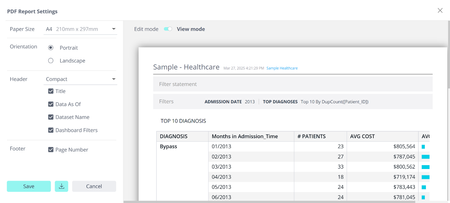
ContributionsMost RecentNewest TopicsMost LikesSolutionsRemove Filter statement field in PDF file [Linux] When user export dashboard in PDF, Filter statement field appears and it’s empty if filter relations AND/OR didn’t use. L2025.1 and higher Automating the Transfer of Designer Dashboards Between Cubes in Sisense Automating the Transfer of Designer Dashboards Between Cubes in Sisense Summary This article provides a step-by-step guide to automate the transfer of Designer Dashboards from one cube to another in Sisense. This process is particularly useful for organizations with a multi-customer cube structure, where customers are also Designers with numerous Dashboards that need to be moved efficiently. Main Content Step-by-Step Instructions to Transfer Designer Dashboards Identify Designers and Their SI IDs Use the REST API v0.9 roles endpoint to get the desired roleID: GET /roles Use the REST API v1.0 users endpoint to get a list of userIDs with the desired role: GET /users Collect All Dashboards Owned by Designers Use the REST API v1.0 admin endpoint to get a list of all dashboards in the system: GET /dashboards/admin Save the result as a file and filter by the desired user_ID to find all dashboard IDs owned by the user. Change the Data Source for All Dashboards Open the Sisense application. Navigate to the "Analytics" tab. Open the developer tool and then the console. Use the following script to change the data source: // Change these variables as needed var datasourceTitle = 'CurrentDataSource'; var newdatasourceTitle = 'NewDataSource'; var dashboardIdsFilter = []; // List of dashboard IDs to change. Leave empty to process all dashboards. // Script to change data source // ... (Insert the provided script here) Ensure to test the script on a sample dashboard first to confirm it works as expected. Troubleshooting Tips Ensure API Access: Make sure you have the necessary permissions to access the REST API endpoints. Validate Data Source Names: Double-check the names of the current and new data sources to avoid errors. Test Before Full Implementation: Always test the script on a few dashboards before applying it to all to ensure it works correctly. Supplementary Information API Documentation: Refer to the Sisense API documentation for detailed information on the endpoints used. Backup Dashboards: It is advisable to backup dashboards before making bulk changes to avoid data loss Check out this related content: Documentation Resolving Issues with Commenting on Tickets on Sisense Portal This article addresses the issue of being unable to type or comment on tickets on the Sisense portal. The problem may manifest as an error message when attempting to type a comment.