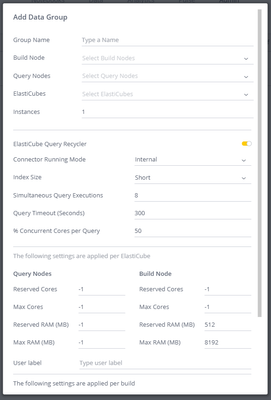
ContributionsMost RecentNewest TopicsMost LikesSolutionsHow to configure Data Groups Introduction This article will guide you on how to configure the Data Groups’ parameters based on the current performance and business requirements. What are "Data Groups”? The “Data Groups” administrative feature allows configuring Quality-Of-Service (QoS) to Sisense instances and limiting/reserving the resources of individual data models. By utilizing data groups you’ll make sure available resources are controlled and managed to support your business needs. Why Should One Configure “Data Groups”? The main benefits of configuring “Data Groups” are: Controlling which cluster nodes are used for building and querying Limiting the amount of RAM and CPU cores a data model uses Configuring indexing, parallel processing, and caching behavior of a data model Mitigating “Out-Of-Memory" issues caused by lack of resources Preventing “Safe Mode” exceptions caused by lack of resources Read this article to learn about the different “Data Groups” parameters “Data Group” Use Cases The following two scenarios are good examples of using "Data Groups”: Scenario A customer embeds Sisense (OEM use case) and has many tenants that can design dashboards (a.k.a. Self-Service BI). Each tenant has a dedicated Elasticube data model. Challenge A single tenant is capable of creating a large number of dashboards - Causing the underlying data model to utilize a significant portion of the available CPU/RAM resources. The excessive use of resources by a single tenant may lead to resource depletion and degrade the user experience for them and other tenants. Solution Resource Governance – Set up resource utilization limitations using "Data Groups”. Doing so will limit each tenant’s usable resources and prevent tenants from affecting each other. Scenario A customer has many Elasticube data models created by various departments of the organization. Some of the data models are used to generate high-priority strategical dashboards (used by C-Level managers). Other dashboards are prioritized as well (e.g., operational dashboards vs. dashboards used for testing) Challenge C-Level dashboards must have the highest priority and should always be available. Other dashboards should still be operational and behave based on their priority. In case of conflict or a temporary lack of resources, a critical Elasticube may run out of memory or trigger a ‘safe mode’ event. Solution Resource Governance – Setting up priority-based Data Groups would result in allocating business-critical data models with more resources and limiting the less critical ones. Data Groups Resource Governance Strategies Limiting a Data Model’s Resources - Governance rules can be used to limit the resources used by a single data model or a group of multiple data models. This can be done by configuring a "Maximal” amount of allocated CPU/RAM. Note that the data model would be limited to the configured resource restrictions even though additional resources are available for use. Pre-Allocating a Data Model’s Resources - Governance rules can be used to pre-allocate the resources used by a single data model or a group of multiple data models. This can be done by configuring a “Reserved” amount of allocated CPU/RAM. Note that other data models would be limited to partial server resources even though a pre-allocated resource might be idle. Prioritizing Data Models - Governance rules can be used to prioritize certain data models by allocating a different amount of resources to different data models. High-priority data models would be allocated with more resources than lower-level data models. You may also choose not to limit the data model’s resources (no Data Group configuration). However, this will re-introduce the initial risk of resource depletion. How To Configure Data Groups? Configuring “Data Groups” requires high expertise and attention to detail. A dedicated tool is introduced to assist you in this task. Follow the directions below to acquire the tool and implement Data Groups: Prerequisite To base your calculations and make a decision on how to configure data groups you’ll require data monitoring enabled. To learn more about Sisense monitoring and the data reported read the following article: https://support.sisense.com/kb/en/article/enable-sending-sisense-monitoring-logs Step #1 – Download the “Data Groups Configuration Tool” The data groups tool (Excel Document) is attached to this article. Download a local copy to your computer. Step #2 – Access Logz.IO To access the Logz.IO platform: Log in to the Logz.io website Navigate to the “SA - Linux - Data Groups“ dashboard Set the timeframe filter to a 21-day timeframe Step #3 – Fill out the “Data Groups Configuration Tool” Document The “Elasticubes” sheet holds the data for the decision making regarding the different groups: Field Description Comment CubeName The ElastiCube name Size GB The ElastiCube’s size on disk The measure is taken from the “Data” tab ElastiCube list Estimated size in memory The estimated maximal ElastiCube size in memory Auto-calculated ([Size GB] X 2.5) Peak query memory consumption (GB) The actual maximal ElastiCube size in memory (should be smaller than the estimated maximal size) The measure is taken from the logz.io dashboard: (“Max Query Memory” field) Build frequency The frequency of the ETL Sisense performs The measure is taken from Sisense’s build scheduler Average of concurrent Query Average concurrent queries sent from dashboards to the ElastiCube The measure is taken from the logz.io dashboard: Search for the ‘Max concurrent queries per Cube’ widget and download the CSV file with the data. Calculate the average value of the “Max concurrent queries per Cube: column Business Criticality This is a business measure that determines the QoS of the ElastiCube True (High) / False (Low) Data security Is “Data Security” applied to this ElastiCube This column will help determine if the “ElastiCube Query Recycler” parameter will improve the performance or not. Explanation here under “ElastiCube Query Recycler” Data Group The Data Group this ElastiCube should be a part of Try to fill in the column by classifying your ElastiCubes according to common characteristics both in terms of business and in terms of resource consumption. Step #4 – Define your Data Groups Using the information you’ve collected and the explanations in this article – Define the data groups you wish to use. Fill in the information in the “Required data groups” sheet. The “Required data groups” sheet provides the name and configuration for each data group. Use this to tab describe the Data Groups that meet your business needs, use the “Intent” column to describe each group's purpose. The configuration in this sheet will later be used to configure the Data Groups in the Sisense Admin console: Field Description Comment Group name The Data Group’s name Intent The Data Group’s description (in the business point of view) Instances The number of query instances (pods) created in the Sisense cluster This parameter is very useful, however, increasing this value will result in increasing the Elasticube’s memory footprint. You should only consider changing this value if your CPU usage reaches 100%. The high CPU consumption is mostly caused by high users concurrency Build on Local Storage Is enabled, for Multi-node. Using local storage can decrease the time required to query the cube, after the first build on local storage Simultaneous Query Executions The maximum number of queries processed simultaneously In case your widget contains heavy formulas it is worth reducing the number to make the pressure lower. Used when experiencing out-of-memory (OOM) issues. Parallelization is a trade-off between memory usage & query performance. 8 is the optimal amount of queries % Concurrent Cores per Query Related to Mitosis and Parallelism technology. To minimize the risk of OOM, set this value to the equivalent of 8 cores. e.g. if 32-core, set to 25; for 64 cores set to 14; the value should be an even number. Can be increased up to a maximum of half the total cores - i.e. treat the default as the recommended max that can be adjusted down only. Change it when experiencing out-of-memory (OOM) issues Max Cores Maximum cores allowed to be used by the qry pod Limit for less critical groups Query: Max RAM (MB) The Max RAM will be consumed per each of the ElastiCubes in each group. Take from the column “MAX of Peak query memory consumption (GB)” in the Summary of data groups sheet Maximum RAM that is allowed to be used by the qry pod (dashboards). By each of the query instances if were increased in the Instances. Please note that 85% of the pod usage OR overall server RAM will cause a Safe-Mode exception. In the case of Dashboards qry pod) will delete and start the pod again. At the Safe Mode, the users of a dashboard would see the error of a Safe Mode and the qry pod will be deleted and started again. So the next dashboard refresh will bring the data Step #5 – Verify The “Summary of Data Groups” sheet includes a pivot chart that will calculate the max memory consumption from each data group. This value correlates to the “Query: Max RAM in MB” configuration. We need to take the maximal value of Peak query memory consumption (GB) from the Summary of data groups tab and multiply it by 1.20 to avoid Safe mode. Step #6 – Process the results and configure Sisense Data Groups Prerequisite - Read this article on how to create data-groups (5 min read): https://documentation.sisense.com/docs/creating-data-groups On the Sisense Web Application, for each new data group: Navigate to “Admin” --> Data Groups” and click the “+ Data Group” button. Fill out the information from the “Required data groups” tab. Step #7 – Monitor the Sisense Instance The final step is to follow the information in the “Sisense Monitor” and to make sure the performance is improving. Review the documentation below for more details regarding monitoring https://docs.sisense.com/main/SisenseLinux/monitoring-sisense-on-linux.htm Good luck! Re: How To Troubleshoot Build Failures (Linux OS) What a great article! Keep them coming. Re: Assessing the Quality of Your Dashboard Great article! Thanks. Re: How to setup JWT SSO for MVC application Hello rkumar317! It is so nice to connect with you. Based on what you shared, my understanding is that you have hit a roadblock in configuring SSO via the JWT Token. My recommendation would be to do the following: Step One is to try to follow the instructions in the documentation: https://documentation.sisense.com/docs/configuring-sisense-for-single-sign-on Step Two, if you need help with the SSO configuration, is to open a support ticket and get help from our TSE's. Greetings, Liran Re: Year cannot be recognized Hi Hamzaj, Thank you for sharing this valuable insight. Re: Enhanced Dashboard User Experience Hello Ed, This is a great question and I'd like to share with you an example of a home page built using the Blox widget. Blox is a powerful tool you can use to play with the configuration of the widget and add actions to it. Please see this page for more details. Good luck, Liran Re: Error when trying to connect Notebooks to local MySQL Server Instance Hello Javier, I Opened a support ticket on your behalf and I look forward to learning more about your particular case. Re: Drags to Build Time Hi Shanah, Below you will find the steps and recommended actions to take to improve Elastic Cube build performance: Optimize ElastiCube Performance To optimize Elasticube performance there are two focus areas: Decreasing Build Times Optimize Queries Decreasing Build Time In order to optimize the build time, reduce: Many fields, long strings: Don't import long string fields if they will not be used in the model Always question the need for columns with long strings before adding them to the model (URLs, very long comments) Many dates: Removing time-based data that is not needed will reduce build time (ie. don't import old data if you don't need to) Consider the date range in the requirements of the dashboard and data model Import a Dates File instead of a Custom table to create a date dimension Use the source database when possible: Create views to replace custom tables and import the View Filter out irrelevant data (history, in-active, etc.) Customize the query when adding the data to the Elasticube Optimize custom tables Avoid Processing Power and Time Expensive Operations: Replace UNION with UNION ALL when possible Left and Right joins Consider lookups Filter data within the table Avoid Redundant Operations: Consider sub queries Avoid SELECT * Order by Optimizing Queries In order to optimize the queries in the ElastiCube, do the following: Consolidate: Look up “translation” tables Avoid unnecessary joins Consolidate Facts Calculate custom columns: In large data sets, it may be significant Sum and DUPCOUNT are faster than count Joins on indexed fields: Check for casting in custom tables Cast fields in source tables instead of using casting functions Join on numeric fields: Numeric dates Join on Date with no Time component Surrogate Keys: When possible, create in the DB Avoid surrogate keys when big data (consider numeric using https://sisense.wixanswers.com/en/article/generating-a-numeric-key) Good luck, Liran