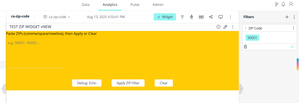
ContributionsMost RecentNewest TopicsMost LikesSolutionsUnderstanding NULL handling in Sisense [Linux-Windows] When data is imported into a table, and a column doesn't have any values. it is imported as NULL. Within databases, a NULL value signifies that the value is unknown. It does not indicate a value of 0. This article will go over different scenarios to explain how Sisense performs calculations that involve NULL values. Re: Custom Filtering to allow users to filter for specific zip codes Please see above solution Re: Custom Filtering to allow users to filter for specific zip codes Hi Astroraf , please try the following code. I put something together per your requirement as an example: The JSON body is as follows: { "title": "ZIP Filter", "body": [ { "type": "TextBlock", "text": "Paste ZIPs (comma/space/newline), then Apply or Clear", "wrap": true, "style": { "margin-bottom": "8px" } }, { "type": "Input.Text", "id": "zipbox", "isMultiline": true, "placeholder": "e.g. 90001, 90002 …", "style": { "height": "120px", "border": "1px solid #cbd5e1", "background": "#fff", "padding": "8px", "border-radius": "8px" } } ], "actions": [ { "type": "echoZip", "title": "Debug: Echo" }, { "type": "applyZipFilter", "title": "Apply ZIP Filter", "opts": { "title": "ZIP Code", "dim": "[Address.ZipCode]", "datatype": "text", "save": false } }, { "type": "applyZipFilter", "title": "Clear", "opts": { "title": "ZIP Code", "dim": "[Address.ZipCode]", "datatype": "text", "clear": true, "save": false } } ] } There are two Actions for this Blox Dashboard as well: echoZip is for testing the code: (function (payload) { var ID = "zipbox"; function getRoot(p) { try { var w = p && p.widget; var cand = [ p && p.element, w && w.element && (w.element.nodeType ? w.element : (w.element[0] || null)), w && w.$el && w.$el[0], w && w.el && w.el[0] ]; for (var i = 0; i < cand.length; i++) { if (cand[i] && cand[i].querySelector) return cand[i]; } } catch (e) {} return document; } function readZip(p) { if (p && p.inputs && p.inputs[ID] != null) return String(p.inputs[ID]); var st = p && p.widget && p.widget.scope && p.widget.scope.state; if (st && st[ID] != null) return String(st[ID]); var root = getRoot(p); var el = root.querySelector("#" + ID) || document.querySelector("#" + ID); return el ? (typeof el.value === "string" ? el.value : (el.textContent || "")) : ""; } var root = getRoot(payload); var v = readZip(payload); alert("inputs/state/DOM resolved value:\n" + JSON.stringify(v) + "\n\nroot used: " + (root === document ? "document" : "widget DOM")); })(payload); and applyZipFilter to take the action: (function (payload) { var opts = (payload && payload.opts) || {}; var dash = prism.activeDashboard; var ID = "zipbox"; function getRoot(p) { try { var w = p && p.widget; var cand = [ p && p.element, w && w.element && (w.element.nodeType ? w.element : (w.element[0] || null)), w && w.$el && w.$el[0], w && w.el && w.el[0] ]; for (var i = 0; i < cand.length; i++) { if (cand[i] && cand[i].querySelector) return cand[i]; } } catch (e) {} return document; } function readZip(p) { if (p && p.inputs && p.inputs[ID] != null) return String(p.inputs[ID]); var st = p && p.widget && p.widget.scope && p.widget.scope.state; if (st && st[ID] != null) return String(st[ID]); var root = getRoot(p); var el = root.querySelector("#" + ID) || document.querySelector("#" + ID); return el ? (typeof el.value === "string" ? el.value : (el.textContent || "")) : ""; } var raw = readZip(payload); // Clear path (explicit or empty) if (opts.clear || !String(raw).trim()) { try { var items = (dash.filters && (dash.filters.$$items || dash.filters.items)) || []; var existing = items && items.find(function (f) { return f && f.jaql && f.jaql.dim === opts.dim; }); if (existing) (dash.filters || dash.$$model.filters).remove(existing); dash.refresh(); } catch (e) { console.error("ZIP clear failed", e); } return; } // Parse & de-dupe var asNumeric = String(opts.datatype || "text").toLowerCase() === "numeric"; var parts = String(raw).split(/[\s,;|]+/g).filter(Boolean); var seen = Object.create(null), members = []; for (var i = 0; i < parts.length; i++) { var v = parts[i].trim(); if (!v) continue; if (asNumeric) { if (!/^\d+$/.test(v)) continue; v = Number(v); } if (!seen[v]) { seen[v] = 1; members.push(v); } } if (!members.length) { alert("No valid ZIPs parsed."); return; } var filterObj = { jaql: { dim: opts.dim, // paste the exact dim from Filter ▸ ⋮ ▸ Advanced title: opts.title || "ZIP Code", datatype: asNumeric ? "numeric" : "text", filter: { explicit: true, multiSelection: true, members: members } } }; try { (dash.filters || dash.$$model.filters).update(filterObj, { refresh: true, save: !!opts.save }); } catch (e1) { (dash.filters || dash.$$model.filters).update([filterObj], { refresh: true, save: !!opts.save }); } })(payload); How to test this script: 1) type zip code example: 90001, 90002, 2) click Debug: Echo (you should see the value), 3) then Apply ZIP Filter (pill should appear), 4) and Clear (pill removed). Troubleshooting Google Maps widget blank PDF export in Sisense environment [Windows and Linux] This article addresses an issue where dashboards in Sisense that use a Google Maps widget render correctly in the web interface but appear blank in PDF exports. The problem is typically related to delayed initialization of the Google Maps API and/or incomplete domain whitelisting in the Google API key configuration—especially when rendering occurs in a headless or sandboxed browser context. This guide provides step-by-step instructions to identify and resolve this issue Troubleshooting SSO integration with Sisense and auth0-linux Troubleshooting SSO integration with Sisense and auth0-linux Step-by-step guide: Create a custom plugin in Sisense Purpose of custom plugins Custom plugins in Sisense empower users to extend and tailor the platform's capabilities by integrating custom JavaScript code directly into dashboards. These plugins enable: Interactive Controls: Add buttons, menus, or other UI elements to enhance user interaction. Dynamic Filter Management: Programmatically read, set, or clear dashboard filters based on specific conditions. REST API Integration: Interact with Sisense's REST APIs to perform actions like exporting data or retrieving dashboard information. UI Customization: Modify the dashboard's appearance or behavior to meet specific user requirements. Advanced Functionality: Implement features beyond standard widgets, such as rotating filter values or custom data visualizations. Plugins are stored on the Sisense server and execute automatically upon dashboard loading, ensuring consistent behavior across user sessions. When to use custom plugins Consider developing a custom plugin when: Scenario Example Automated Business Logic Automatically apply filters based on user roles or current dates upon dashboard load. Enhanced User Interaction Introduce custom UI elements like "Reset Filters" buttons or dynamic dropdown menus. External System Integration Fetch data from or send data to external systems via RESTful APIs. Dashboard Behavior Modification Implement features like auto-rotating filter values or custom navigation between dashboards. Limitations of Native Widgets Achieve functionalities not supported by standard Sisense widgets or scripts. Where Sisense Linux expects plugins Sisense on Linux looks for custom plugins here: /opt/sisense/storage/plugins/ Sisense automatically reads any plugin folder here and injects it into the dashboard UI. Any .js, .json, or .css files placed inside a plugin directory here will be loaded automatically by the Sisense web application. What goes into a Sisense plugin? Every Sisense plugin usually contains: File Purpose plugin.json Defines the plugin's metadata, including its name, version, and included files. main.6.js Contains the primary JavaScript code that dictates the plugin's behavior. Configuration file (optional) Such as config. 6.js for storing configurable parameters. style.css (optional) The plugin introduces custom UI components for styling. Step-by-step plugin with explanations Let’s walk through each file. plugin.json — The Plugin Manifest { "name": "MyCustomPlugin", "pluginInfraVersion": 2, "isEnabled": true, "source": ["main.6.js"], "style": [] } What Each Line Means: Line Meaning "name" Friendly name of the plugin. Used internally. "pluginInfraVersion" Always set to 2 for modern plugin support. "isEnabled" Controls if the plugin is active. Set to false to disable. "source" JavaScript file(s) to load. Here it's just main.6.js. "style" Optional list of CSS files to apply (e.g., ["style.css"]). main.6.js — The plugin logic console.log("MyCustomPlugin loaded!"); prism.on('dashboardloaded', function(event, args) { console.log("Dashboard loaded:", args.dashboard.title); }); What this code does: Code What it means console.log(...) Prints to the browser's console (for testing). prism.on('dashboardloaded') Sisense triggers this when a dashboard loads. args.dashboard.title Displays the title of the loaded dashboard. Add CSS (Optional) You can also style elements on the dashboard. style.css body { background-color: #f7faff; } Update plugin.json to: { "name": "MyCustomPlugin", "pluginInfraVersion": 2, "isEnabled": true, "source": ["main.6.js"], "style": ["style.css"] } Reload the dashboard to see the background color change. How to test if the plugin works (not using the optional files) Open a Sisense dashboard in your browser. Right-click → Inspect → Console tab. Reload the dashboard. You should see this (in the above code example): MyCustomPlugin loaded! Dashboard loaded: [Your Dashboard Name] This confirms: Sisense recognized the plugin. Your main.6.js was loaded. The dashboard events are being detected correctly. If you see nothing… Here’s what to check: What to check Fix Plugin files are not saved in the right path Make sure the files are in /opt/sisense/storage/plugins/MyCustomPlugin/ plugin.json syntax error Validate with a JSON linter Browser cache is showing the old version Do a hard refresh (Ctrl+Shift+R) Sisense Web App didn’t pick it up Restart Sisense web (or refresh UI with Ctrl + F5) Example: config.6.js — Optional plugin configuration file This file stores settings you might want to change without editing the core main.6.js code. For example, default filter values, color codes, or feature toggles. // Configuration file for MyCustomPlugin var MyCustomPluginConfig = { defaultFilterName: "Filter One", // Default name of the filter to modify defaultFilterValues: ["Value A"], // Default values to apply to that filter enableButton: true, // Toggle to show/hide custom button apiBaseUrl: "https://api.example.com"// Optional: URL to an external system }; Code What it means var MyCustomPluginConfig = {...} Defines a global config object accessible from your main plugin script. defaultFilterName A string value that your plugin can use to target a specific dashboard filter. defaultFilterValues A list of default values to set for the filter. enableButton A Boolean switch that you can use in your code to optionally show or hide a UI button. apiBaseUrl A base URL to an external REST API—useful if your plugin makes external calls. Example: style.css — Optional custom CSS file This file applies custom styling to elements added by your plugin, such as buttons, messages, or popups. /* Custom style for MyCustomPlugin */ .my-custom-plugin-button { background-color: #007bff; /* Blue background */ color: white; /* White text */ padding: 8px 12px; /* Spacing inside the button */ border: none; /* No border */ border-radius: 4px; /* Rounded corners */ cursor: pointer; /* Hand cursor on hover */ font-size: 14px; /* Font size */ } .my-custom-plugin-button:hover { background-color: #0056b3; /* Darker blue on hover */ } .my-custom-message { font-style: italic; color: #999999; margin-top: 10px; } Code What it means .my-custom-plugin-button A styled button you could insert via JavaScript. .my-custom-plugin-button:hover A hover effect to improve interactivity. .my-custom-message Custom message text style, like a "No data available" notice. References/related content These links cover everything from hello-world plugins to advanced UI hacks and Linux-specific deployment tips. Topic What you’ll find Plugin Development Tutorial Step-by-step basics for creating, structuring, and testing a new plugin. Sisense Community JavaScript Plugins Guide (sisense.dev) Full client-side API reference (events, prism object, etc.) and environment setup. Sisense Developers Advanced Add-ons Tutorial How to modify the UI, listen to events, and run JAQL/REST calls in a plugin. Sisense Developers Building New Visualizations (Widgets) Guide for adding entirely new widget types via a plugin. Sisense Developers Basic Plugin Example Minimal working sample you can copy as a starting point. Sisense Community Custom-Style Plugin Framework for global CSS overrides and theming. Great Linux-friendly example. Sisense Community JumpToDashboard Plugin (How to Use & Customize) Shows config options for cross-dashboard navigation. Sisense Community Metadata Plugin – Grouping Provider Example Example of extending the metadata layer with multiple language/group mappings. Sisense Community Working with Sisense Add-ons (Linux Docs) Official instructions for installing, enabling, and managing add-ons on Linux servers. Sisense Documentation Resolving Plugin Build Issues Troubleshooting checklist (restart plugin service, logs, memory limits). Sisense Community. Disclaimer: This post outlines a potential custom workaround for a specific use case or provides instructions regarding a specific task. The solution may not work in all scenarios or Sisense versions, so we strongly recommend testing it in your environment before deployment. If you need further assistance with this, please let us know. Re: GIT Instruction How To Hi gwolfe When using Git Integration, database connections are environment-specific and are not automatically promoted between environments. This design is intentional and driven by security best practices—to ensure that sensitive connection details (e.g., hostnames, credentials) are not inadvertently shared or overwritten across development, staging, or production environments. When you push a commit from your development environment to Git and then pull it into your production environment, the prod environment can have database connection (with the same name) already exists in production and is configured with the appropriate production credentials. At this time, Sisense does not support dynamic transformation or promotion of connection settings during Git-based migrations. Any required changes to connection details must be made manually in the destination environment, or automated using the Sisense REST API as part of your deployment pipeline. This approach ensures that connections are managed securely and deliberately, and reduces the risk of accidentally exposing or reusing development credentials in sensitive production environments. CC DRay Understanding Sisense REST API request rate limits This article provides guidance on handling request rate limits when using the Sisense REST API. Users often need to perform operations such as creating multiple users or assigning permissions, which raises concerns about how many requests the Sisense API can handle concurrently without issue. Since Sisense deployments can vary significantly based on infrastructure, usage, and configuration, understanding how to manage request rates effectively is key to ensuring system stability and performance. Re: 🌌 May the 4th Be With You, Sisense Community! 🚀 "Do or do Not. There is no Try." - Yoda.. How to update style sheets in the branding folder for dashboards In this article, we will address the issue of updates made to style sheets within a branding folder not reflecting on dashboards. Users often encounter this problem due to browser caching, which prevents the most updated CSS files from loading. This guide provides solutions to ensure your dashboard reflects the latest version of your style sheets.