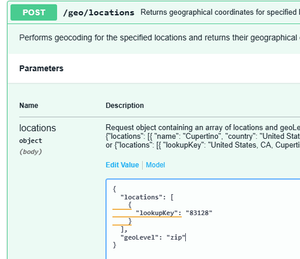
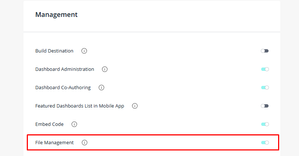
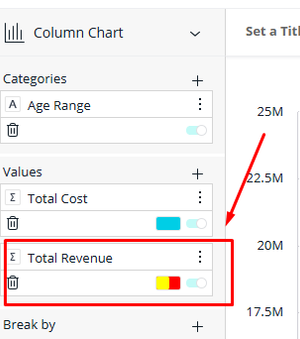
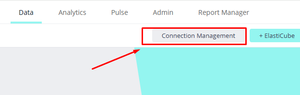
ContributionsMost RecentNewest TopicsMost LikesSolutionsRe: CASE WHEN Statements Hi, For such a case, you can try to use Advanced Formula plugin. It should help you; otherwise, please create a ticket to the support. Re: The "Maximum number of series (50) exceeded" warning, reword it, make it sticky, and document it. Hi, You can use this solution; just be careful, as this can freeze your browser: 1) widget.manifest.data.panels.forEach(function(p){ p.metadata.maxitems = 100; //replace with the number you need }) 2) widget.style.dataLimits.seriesCapacity=100; //replace with the number you need Re: Parameters Value Updating But Not Reflecting on Dashboard Hi, The issue of parameter values updating but not reflecting on the dashboard can occur due to caching mechanisms in Sisense. Based on the provided documents, here are potential solutions: Disable Dynamic Parameters Cache: In cases where updated parameter values are not dynamically reflected, disabling the dynamic parameters cache can help. You can do this by setting dynamicParametersCacheSize.value to 0 in the Admin > System Management > Configuration > Query section. This ensures that updated parameter values are picked up dynamically. If this doesn't help, please create a ticket, so our support team can check your issue. Re: Grafana preserve over reboot Hi, the problem is probably that the program collecting your RAM usage data isn't set up to save it permanently. When you reboot the server, this data, which was only being held in temporary memory or a temporary folder, gets wiped out. Since you are using Grafana, the tool likely responsible for storing this data is Prometheus. The solution: You need to configure Prometheus to write all the collected data to a permanent folder on the hard drive that is not erased when the server reboots. If you still have questions, please create a ticket, and our support will try to help you. Re: Emails via M365 Graph or other providers Hi, Thank you for your question. Please check these articles: Mailchimp and SendGrid. Also, you can find other providers you can use. Re: Sort 'sdiff' results Hi, Thank you for your question. To use the DDIFF function, you should wrap it in f.e. aggregation. AVG(DDiff([Days in Discharge_Time],[Days in Admission_Time])) or SUM. You can provide an example of the data set and expected result, and I will try to provide a solution for you. Fix data in the elasticube, if it is different from the one in the MongoDB data source [Linux] You found that the data type is different from the one you have in data source, lets fix it. L2025.* Fixing location for the scatter map plugin [Linux] Step-by-Step Guide: For example, we are trying to find a location by ZIP 83128, which belongs to Alpine, WY, USA. The Scatter map shows it in Hermosillo, Sonora, 83128, Mexico. To check this behaviour, we can go to Admin - REST API - 1.0 - geo - POST /geo/location Press the "Try it out" button & insert the following JSON code: { "locations": [ { "lookupKey": "83128" } ], "geoLevel": "zip" } Press the Execute button, and we will get the next reply. This happened because Scatter Map was trying to find the first match. It can be improved by adding additional fields to the widget location field, f.e, State or Country field. Also we can improve this in the DB, especially if it is important for you to use this configuration of the widget. To do this go to Admin - REST API - 1.0 - geo - POST /geo/location Press Try it out button. Insert the following JSON code: { "locations": [ { "lookupKey": "83128, WY" } ], "geoLevel": "zip" } As you can see we added to the request an additional parameter, WY (state) that should help us find the correct location. Press Execute button. Now we've got the other result that we expected to see for this ZIP code. Copy this reply to Notepad. Run POST /geo/location Press Try it out button. Insert the following JSON code: { "locations": [ { "lookupKey": "83128" } ], "geoLevel": "zip" } And copy _id from it (f.e.: "_id": "689be14788b32750f1f7d586", ) Go to PATCH /geo/locations, press Try it out button. Paste our JSON code to Parameters - Description. Add on the beginning of the text { "locations": And to the end: } Change the _id to the one we copied before - 689be14788b32750f1f7d586 and lookupKey to 83128. So you will get the following code: { "locations": [ { "_id": "689be14788b32750f1f7d586", "lookupKey": "83128", "context": [ { "id": "place.5490924", "mapbox_id": "dXJuOm1ieHBsYzpVOGpz", "wikidata": "Q1028044", "text": "Alpine" }, { "id": "district.13657836", "mapbox_id": "dXJuOm1ieHBsYzowR2Jz", "wikidata": "Q484527", "text": "Lincoln County" }, { "id": "region.50412", "mapbox_id": "dXJuOm1ieHBsYzp4T3c", "wikidata": "Q1214", "short_code": "US-WY", "text": "Wyoming" }, { "id": "country.8940", "mapbox_id": "dXJuOm1ieHBsYzpJdXc", "wikidata": "Q30", "short_code": "us", "text": "United States" } ], "err": null, "latLng": { "lat": 43.163088, "lng": -111.018808 }, "name": "83128", "place_name": "Alpine, Wyoming 83128, United States", "placetype": [ "zip", "postcode" ], "properties": { "mapbox_id": "dXJuOm1ieHBsYzpFTzhPN0E" }, "text": "83128", "version": "6.0" } ] } Press the Execute button. Now let's check the result. Go to geo - POST /geo/location Press the "try it out" button. Insert the following JSON code: { "locations": [ { "lookupKey": "83128" } ], "geoLevel": "zip" } Press the Execute button, and we should get the correct result. Conclusion: Be careful with mass changing; maybe in this case, it is better to contact the support team. Disclaimer: This post outlines a potential custom workaround for a specific use case or provides instructions regarding a specific task. The solution may not work in all scenarios or Sisense versions, so we strongly recommend testing it in your environment before deployment. If you need further assistance with this, please let us know. Fix for custom plugin WiseFilter widget, to see all values [Linux] Step-by-Step Guide: Task: We installed the WiseFilter widget and we have a column, which we will use to filter, with 90.000 records. The plugins limited the values to 50.000. Fix: Go to Admin - Feature Management and enable File Management. Press Save button and refresh the page. Go to Admin - File Management - plugins - WiseFilterWidget Find the file widget.6.js, double click on it to edit. Go to the line 55 and add a new empty line after it. Add the next code there: query.count=999999; Save the file. Now you will see all values from the column if you have a significant amount of them. Be careful, as if these values are too long you can have issues with memory. Conclusion: This fix can help you to see all values from your big column. Be careful, as if these values are too long you can have issues with memory. References/Related Content https://community.sisense.com/kb/add-ons_and_plug-ins/wiser-filter-widget/9484 Disclaimer: This post outlines a potential custom workaround for a specific use case or provides instructions regarding a specific task. The solution may not work in all scenarios or Sisense versions, so we strongly recommend testing it in your environment before deployment. If you need further assistance with this, please let us know. Add a color for the chart legend with conditional value [Linux] Step-by-Step Guide: If you created a chart with a value that has a conditional color, the legend for it by default will be grey. This is sometimes not very convenient. To improve this, press a pencil to edit the widget. Press 3 dots - Edit script. In the new window, paste the following code: const colorsSet = { 1: '#ff0000' }; widget.on('beforeviewloaded', (scope, args) => { args.options.series.forEach((seria, index) => { seria.color = colorsSet[index]; }) }) Here, the #ff0000 is a new color of the legend. Press the Save button to save the changes and then refresh the dashboard to view them. If you have more than one conditional value, f.e 2 Just add one more line to the JavaScript code: const colorsSet = { 1: '#ff0000', 2: '#d108f5' }; widget.on('beforeviewloaded', (scope, args) => { args.options.series.forEach((seria, index) => { seria.color = colorsSet[index]; }) }) The result is that both of them have a color. Conclusion: This easy step can help you make your dashboard look better. Disclaimer: This post outlines a potential custom workaround for a specific use case or provides instructions regarding a specific task. The solution may not work in all scenarios or Sisense versions, so we strongly recommend testing it in your environment before deployment. If you need further assistance with this, please let us know.