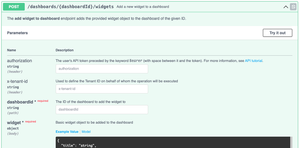
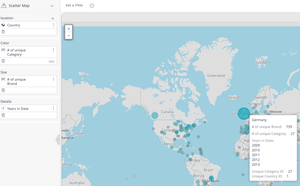
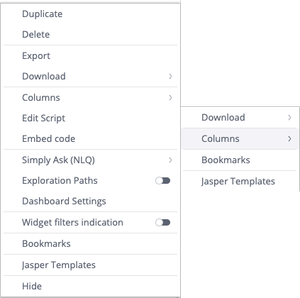
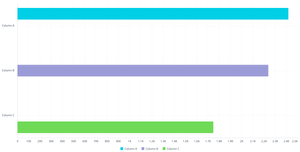
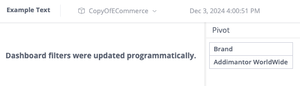
ContributionsMost RecentNewest TopicsMost LikesSolutionsCreating widgets via the Sisense API Overview Many companies and organizations use Sisense’s REST API to automate dashboard and widget creation. This can help integrate Sisense with existing automations, dynamically generate dashboards for different users, or manage large scale dashboard and widget deployments programmatically. Sisense provides an API endpoint for creating widgets directly on a dashboard. This allows developers to define widget configurations in JSON and publish them without using the Sisense UI for each new widget. Each widget’s behavior, layout, and data structure are defined in its metadata, mirroring the structure found inside Sisense dashboard export files (.dash files). This use case describes how to create widgets programmatically using the Sisense API and explains how to work with widget metadata and JAQL structures when doing so. What the solution does The Sisense Widget Creation API endpoint allows you to programmatically create widgets on an existing dashboard using a POST request: POST /api/v1/dashboards/{dashboardID}/widgets The request body is a widget metadata object defining the widget’s structure, data query, style, and layout. This metadata format is identical to what Sisense stores within a .dash file. The type property specifies the visualization type (for example, chart/pie, chart/bar, or pivot2), and the metadata section uses the JAQL query format to describe dimensions, measures, and filters. Developers can build widgets dynamically by: Defining visualization type and subtype (e.g., pie chart, bar chart, pivot table) Referencing the correct data source Configuring dimensions and measures within the metadata.panels structure Applying filters or plugin (such as JTD) behaviors Posting the configuration to the API endpoint API Reference: Full documentation for this endpoint and payload structure is available in the Sisense REST API documentation. Understanding widget Metadata Each Sisense widget contains a metadata object that defines the data query (via JAQL), chart style, and layout. A practical way to understand this format is to export a dashboard and inspect the widgets inside the resulting .dash file. Each widget entry includes: type – The widget type (for example, chart/pie, chart/bar, pivot2) datasource – Data model used metadata – A JAQL definition of dimensions, measures, and filters and any other dimensions, equivalent to the left hand panel in widget editor, plus filters style – Visual configuration options such as labels, legends, and axis settings options – Additional behaviors such as filter synchronization or drill options The JAQL format underpins the widget’s data model. It describes how dimensions, measures, and filters are applied when the widget queries the Elasticube or Live data source. References: Sisense JAQL documentation Metadata Item Widget Class Widget Metadata Example payloads Pie Chart Example (Basic Configuration) { "title": "", "type": "chart/pie", "tags": [], "datasource": { "fullname": "localhost/CopyOfECommerce", "id": "localhost_aCopyOfECommerce", "address": "LocalHost", "database": "aCopyOfECommerce", "live": false, "title": "CopyOfECommerce" }, "subtype": "pie/classic", "style": { "legend": { "enabled": false, "position": "left" }, "labels": { "enabled": true, "categories": true, "value": false, "percent": true, "decimals": false, "fontFamily": "Open Sans", "color": "red" }, "convolution": { "enabled": true, "selectedConvolutionType": "byPercentage", "minimalIndependentSlicePercentage": 3, "independentSlicesCount": 7 }, "dataLimits": { "seriesCapacity": 100000 } }, "instanceid": "5466B-AEAE-4D", "drillToDashboardConfig": { "drilledDashboardPrefix": "_drill", "drilledDashboardsFolderPrefix": "", "displayFilterPane": true, "displayDashboardsPane": true, "displayToolbarRow": true, "displayHeaderRow": true, "volatile": false, "hideDrilledDashboards": true, "hideSharedDashboardsForNonOwner": true, "drillToDashboardMenuCaption": "Jump to dashboard", "drillToDashboardRightMenuCaption": "Jump to ", "drillToDashboardNavigateType": 1, "drillToDashboardNavigateTypePivot": 2, "drillToDashboardNavigateTypeCharts": 1, "drillToDashboardNavigateTypeOthers": 3, "excludeFilterDims": [], "includeFilterDims": [], "drilledDashboardDisplayType": 2, "dashboardIds": [], "modalWindowResize": false, "showFolderNameOnMenuSelection": false, "resetDashFiltersAfterJTD": false, "sameCubeRestriction": true, "showJTDIcon": true, "sendPieChartMeasureFiltersOnClick": true, "forceZeroInsteadNull": false, "mergeTargetDashboardFilters": false, "drillToDashboardByName": false }, "realTimeRefreshing": false, "metadata": { "ignore": { "dimensions": [], "ids": [], "all": false }, "panels": [ { "name": "categories", "items": [ { "jaql": { "table": "Brand", "column": "Brand", "dim": "[Brand.Brand]", "datatype": "text", "columnTitle": "Brand", "tableTitle": "Brand", "merged": true, "title": "Brand" }, "instanceid": "749C8-B7DE-7A", "field": { "id": "[Brand.Brand]", "index": 0 }, "format": { "members": {} } } ] }, { "name": "values", "items": [] }, { "name": "filters", "items": [] } ] }, "options": { "dashboardFiltersMode": "select", "selector": true, "triggersDomready": true, "autoUpdateOnEveryChange": true, "drillToAnywhere": true } } This payload demonstrates a simple pie chart with one category (dimension) and a single measure, along with styling options for labels and legends. Bar Chart Example (With Filters and Multiple Dimensions) { "title": "", "type": "chart/bar", "tags": [], "datasource": { "fullname": "localhost/CopyOfECommerce", "id": "localhost_aCopyOfECommerce", "address": "LocalHost", "database": "aCopyOfECommerce", "live": false, "title": "CopyOfECommerce" }, "subtype": "bar/classic", "style": { "legend": { "enabled": true, "position": "bottom" }, "seriesLabels": { "enabled": false, "rotation": 0, "labels": { "enabled": false, "types": { "count": false, "percentage": false, "relative": false, "totals": false }, "stacked": false, "stackedPercentage": false } }, "xAxis": { "enabled": true, "ticks": true, "labels": { "enabled": true, "rotation": 0 }, "title": { "enabled": false }, "x2Title": { "enabled": false }, "gridLines": true, "isIntervalEnabled": false }, "yAxis": { "inactive": false, "enabled": true, "ticks": true, "labels": { "enabled": true, "rotation": 0 }, "title": { "enabled": false }, "gridLines": true, "logarithmic": false, "isIntervalEnabled": true, "hideMinMax": false }, "y2Axis": { "inactive": true, "enabled": true, "ticks": true, "labels": { "enabled": true, "rotation": 0 }, "title": { "enabled": false }, "gridLines": false, "logarithmic": false, "isIntervalEnabled": true, "hideMinMax": false }, "dataLimits": { "seriesCapacity": 50, "categoriesCapacity": 100000 }, "navigator": { "enabled": true }, "narration": { "display": "above", "verbosity": "low", "labels": [ { "id": "category", "title": "Category", "singular": "Category", "plural": "Category" }, { "id": "brand", "title": "Brand", "singular": "Brand", "plural": "Brand" } ] } }, "instanceid": "FF03B-0D74-36", "drillToDashboardConfig": { "drilledDashboardPrefix": "_drill", "drilledDashboardsFolderPrefix": "", "displayFilterPane": true, "displayDashboardsPane": true, "displayToolbarRow": true, "displayHeaderRow": true, "volatile": false, "hideDrilledDashboards": true, "hideSharedDashboardsForNonOwner": true, "drillToDashboardMenuCaption": "Jump to dashboard", "drillToDashboardRightMenuCaption": "Jump to ", "drillToDashboardNavigateType": 1, "drillToDashboardNavigateTypePivot": 2, "drillToDashboardNavigateTypeCharts": 1, "drillToDashboardNavigateTypeOthers": 3, "excludeFilterDims": [], "includeFilterDims": [], "drilledDashboardDisplayType": 2, "dashboardIds": [], "modalWindowResize": false, "showFolderNameOnMenuSelection": false, "resetDashFiltersAfterJTD": false, "sameCubeRestriction": true, "showJTDIcon": true, "sendPieChartMeasureFiltersOnClick": true, "forceZeroInsteadNull": false, "mergeTargetDashboardFilters": false, "drillToDashboardByName": false }, "realTimeRefreshing": false, "metadata": { "ignore": { "dimensions": [], "ids": [], "all": false }, "panels": [ { "name": "categories", "items": [ { "jaql": { "table": "Brand_Category_with_NULLS", "column": "Category", "dim": "[Brand_Category_with_NULLS.Category]", "datatype": "text", "columnTitle": "Category", "tableTitle": "Brand_Category_with_NULLS", "merged": true, "title": "Category" }, "instanceid": "635B0-67BA-AF", "field": { "id": "[Brand_Category_with_NULLS.Category]", "index": 0 }, "format": {}, "panel": "rows" } ] }, { "name": "values", "items": [ { "jaql": { "table": "Brand_Category_with_NULLS", "column": "Brand", "dim": "[Brand_Category_with_NULLS.Brand]", "datatype": "text", "columnTitle": "Brand", "tableTitle": "Brand_Category_with_NULLS", "merged": true, "title": "# of unique Brand", "agg": "count" }, "instanceid": "DDE5F-0407-39", "panel": "measures", "field": { "id": "[Brand_Category_with_NULLS.Brand]", "index": 2 }, "format": { "mask": { "type": "number", "abbreviations": { "t": true, "b": true, "m": true, "k": true }, "separated": true, "decimals": "auto", "abbreviateAll": false, "isdefault": true } } } ] }, { "name": "break by", "items": [ { "jaql": { "table": "Brand_Category_with_NULLS", "column": "Category", "dim": "[Brand_Category_with_NULLS.Category]", "datatype": "text", "columnTitle": "Category", "tableTitle": "Brand_Category_with_NULLS", "merged": true, "title": "Category" }, "instanceid": "C1963-AE15-BF", "panel": "columns", "field": { "id": "[Brand_Category_with_NULLS.Category]", "index": 1 }, "format": { "members": {} } } ] }, { "name": "filters", "items": [ { "jaql": { "table": "Brand", "column": "Brand", "dim": "[Brand.Brand]", "datatype": "text", "columnTitle": "Brand", "tableTitle": "Brand", "merged": true, "isPrimary": false, "isDashboardFilter": false, "datasource": { "fullname": "localhost/CopyOfECommerce", "id": "localhost_aCopyOfECommerce", "address": "LocalHost", "database": "aCopyOfECommerce", "live": false, "title": "CopyOfECommerce" }, "locale": "en-us", "title": "Brand", "collapsed": true, "filter": { "explicit": true, "multiSelection": true, "members": [ "Adbananor WorldWide " ] } }, "instanceid": "7B315-30EC-C0", "panel": "scope" } ] } ] }, "options": { "dashboardFiltersMode": "filter", "selector": true, "triggersDomready": true, "autoUpdateOnEveryChange": true, "drillToAnywhere": true, "previousScrollerLocation": { "min": null, "max": null } } } This example includes multiple JAQL panels (categories, measures, and breakby dimensions), along with explicit filters and advanced style options. It also shows how to define navigation and plugin (such as JTD) configurations. Working with dashboard files Existing dashboard files (.dash) can serve as valuable templates for widget creation. Each widget definition inside a dashboard export can be used as a direct payload for the API. To do this: Export a dashboard from Sisense. Open the .dash file in a text editor. Locate the widget definition under the "widgets" array. Use that widget object as the body of your POST request to the API. This approach allows developers to automate dashboard replication or dynamically add widgets that follow consistent design patterns. Full Dashboard File Example { "title": "TestExport", "oid": "68f924f4b7958b87a83905c3", "desc": "", "source": null, "type": "dashboard", "style": { "palette": { "name": "Vivid", "colors": [ "#00cee6", "#9b9bd7", "#6EDA55", "#fc7570", "#fbb755", "#218A8C" ] } }, "layout": { "instanceid": "87457-1EB6-EA", "type": "columnar", "columns": [ { "width": 100, "cells": [ { "subcells": [ { "elements": [ { "minHeight": 128, "maxHeight": 2048, "minWidth": 128, "maxWidth": 2048, "height": "756px", "defaultWidth": 512, "widgetid": "68f92503b7958b87a83905c5", "autoHeight": "756px" } ], "width": 100, "stretchable": false, "pxlWidth": 647, "index": 0 } ] }, { "subcells": [ { "elements": [ { "minHeight": 96, "maxHeight": 2048, "minWidth": 128, "maxWidth": 2048, "height": 384, "defaultWidth": 512, "widgetid": "68f925dbb7958b87a83905c9" } ], "width": 100, "stretchable": false, "pxlWidth": 647, "index": 0 } ] }, { "subcells": [ { "elements": [ { "minHeight": 96, "maxHeight": 2048, "minWidth": 128, "maxWidth": 2048, "height": 384, "defaultWidth": 512, "widgetid": "68f9269db7958b87a83905cc" } ] } ] } ], "pxlWidth": 647, "index": 0 } ] }, "original": null, "dataExploration": false, "lastOpened": null, "previewLayout": [], "datasource": { "address": "LocalHost", "title": "CopyOfECommerce", "id": "localhost_aCopyOfECommerce", "database": "aCopyOfECommerce", "fullname": "localhost/CopyOfECommerce", "live": false }, "filters": [], "editing": true, "settings": { "autoUpdateOnFiltersChange": true }, "widgets": [ { "title": "", "type": "pivot2", "subtype": "pivot2", "oid": "68f92503b7958b87a83905c5", "desc": null, "source": null, "datasource": { "address": "LocalHost", "title": "CopyOfECommerce", "id": "localhost_aCopyOfECommerce", "database": "aCopyOfECommerce", "fullname": "localhost/CopyOfECommerce", "live": false }, "selection": null, "metadata": { "ignore": { "dimensions": [], "ids": [], "all": false }, "panels": [ { "name": "rows", "items": [ { "jaql": { "table": "Brand", "column": "Brand", "dim": "[Brand.Brand]", "datatype": "text", "columnTitle": "Brand", "tableTitle": "Brand", "merged": true, "title": "Brand" }, "instanceid": "D2FFC-C3EB-81", "panel": "rows", "field": { "id": "[Brand.Brand]", "index": 0 } } ] }, { "name": "values", "items": [] }, { "name": "columns", "items": [] }, { "name": "filters", "items": [] } ], "usedFormulasMapping": {} }, "style": { "scroll": false, "pageSize": 25, "automaticHeight": true, "colors": { "rows": true, "columns": false, "headers": false, "members": false, "totals": false } }, "instanceid": "012C6-D97F-BF", "realTimeRefreshing": false, "options": { "dashboardFiltersMode": "filter", "selector": false, "triggersDomready": true, "drillToAnywhere": true }, "dashboardid": "68f924f4b7958b87a83905c3", "query": { "datasource": { "fullname": "localhost/CopyOfECommerce", "id": "localhost_aCopyOfECommerce", "address": "LocalHost", "database": "aCopyOfECommerce", "live": false, "title": "CopyOfECommerce" }, "format": "pivot", "grandTotals": { "title": "Grand Total" }, "metadata": [ { "jaql": { "table": "Brand", "column": "Brand", "dim": "[Brand.Brand]", "datatype": "text", "columnTitle": "Brand", "tableTitle": "Brand", "merged": true, "title": "Brand" }, "instanceid": "D2FFC-C3EB-81", "panel": "rows", "field": { "id": "[Brand.Brand]", "index": 0 }, "handlers": [] } ], "m2mThresholdFlag": 0 } }, { "title": "", "type": "chart/pie", "subtype": "pie/classic", "oid": "68f925dbb7958b87a83905c9", "desc": null, "source": null, "datasource": { "address": "LocalHost", "title": "CopyOfECommerce", "id": "localhost_aCopyOfECommerce", "database": "aCopyOfECommerce", "fullname": "localhost/CopyOfECommerce", "live": false }, "selection": null, "metadata": { "ignore": { "dimensions": [], "ids": [], "all": false }, "panels": [ { "name": "categories", "items": [ { "jaql": { "table": "Brand", "column": "Brand", "dim": "[Brand.Brand]", "datatype": "text", "columnTitle": "Brand", "tableTitle": "Brand", "merged": true, "title": "Brand" }, "instanceid": "749C8-B7DE-7A", "field": { "id": "[Brand.Brand]", "index": 0 }, "format": { "members": {} } } ] }, { "name": "values", "items": [] }, { "name": "filters", "items": [] } ], "usedFormulasMapping": {} }, "style": { "legend": { "enabled": false, "position": "left" }, "labels": { "enabled": true, "categories": true, "value": false, "percent": true, "decimals": false, "fontFamily": "Open Sans", "color": "red" }, "convolution": { "enabled": true, "selectedConvolutionType": "byPercentage", "minimalIndependentSlicePercentage": 3, "independentSlicesCount": 7 }, "dataLimits": { "seriesCapacity": 100000 } }, "instanceid": "5466B-AEAE-4D", "drillToDashboardConfig": { "drilledDashboardPrefix": "_drill", "drilledDashboardsFolderPrefix": "", "displayFilterPane": true, "displayDashboardsPane": true, "displayToolbarRow": true, "displayHeaderRow": true, "volatile": false, "hideDrilledDashboards": true, "hideSharedDashboardsForNonOwner": true, "drillToDashboardMenuCaption": "Jump to dashboard", "drillToDashboardRightMenuCaption": "Jump to ", "drillToDashboardNavigateType": 1, "drillToDashboardNavigateTypePivot": 2, "drillToDashboardNavigateTypeCharts": 1, "drillToDashboardNavigateTypeOthers": 3, "excludeFilterDims": [], "includeFilterDims": [], "drilledDashboardDisplayType": 2, "dashboardIds": [], "modalWindowResize": false, "showFolderNameOnMenuSelection": false, "resetDashFiltersAfterJTD": false, "sameCubeRestriction": true, "showJTDIcon": true, "sendPieChartMeasureFiltersOnClick": true, "forceZeroInsteadNull": false, "mergeTargetDashboardFilters": false, "drillToDashboardByName": false }, "realTimeRefreshing": false, "options": { "dashboardFiltersMode": "select", "selector": true, "triggersDomready": true, "autoUpdateOnEveryChange": true, "drillToAnywhere": true }, "dashboardid": "68f924f4b7958b87a83905c3" }, { "title": "", "type": "chart/bar", "subtype": "bar/classic", "oid": "68f9269db7958b87a83905cc", "desc": null, "source": null, "datasource": { "address": "LocalHost", "title": "CopyOfECommerce", "id": "localhost_aCopyOfECommerce", "database": "aCopyOfECommerce", "fullname": "localhost/CopyOfECommerce", "live": false }, "selection": null, "metadata": { "ignore": { "dimensions": [], "ids": [], "all": false }, "panels": [ { "name": "categories", "items": [ { "jaql": { "table": "Brand_Category_with_NULLS", "column": "Category", "dim": "[Brand_Category_with_NULLS.Category]", "datatype": "text", "columnTitle": "Category", "tableTitle": "Brand_Category_with_NULLS", "merged": true, "title": "Category" }, "instanceid": "635B0-67BA-AF", "field": { "id": "[Brand_Category_with_NULLS.Category]", "index": 0 }, "format": {}, "panel": "rows" } ] }, { "name": "values", "items": [ { "jaql": { "table": "Brand_Category_with_NULLS", "column": "Brand", "dim": "[Brand_Category_with_NULLS.Brand]", "datatype": "text", "columnTitle": "Brand", "tableTitle": "Brand_Category_with_NULLS", "merged": true, "title": "# of unique Brand", "agg": "count" }, "instanceid": "DDE5F-0407-39", "panel": "measures", "field": { "id": "[Brand_Category_with_NULLS.Brand]", "index": 2 }, "format": { "mask": { "type": "number", "abbreviations": { "t": true, "b": true, "m": true, "k": true }, "separated": true, "decimals": "auto", "abbreviateAll": false, "isdefault": true } } } ] }, { "name": "break by", "items": [ { "jaql": { "table": "Brand_Category_with_NULLS", "column": "Category", "dim": "[Brand_Category_with_NULLS.Category]", "datatype": "text", "columnTitle": "Category", "tableTitle": "Brand_Category_with_NULLS", "merged": true, "title": "Category" }, "instanceid": "C1963-AE15-BF", "panel": "columns", "field": { "id": "[Brand_Category_with_NULLS.Category]", "index": 1 }, "format": { "members": {} } } ] }, { "name": "filters", "items": [ { "jaql": { "table": "Brand", "column": "Brand", "dim": "[Brand.Brand]", "datatype": "text", "columnTitle": "Brand", "tableTitle": "Brand", "merged": true, "isPrimary": false, "isDashboardFilter": false, "datasource": { "fullname": "localhost/CopyOfECommerce", "id": "localhost_aCopyOfECommerce", "address": "LocalHost", "database": "aCopyOfECommerce", "live": false, "title": "CopyOfECommerce" }, "locale": "en-us", "title": "Brand", "collapsed": true, "filter": { "explicit": true, "multiSelection": true, "members": [ "Adbananor WorldWide " ] } }, "instanceid": "7B315-30EC-C0", "panel": "scope" } ] } ], "usedFormulasMapping": {} }, "style": { "legend": { "enabled": true, "position": "bottom" }, "seriesLabels": { "enabled": false, "rotation": 0, "labels": { "enabled": false, "types": { "count": false, "percentage": false, "relative": false, "totals": false }, "stacked": false, "stackedPercentage": false } }, "xAxis": { "enabled": true, "ticks": true, "labels": { "enabled": true, "rotation": 0 }, "title": { "enabled": false }, "x2Title": { "enabled": false }, "gridLines": true, "isIntervalEnabled": false }, "yAxis": { "inactive": false, "enabled": true, "ticks": true, "labels": { "enabled": true, "rotation": 0 }, "title": { "enabled": false }, "gridLines": true, "logarithmic": false, "isIntervalEnabled": true, "hideMinMax": false }, "y2Axis": { "inactive": true, "enabled": true, "ticks": true, "labels": { "enabled": true, "rotation": 0 }, "title": { "enabled": false }, "gridLines": false, "logarithmic": false, "isIntervalEnabled": true, "hideMinMax": false }, "dataLimits": { "seriesCapacity": 50, "categoriesCapacity": 100000 }, "navigator": { "enabled": true }, "narration": { "display": "above", "verbosity": "low", "labels": [ { "id": "category", "title": "Category", "singular": "Category", "plural": "Category" }, { "id": "brand", "title": "Brand", "singular": "Brand", "plural": "Brand" } ] } }, "instanceid": "FF03B-0D74-36", "drillToDashboardConfig": { "drilledDashboardPrefix": "_drill", "drilledDashboardsFolderPrefix": "", "displayFilterPane": true, "displayDashboardsPane": true, "displayToolbarRow": true, "displayHeaderRow": true, "volatile": false, "hideDrilledDashboards": true, "hideSharedDashboardsForNonOwner": true, "drillToDashboardMenuCaption": "Jump to dashboard", "drillToDashboardRightMenuCaption": "Jump to ", "drillToDashboardNavigateType": 1, "drillToDashboardNavigateTypePivot": 2, "drillToDashboardNavigateTypeCharts": 1, "drillToDashboardNavigateTypeOthers": 3, "excludeFilterDims": [], "includeFilterDims": [], "drilledDashboardDisplayType": 2, "dashboardIds": [], "modalWindowResize": false, "showFolderNameOnMenuSelection": false, "resetDashFiltersAfterJTD": false, "sameCubeRestriction": true, "showJTDIcon": true, "sendPieChartMeasureFiltersOnClick": true, "forceZeroInsteadNull": false, "mergeTargetDashboardFilters": false, "drillToDashboardByName": false }, "realTimeRefreshing": false, "options": { "dashboardFiltersMode": "filter", "selector": true, "triggersDomready": true, "autoUpdateOnEveryChange": true, "drillToAnywhere": true, "previousScrollerLocation": { "min": null, "max": null } }, "dashboardid": "68f924f4b7958b87a83905c3" } ], "hierarchies": [] } Why it’s useful Creating widgets through the Sisense API offers significant benefits for developers and system administrators: Automation: Supports large scale or dynamic creation of dashboards and widgets without manual effort. Consistency: Enables teams to apply standardized widget templates across multiple dashboards or environments. Integration: Makes it easy to connect Sisense with external systems or automated workflows. Scalability: Allows for the creation of thousands of widgets or dashboards using consistent metadata. Flexibility: By editing the JAQL and style properties, teams can tailor each widget to specific data or design requirements. Programmatic widget creation is particularly valuable for embedding Sisense into larger analytics workflows, for multi-tenant deployments, or for any scenario where dashboards must be created and maintained dynamically. Outcome Using the Widget Creation API endpoint, organizations can generate Sisense dashboards and visualizations in a consistent, repeatable way. Developers can define complex widgets, including data dimensions, filtering, and styling such as color schemes, entirely through JSON payloads, enabling uniform design and reusable frameworks across a large number of programmatically created widgets. By combining automation with Sisense’s flexible JAQL and metadata structure, teams can scale dashboard and widget deployment while maintaining full control over layout, behavior, and visual standards. Re: Adding additional dimensions to the Scatter Map widget tooltip Yes, this method of modifying scatter map tooltips works in L2024.3, it also works in the latest Sisense version (L2025.4). See Attached screenshot using the unmodified script in the article above, the tooltip via the script includes "Category ID" and "Country ID" in the tooltip via script. The widget.extraDimensionJAQL will very likely need to be modified to match the dimension and values that match your tooltip and use case. Disabling navigation hover UI for viewer users in Sisense What the Solution Does The RemoveNavigationHoverAndMenu plugin simplifies the Sisense navigation for viewer users by: Hiding the three-dots “more” menu in the left navigation. Hiding the dashboard metadata tooltip that appears on hover. Preventing hover-triggered UI behavior, so menus and tooltips do not activate. Leaving the default navigation fully intact for admins and authors. The plugin automatically detects the user’s base role (prism.user.baseRoleName) and applies these changes only for viewers. It uses scoped JavaScript and CSS to remove the unwanted hover interactions without modifying Sisense core files or affecting navigation performance. How it works: Viewer-only condition: Runs only for viewer users (where prism.user.baseRoleName === "consumer"). Hover interception: Capture-phase event listeners block hover tooltip appearance Scoped CSS: Injects a short style block to hide hover UI elements and remove tooltip styling. Installation: Download RemoveNavigationHoverAndMenu.zip. Extract the folder RemoveNavigationHoverAndMenu into your Sisense plugins directory:/opt/sisense/storage/plugins/Alternatively, upload it through Admin > System Management > File Management to the plugins folder. Refresh dashboards or restart Sisense to activate the plugin. Verification: Log in as a viewer user. Hover over dashboards or folders in the left navigation. Confirm the three-dots menu and metadata tooltip no longer appear. Log in as an admin and confirm the navigation behaves normally. Files included: RemoveNavigationHoverAndMenu/plugin.json RemoveNavigationHoverAndMenu/main.6.js RemoveNavigationHoverAndMenu/README.md Why It’s Useful Simplifying the Sisense interface for viewer users creates a cleaner, more focused environment that emphasizes content rather than controls. By removing hover-based menus and tooltips for viewers while preserving them for admins, this plugin improves usability without compromising functionality. This approach also supports governance and user-experience goals: Governance: Viewers no longer see or interact with features they do not need. Consistency: Admins and authors retain their full toolset for management tasks. Stability: The plugin modifies only the UI layer and requires no changes to data models or access permissions. With this small enhancement, organizations can deliver a more streamlined viewing experience while maintaining full control for those managing dashboards and content. Outcome After installation, viewer users experience a simplified left navigation that shows only essential content. The three-dots menu and dashboard metadata tooltip are removed, and hover-based interactions no longer trigger any UI overlays. Admins and authors retain the complete navigation behavior, ensuring full functionality for management and editing tasks. The result is a cleaner, more predictable interface for viewers and a consistent, role appropriate experience across the Sisense environment. Hover Before Change (for viewers): Hover After Plugin (for viewers): Three Dot Menu Before Change (for viewers): Three Dot After Plugin (Is not visible, for viewers): Side-by-Side Comparison Before and After Comparison: Ensuring Accurate PDF Export Headers When Programmatically Modifying Dashboard Filters in Sisense When working with Sisense dashboards, programmatically modifying filters upon dashboard load via dashboard scripts for a specific user or circumstance is possible. However, an issue can sometimes occur when exporting these dashboards to PDF immediately after such modifications: the filter header displayed at the top of the exported PDF displaying the current dashboard filter state may not accurately reflect the current state of the dashboard filters. This article explains the cause of this issue and presents a solution to ensure that PDF exports display the correct filter information in the header. Re: Comprehensive framework for menu item removal in Sisense For a styling change related to the is Use Case, when removing a large amount of menu items the menu may become narrower, to set the menu width to a set width use the widget, dashboard script below, or include it within a plugin. This can also be used in scenarios where no menu items are removed, but the menu is preferred to be wider. Set Width of Sisense Menu Items Manually: //Set Width of Sisense Menu Items Manually: widget.on("initialized", function onInitialized(w, args) { // CSS to inject, increase Sisense menu width, change "225px" with desired width const css = ` .menu-host .menu-item-host .menu-content, .menu-host .menu-item-host .menu-item, .menu-host .menu-item-host .menu-item.mi-separator, .menu-item-container { width: 225px; min-width: 225px; max-width: 225px; } `; const styleId = "sisense-custom-menu-width-style"; // Prevent duplicate injection if (document.getElementById(styleId)) { return; } const styleEl = document.createElement("style"); styleEl.id = styleId; styleEl.type = "text/css"; styleEl.appendChild(document.createTextNode(css)); document.head.appendChild(styleEl); }); Comprehensive framework for menu item removal in Sisense Overview Companies and organizations often wish to control which Sisense menu options are visible to different role types of users. Sisense administrators or software developers may require menu items such as Edit Script or Embed Code, while business users should potentially see a more streamlined interface with only the essential options visible in the menu. Customizing these menus can be an important part of both governance and usability, ensuring that users are not viewing nonrelevent menu items. Code modifying menu's in Sisense can be present in both widget and dashboard scripts, and plugins. Custom menu items, added by plugins and scripts, can also be removed for the relevant user types. Challenge Removing menu items in Sisense requires intercepting the beforemenu event and filtering items out before the menu is displayed. This can be straightforward for most options, but there are several complexities to account for: Menu items can be identified by different properties (caption, command.title, description, or tooltip). Simply reassigning menuArgs.settings.items to a new array does not always work, since Sisense components and other listeners may hold references to the original array. In some cases, items may be injected into the menu after it is already open. The dashboard co-authoring Hide option is an example of this edge case, requiring a second filtering pass to remove consistently. The requirement was to create a robust framework that could handle these variations, while also supporting conditional filtering based on user type. Sisense exposes the property prism.user.baseRoleName, which identifies the base role of the logged-in user. This allows developers to apply conditional logic when customizing menus. For example, users with the role "super" are administrators who may need access to advanced actions such as Export or Embed Code, while users with the role "consumer" are viewers who should only see a simplified set of options. By checking this property, menu filtering can be adapted to match governance rules and usability needs for each audience. For example, administrators (prism.user.baseRoleName = "super") may retain advanced options, while viewers (prism.user.baseRoleName = "consumer") see a simplified set of actions. Solution A comprehensive framework was developed with the following key techniques: Configuration-driven filtering: Administrators can specify which object properties to inspect for matching strings, and which menu items to hide, making the script flexible and maintainable. In-place mutation of the menu array: Instead of replacing the array, the script updates it in place with splice. This ensures all references across the Sisense application reflect the updated menu. Two-phase filtering: The filter runs immediately during the beforemenu event to catch standard items, and again with setTimeout to handle menu items injected later, such as the Hide option, which is an unusual case. Conditional visibility by user role: By checking prism.user.baseRoleName, the script can apply different filtering rules for administrators and consumers. This ensures the right balance of power and simplicity depending on the user type. Full Implementation /* * Hide specified Sisense menu items at both the dashboard and widget level. * All configuration is defined inside the beforemenu function for clarity */ prism.on("beforemenu", function (event, menuArgs) { // no menu items to process if (!menuArgs?.settings?.items) { return; } /** * Configuration * * fieldsToCheck: choose which object parameters to inspect on each menu item. * Set any field to false to skip it. * * itemsToHide: case-insensitive list of labels to remove from the menu. * Provide readable strings, such as "embed code" or "get url for embedding". */ const configuration = { fieldsToCheck: { caption: true, commandTitle: true, description: true, tooltip: true }, itemsToHide: [ "delete", "duplicate", "export", "edit script", "embed code", "get url for embedding", "simply ask (nlq)", "exploration paths", "widget filters indication", "widget affects dashboard filters", "dashboard settings", "hide widget header", "hide dashboard for non-owners", "featured on mobile app", "show dashboard in the featured dashboards list in the mobile app.", "navver.dashboard_menu_options.restore_dashboard", "switch to administrator view", "share the assistant", "change data source", "hide widget header", "hide" ] }; /** * Prepare a fast lookup set from the configured hide list. * Comparison is case-insensitive and ignores extra whitespace. */ const hiddenLabelSet = new Set( (configuration.itemsToHide || []) .map(formatLabelForComparison) .filter(Boolean) ); /** * Standardize a label for comparison: * - Trim whitespace * - Convert to lowercase * Returns undefined for non-strings or empty values after trimming. */ function formatLabelForComparison(rawValue) { if (typeof rawValue !== "string") { return undefined; } const trimmedLowercase = rawValue.trim().toLowerCase(); return trimmedLowercase.length ? trimmedLowercase : undefined; } /** * Gather all label values from the menu item according to the configuration. * Returns an array of standardized, non-empty strings. */ function getLabelsForMenuItem(menuItem) { const labels = []; if (configuration.fieldsToCheck.caption) { const captionLabel = formatLabelForComparison(menuItem.caption); if (captionLabel) { labels.push(captionLabel); } } if (configuration.fieldsToCheck.commandTitle) { const commandTitleLabel = formatLabelForComparison(menuItem.command?.title); if (commandTitleLabel) { labels.push(commandTitleLabel); } } if (configuration.fieldsToCheck.description) { const descriptionLabel = formatLabelForComparison(menuItem.desc); if (descriptionLabel) { labels.push(descriptionLabel); } } if (configuration.fieldsToCheck.tooltip) { const tooltipLabel = formatLabelForComparison(menuItem.tooltip); if (tooltipLabel) { labels.push(tooltipLabel); } } return labels; } /** * Decide whether a menu item should be hidden. * If any menu item parameter matches an entry in the hidden label set, the item is removed. */ function shouldHideMenuItem(menuItem) { const labels = getLabelsForMenuItem(menuItem); return labels.some(function (label) { return hiddenLabelSet.has(label); }); } /** * Recursively filter menu structures: * - Remove items that match the hide list. * - If an item has children (sub-menu), filter those sub-menus as well. */ function filterMenuItemsRecursively(menuItems) { return (menuItems || []) .filter(function (menuItem) { return !shouldHideMenuItem(menuItem); }) .map(function (menuItem) { if (Array.isArray(menuItem.items)) { menuItem.items = filterMenuItemsRecursively(menuItem.items); } return menuItem; }); } // Apply the filtering to the base array of menu items (function runFilter() { const filteredItems = filterMenuItemsRecursively(menuArgs.settings.items); // replace the contents of the original array so any existing references see the filtered result menuArgs.settings.items.splice(0, menuArgs.settings.items.length, ...filteredItems); })(); // Run the filter again after other beforemenu listeners finish setTimeout(function () { const filteredItems = filterMenuItemsRecursively(menuArgs.settings.items); menuArgs.settings.items.splice(0, menuArgs.settings.items.length, ...filteredItems); }, 0); }); Outcome With this framework, companies and organizations can reliably hide sensitive or unnecessary menu items while keeping the interface clear and consistent for end users. Because it mutates the menu array in place and applies filtering twice, it covers both standard and rare late injected menu items. By using prism.user.baseRoleName as a condition, administrator users can still view all menu items where needed, while viewer or designer level users see only the options relevant to them. This makes the solution comprehensive, flexible, and aligned with the exact organization requirements for menu items. Re: Centering bars and columns when no categories or break by are present in Sisense [linux] The full plugin is attached for download as a zip in this comment. The full Readme file: # BarColumnCentering ## Description The **BarColumnCentering** plugin adjusts the rendering of Sisense bar and column charts to ensure that bar or column labels are centered when the chart contains only Values and no items in the Break By or Categories panels. In this situation, Sisense's default grouping leaves empty slots in each category band, causing misalignment between bars/columns and labels. This plugin automatically detects applicable charts on dashboard load and disables Highcharts series grouping for them, ensuring each bar or column is drawn in the center of its category. ## Installation 1. **Download and Install the Plugin** * Extract the `.zip` archive to the Sisense plugins directory: ``` /opt/sisense/storage/plugins/ ``` * Alternatively, navigate to: ``` Admin > System Management > File Management ``` and upload the extracted plugin folder to the `plugins` directory. 2. **Activate** * Refresh the Sisense dashboard to apply the changes. ## How It Works When a dashboard loads, the plugin checks each bar or column chart widget before rendering. If all of the conditions are met: * The widget type is either bar or column chart. * The Break By panel has no items. * The Categories panel has no items. * The Values panel exists and contains one or more items. …the plugin sets the Highcharts `plotOptions.series.grouping` property to `false`. This removes the default per-category grouping behavior, ensuring each bar or column spans the entire category band and aligns with its label. ## Limitations * Only applies to bar and column chart widgets where the Break By and Categories panels are empty and the Values panel contains one or more items. * Does not affect charts with Break By or Categories panel items present. The full plugin.json file: { "name": "BarColumnCentering", "source": [ "main.6.js" ], "style": [], "lastUpdate": "2025-09-15T17:12:54.438Z", "pluginInfraVersion": 2, "isEnabled": true, "version": "1.0.0", "folderName": "BarColumnCentering" } Full main.6.js file: /** * Plugin: BarColumnCentering * * Purpose: * Adjusts the rendering of Sisense bar and column charts so that bars/columns are visually centered * when no Categories or Break By panel items are present, and only Values are defined. * This is achieved by disabling Highcharts series grouping, ensuring each category band contains * a single centered bar or column rather than multiple grouped bars. */ /** * Checks whether a widget or dashboard model already has a specific event handler attached. * Supports both Prism models and dashboard/widget models by inspecting the underlying event structures. * * @param {Object} model - The widget or dashboard model. * @param {string} eventName - The name of the event to check for. * @param {Function} handler - The handler function to search for. * @returns {boolean} True if the handler is already registered for the event, false otherwise. */ function hasEventHandler(model, eventName, handler) { var eventHandlers = model.$ngscope // Check if Prism model ? ($$get(prism, '$ngscope.$$listeners.' + eventName) || []) // Prism model handler list : model.$$eventHandlers(eventName); // Dashboard or widget model handler list return eventHandlers.indexOf(handler) >= 0; } /** * Finds a panel object by its title, ignoring case. * * @param {Array} panels - The array of panels from widget.metadata.panels. * @param {string} title - The panel title to match. * @returns {Object|undefined} The matching panel, or undefined if not found. */ function findPanelByTitle(panels, title) { var normalizedTitle = String(title || '').toLowerCase(); return panels.find(function (panel) { return panel && typeof panel.title === 'string' && panel.title.toLowerCase() === normalizedTitle; }); } /** * Event handler for the Highcharts 'beforeviewloaded' event on a widget. * Disables series grouping when specific conditions are met to center bars/columns. * * Conditions for applying the change: * - The widget is a bar chart or column chart. * - The Break By panel exists but has no items, or does not exist at all. * - The Categories panel exists but has no items, or does not exist at all. * - The Values panel exists and contains one or more items. * * @param {Object} widget - The Sisense widget model. * @param {Object} env - The environment object containing Highcharts options. */ function onBeforeviewloadedCenter(widget, env) { var chartOptions = (env && env.options) ? env.options : {}; try { var panels = (widget.metadata && widget.metadata.panels) || []; // Step 1: Determine if the widget is of the correct type var isBarOrColumnChart = widget.type === 'chart/bar' || widget.type === 'chart/column'; // Step 2: Retrieve the Break By, Categories, and Values panels var breakByPanel = findPanelByTitle(panels, 'break by'); var categoriesPanel = findPanelByTitle(panels, 'categories'); var valuesPanel = findPanelByTitle(panels, 'values'); // Step 3: Determine panel contents var breakByIsEmpty = !breakByPanel || !Array.isArray(breakByPanel.items) || breakByPanel.items.length === 0; var categoriesIsEmpty = !categoriesPanel || !Array.isArray(categoriesPanel.items) || categoriesPanel.items.length === 0; var valuesHasItems = !!valuesPanel && Array.isArray(valuesPanel.items) && valuesPanel.items.length > 0; // Step 4: Apply grouping change only when all conditions are met if (isBarOrColumnChart && breakByIsEmpty && categoriesIsEmpty && valuesHasItems) { chartOptions.plotOptions = chartOptions.plotOptions || {}; chartOptions.plotOptions.series = Object.assign({}, chartOptions.plotOptions.series, { grouping: false }); } } catch (_) { // Do nothing if metadata structure is unexpected } } /** * Registers the beforeviewloadedCenter handler on widgets as they initialize. */ prism.on('dashboardloaded', function (e, args) { args.dashboard.on('widgetinitialized', function (_, initArgs) { var widget = initArgs && initArgs.widget; if (!widget || !widget.on) return; if (!hasEventHandler(widget, 'beforeviewloaded', onBeforeviewloadedCenter)) { widget.on('beforeviewloaded', onBeforeviewloadedCenter); } }); }); Centering bars and columns when no categories or break by are present in Sisense [linux] When a Sisense bar or column chart contains only Values and no items in the Break By or Categories panels, Highcharts — the charting library used by Sisense for rendering visualizations still reserves space for grouped series. This can cause the bars or columns to appear offset from their category labels. Re: Using text widgets to present script, plugin, and BloX action information The code appears to not have line breaks when viewed in some browsers, here is the code with line breaks: if (adjustmentMade && adjustmentMessages.length) { const $widget = $('#editor-container > div.wd').first(); if ($widget.length > 0) { $widget.text(adjustmentMessages.join(" ")); } else { console.log(adjustmentMessages.join(" ")); } } function showMessage(msg) { const $textWidget = $('#editor-container > div.wd').first(); if ($textWidget.length > 0) { $textWidget.text(msg); } else { console.log(msg); } } // Example usage: notify when filters are changed dashboard.on("filterschanged", function () { showMessage("Dashboard filters were updated programmatically."); }); // Inside a larger script - update text widget when filter is adjusted if (adjustmentMade && adjustmentMessages.length) { const $widget = $('#editor-container > div.wd').first(); if ($widget.length > 0) { $widget.text(adjustmentMessages.join(" ")); } else { console.log(adjustmentMessages.join(" ")); } } Using text widgets to present script, plugin, and BloX action information Step-by-Step Guide: Navigate to the dashboard where you want to display contextual messages. Add a Text Widget to the dashboard and place it in a visible location for status or context information. Open the Dashboard or widget Script Editor or add code within a custom plugin/Blox action. Use the following snippet to update the first text widget with a message: if (adjustmentMade && adjustmentMessages.length) { const $widget = $('#editor-container > div.wd').first(); if ($widget.length > 0) { $widget.text(adjustmentMessages.join(" ")); } else { console.log(adjustmentMessages.join(" ")); } } 5. Save and refresh the dashboard. The message will appear inside the designated text widget. Extended Example: The following example shows how this can be integrated into a script that listens for filter changes and displays a message when adjustments occur. If a text widget exists, the message appears there; otherwise, the console is used as a fallback. function showMessage(msg) { const $textWidget = $('#editor-container > div.wd').first(); if ($textWidget.length > 0) { $textWidget.text(msg); } else { console.log(msg); } } // Example usage: notify when filters are changed dashboard.on("filterschanged", function () { showMessage("Dashboard filters were updated programmatically."); }); The screenshot below shows a Sisense dashboard with a Text Widget displaying a message triggered by a dashboard script. The message is clearly visible alongside other widgets, ensuring users receive relevant information without disruption. Additional Example Integrated in a Larger Script: In more advanced implementations, text widgets can be embedded into larger custom scripts or plugins. For example, a script handling filter validation and redirection may also push user-facing messages to a text widget to explain adjustments. Instead of exposing all internal logic, only relevant updates (such as date range corrections) are displayed to users: // Inside a larger script - update text widget when filter is adjusted if (adjustmentMade && adjustmentMessages.length) { const $widget = $('#editor-container > div.wd').first(); if ($widget.length > 0) { $widget.text(adjustmentMessages.join(" ")); } else { console.log(adjustmentMessages.join(" ")); } } Conclusion: Using Text Widgets as a communication surface allows scripts, plugins, and Blox actions to deliver contextual messages directly in the dashboard. This improves the end-user experience by providing visibility into background custom code operations or automated changes without requiring web console viewing or intrusive pop-up dialogs. A consistent placement of text widgets across dashboards is recommended to standardize messaging and ensure clarity. Disclaimer: This post outlines a potential custom workaround for a specific use case or provides instructions regarding a specific task. The solution may not work in all scenarios or Sisense versions, so we strongly recommend testing it in your environment before deployment. If you need further assistance with this, please let us know.