Connection Tool - Programmatically Remove Unused Datasource Connections, and List All Connections
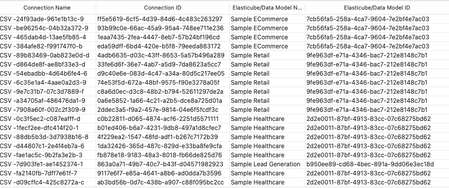
Managing connections within your Sisense environment can become complex over time, if there are a large number of connections, and connections are often added, and replace earlier datasource connections. In some scenarios unused connections can accumulate, potentially cluttering the connection manager UI with no longer relevant connections. Although unused connections typically represent minimal direct security risk, it's considered best practice to maintain a clean, organized list of connections, and in some scenarios it can be desired to remove all unused connections. Sisense prevents the deletion of connections actively used in datasources, safeguarding your dashboards and datasources from disruptions. However, inactive or "orphaned" connections remain after datasources are deleted or a connection is replaced, potentially contributing to unnecessary UI complexity in the connection manager UI. Connections can be of any type Sisense supports, common types include various SQL connections, Excel files, and CSV files, as well as many data providers, such as Big Panda. This tool can also be used to list all connections, with no automatic deletion of unused connections.996Views4likes4CommentsUserReplaceTool - Automating Dashboard Ownership Transfers - Useful for Deleting User Accounts
Managing and deleting user accounts in Sisense can create manual processes when users leave an organization or change roles. A frequent issue is the reassignment of dashboard ownership to prevent losing Sisense dashboards when a given user account is deleted, as deleting a Sisense user will delete all dashboards owned by that user. The UserReplaceTool addresses this task by automating the transfer of dashboard ownership of all dashboards owned by a given user, ensuring continuity and data integrity. UserReplaceTool is a Python-based, API-based Tool solution designed to seamlessly transfer the ownership of dashboards and data models from one user to another in Sisense. This tool simplifies and automates this process, allowing organizations to reassign dashboard ownership without manual processes or the risk of losing dashboards and widgets. All components are accomplished by using Sisense API endpoint requests.1.4KViews3likes3CommentsThe New Sisense Support Portal is Now Live! 🚀
🔑 How to Contact Support To ensure your requests are handled as quickly as possible, please use the following channels: AI Chatbot (Preferred) Available directly on the portal, our new smarter AI assistant provides instant answers. If the chatbot cannot solve your issue, it will automatically convert your conversation into a support ticket, ensuring our team has the full context of your request. The Sisense Support Portal Submit and track requests via https://supportportal.sisense.com/. Why use the portal? Our new smart forms ensure we capture all required technical data immediately, allowing our team to start working on a resolution right away. Support Mailbox You can also report issues by emailing [email protected]. Note: While this automatically creates a ticket, our team may follow up with additional questions to gather environment details that are usually captured in the portal forms. Portal Technical Issues? If you experience any difficulties specifically with the portal (login or navigation issues), please notify us at [email protected]. 🛠️ Navigating Your New Dashboard Once you log in, you’ll notice several new ways to manage your tickets. Click on "Show Filters" to customize your view: View Types: Switch between Table format (default) or Card view depending on your preference. Ticket Counts: Easily toggle between My Tickets (created by you) and All Tickets (created by your organization, according to the privileges granted for your user before). Customization: You can now Sort, Group, and Filter your tickets by Status, Priority, or Created Date. Quick Tip on Attachments: When creating a new ticket, any files you upload will appear under File Attachments. In existing tickets, your uploaded files will be embedded inline within the ticket comments for better context. Additional emails in CC Additional emails in CC is now live for new and existing tickets. Add email one by one by pressing enter after each. What happens to your old tickets? All open tickets have been successfully migrated. You can find your full ticket history and continue tracking active issues directly within the new portal. Thank you for your patience as we build a better support experience for you! — The Sisense Support Team618Views3likes3Comments
Convey Your Message at a Glance
Are you having a hard time deciding the best way to visualize your data? How can you convey your message and provide the right business context with a glance? You are welcome to watch the "Convey your message at a glance" webinar (40~ min) to learn more.604Views1like0CommentsDoes Your Project Have A Timeline? Planning For And Defining Success
Timelines are a key component of any dashboard implementation. Considering the available time is vital to establishing reasonable goals and how to best prioritize tasks. More importantly, adoption improves when projects show fast results instead of dragging on endlessly. Planning a roadmap for implementation can produce a successful integration for you and your team.1.1KViews1like0Comments