Every Metric Happens Somewhere: Why the “Where” Dimension Is the Missing Layer in Modern Analytics
In our recent QBeeQ webinar, Every Metric Happens Somewhere, we explored why geospatial context is no longer a niche feature for specialized industries. It’s a core analytical dimension and one that can dramatically elevate engagement, insight discovery, and decision-making. You can view the recording, or keep scrolling for the highlights and key takeaways from the webinar. The Problem: Dashboards Without Geography Miss Patterns Traditional dashboards rely heavily on tables, bar charts, and line graphs. They show totals, trends, and rankings well. But they struggle to reveal spatial relationships. Consider common business questions: How many claims do we have? What’s our revenue by region? Which territories are underperforming? These are valuable questions, but they’re incomplete without geographic context. When you introduce the where dimension, new insights emerge: Clusters that only appear spatially Boundary effects between adjacent territories Pockets of unusually high or low performance Regional anomalies masked in aggregated totals From Niche Feature to Core Capability Maps were once considered specialized and useful for specific industries such as logistics, real estate, or field operations. That’s no longer true. Revenue, risk, compliance, performance, claims, customer distribution – these all happen somewhere. Geography cuts across industries. Approximately 80% of enterprise data already contains a spatial component. Most organizations simply aren’t leveraging it. Instead of placing a map as a static, standalone widget, leading teams are making it central to the analytical experience. Research shows interactive dashboards increase engagement and insight discovery. When you layer interactivity (zooming, filtering, panning) on top of geography, users uncover patterns faster and spend more time exploring. But friction often gets in the way. The Friction: Where Native Mapping Falls Short Many teams start with basic mapping tools that allow simple point plotting or polygon mapping. That works until analysis shifts to become more strategic. Common limitations appear quickly: Needing both points and polygons on the same map Wanting density visualizations or clustering Requiring multiple layers Enabling advanced drill behavior Supporting large-scale or time-based data When mapping tools can’t support these needs, one of three things happens: Maps sit unused on dashboards. Designers revert to traditional charts. Spatial thinking never becomes core to analysis. Remove frictions with the QBeeQ mapping solutions SuperMap: Practical Spatial Analytics for Everyday Use The SuperMap is built for operational decision-making, understanding what’s happening right now, and acting on it. This plugin includes a range of flexible, scalable features, delivered as a zero-code solution, designed for both dashboard builders and end users. Multi-Layer Mapping (Points + Polygons) - Overlay geographic territories such as counties or states with individual location points, allowing each layer to have its own KPIs, category breakdowns, and sizing logic for richer comparative analysis. Heatmaps and Radius-Based Points - Color polygons by one performance metric while simultaneously sizing map points by another, delivering multi-dimensional insight within a single, unified view. Clustering with Drill-In Behavior - As users zoom in, clustered points automatically separate to reveal individual locations, with clusters capable of displaying proportional category breakdowns such as hospitals, police stations, and post offices. Advanced Tooltips - Enhance map interactivity with tooltips that go beyond a single value by displaying multiple KPIs, raw metrics, and calculated insights to support deeper exploration. Jump-to-Dashboard Navigation - Enable users to click on a territory to instantly filter the entire dashboard or navigate directly to a more detailed analytical view for focused investigation. Measure Switching - Allow users to toggle between different KPIs on the same map without duplicating visuals, reducing dashboard clutter while increasing analytical flexibility. Geographic Hierarchy - Support seamless geographic drill-down across states, counties, zip codes, and other levels—either directly within the map interface or through a structured dropdown selection. Deck.gl Map: High-Performance, Large-Scale Exploration While the Super Map focuses on operational clarity, Deck.gl is designed for scale and trends over time. For teams working with event streams, logistics data, or large geospatial datasets, Deck.gl provides performance without sacrificing interactivity. This plugin enables: Arc layers Hex bin density visualizations 2D and 3D polygon layers High-volume point plotting Hierarchical spatial analysis The Bigger Picture: Making “Where” a First-Class Dimension Time has long been treated as a foundational analytical dimension. Geography deserves the same status. When you: Align metrics to business geography Enable exploration instead of passive observation Remove friction from advanced spatial analysis Combine interactivity with spatial context You don’t just make dashboards prettier. You make them more useful. Every metric happens somewhere. When you show that somewhere clearly, insights accelerate and decisions improve. At QBeeQ, we believe geography should be a first-class dimension in every analytical experience. Our mapping solutions are designed to remove friction, scale with your data, and make spatial insight accessible to every dashboard builder and decision-maker. Because when every metric happens somewhere, QBeeQ helps you see exactly where it matters most. QBeeQ is data consulting firm and also a Sisense Gold Implementation Partner.61Views1like0CommentsConnection Tool - Programmatically Remove Unused Datasource Connections, and List All Connections
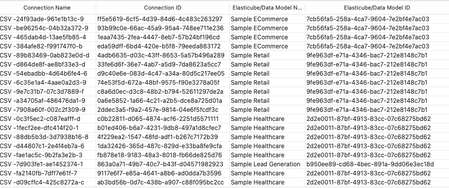
Managing connections within your Sisense environment can become complex over time, if there are a large number of connections, and connections are often added, and replace earlier datasource connections. In some scenarios unused connections can accumulate, potentially cluttering the connection manager UI with no longer relevant connections. Although unused connections typically represent minimal direct security risk, it's considered best practice to maintain a clean, organized list of connections, and in some scenarios it can be desired to remove all unused connections. Sisense prevents the deletion of connections actively used in datasources, safeguarding your dashboards and datasources from disruptions. However, inactive or "orphaned" connections remain after datasources are deleted or a connection is replaced, potentially contributing to unnecessary UI complexity in the connection manager UI. Connections can be of any type Sisense supports, common types include various SQL connections, Excel files, and CSV files, as well as many data providers, such as Big Panda. This tool can also be used to list all connections, with no automatic deletion of unused connections.1KViews4likes4Comments
Outer joins (preview) - Release notes
An outer join (left, right, full) combines data from two tables, including all matching rows and any unmatched rows from one or both tables, filling in NULL for missing data. Analytical platforms use outer joins to achieve: Broader analytical capabilities: Ensure all relevant data is visible, even if there is no exact match in another table (e.g., view all products, including products with no sales). Identify Gaps: Easily spot data integrity issues and missing information or relationships, which is crucial for analysis and reporting.660Views3likes0CommentsAdding additional dimensions to the Scatter Map widget tooltip
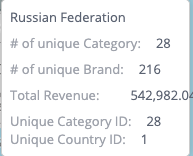
Adding additional dimensions to the Scatter Map widget tooltip Additional dimensions can be added to the hover tooltip of the Scatter Map widget type, beyond the default limit of three, to include more information from other dimensions about a location in a Scatter Map widget. This can be accomplished by using a combination of the widget's before query event to add additional dimension data for the hover tooltips and the before datapoint tooltip event to incorporate these dimensions into the tooltip. This method of modifying the query using the "beforequery" event can also be applied to all other widget types // Add extra parameters to be used in tooltips by modifying query widget.on('beforequery', function (se, ev) { // Initial number of widget metadata panels excluding filter panel widget.initialPanelSizeExcludingFilterPanel = ev.query.metadata.filter((panel) => { return panel.panel !== "scope" }).length; // Extra dimensions to show in tooltip, should return a single result, include as many as needed, just add to array // Jaql Objects can be copied from other widgets from the prism.activeWidget.metadata.panels via the browser console // Modify JAQL as needed, title of JAQL is used in tooltip and can be modified to any string widget.extraDimensionJAQL = [ { "jaql": { "table": "Category", "column": "Category ID", "dim": "[Category.Category ID]", "datatype": "numeric", "merged": true, "agg": "count", "title": "Unique Category ID" } }, { "jaql": { "table": "Country", "column": "Country ID", "dim": "[Country.Country ID]", "datatype": "numeric", "merged": true, "agg": "count", "title": "Unique Country ID" } }, ] // Add to default widget query the extra dimensions to be used in tooltips ev.query.metadata = ev.query.metadata.concat(widget.extraDimensionJAQL) }); // Add extra dimensions added with beforequery object to ScatterMap tooltip widget.on("beforedatapointtooltip", (event, params) => { // Convert query results to include only the additional dimensions, and formatted for tooltip template var onlyAdditionalDimensions = widget.queryResult.$$rows.map((withoutDefaultDimensionOnlyAdditional) => { // Remove the default dimensions, first part of row result array var withoutDefaultDimensionOnlyAdditional = withoutDefaultDimensionOnlyAdditional.slice(widget.initialPanelSizeExcludingFilterPanel) // Format for tooltip template, include title from JAQL var extraDimensionObj = withoutDefaultDimensionOnlyAdditional.map((extraDimensionValue, index) => { // Use extraDimensionJAQL for label in tooltip return { "text": extraDimensionValue.text, "title": widget.extraDimensionJAQL[index].jaql.title } }) return extraDimensionObj }); // Object to store extra dimensions params.context.marker.extraDimension = {}; // Use matching queryIndex for tooltip of additional dimensions params.context.marker.extraDimension.arr = onlyAdditionalDimensions[params.context.marker.queryIndex]; // Template for tooltip, modify as needed params.template = ` <div class='geo-text'>{{ model.marker.name }}</div> <div class='measure-holder' data-ng-if='model.measuresMetadata.sizeTitle'> <div class='measure-title slf-text-secondary'>{{ model.measuresMetadata.sizeTitle }}:</div> <div class='measure-value'>{{ model.marker.sizeObj.text }}</div> </div> <div class='measure-holder' data-ng-if='model.measuresMetadata.colorTitle'> <div class='measure-title slf-text-secondary'>{{ model.measuresMetadata.colorTitle }}:</div> <div class='measure-value'>{{ model.marker.colorObj.text }}</div> </div> <div class='measure-holder details-measure-holder' data-ng-if='model.measuresMetadata.detailsTitle'> <div class='measure-title slf-text-secondary'>{{ model.measuresMetadata.detailsTitle }}:</div> <div class='measure-value' data-ng-if="!model.marker.detailsObj.arr">{{ model.marker.detailsObj.text }}</div> <div class="details-wait" data-ng-if="model.marker.detailsObj.pendingDetails"></div> <div data-ng-if="model.marker.detailsObj.arr"> <div class="details-value" data-ng-repeat="a in model.marker.detailsObj.arr">{{a.text}}</div> <div class="details-counter" data-ng-if="model.marker.detailsObj.hasMore"> <div class="details-counter">...</div> <div class="details-counter"> {{'smap.ttip.firstres'|translate:(args={count:model.marker.detailsObj.arr.length})}}</div> </div> </div> </div> <div data-ng-if="model.marker.extraDimension.arr"> <div data-ng-if='model.measuresMetadata.colorTitle'> <div class='measure-holder' data-ng-repeat="a in model.marker.extraDimension.arr"> <div class='measure-title slf-text-secondary'>{{a.title}}:</div> <div class="measure-value extra-dimension-value">{{a.text}}</div> </div> </div> </div>`; }); The JAQL can be changed to any valid JAQL object, and the tooltip template can also be further modified.1.3KViews2likes3Comments