Customize Onclick Of Column Chart
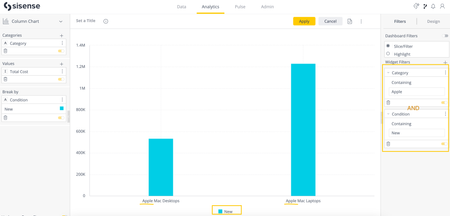
In this post, we will show how to override the default click behavior of the column chart widget. This same widget script should work for bar, line, and area charts as well. Create a Sisense widget that contains the data points you want to pass on. From the widget editor, click the settings menu at the top right and open up the Script Editor. Copy and paste the following script, swapping out the baseUrl variable to meet your criteria, then click save. /* Welcome to your Widget's Script. To learn how you can access the Widget and Dashboard objects, see the online documentation at http://developer.sisense.com/pages/viewpage.action?pageId=557127 */ // widget.on('render', function(widget,args){ // Define the base url var baseUrl = 'http://www.google.com?q='; // Get the labels for the axis and/or break by var axisLabel = $$get(widget.metadata.panel(0).items[0], 'jaql.title', null), breakByLabel = $$get(widget.metadata.panel(2).items[0], 'jaql.title', null); // Define a click handler function wasClicked(event){ // Build the link var url = baseUrl + axisLabel + '=' + this.category; // Is there a break by field too? if (breakByLabel){ url += ', ' + breakByLabel + '=' + this.series.name; } // Open the url in a new tab window.open(url,'_blank'); } // Get a reference to the highcharts object var hc = widget.queryResult; // Loop through each data series hc.series.forEach(function(series){ // Loop through each data point series.data.forEach(function(point){ // Assign the event handler point.events = { 'click': wasClicked } }) }) }) Now, when you click on a specific bar/column it will open up the url you specified and pass along the selection from the category/axis/break by panels. The labels used to pass through come from the panel titles, similar to how the legend and tooltips are displayed.1.9KViews1like1CommentAuto Refresh Dashboard Based On Elasticube Build Or Refresh Every Dashboard Widget
Add this to a dashboard script: // Specify the required parameters var reloadType = 'page'; // 'dashboard' (dashboard refresh only) or 'page' (entire page reload) var checkInterval = 15; // checking interval in seconds //Variables + Settings to check elasticube build on the server var cubeName = dashboard.datasource.title; var encodedCubeName = encodeURIComponent(cubeName); var revision = null; var settings = { "async": true, "crossDomain": true, "url": "/api/v1/elasticubes/live/by_title/" + encodedCubeName, "method": "GET", "headers": { "Content-Type": "application/json" } } //The function to look up the revision history of the build. If the revision changes, a build had occurred and the auto-refresh is triggered function checkElasticubeBuildStatus(){ console.log("Checking cube status...") $.ajax(settings).done(function (response) { if(revision === null) { console.log("Initial dashboard load."); } else if(revision != response.lastBuildTime) { console.log("Cube has recently been updated. Reloading the dashboard..."); if(reloadType === 'page') { location.reload(); } else if (reloadType === 'dashboard') { dashboard.refresh(); } } else { console.log("Cube has not been updated."); } revision = response.lastBuildTime; console.log("Check completed. Next check in " + checkInterval + " seconds."); setTimeout(checkElasticubeBuildStatus, checkInterval*1000); }); } //Run the function to recursively check build status checkElasticubeBuildStatus(); Auto-refresh dashboard at a set interval: This script auto-refreshes the dashboard at a set interval. The example below is configured to refresh all widgets every 60 seconds. Add this to a dashboard script // Specify the required parameters var reloadType = 'dashboard'; // 'dashboard' (dashboard refresh only) or 'page' (entire page reload) var refreshInterval = 10; // refresh interval in seconds dashboard.on('initialized', function(dashboard, ev){ var refreshDashboard = function(){ if(reloadType === 'page') { location.reload(); } else if (reloadType === 'dashboard') { dashboard.refresh(); } setTimeout(refreshDashboard, refreshInterval*1000); } setTimeout(refreshDashboard, refreshInterval*1000); })1.3KViews0likes1CommentConditionally Hide Widgets
The example below uses a "peer group" use case, where a company which facilitates customer peer benchmarking, does not want users to compare themselves to fewer than 10 companies. The first widget, either an indicator or BloX widget, will supply the condition for the dashboard. When the value is lower than the user-set threshold, all other widgets get hidden. Base Configuration Open the Dashboard Script view and paste the following code inside. Edit the masterWidgetId and threshold variable in the following script: Dashboard Script Part 1: //----- Configuration ----------------------------------------------- let masterWidgetId = '<WidgetID here wrapped in single quotes>'; let threshold = <your integer threshold here>; //------------------------------------------------------------------------- HOW TO ACCESS THE WIDGETID You can access the ID by opening a widget's edit mode and taking the id after the widgets/ part inside the URL. URL: ...dashboards/<DashboardID>/widgets/<WidgetID>/ SETTING THE THRESHOLD If the value of the indicator or first value in the blox widget is less than the value of your threshold variable, then other widgets of the dashboard will be hidden. Completing The Script The next piece of the code depends on which widget type you use. You can use both Indicator and BloX widget types. Indicator Widget As Master Widget If your leading or Master widget is an indicator, paste the following code after the configuration code you pasted earlier. Dashboard Script Part 2a (for indicator) let isHidden = 0; dashboard.on('refreshend', (args, el) => { let masterWidget = args.widgets.$$widgets.find(w => w.oid === masterWidgetId); let logicValue = masterWidget.queryResult.value.data; if (logicValue < threshold){ $( 'widget' ).not( "[widgetid="+masterWidgetId+"]").slideUp(200); isHidden = 1; } else { if ( isHidden == 1){ $('widget').slideDown(200, ()=>{dashboard.refresh();}); isHidden = 0; } } }); BloX As Master Widget If your leading or Master widget is a BloX widget, paste the following code after the configuration code you pasted earlier. Dashboard Script Part 2b (for BloX) let isHidden = 0; dashboard.on('refreshend', (args, el) => { let masterWidget = args.widgets.$$widgets.find(w => w.oid === masterWidgetId); let logicValue = masterWidget.queryResult[0][0].Value; if (logicValue < threshold){ $( 'widget' ).not( "[widgetid="+masterWidgetId+"]").slideUp(200); isHidden = 1; } else { if ( isHidden == 1){ $('widget').slideDown(200, ()=>{dashboard.refresh();}); isHidden = 0; } } }); Now save the script and refresh the dashboard for the script to take effect. Enjoy!1.9KViews0likes1CommentReverse Y-Axis Of A Chart
Paste the following code into the widget script to reverse the Y-Axis. Instead of the lower number at the bottom of the chart, it will be at the top. widget.on('processresult', function(se,ev){ ev.result.yAxis[0].reversed = true; }) If you have a secondary Y-Axis you can leave it as is or inverse it as well by adding the following line after line 2 of the code above. ev.result.yAxis[1].reversed = true;836Views0likes1CommentSort Both Axes In Scatter Chart
In order to sort both axes in the Scatter chart you might need to use the following script under the "Widget Script" level var xOrder = 'asc' //also, this value can be desc var yOrder = 'asc' widget.on('beforeviewloaded', function(scope, args) { var shouldBeExecuted = (order === 'desc' || order === 'asc' ) if (args.widget.type !== 'chart/scatter' || !shouldBeExecuted) { return } var daysOrder = args.options.xAxis.categories.sort(); if (xOrder === 'desc') { daysOrder.reverse() } if (daysOrder.length === args.options.xAxis.categories.length) { args.options.xAxis.categories = daysOrder for (i=0; i<daysOrder.length; i++) { for (k=0; k<args.options.series.length; k++) { for (j=0; j<args.options.series[k].data.length; j++) { if (args.options.series[k].data[j].selectionData[0] === daysOrder[i]) { args.options.series[k].data[j].x = i; } } } } } }) widget.on('beforequery', function(se, ev) { ev.query.metadata.forEach(function(m) { if (m.wpanel && m.wpanel === 'y-axis') { m.jaql.sort = yOrder } }) })1.1KViews0likes5CommentsCard View Customization
Before: After: Dashboard script for creating card view: dashboard.on('widgetready',function(d) { $('.dashboard-layout-column').css('background-color', '#f0f0f0'); $('.dashboard-layout').css('background-color', '#f0f0f0'); $('.dashboard-layout-cell-horizontal-divider').remove(); //For Edit Mode //$('.ui-resizable-handle.ui-resizable-e').css('width','0.5px'); //to make the vertical dividers invisible but still accessible - same row between widgets //$('.ui-resizable-handle.ui-resizable-s').css('height','0.5px'); //to make the vertical dividers invisible but still accessible- between rows $('.dashboard-layout-subcell-vertical').css('background-color', 'white').css('box-shadow', '4px 5px 12px #00000078') $('.dashboard-layout-subcell-host').css('padding', '10'); $('.dashboard-layout').css('padding-right', '20px'); $('.dashboard-layout').css('padding-left', '20px'); }); Widget script for rounding corners: widget.on('ready', ()=> { $(element).parent().css('border-radius', '20px'); $(element).parent().parent().css('border-radius', '20px'); })2KViews0likes5CommentsHow to Use "OR" Filter Condition on a Widget Level | JavaScript
This article provides an example JavaScript code snippet to have the ability to use the "OR" filter condition on a widget level. Currently, the Filter Relations Editor in Sisense allows users to set up dashboard filters with "OR" relations. If there is a need to configure the "OR" filter relation between two filters at the widget level, this JavaScript code snippet might help to achieve your goal.1.8KViews1like2CommentsChange Grand Total Row To Display Difference In Pivot Widgets
In cases where we want to display the difference between two columns instead of using the default Grand Totals in Pivot widgets: Include the following widget script: function removeCommas(num){ numClean = num.replace(/,/g,""); return numClean; }; widget.on("domready", function(){ /* Set text to be shown grand total row*/ var diff = "Difference"; /* set variables and clean local for reading */ var num1 = removeCommas($("#prism-mainview > div > div.errvil-warpper > div > div > div > pivot > div > div.p-fixed-cols > div > table > tbody > tr:nth-child(1) > td.p-value.p-first-data-col > div").text()); var num2 = removeCommas($("#prism-mainview > div > div.errvil-warpper > div > div > div > pivot > div > div.p-fixed-cols > div > table > tbody > tr:nth-child(2) > td.p-value.p-first-data-col > div").text()); /* Change label text*/ $("#prism-mainview > div > div.errvil-warpper > div > div > div > pivot > div > div.p-fixed-cols > div > table > tbody > tr:nth-child(3) > td.p-grand-total-row-head.p-first-data-col > div > div > span").text(diff) /* Change difference value and add locale format*/ $("#pivot_ > tbody > tr:nth-child(3) > td.p-value.p-first-data-col.p-total-row-val > div").text((num1 - num2).toLocaleString()); }); console.log("background script run"); Result: Disclaimer: * Tested on version 7.0 * Only works with 2 row Pivot widgets931Views0likes1CommentCenter / Zoom Scatter Map
Introduction The following article will explain how to center and zoom scatter map. Purpose/Benefits This script allows you to center and zoom a map according to a given latitude and longitude. Example In the Example below we want to center the map to China and set the zoom to 8. Steps STEP 1 - FIND LATITUDE AND LONGITUDE You can find the latitude and longitude using google maps Search for and get coordinates STEP 2 - ADD WIDGET SCRIPT /********************************************************/ /********Set and Center a Map**********/ /********************************************************/ __first_load__ = true; widget.on("beforeviewloaded", function (widget, args){ var map = args.options.map; window.map = map; }); widget.on("domready", function (widget, args){ if (__first_load__){ setTimeout(function () { window.map.setView([39, 116], 8);}, 500); } __first_load__ = false; }); For multi-map support, please use the following syntax instead: widget['__first_load__'] = true; widget.on("beforeviewloaded", function (w, args){ var map = args.options.map; window['map_'+w.oid] = map; }); widget.on("domready", function (w, args){ if (widget['__first_load__'] ){ setTimeout(function () { window['map_'+w.oid].setView([39, 116], 8);}, 1000); } widget['__first_load__'] = false; } );1.1KViews0likes1Comment