Extending pivot widget panel limits in Sisense using user groups
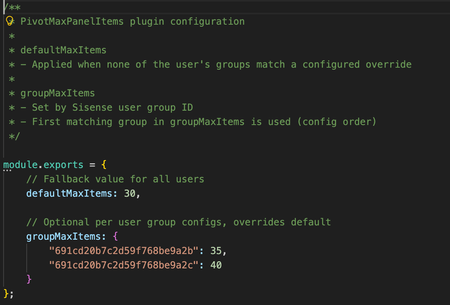
Overview Pivot widgets in Sisense are often used to explore and visualize complex datasets with multiple dimensions and measures. In some scenarios, users need to build very large pivot tables with many rows, columns, values, or filters. However, pivot widgets enforce internal panel item limits that can restrict how many fields and dimensions can be added to each panel. While these limits are useful for protecting performance, load time, and usability in general, they can become a constraint for advanced users working with large datasets or detailed analytical models. At the same time, organizations may want to apply different limits for different groups of users rather than increasing limits globally for everyone. This use case describes a Sisense plugin that automatically increases pivot panel limits as widgets load, with support for both a global default and optional overrides based on user group membership. The challenge By default, pivot widgets in Sisense can reach panel item limits that prevent users from adding additional dimensions or measures. This can affect: Analysts building large exploratory pivot tables Power users working with wide schemas or detailed hierarchies Dashboards that rely on complex pivots with many fields Manually adjusting widget configuration is not scalable, especially when dashboards contain many pivot widgets or when widgets are opened independently outside a dashboard. In addition, organizations often want different limits for different user groups, rather than applying a single global setting. It is important to note that if a very large number of dimensions are used in an individual pivot widget, that widget may have an extended load time. What the solution does The PivotMaxPanelItems plugin automatically sets the panel.metadata.maxitems value for every panel in pivot-type widgets as they load. At a high level, the plugin: Applies only to pivot widgets Updates all pivot panels (rows, columns, values, filters) Works for widgets inside dashboards and for widgets opened directly Supports a configurable default limit for all users Supports optional overrides based on Sisense user group membership The plugin runs on dashboard and widget load events, ensuring that pivot panel limits are applied consistently without requiring manual changes to individual widgets. Role and group-based configuration The plugin can apply different panel limits depending on the user’s Sisense group membership. This allows organizations to: Grant higher limits to advanced users or analysts Keep more conservative limits for general users Control behavior centrally through configuration If a user belongs to multiple configured groups, the plugin applies the first matching group based on the order defined in the configuration file. If no group matches, the default limit is used. This approach provides flexibility while keeping behavior predictable and easy to manage. How it is used Configuration is handled through a simple configuration file included with the plugin. Administrators can define: A default maximum number of items per pivot panel Optional overrides for specific Sisense user groups Once configured and installed, the plugin will likely require minimal ongoing maintenance in most circumstances. It applies automatically whenever pivot widgets are initialized. The full plugin is attached as a Zip file to this article and is available to download. The code is not compressed or obfuscated, and can be modified as needed, or used as example code for similar plugins. The plugin can be installed as a standard plugin by placing the decompressed folder into the plugin folder. The plugin includes a Readme file with further information. Why it’s useful This approach allows organizations to remove artificial constraints on pivot widget design while still maintaining control over performance and usability. Key benefits include: Enabling larger and more flexible pivot tables Reducing manual widget configuration and rework Applying consistent behavior across dashboards and standalone widgets Supporting different usage patterns across user groups Centralized control through a single configuration file The solution is particularly valuable in environments where advanced users need more flexibility without changing defaults for all users. Outcome With the PivotMaxPanelItems plugin in place, pivot widgets can support more dimensions without manually adding widget scripts. Advanced users gain the flexibility they need, while administrators retain control over limits at the group level through simple configuration. By applying limits automatically and consistently at load time, the plugin ensures predictable behavior across dashboards and widgets, supporting scalable group and role-aware analytics and visualization in Sisense. Screenshots Without a plugin, if a panel type includes too many items, the Add Panel Button is hidden With the plugin, the Add Button does not disappear when below the new limit, as many dimensions and fields as needed can be added to the widget.349Views0likes3CommentsViews bookmarking: Use case of a financial technology company
Introduction FlexTrade is a global provider of multi-asset execution and order management systems, supporting trading workflows across asset classes, venues, and strategies. Their platforms generate large volumes of highly detailed data that users rely on for day-to-day analysis and decision-making. Companies like FlexTrade operate in an environment where users need deep, flexible analysis across a wide range of dimensions: asset class, venue, strategy, region, client, trader, time, and more. Pivot tables are a natural fit for this kind of detailed, highly dimensional analysis. However, as the number of dimensions grows, teams quickly hit a trade-off: Putting all dimensions into a single widget becomes expensive to query and difficult to interpret. Creating separate widgets for every dimension (or combination of dimensions) leads to bloated dashboards, slower load times, and a poor user experience. This use case focuses on how BloX was used to solve this problem by introducing view bookmarking, a flexible way for users to switch between different slicing configurations (in this example, a set of four dimensions) within a single widget. It also highlights how BloX can be used not just for custom visualizations, but also for building small, purpose-driven mini apps directly inside a dashboard. What the solution does This solution uses BloX to manage view bookmarks for a pivot table. Instead of permanently adding all dimensions to the widget, BloX acts as a control layer that lets users select dimensions to include in the pivot at a time. Each selected combination can be saved as a view bookmark, representing a specific slicing configuration of the same underlying pivot. With this solution, users can: Select up to four dimensions to apply to the pivot table Save the selected combination as a personal bookmark Load and reuse previously saved bookmarks Delete bookmarks that are no longer needed Up to 20 bookmarks are supported out of the box, and all bookmarks are user-specific, allowing each user to maintain their own set of preferred analytical views. The solution also includes basic validation and error handling, such as preventing empty and duplicate bookmark names. From a technical perspective, BloX dynamically updates the pivot’s metadata. From a user perspective, it feels like switching views within a single widget. This keeps the analysis flexible while the dashboard structure remains simple and performant. Why it’s useful Scales to 10+ dimensions without UI overload Multi-asset trading analysis often requires exploring many dimensions, but not all at the same time. This solution allows FlexTrade users to work with 10+ dimensions while only surfacing the few that matter for the current question, resulting in less visual noise, lower cognitive load, and faster insights. Maintains dashboard performance and keeps dashboards clean and maintainable By avoiding massive pivots with every dimension enabled or dozens of near-duplicate widgets, the solution keeps queries efficient and dashboards responsive, even as analytical depth increases. One widget with dynamic views replaces an entire grid of narrowly focused widgets, resulting in dashboards that are easier to navigate, faster to load, and easier to maintain. Attachments BloX-ViewDimensionBookmarks.dash.txt (example dashboard using the Sample ECommerce cube) BloXActionsForBookmarks.zip (BloX actions' scripts) ViewsBookmarkV2-2025-12-29.json (BloX template for the view bookmark widget, also included in the .dash file above). Note: Remove the .txt extension before importing the dashboard (.dash) file. The BloX widget also includes a script that automatically populates the dropdown menus with the available dimension names and existing bookmarks based on the widget’s metadata. Here is the script: // Dropdown classes used in the BloX code const dropdownClasses = [ "dimensionDropdown", //dropdowns for selecting the four dimensions "bookmarkDropdown" // dropdown for selecting existing bookmarks ]; const valueToDisable = "Select"; // placeholder value to disable widget.on('ready', function() { dimensions = widget.metadata.panels[0].items; dimensionTitles = dimensions .map(i => i.jaql.title); // Add each dimension title to the dimension dropdowns dimensionTitles.forEach(function(title, index) { $('.dimensionDropdown', element).append( '<option value="' + (index + 1) + '">' + title + '</option>' ); }); bookmarks = widget.metadata.panels[1].items; bookmarkTitles = bookmarks .filter(i => !i.disabled) // keep only not disabled .map(i => i.jaql.title); // extract title // Add each existing bookmark title to the bookmark dropdown bookmarkTitles.forEach(function(title) { $('#bookmarkDropdown', element).append( '<option value="' + title + '">' + title + '</option>' ); }); // Disable placeholder values from selection dropdownClasses.forEach(cls => { $(`.${cls}`).each(function () { let $select = $(this); if (!$select.is("select")) { $select = $select.find("select"); } if ($select.length === 0) return; $select.find("option").first().prop("disabled", true); }); }); });285Views3likes1CommentWeek over week analysis with custom fiscal year: Use case of a fuel and convenience retail operator
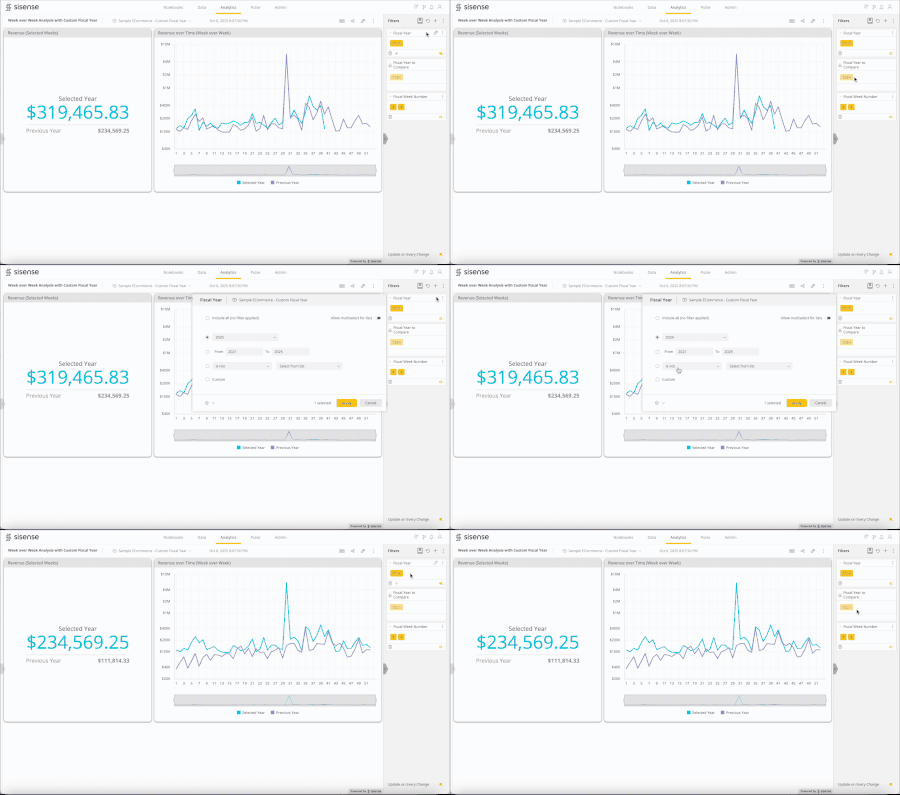
Introduction Week-over-week (WoW) analysis is a key part of performance tracking for fast-moving, high-traffic businesses such as convenience stores, gas stations, and car washes. For these organizations, aligning the fiscal calendar with operational cycles rather than the standard calendar year makes reporting more meaningful. In this use case, the fiscal year begins on the closest Sunday to January 1st, ensuring each year starts with a full week. This structure simplifies weekly reporting and keeps week-to-week comparisons consistent across years, which is important for tracking trends like fuel sales, store traffic, and service volumes. While nonstandard, this setup is commonly used in practice. What the Solution Does For standard, fixed calendar or fiscal years, week-over-week analysis can be achieved using the “First Month of Fiscal Calendar” and “First Day of Week” settings, along with the PASTYEAR function. However, for dynamic fiscal years that begin on a weekday closest to January 1st, these features don’t provide a usable solution, since the start date can fall in the previous or following calendar year. The solution uses the Filtered Measure certified add-on and a custom dashboard script to handle the custom fiscal year. Two year filters are added to the dashboard: one represents the selected fiscal year (user-selectable), and the other represents the prior year for comparison (locked and optionally hidden), which is automatically set with a dashboard script. The Filtered Measure plugin applies the selected-year filter to the measure for the chosen period, while the prior-year filter applies to the measure for the corresponding period in the previous year. This approach ensures that week-over-week calculations respect the custom fiscal calendar, providing accurate comparisons across equivalent weeks. Note: In this particular implementation, the fiscal years and week numbers are pre-calculated in the database and stored as numeric columns. To create a Date dimension table in your Elasticube with fiscal years starting on the first Sunday closest to January 1st, refer to the SQL example below. Why It’s Useful This solution addresses the native functional limitation by respecting the custom fiscal calendar, ensuring weekly trends are comparable across years. As a result, teams can reliably track key metrics, such as fuel sales, store traffic, and service volumes, on a true week-by-week basis, supporting better operational planning and more informed decision-making. Attachments WeekoverWeekAnalysiswithCustomFiscalYear.dash.txt (dashboard) Sample ECommerce - Custom Fiscal Year.smodel.txt (elasticube) JS Script - Automatic Update for Second Year Filter.txt (dashboard script) SQL Query - Dim Date with Custom Fiscal Year.txt (custom table SQL query) For the script to hide the second filter, refer to this BINextLevel article: Hide dashboard filters. Note: remove the .txt extension before importing the dashboard (.dash) and the Elasticube (.smodel) files.167Views1like0Comments