Advanced Dynamic Filtering
Get quick, comparative insights from large datasets by creating flexible pivot tables or widgets. Whether comparing time periods, countries, or sales figures, you can leverage a single filter to handle multiple comparisons without clutter. This method uses custom fields, measured values, ranking filters, and the smart label plugin to streamline comparisons across various dimensions for clean, dynamic visualizations.3.7KViews1like1CommentLimiting Date Filters to Datasource Date Range
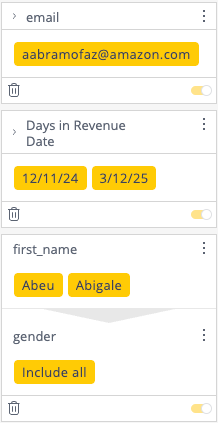
Limiting Date Filters to Datasource Date Range By default, Sisense allows users to select any date in a dashboard date dimension filter, regardless of whether data exists for that date in the current dashboard datasource. The native Sisense date filter selection UI highlights the earliest and latest dates available via shading and color indications, but if a user selects a date outside this range, it is accepted as the desired filter from the user. While this behavior is generally the preferred behavior, there are cases where a dashboard creator might prefer the date filter to visually and programmatically reflect only the dates for which data exists in the datasource. In scenarios where the exact number of days in the filter range the data being viewed from is vital, such as when analyzing total date data coverage, performing per-day calculations, or simply ensuring that the visual filter UI accurately represents the actual data period being shown, the date filter should ideally be modified to only display date ranges that have corresponding data. This ensures that the filter not only serves as a control mechanism but also as an accurate visual cue of the available data's temporal range. The dashboard script presented below adds this custom functionality. It works by executing two custom JAQL queries (More documentation on custom script JAQL queries is available here) to fetch the sequentially earliest and latest dates from the datasource. These dates are then used as the bounds to restrict the filter. The dimensions used to fetch the date range and the dimension used to find the matching dashboard filter can be separate or identical dimensions, as they are separated in two variables. The script supports both common date filter formats, traditional "from-to" date ranges and filters that use a list of date members. Additionally, the approach can be extended to accommodate other filter types or JavaScript based actions beyond or not including filter modification when a filter's value falls outside the desired range. For more detail and an addition example see the article Redirect Users to Different Dashboards Based on Dashboard Filters. When a user selects a date that falls outside the available range of the datasource, the code below automatically adjusts the filter. It modifies the selection so that the filter is constrained to the earliest available date if the selected date is too early, or to the latest available date if it exceeds the maximum. If both boundaries are affected, the filter is adjusted on both ends to ensure that only dates with corresponding data are displayed. This solution provides a robust method to visually align your dashboard’s date filter with the actual data available, ensuring that users have a clear and accurate reference of the data period being analyzed. The full code implementing this functionality is provided below. (function () { const enableLogging = true; // Primary date dimension for the filter (change as needed) const dateDim = "[MainTable.Revenue Date (Calendar)]"; // JAQL dimension used to fetch the earliest/latest dates (change as needed) const jaqlDateDim = "[MainTable.Billing Date (Calendar)]"; /** * Simple logging function to enable or disable console logging. */ function log(...msgs) { if (enableLogging) { console.log(...msgs); } } /** * Formats a Date object as "YYYY-MM-DD". */ function formatDate(d) { const yyyy = d.getFullYear(); const mm = String(d.getMonth() + 1).padStart(2, "0"); const dd = String(d.getDate()).padStart(2, "0"); return `${yyyy}-${mm}-${dd}`; } /** * Finds the primary date filter (single-level) based on the defined dateDim. * * Note: * - If run within a dashboard script, the variable "dashboard" is already defined. * - If within a plugin, use prism.activeDashboard. * - If within a widget script, use widget.dashboard. */ function findSingleLevelDateFilter() { if (!dashboard.filters || !dashboard.filters.$$items) return null; return dashboard.filters.$$items.find(filterObj => !filterObj.isCascading && filterObj.jaql && filterObj.jaql.dim === dateDim ); } /** * Constructs a JAQL query to fetch a date from the datasource. * @param {string} direction - "asc" to fetch the earliest date, "desc" to fetch the latest. */ function buildDateQuery(direction) { return { datasource: dashboard.datasource, metadata: [ { jaql: { dim: jaqlDateDim, datatype: "datetime", level: "days", sort: direction } } ], count: 1 }; } /** * Executes an asynchronous HTTP request for the provided JAQL query. */ function runHTTP(jaql) { const $internalHttp = prism.$injector.has("base.factories.internalHttp") ? prism.$injector.get("base.factories.internalHttp") : null; const ajaxConfig = { url: `/api/datasources/${encodeURIComponent(jaql.datasource.title)}/jaql`, method: "POST", data: JSON.stringify(jaql), contentType: "application/json", dataType: "json", async: true, xhrFields: { withCredentials: true } }; return $internalHttp ? $internalHttp(ajaxConfig, false) : $.ajax(ajaxConfig); } /** * Adjusts the date filter so that its values fall within the datasource range. * For multi-valued filters (using a "members" array), out-of-range dates are removed. * For single-valued filters with "from" and "to" fields, each is updated if outside the available range. * * @param {Object} filterObj - The primary date filter object. * @param {Date} earliestDate - The earliest available date. * @param {Date} latestDate - The latest available date. */ function adjustDateFilterIfOutOfRange(filterObj, earliestDate, latestDate) { if (!filterObj || !filterObj.jaql || !filterObj.jaql.filter) return; const jaqlFilter = filterObj.jaql.filter; let adjustmentMade = false; // Adjust multi-valued filter (members). if (Array.isArray(jaqlFilter.members) && jaqlFilter.members.length > 0) { const originalCount = jaqlFilter.members.length; const validDates = jaqlFilter.members.filter(dateStr => { const d = new Date(dateStr); return !isNaN(d.valueOf()) && (!earliestDate || d >= earliestDate) && (!latestDate || d <= latestDate); }); if (validDates.length < originalCount) { jaqlFilter.members = validDates; adjustmentMade = true; log("Adjusted members filter to valid dates:", validDates); } } // Adjust "from" date if necessary. if (typeof jaqlFilter.from === "string") { const fromDate = new Date(jaqlFilter.from); if (earliestDate && fromDate < earliestDate) { jaqlFilter.from = formatDate(earliestDate); adjustmentMade = true; log("Adjusted 'from' date to:", jaqlFilter.from); } } // Adjust "to" date if necessary. if (typeof jaqlFilter.to === "string") { const toDate = new Date(jaqlFilter.to); if (latestDate && toDate > latestDate) { jaqlFilter.to = formatDate(latestDate); adjustmentMade = true; log("Adjusted 'to' date to:", jaqlFilter.to); } } if (adjustmentMade) { log("Date filter adjusted for dimension:", dateDim); } } /** * Retrieves the earliest and latest dates from the datasource, * then adjusts the primary date filter so that its values fall within that range. */ function updateDateFilter() { const queryEarliest = buildDateQuery("asc"); const queryLatest = buildDateQuery("desc"); Promise.all([runHTTP(queryEarliest), runHTTP(queryLatest)]) .then(([responseEarliest, responseLatest]) => { let earliestDate = null; let latestDate = null; if (responseEarliest && responseEarliest.data && responseEarliest.data.values?.length) { const eStr = responseEarliest.data.values[0][0].data; const dt = new Date(eStr); if (!isNaN(dt.valueOf())) { earliestDate = dt; log("Earliest date from datasource:", formatDate(dt)); } } if (responseLatest && responseLatest.data && responseLatest.data.values?.length) { const lStr = responseLatest.data.values[0][0].data; const dt = new Date(lStr); if (!isNaN(dt.valueOf())) { latestDate = dt; log("Latest date from datasource:", formatDate(dt)); } } const filterObj = findSingleLevelDateFilter(); if (!filterObj) { log("No primary date filter found; cannot adjust date filter."); return; } adjustDateFilterIfOutOfRange(filterObj, earliestDate, latestDate); }) .catch(err => { log("Error fetching datasource date range:", err); }); } // Call updateDateFilter() when filters change. dashboard.on('filterschanged', function () { updateDateFilter(); }); // Call updateDateFilter() on dashboard load dashboard.on('initialized', function () { updateDateFilter(); }); })();481Views1like0CommentsPassing Filters via URL Parameters for Dashboards with Separate Datasources
Sisense includes a native included feature and format for passing URL filters via URL parameters, as documented here. By default, this functionality copies filters in full, including the datasource parameter of the filter, and includes every filter automatically. It results in very long URL's, and includes many parameters that are not always required, as the full filter object is included. Previous Knowledge Base articles articles have discussed how similar behavior can be recreated customized via scripting for more flexible usage. However, those approaches applied only to member-type filters, excluding other filter types and multi-level dependent filters. The code shared below demonstrates a more flexible filter modification via URL modification approach. It includes both creating URL parameters and reading URL parameters for filter modification, whether this code is in a script or plugin. This method applies to all filter types and can be used to transfer filters between dashboards using different datasources. This code works in both dashboard and widget scripts as well as plugins. If your datasources use different dimension names, this code can be adopted to map and match the aligned dimensions.494Views1like0CommentsRedirect users to different dashboards based on dashboard filters
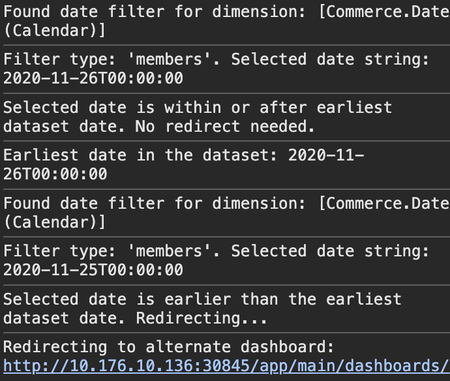
This article discusses and shares the full code of a dashboard script that redirects users to a different dashboard ID based on the user's filter selections or initial loaded filter state. In the particular example shared in this article, the script checks whether the selected date filter (either from a members filter or a from/to filter range) includes an earlier date than the earliest date in the current dashboard's datasource. If this is the case, the script redirects the user to a specified alternate dashboard, preserving any additional URL segments and query parameters in the URL. Any other type of filter state can also be used to determine on when the script should redirect, including non-date filters using similar scripts.603Views1like0CommentsComparative analysis using the filtered measure plugin
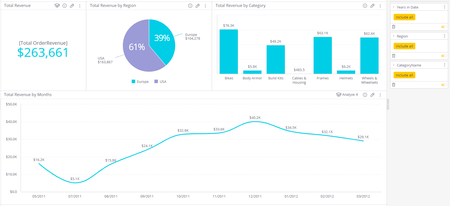
Comparative analysis using the filtered measure plugin By default, filter selections in Sisense are applied at the dashboard or widget level. The Filtered Measure add-on enables the creation of additional selection states, allowing you to display two or more different sets of selections within a single widget. For more details, please refer to the link below. Here are some common use cases for Filtered Measures: Comparative Analysis Example: Compare the same metric (e.g., Revenue) across two different date ranges (e.g., this month vs. last month) to analyze trends or identify growth patterns. Filter Applied Directly on a Measure Instead of applying a filter to the entire widget or dashboard, apply the filter directly to a specific measure (e.g., applying a filter to "Sales" based on a particular product category, without affecting other parts of the dashboard). This allows for more granular control over the displayed data while preserving other elements of the analysis. This article highlights a comparative analysis of a single measure, Revenue, across multiple dimensions—Date and Category. It incorporates two filters for each dimension: Primary and Compare. Background When it comes to comparative analysis, dashboards are often designed to display measures broken down by the dimensions being compared. This approach can make it challenging to extract specific values and may require adding additional dimensions for grouping. Example Dashboard Alt text: A dashboard displaying total revenue information. At the top, there is a summary showing total revenue of $263,661, with a breakdown indicating that 61% comes from Europe and 39% from the USA. Below, bar graphs illustrate total revenue by category, listing categories such as Bikes, Body Armor, Cables & Hubs, and more, with respective revenue figures. At the bottom, a line graph represents total revenue over several months, showing fluctuations with values ranging from $1.6K to $29.3K. This dashboard currently does not address the following questions: How can we filter by Category and compare Bikes to Wheels & Wheelsets across different Regions? How can we evaluate the performance of the Category Bikes against Wheels & Wheelsets over time? How can we compare a specific group of members within a Category to the overall total of the Category? How can we compare specific date ranges, such as Yesterday versus the same day last week? How can we provide flexible date selection options tailored to the user’s preferences? Filtered Measure - Implementation Steps Enable the Measured Filter Plugin Ensure the Measured Filter Plugin is activated in your environment. Modify the Data Model - Navigate to the Data Model. - Locate the Dimension table that requires a comparison - Duplicate the column you want to compare (e.g., the Date column) and assign it a meaningful name, such as Date_compare - Build or Publish the data model after applying the changes Prepare the Dashboard - Create a new dashboard or update an existing one. - Add both filters - Primary and Compare - as Dashboard Filters - Maintain a clear naming convention for the filters (e.g., Date for the primary filter and Date_compare for the comparison filter). Update Widgets with Measure Filters - Create a new widget or update an existing one - Add the relevant measure filters (Primary and Compare) to the metric. For example: ALT text: "Screenshot of a formula editor displaying a formula that sums order revenue based on category name and years in date." Rename Filter Measures - Rename the filter measures by adding an @ symbol before the name. - Update the formula syntax to include the renamed filters. Example ALT Text: A screenshot of a formula editor displaying a calculation formula in a spreadsheet application. The formula is a SUM function that includes parameters for "Order Revenue," "Category Name," and "Date." The text is shown in a code-like format, with certain elements in blue. - Ensure that the filter name in the dashboard matches the Measure Filter name used in the formula. - Repeat the Same for the Compared measure ALT text: A screen displaying a formula editor in a data visualization tool. The formula shows a calculation using the SUM function on "OrderRevenue," referencing "CategoryName_Compare" and "Date_Compare." The interface includes sections labeled "Values" and "Break by." Key Points of the Filtered Measure Plugin The @ symbol is required in the formula to apply the dashboard filter as a parameter. However, it should not be added to the name of the dashboard filter itself. Grouping by the Compared Dimensions is unnecessary and adds no value. Filtered measures support multiple measures and dimensions In the same formula, it is possible to include measures for both the Primary measure and the Compare measure. For example: ALT Text: A screenshot displaying a data analysis tool. The left side shows a panel for selecting categories labeled "Region" and "Values," while the lower section features a formula editor with a mathematical expression for calculating revenue compare by region. For Indicator, Blox widgets, and any widget using a single measure applied to either Primary or Compare, disable the corresponding filter. Similarly, turn off the other filter when switching between them. ALT Text: A screenshot of a data visualization interface showing "Revenue Primary" as the main heading. Below it, there are options labeled "Date Compare" and "Category Level Compare" with a highlighted checkbox next to each option. The current displayed revenue amount is $95,751, prominently positioned in the center of the screen. The interface includes buttons labeled "Apply" and "Cancel" at the top. If both measures, Primary and Compare, are used, ensure that both filters are enabled. Here are some common examples of comparative analysis: Use Case 1 - Compare Category Dimension ALT Text: A dashboard displaying revenue statistics. At the top, two sections show “Revenue Primary” and “Revenue Compare,” both with a figure of $76,274. Below, a third section displays “Revenue Compare Over Time” with a line graph illustrating revenue trends, peaking around $62,597. The bottom section features a table listing revenue by employee, with names and corresponding revenue figures, including entries for Andrew Williams and Emily Johnson. The visualizations include bar charts, line graphs, and a detailed employee revenue table. This example compares between Category Bikes and Wheels & Wheelsets over 3 groups by dimensions: Displaying the Revenue asan Indicator for each one of the Categories. Compare the Revenue over time ALT Text: A line graph titled "Revenue Compare Over Time" showing two data series. The blue line represents "Revenue," while the orange line indicates "Revenue Compare." The vertical axis measures revenue in dollars, ranging from $0 to $30,000. The horizontal axis displays dates from May 2011 to March 2012. The graph illustrates fluctuations in both revenue metrics over the specified time period with markers indicating values at various points. Compare the Revenue by Region Summary Table of Revenue Comparison by Employee Use Case 2 - Compare multiple Dimensions: Date and Category ALT Text: A data visualization dashboard displaying revenue metrics. The top section shows total revenues for "Revenue Primary" ($33,832) and "Revenue Compare" ($34,743). Below, a bar chart compares revenue by region, with separate bars for Europe and USA. Another chart shows revenue comparison by employee, with individual bars for names including Aria Williams, John Doe, Emily Johnson, and others. The dashboard features filters on the right side for data customization. This example compares Dates and Categories. The implementation of the measured filter is the same as shared above: (sum([Order Revenue]),[@CategoryName],[@Date]) Enable dynamic comparison between different time ranges from the viewer's side, rather than being predefined by the dashboard designer. Compare Category and Date over time Use Case 3 - Compare Different Date Ranges with Different granularities Compare Year to Single Quarter Example ALT Text: A data visualization showing revenue comparisons across different territories and employees. The top section displays a horizontal bar chart comparing revenue by TerritoryID, with revenue values in blue bars and revenue compare values in orange. The lower section features a bar chart comparing revenue by employee, with blue bars representing individual revenues and orange bars indicating revenue comparisons. Key figures are labeled, with total revenue values ranging from $380 to $16K. Date selection options are visible in the upper right corner, indicating the year 2012 and the fourth quarter of 2011. Compare Different Custom Date Ranges Example ALT Text: A data visualization dashboard displaying revenue comparisons. The upper section shows a horizontal bar chart labeled "Revenue Compare By TerritoryID" with blue bars indicating revenue amounts and orange bars representing revenue comparisons for various Territory IDs. The lower section features a vertical bar chart titled "Revenue Compare By Employee," highlighting revenue data for individual employees. Each bar is labeled with revenue amounts, with blue bars indicating revenue and a few orange bars for comparison. The sidebar includes date-selectors for filtering the data. Use Case 4 - Compare the selected Category with the total, excluding the selected category. This allows users to view the performance of a specific category in contrast to the remaining categories ALT Text: A dashboard displaying financial data, including three summary boxes at the top showing total revenue figures of $76,274 for Primary and $187,388 for Revenue Compare. Below, a graph illustrates revenue comparison over time with two lines plotting values for each month. To the left, there is a bar chart comparing revenue by region, highlighting Europe at $130K and USA at $74K. On the right, a table lists employee revenue with columns for employee names, revenue amounts, quantities, and total sales orders. There are filter options on the right side of the image. Best Regards Assaf1.1KViews2likes0CommentsPlugin CustomMultiLevelFilter - Modify Filter Reset Behavior of Multi-level Dashboard Filters
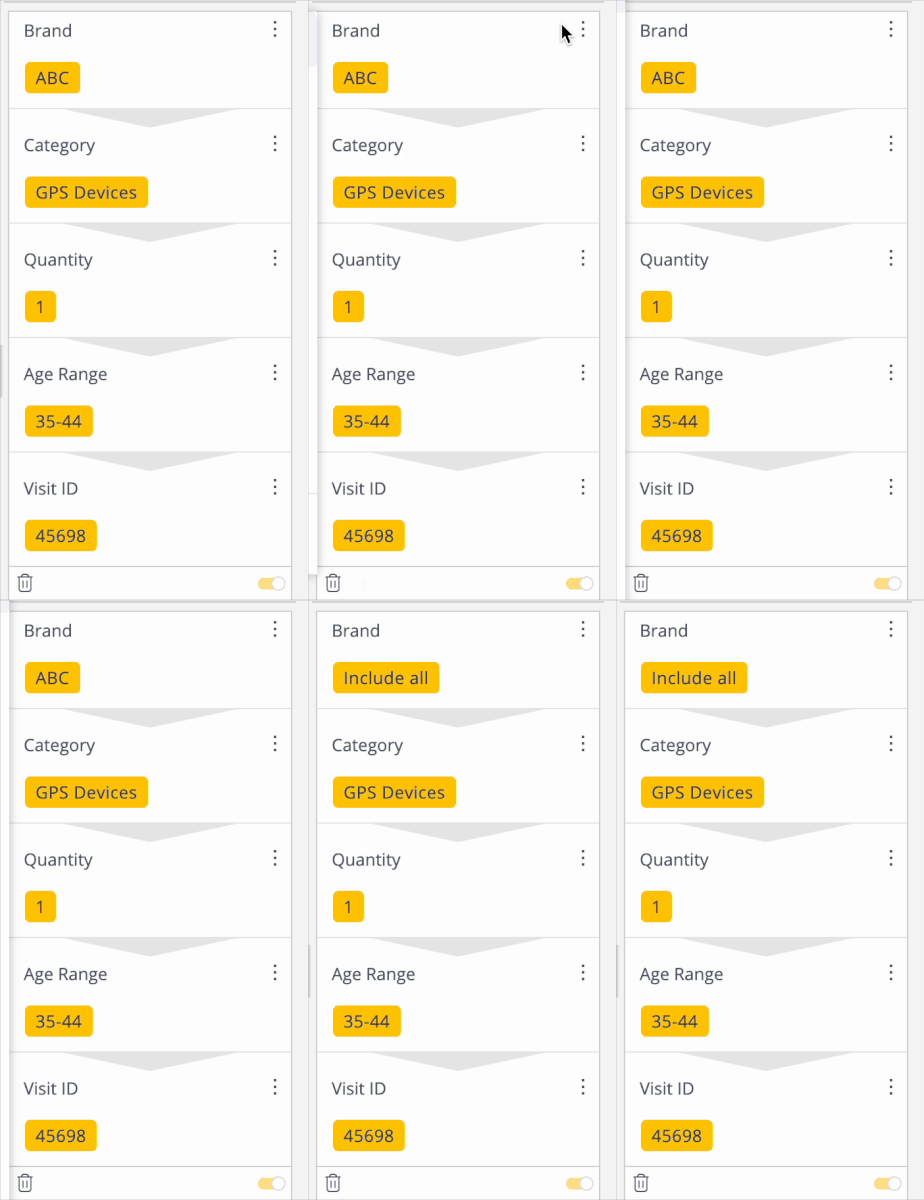
Plugin – CustomMultiLevelFilter – Modify Filter Reset Behavior of Multi-Level Dashboard Filters This article discusses a plugin and equivalent dashboard script that override how Sisense default handles changes to multi-level dashboard filters. By default, Sisense automatically resets all lower filter levels to “Include All” whenever a higher-level filter is changed. This is intended to ensure that the combined effect of multiple levels always returns non-zero results. However, this behavior is not always preferred, especially if there are many levels in the filter and reapplying each level’s previous state is time-consuming. This plugin addresses that by preserving lower-level filter settings whenever a higher-level filter changes, reverting the Sisense-forced resets that occur automatically. Plugin Overview The CustomMultiLevelFilter plugin equivalent dashboard script intercepts Sisense’s forced “Include All” resets in multi-level member filters. It differentiates genuine user-initiated changes from automated resets. Once installed, the plugin listens for filter changes, identifies whether the changes are user-driven or automated reset, and reverts the automated filter changes ones. The main javascript file in the plugin, main.6.js can be used unmodified as a dashboard script, the code can simply be copied as a standard dashboard script as an alternative to the plugin. Key Behaviors Detect & Revert Lower-Level Resets: When a higher-level filter is updated, Sisense sets lower filters to “Include All.” The plugin prevents this and restores the previously selected members or exclude settings if it identifies a forced reset scenario. Timing Threshold: A configurable time window allows the plugin to classify filter changes that arrive quickly (and change only to “Include All”) as Sisense-forced resets rather than genuine user actions. Temporary Plugin Pause for “Reset Filters”: If the user explicitly clicks the Reset Filters button, the plugin stops reverting changes for a short window, ensuring that a intended full filter reset to the default state. Below is the README file included with the plugin, which details installation steps, configuration, and known limitations. # Custom Multi-Level Filter Revert Plugin ## Description This plugin detects and reverts Sisense’s automatic “forced resets” on multi-level filters to lower-level filters when a higher-level filter is changed, preserving only genuine, intentional user filter changes. When a higher-level filter is switched from membership to another membership or to **Include All**, Sisense may automatically reset lower-level filters to **Include All**. This plugin reverts those lower-level filters back to their previous member or exclude state. If the **Reset Filters** button is clicked, the plugin deactivates its revert logic for a short interval, allowing the reset to occur without plugin intervention. A timing threshold is provided to accommodate delayed Sisense queries (JAQL calls) that might trigger a secondary filter-change event. If a second event arrives within that threshold and sets only member filters to **Include All**, it is treated as an automatic forced reset rather than a user-driven change. ## Installation 1. **Download the plugin:** - Extract the compressed archive to `/opt/sisense/storage/plugins/` - Or, in **Admin > System Management > File Management**, upload the extracted folder to the `plugins` directory. 2. **Wait for the plugin to load.** 3. **Refresh the dashboard.** ## Configuration Two time-related variables, defined near the top of the main JavaScript file, influence this plugin’s behavior: 1. **autoResetThresholdMS** (initial default: 3000) Sets how long after the first filter change event a second event is considered a forced reset. Any filters changed from membership to **Include All** within this period are reverted. 2. **resetButtonIgnoreMS** (initial default: 500) Defines how long revert logic is ignored after the **Reset Filters** button is clicked. This ensures an intentional complete filter reset to the dashboard default filters is not reversed by the plugin. These values can be adjusted to accommodate different JAQL response times and user interaction patterns. If a dashboard has the dashboard object parameter `dashboard.disableFilterPlugin` set to true, the plugin will be disabled on this dashboard. This can be placed in the dashboard script. ## Limitations - The plugin only affects multi-level filters. Single-level filters are not altered. - The plugin specifically manages member-type multi-level filters and is not designed for other types of filters. - Reloading the dashboard clears stored filter states, causing any accumulated data of filter states stored by this plugin to be lost for the new session. - Adjusting `autoResetThresholdMs` involves a tradeoff. A higher value may risk treating rapid user actions as forced resets, while a lower value may allow some actual Sisense-forced resets to slip through. - Sisense can issue multiple query results in quick succession for multiple levels, causing filters to be attempted to be set to **Include All** several times within the threshold. The plugin will detect and revert these resets repeatedly, which is normal for multiple asynchronous JAQL calls in sequence. - The plugin does not block intentional user actions to set a filter to **Include All**. Only resets matching the time-based criteria are reverted. How the Code Works Below is a brief walkthrough of the main JavaScript logic included in the plugin: Plugin Initialization The code runs inside the prism.on("dashboardloaded", ...) event functions, ensuring it only applies once the Sisense dashboard is fully loaded. It sets up two timestamps—lastFilterChangeTimestamp and resetButtonClickedTimestamp—used to track recent filter changes and reset-button clicks. Event Handlers initialized: Captures the initial state (instanceid + levels) of every multi-level filter. This provides a baseline for comparison whenever filters are changed. filterschanged: The core logic: If the Reset Filters button was clicked recently (within resetButtonIgnoreMs ms), the plugin skips the revert logic (letting the user’s reset stand). Otherwise, the plugin checks how long since the last filter change: If the change occured within autoResetThresholdMs, and all changed levels went resetting from a “member” selection to “Include All,” the plugin classifies it as a forced reset and reverts to the old state. If exactly one filter level changed, it is assumed to be a genuine user action, so no filter change is performed. If multiple levels are changed at the same instant, only the earliest changed level is kept, and any subsequent levels changed to “Include All” are reverted. Storing & Updating State After reverting (or confirming) changes, the code updates a global window.oldFilterStates object so that the next filterschanged event knows the final “current” filter state. If the dashboard is reloaded, this state is not preserved, and the plugin starts over with loaded filter state. This is identical to standard Sisense filter behavior. Usage of autoResetThresholdMs This threshold helps differentiate between genuine user actions and Sisense’s auto-resets. If Sisense triggers a forced reset a few seconds after the original user action (due to slow JAQL calls or large data sets), it still arrives within the threshold and gets reverted automatically. Working with the Reset Button The user may want to revert all filters back to the set default filter state. Clicking the Reset Filters button triggers a short ignore window (resetButtonIgnoreMs). During this period, the plugin allows any Sisense-forced resets to persist, ensuring the user’s explicit intention of a full reset is honored. Example Code Snippets Detecting Multi-Level Filters // Filters that have multiple levels (item.levels) // are tracked by storing their instanceid and level states if (item.levels && item.levels.length) { window.oldFilterStates[i] = { instanceid: item.instanceid, levels: JSON.parse(JSON.stringify(item.levels)) }; } Classifying Filter States function getFilterType(filterObj) { if (!filterObj) return "none"; if (filterObj.all) { return "all"; } if ( (filterObj.members && filterObj.members.length > 0) || (filterObj.exclude && filterObj.exclude.members && filterObj.exclude.members.length > 0) ) { return "member"; } return "none"; } Reverting Forced Resets The updateDashboard function is discussed in detail in this community article. if (timeSinceLastChange < autoResetThresholdMs) { // Check if all changed levels are member -> all if (allAreMemberToAll) { // Revert them changedLevelIndices.forEach(function (lvl) { newLevels[lvl].filter = JSON.parse(JSON.stringify(oldLevels[lvl].filter)); }); // Update Sisense args.dashboard.$dashboard.updateDashboard(args.dashboard, ["filters"]); args.dashboard.refresh(); } } Using This Plugin as a Basis for Your Own This plugin combines custom JavaScript logic and Sisense’s plugin framework to alter default behavior. It can serve as a template for other Sisense plugins that need to: Listen for Sisense events such as initialized or filterschanged. Maintain custom state across events. Conditionally override or revert Sisense UI actions. Apply custom CSS or logic to the Sisense UI elements. With Sisense’s open plugin architecture, this approach can be adapted to create specialized behaviors for filters, widgets, or dashboards. The CustomMultiLevelFilter plugin addresses a frequently requested feature: preserving lower-level filters when higher-level filters change. By leveraging Sisense’s event hooks and carefully distinguishing user actions from forced resets, it gives users greater control over multi-level filtering scenarios—especially in dashboards with deep hierarchies or many filter levels. [ALT text: A digital interface displaying product details, including fields for Brand (ABC), Category (GPS Devices), Quantity (1), Age Range (35-44), and Visit ID (45698). The text is highlighted in yellow against a white background.] [ALT text: A user interface display showing a form with fields labeled "Brand," "Category," "Quantity," "Age Range," and "Visit ID." The brand is listed as "ABC," the category is "GPS Devices," the quantity is "1," the age range is "35-44," and the visit ID is "45698." Various fields are highlighted in yellow, and there is an edit icon visible in the corner.] How did the plugin work for you? What other type of plugin are you looking to learn more about? Let me know in the comments!642Views1like0CommentsMultiple Date Range Selectors using BloX for KPI Benchmark
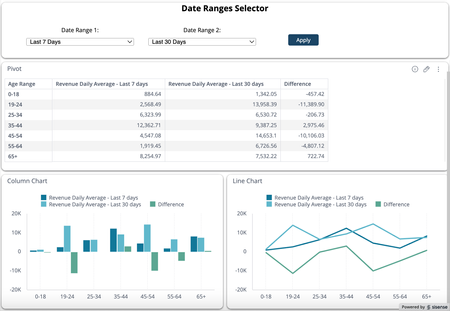
In certain scenarios, users may need to compare the same metric across two different time periods. Here are some example use cases: Sales velocity: Comparing average daily sales for the last 30 days vs. the last 90 days to identify if recent promotions are boosting sales. Customer acquisition: Comparing the number of new customers acquired in the last 90 days vs. the last 180 days to measure growth acceleration. Website or app traffic: Comparing page views or active users over the last 7 days vs. the last 30 days to see the impact of recent campaigns or updates. Inventory turnover: Comparing inventory sold in the last 30 days vs. the last 60 days to determine if demand is increasing or if there's overstock. These time periods need to be dynamic and selectable, which means hard coding them as measured values (filter on formula) in the widgets will not work. One possible solution for this requirement is to duplicate the date field in the data model, and create two date filters (one for each time period) on the dashboard. The main drawback of this approach is that you will need two different widgets, one for each time period. Otherwise, the two filters will conflict/combine. The first date filter needs to be disabled in the second widget, and similarly, the second date filter needs to be disabled in the first widget. A better solution is to use BloX to provide two date range selectors and apply the selections to the formula's measured value dynamically. This way, you can use a single widget to compare the metric across two different time periods. Here is an example: ALT text: A data visualization interface titled "Date Ranges Selector." It includes a date range selection option, with fields for "Date Range 1" and "Date Range 2," labeled 'Last 7 Days' and 'Last 30 Days.' Below, there is a pivot table displaying age ranges (0-18, 19-24, 25-34, 35-44, 45-54, 55-64, 65+) along with three columns: "Revenue Daily Average - Last 7 days," "Revenue Daily Average - Last 30 days," and "Difference." Two charts, a column chart on the left and a line chart on the right, represent the revenue averages for the specified age groups over the two date ranges. A working dashboard example, along with the cube can be found in the links below. Please note that once imported, the cube still needs to be built. Dashboard: BloX - Multiple Date Range Selectors for KPI Comparison Elasticube: Sample ECommerce - Current Dates Implementation This BloX custom action allows users to select two date ranges and compare the KPI in those two periods, e.g. average daily revenue in the last 30 days vs. the last 90 days. The KPI doesn't necessarily have to be the same. For example, you can compare Revenue in the last 30 days vs Cost in the last 60 days. This custom action supports Pivot and Cartesian charts (column, bar, line, area). Instructions: Create the BloX widget. Download and use the attached template (KPI_Benchmarker-2024-12-31.json). Make changes as needed. The attached template includes 9 date range choices in the dropdown menu: 7 days, 15 days, 30 days, 60 days, 90 days, 120 days, 180 days, 360 days, 365 days. Add/remove the choices and make other changes as needed. Add the custom BloX action. Add the custom action at the end of this article to your environment: copy the entire code, create a new BloX custom action in your environment, and paste the code into the new action. Name the action DateRangesSelectorForKPIComparison. If you choose to use a different name, you have to update the BloX code to reflect this change. Create the widget(s) where you want compare the KPI. Add the first formula to the Values panel with a measured value on a date field set to the last any arbitrary number of days, e.g. (SUM(Revenue), Days in Date), where Days in Date is set to Last 30 days. Rename the KPI title to any text, but include "Last xx days" in the title, e.g. "Revenue - Last 30 days". The BloX action will automatically update the number in the title to reflect user selection. Add the second formula to the Values panel following the same instruction as step #3a, e.g. (SUM(Revenue), Days in Date), where Days in Date is set to Last 60 days. Rename the second KPI following the same instruction as step #3b, e.g. "Revenue - Last 60 days". Add any arbitrary formula (it can also be a hard-coded value like 0) to the Values panel as a placeholder for the third formula, i.e. the delta calculation. The BloX action will automatically replace the formula with the delta calculation. Create the next widget(s) as needed. Add all widget IDs that you want to apply this custom action on in the BloX code under the widgetToModify parameter, then click Apply to save the widget. Test the BloX widget by selecting the first and second date ranges from the dropdown boxes, then hit Apply. DateRangesSelectorForKPIComparison custom action: //initialize variables var widgetIds = payload.data.widgetToModify; var filterValue1 = payload.data.selectVal1; var filterValue2 = payload.data.selectVal2; //loop through each of the specified widgets payload.widget.dashboard.widgets.$$widgets .filter(i => widgetIds.includes(i.oid)) .forEach(function (widget) { var newMeasure1Title = widget.metadata.panels[1].items[0].jaql.title.replace(/Last .*? days/, "Last " + filterValue1 + " days"); var newMeasure2Title = widget.metadata.panels[1].items[1].jaql.title.replace(/Last .*? days/, "Last " + filterValue2 + " days"); /***** Date Period 1 - Set date measured value for the first calculation *****/ //check if the panel item contains context (i.e. a formula) if (widget.metadata.panels[1].items[0].jaql.context != undefined) { //get the JAQL context of the panel item var queryContext = widget.metadata.panels[1].items[0].jaql.context; //loop through each context in the item for (let [k, v] of Object.entries(queryContext)) { //find the context that contains the date measured value if (v.filter != undefined && v.datatype == 'datetime') { //update the date measured value v.filter.last.count = filterValue1; } } } //update the measure's title widget.metadata.panels[1].items[0].jaql.title = newMeasure1Title; //store the updated context and formula from the first calculation var formula1Context = widget.metadata.panels[1].items[0].jaql.context; var formula1Formula = widget.metadata.panels[1].items[0].jaql.formula; /***** Date Period 2 - Set date measured value for the second calculation *****/ //check if the panel item contains context (i.e. a formula) if (widget.metadata.panels[1].items[1].jaql.context != undefined) { //get the JAQL context of the panel item var queryContext = widget.metadata.panels[1].items[1].jaql.context; //loop through each context in the item for (let [k, v] of Object.entries(queryContext)) { //find the context that contains the date measured value if (v.filter != undefined && v.datatype == 'datetime') { //update the date measured value v.filter.last.count = filterValue2; } } } //update the measure's title widget.metadata.panels[1].items[1].jaql.title = newMeasure2Title; //store the updated context and formula from the second calculation var formula2Context = widget.metadata.panels[1].items[1].jaql.context; var formula2Formula = widget.metadata.panels[1].items[1].jaql.formula; /***** Date Periods Difference - Set date measured values to the delta formula (difference between first and second formulas) *****/ //get the JAQL var diffFormula = widget.metadata.panels[1].items[2].jaql; //delete the current context and formula delete diffFormula.context; delete diffFormula.formula; //re-add the contexts and formulas using the previously saved contexts and formulas from the first and second calculations diffFormula.context = Object.assign(formula1Context, formula2Context); diffFormula.formula = formula1Formula + ' - ' + formula2Formula; //apply and save changes to the widget widget.changesMade('plugin-BloX', ['metadata']) //refresh the widget widget.refresh(); })954Views1like0Comments