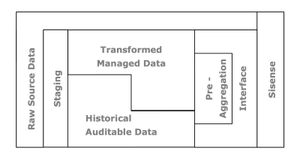
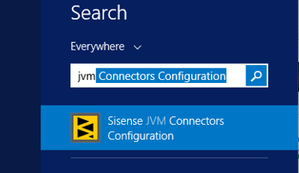
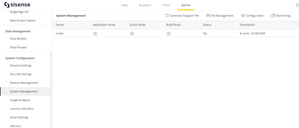
ContributionsMost RecentNewest TopicsMost LikesSolutionsViewing Widget JAQL Queries Viewing Widget JAQL Queries There are a large number of reasons you may want to view the query(ies) being sent from a dashboard widget, most of which are performance or data quality related. This article explains two methods that can be used independently of each other or in concert to assure all perspectives of the issue are understood. A query executed from a dashboard widget against an Elasticube can be captured using any HTML5 browser console (or headless browser), or by calling the Sisense REST API. Queries against an Elasticube are in JAQL for JSON query processing on big data. Sisense provides a complete JAQL Syntax Reference of the properties and options in the query which define the result set. Using any HTML5 browser console The JAQL query can be captured by using the developer tools available in HTML5 browser consoles. This is easy to set up and gives a better context (you see all HTTP requests on the page) than the REST API approach. If the page is not available or you are focusing on a specific widget query, obtaining the JAQL query via API may be more appropriate. To capture the query, create a HAR file following this process. You will need this file if you contact Sisense Support. The developer tools will capture everything that happens in your browser session rather than just the JAQL query for one specific widget. This will provide context if you are analyzing an overall dashboard issue. It is a best practice to capture the HAR file even if you are focusing on a specific widget due to the context it provides. Using a REST API call The JAQL query for a specific widget can be obtained by using the Sisense REST API.This provides focus and allows you to obtain the code even when the dashboard may not be available (e.g. Page fails before executing the request.) If the dashboard is available it is best practice to capture the HAR file (see above) to provide context while using the API call to provide focus. To obtain the query, prepare a response to retrieve the correct JAQL. Below you can find the JavaScript code to prepare the payload. Use the value of parameter [payload] as body to send API requests at /elasticubes/{elasticube}/jaql. var dashboardId = '5b2bc0c85c523d24c48c3e36'; var widgetId = '5b2bc0ee5c523d24c48c3e4f'; var elastiCubeName = 'Sample Lead Generation'; //Get widget's structure var widgetStructure = sendAPIRequest('GET', '/api/v1/dashboards/'+dashboardId+'/widgets/'+widgetId, ''); //Prepare response to use it in next API request var currectStructure = prepareResponse(widgetStructure) //Send request to server //var jaqlResponse = sendAPIRequest('POST', '/api/datasources/'+elastiCubeName+'/jaql', currectStructure); /*optional*/ //process request processRequest(jaqlResponse); function prepareResponse(a) { var result = []; for (i=0; i<a.metadata.panels.length; i++) { for (j=0; j<a.metadata.panels[i].items.length; j++) { if (a.metadata.panels[i].items[j]) { result.push(a.metadata.panels[i].items[j].jaql); }; } }; var payload = {metadata: result}; payload = JSON.stringify(payload); return payload; }; function sendAPIRequest(method, url, data) { var response = $.ajax({ method: method, url: url, async: false, data: data, contentType: 'application/json'}).responseJSON; return response; } function processRequest(jaqlResponse) { //console.log(jaqlResponse) /*optional if using the Send request to server*/ console.log(currectStructure) Conclusion If you need additional help, please contact Sisense Support. Sisense Data Pipeline Best Practices Determining how to construct data pipelines to assure optimized performance, minimized cost, and maintain quality controls is a complex challenge. This article describes a few architectural choices in designing data pipelines when implementing Sisense. Reducing Windows Memory Pressure by Removing unused JVM Connectors Reducing Windows Memory Pressure by Removing unused JVM Connectors A simple technique can reduce memory pressure on Windows Sisense versions by inactivating unused JM connectors. To do this you should search for the Sisense JVM Connectors Configuration application from the Windows Start menu. After opening the Sisense JVM Connectors Configuration application simply uncheck any connectors which are not in use and press the Save button. The amount of memory saved varies depending on which connector. On average each connector uses 2GB. So if you inactivate 5 connectors, you just saved 10 GB of memory. If you need additional help, please contact Sisense Support. PLEASE NOTE: If you cannot locate the JVM as seen in the screenshot, the executable name is "usedConnectorsEditor.bat" and it should be located in the following directory C:\Program Files\Sisense\DataConnectors\JVMContainer\bin As seen in below picture. Managing Linux Build Service Settings for Optimal Performance and Stability An Elasticube build is a complex process that invokes multiple services. This article explains some of the settings that are used for controlling the build service which affects performance and availability. Re: Replacin 'NULL' with '0' in in calculations for column chart and pivot table You could try wapping the column with nulls in an IsNull() function. For example: IsNull(<NullableCloumn>, 0). This would need to be a custom column or part of a custom table to be used at the dashboard level. Re: Managing Linux Build Service Settings for Optimal Performance and Stability Hi dvuke, There are no known memory leaks in L2022.7. Please submit a ticket for us to evaluate this. If you would like you can mention me in the ticket for it to be routed, but all of the Sisense Support Team members are excellent at this type of evaluation. Regards, Darwin