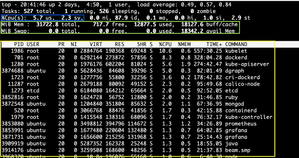
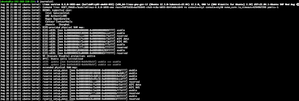
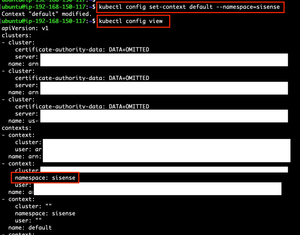
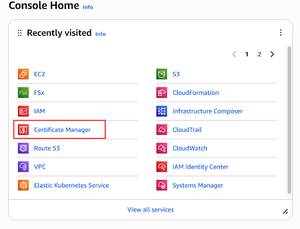
ContributionsMost RecentNewest TopicsMost LikesSolutionsHow to monitor high CPU, memory, and load average usage in Linux [Linux] In this guide, we’ll cover step-by-step how to use commands like top and ps to identify resource-hungry processes, and how to interpret the load average. By the end, you’ll be able to spot which processes are causing slowdowns and decide what action to take. A Deep Dive into journalctl and the systemd journal [Linux] Step-by-step guide: Navigating and Filtering Logs with journalctl journalctl is a command-line utility for querying and displaying the contents of the systemd journal. Here are some fundamental commands to get you started: View All Logs: The most basic command, journalctl, will display all log entries from the beginning of the journal. Filter by Time: To narrow down logs to a specific time period, use the --since and --until options. For example, journalctl --since "yesterday" shows logs from the last day. The —since flag accepts the following date specifications format: “2012-10-30 18:17:16". If the time part is omitted, "00:00:00" is assumed. If only the seconds component is omitted, ":00" is assumed. If the date component is omitted, the current day is assumed. Alternatively, the strings "yesterday", "today", "tomorrow" are understood, which refer to 00:00:00 of the day before the current day, the current day, or the day after the current day, respectively. "now" refers to the current time. Filter by Service: You can view logs for a specific systemd unit (service) with the -u flag. For instance, journalctl -u sshd.service will show all log entries related to the SSH daemon, journalctl -u docker filters log entries related to Docker, and so on. Real-time Monitoring: To "tail" or follow new log entries as they are written, use the -f flag. For instance,: journalctl -f. This is similar to tail -f /var/log/syslog. Adding the -u flag lets you follow a specific service. For instance: journalctl -f -u docker Viewing Logs from Previous Boots When troubleshooting a system crash or reboot, it's often necessary to check logs from the previous boot. The -b flag is essential for this. journalctl -b -1: Displays logs from the immediately previous boot. journalctl -b -2: Shows logs from the boot before the previous one. journalctl --list-boots: Provides a list of all available boot sessions, showing their index, ID, and a timestamp. While -0 is the last boot, -1 is the boot before last, and so on. Filtering by Priority Logs are assigned a priority level from 0 (emerg) to 7 (debug). You can filter logs by priority using the -p flag. journalctl -p err: Shows all messages with a priority of "error" or higher (critical, alert, emergency). journalctl -p warning: Displays warnings and messages with a higher priority. Syslog Levels 0 = emerg 1 = alert 2 = crit 3 = err 4 = warning 5 = notice 6 = info 7 = debug Controlling Journal Size The journal can grow quite large over time, consuming significant disk space. You can manage this with the --disk-usage and --vacuum options. journalctl --disk-usage: Reports the current disk space used by the journal. sudo journalctl --vacuum-size: removes the oldest archived journal files until the disk space they use falls below the specified size. Accepts the usual "K", "M", "G", and "T" suffixes (to the base of 1024). Vacuuming only affects archived journals, not the active ones. sudo journalctl --vacuum-time: removes archived journal files older than the specified timespan. Accepts the usual "s" (default), "m", "h", "days", "weeks", "months", and "years" suffixes. Combining Filters for Advanced Queries The real power of journalctl comes from combining different filters. You can use multiple flags to pinpoint exactly what you're looking for. journalctl -u docker --since "1 hour ago" -p err: This command will show all error messages from the docker service that have occurred in the last hour. Understanding systemd Journal Export Format Think of the systemd Journal Export Format as a universal language for transferring log data. It's a simple, binary-safe stream designed specifically to send log entries reliably over a network or to another program. Unlike a regular text file, which might break if it contains special characters, this format ensures all data—even binary content—arrives intact. You create this format using the command journalctl -o export. This makes it a powerful tool for tasks like streaming logs from one server to a central log collector or backing up a portion of your logs in a structured way. How It's Structured: The "Key-Value" System Each log entry is a series of key-value pairs. The format is carefully designed to handle different types of data: For regular text: The data is a simple KEY=VALUE pair on a single line. This is used for standard fields like MESSAGE or SYSLOG_IDENTIFIER. For example: SYSLOG_IDENTIFIER=sshd followed by a newline. For binary data: This is where the format's robustness shines. It can safely transport data that might contain special characters or be non-textual. Instead of KEY=VALUE, it uses a three-part structure: The KEY on its own line. A 64-bit size value indicating exactly how long the binary data is. The raw binary data itself. Each complete log entry is then separated by a double newline (\n\n), signaling the end of one record and the start of the next. Why It's So Useful This format is perfect for machine-to-machine communication. Because the format is well-defined and handles all data types, it can be easily parsed by other programs, regardless of the operating system. When you're troubleshooting or analyzing data, it's often more efficient to work with this structured stream than with raw, unformatted text. Conclusion Mastering journalctl and understanding the systemd journal is a crucial step for anyone who wants to become proficient in Linux system administration. You now know to move beyond simple text log files and leverage a modern, powerful logging system. By using journalctl's filtering and formatting options, you can quickly find the exact information you need, whether you are diagnosing a recent boot issue, monitoring a specific service in real-time, or performing a historical audit. Furthermore, understanding the Journal Export Format provides you with the means to easily and reliably transport log data between systems, which is essential for centralized logging and advanced analysis. With these tools at your disposal, you are well-equipped to efficiently monitor, troubleshoot, and maintain the health of your Linux systems. References/Related Content Journalctl man: https://man7.org/linux/man-pages/man1/journalctl.1.html Journal Export Format: https://systemd.io/JOURNAL_EXPORT_FORMATS/#journal-export-format Disclaimer: This post outlines a potential custom workaround for a specific use case or provides instructions regarding a specific task. The solution may not work in all scenarios or Sisense versions, so we strongly recommend testing it in your environment before deployment. If you need further assistance with this, please let us know. Getting started with kubectl commands [Self-hosted, Linux] Welcome to the "Getting Started with kubectl Commands" guide. This article aims to provide a quick introduction to kubectl, the command-line tool for interacting with Kubernetes clusters, and walk you through some of the most common commands used in managing Sisense deployments on Kubernetes for both cloud-hosted and on-prem environments. Deploy Sisense on EKS with Helm, Provisioner, and AWS Load Balancer (Self-Hosted AWS, Linux) Introduction This article outlines the steps to deploy Sisense on an Amazon Elastic Kubernetes Service (EKS) cluster, leveraging the Sisense Provisioner, Helm, and an AWS Application Load Balancer (ALB) for external access. Step-by-Step Guide: Prerequisites Before you begin, ensure you have the following: Sisense Version: Sisense L2021.1.1 or later. Amazon EKS: A running Amazon EKS service. AWS CLI: The AWS Command Line Interface tool is installed and configured to manage AWS services. Refer to the AWS Command Line Interface documentation. eksctl: The eksctl command-line utility for creating and managing Kubernetes clusters on Amazon EKS. Refer to the Getting started with Amazon EKS documentation. Configuring the AWS Load Balancer Controller: The AWS Load Balancer Controller manages AWS ALBs for a Kubernetes cluster. You'll attach the necessary IAM roles to your EKS node groups by running the attached script: Upload the file to your cluster and extract it: unzip aws-alb-iam-attach-new.zip Grant execute permissions: chmod +x aws-alb-iam-attach-new.sh Run the script: bash -x ./aws-alb-iam-attach-new.sh <EKS_NAME> <EKS_REGION> <NAMESPACE> Replace the placeholders with your cluster details: <EKS_NAME>: Your EKS Cluster name. <EKS_REGION>: The AWS region where your EKS cluster is located. <NAMESPACE>: (Optional) The target namespace for the ALB controller. If omitted, it defaults to the default namespace. Preparation: Installing Helm and Downloading the Provisioner: Install Helm 3 and download the Sisense Provisioner package on a machine with access to your EKS cluster (e.g., via a bastion host or one of the cluster's nodes). Install Helm 3: curl -fsSL -o get_helm.sh https://raw.githubusercontent.com/helm/helm/master/scripts/get-helm-3 && \ chmod +x get_helm.sh && \ DESIRED_VERSION=v3.5.1 ./get_helm.sh Download the Sisense Provisioner package: wget https://data.sisense.com/linux/provisioner-<sisense-version>.tgz Replace <sisense-version> with the specific Sisense version. Extract the Sisense package: tar zxf provisioner-<sisense-version>.tgz Export the Helm chart's default configuration: helm inspect values provisioner-<SISENSE_VERSION>.tgz > values.yaml This command creates a value.yaml file containing the default configuration. Configuring the Sisense Provisioner: Edit the generated values.yaml file to configure the Sisense Provisioner for your environment. vi values.yaml For comprehensive instructions on configuring the `values.yaml` file, refer to the Provisioner's chart configurable parameters documentation. Configure ALB Controller parameters: Append the following installer-values configuration snippet to the `values.yaml` file and configure the ensuing parameters within the alb_controller section. installer-values: alb_controller: enabled: true certificate_arn: "<your-certificate-arn-code>" annotations: alb.ingress.kubernetes.io/target-type: instance alb.ingress.kubernetes.io/load-balancer-name: your-load-balancer-name enabled: Set to true to enable the ALB Controller. certificate_arn: Specify the Amazon Resource Name (ARN) of one or more certificates managed by AWS Certificate Manager (ACM). annotations: Optional annotations for Kubernetes Ingress and Service objects to customize ALB behavior. See Ingress annotations for more details. How to get certificate_arn in AWS Console: To obtain the certificate_arn for your ALB Controller configuration: Locate the AWS Certificate Manager (ACM) in the AWS Console and click on it: [ALT text: "AWS Console Home screen showing Recently Visited services. Certificate Manager highlighted in red. Services include EC2, S3, IAM, and more.] Choose the desired method to create the certificate: Import, request, or create a new certificate. [ALT Text: AWS Certificate Manager interface with options to request, import, and create SSL/TLS certificates. On-screen guidance is displayed in orange and blue buttons.] See AWS Certificate Manager documentation for detailed information. Click on List Certificates and click on the new certificate ID to access the certificate details: [ALT Text: Screenshot of AWS Certificate Manager showing one certificate listed. The certificate ID is highlighted, with status "Issued" and type "Amazon issued."] Copy the ARN code and paste it in the certificate_arn parameter inside your values.yaml file: [ALT Text: AWS Certificate Manager interface showing a certificate status as "Issued." Domain "infradeploytest.site" marked as "Success." Options to create Route 53 records or export to CSV are available.] Save the value.yaml file changes and proceed with the next steps. Set applicationDnsName and cloud settings: Ensure the following configuration is set in your values.yaml file: applicationDnsName: "your-domain.tld" ## Cloud features: LoadBalancer service, Cluster auto-scaler app. cloud: ## LoadBalancer service for Sisense app loadBalancer: false loadBalancer_internal: false EBS CSI Driver Configuration: If you are using Kubernetes EKS v1.23 or higher with Amazon FSx or EFS, you'll need to configure additional management and security updates. Please refer to the Creating a Service Account for the EBS CSI Driver on EKS documentation for detailed instructions. Add the ebs_csi parameter to the values.yaml file within the installer-values: installer-values: ebs_csi: enabled: true Install Sisense using Provisioner: Install or upgrade the Sisense Provisioner Helm Chart with your custom values.yaml file. Install/Upgrade the Helm Chart: helm upgrade prov-sisense -f values.yaml ./provisioner-<sisense-version>.tgz --namespace=sisense --create-namespace (Note: --create-namespace will create the Sisense namespace if it doesn't exist.) Observe the Provisioning Process: Monitor the Sisense Provisioner's logs to track the installation process: kubectl logs -f --namespace sisense -l app.kubernetes.io/name=provisioner Once the installation is complete, some Sisense pods may remain in the Init state until the license is activated. To activate your Sisense license, navigate to the Sisense web application URL (without any extra paths like /app/account/login) in your browser and enter your license credentials. Review AWS Load Balancer listener rules: Locate your Load Balancer: Open the AWS Console and search for "Load Balancer" in the search bar. [ALT Text: Screenshot of AWS Management Console showing search results for "load balancers." Features listed: Lightsail, EC2, and VPC with a dark theme.] Click on Load Balancers, then click on the newly created load balancer. The load balancer's name should match the alb.ingress.kubernetes.io/load-balancer-name annotation you specified in your values.yaml. [ALT Text: A dashboard lists two load balancers, showing details like name, state, and availability zones. One load balancer named "alb-infradeploytest-2025-1" is active.] Click on the HTTPS:443 to access the listeners and rules: [ALT Text: The image shows a dashboard interface titled "Listeners and rules" with an HTTPS:443 port. It includes options for managing rules and listeners.] Accessing Sisense UI via AWS Load Balancer DNS: Locate your Load Balancer: [ALT Text: Screenshot of AWS console with a search for "load balancers." Results show options under Features, including Lightsail, EC2, and VPC features. UI is dark-themed.] Click on Load Balancers, then click on the newly created load balancer. The load balancer's name should match the alb.ingress.kubernetes.io/load-balancer-name annotation you specified in your values.yaml. [ALT Text: Dashboard showing one active load balancer named "alb-infradeploytest-2025-1." It has an "Active" status and is distributed across three availability zones.] Copy the DNS name from the load balancer details. [ALT Text: Dashboard showing load balancer details for "alb-infradeploytest-2025-1." It is an internet-facing application load balancer, status "Active," with an IPv4 address type.] Paste the DNS name into your web browser. You should now access either the Sisense activation page (if you haven't activated your license yet) or the Sisense login page (if already activated). Associating a Domain with AWS Load Balancer: Using AWS Route 53 If you are managing your DNS with AWS Route 53, refer to the Routing traffic to an ELB load balancer documentation. Using a Different DNS Provider If you are using a different DNS provider to manage your DNS, follow these instructions: Copy the Load Balancer DNS name: Obtain the DNS name from your AWS Load Balancer details. Add a new CNAME record: Open your DNS Manager and add a new CNAME record with the following details: Name: @ (or your desired subdomain, e.g., sisense) Type: CNAME Value: Your Load Balancer's DNS name (e.g., your-load-balancer-dns-name.elb.region.amazonaws.com) Cloudflare example: Name: @ Type: CNAME Value: your-load-balancer-dns-name.elb.region.amazonaws.com [ALT Text: DNS settings table showing records for "infradeploytest.site", including CNAME proxied by Cloudflare and NS records, options to edit and save.] Some DNS providers may not allow you to use @ with a CNAME record. Consult your DNS provider's documentation for specific instructions on adding CNAME records. Additionally, make sure you have: www is redirecting to your domain.com› The Forward target group is set to the correct Target Group in the Listener rules of ALB. Example: [ALT Text: Listener rules interface showing three rules with conditions and actions. Rule 1 redirects, rule 2 forwards with a path pattern, and the default forwards.] See Listeners for your Application Load Balancer for detailed instructions. Uninstalling Sisense To uninstall Sisense while preserving user data (e.g., Elasticubes), run the following Helm upgrade command: helm upgrade prov-sisense <CHART_URL or ./> \ --set uninstall.namespacedResources=true \ --set uninstall.clusterResources=false \ --set uninstall.removeUserData=false \ --namespace=sisense \ --reuse-values \ --force \ --install Replace <CHART_URL or ./> with the path to your provisioner chart, e.g., ./provisioner-<sisense-version>.tgz. Setting uninstall.removeUserData=false will ensure your data remains. Set to true if you wish to remove all user data. Uninstalling the Provisioner Chart To completely remove the Provisioner Helm Chart from your cluster: helm uninstall prov-sisense -n sisense Conclusion You've successfully set up Sisense on Amazon EKS! This means you now have an analytics platform that's strong, grows with your needs, and is always available. The main things to remember from this guide are to: Correctly set up the AWS Load Balancer Controller. Carefully adjust your Provisioner values.yaml file, especially for certificates and how your domain works. Use Helm to make your deployment process smooth. Always back up your Sisense data regularly to keep it safe, and check our guides for any ongoing management or improvements. You're all set to get the most out of your cloud-based Sisense! Disclaimer: This post outlines a potential custom workaround for a specific use case or provides instructions regarding a specific task. The solution may not work in all scenarios or Sisense versions, so we strongly recommend testing it in your environment before deployment. If you need further assistance with this, please let us know.