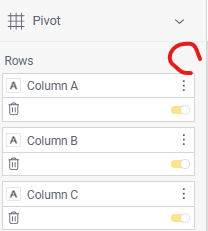
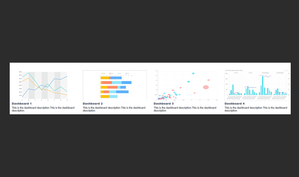
ContributionsMost RecentNewest TopicsMost LikesSolutionsHow to increase the display more rows in Pivot Table? Hi, we have a need to display multiple rows in a pivot table widget, but it appears that there is a limit at 20, as the screenshot below the plus disappeared when reached to the limit. Is there a way allows to add more rows? SolvedUser Landing Page for Effortless Dashboard Navigation 📘Use Case We use Sisense to deliver data dashboards to a wide range of users across different client groups. As our dashboard library grew, we noticed that users struggled to find the information they needed. When users logged into the platform, they were met with a wall of folders and dashboard names, without any guidance on where to start or how to find the KPIs they cared about. This led to confusion and wasted time. 💡What We Built To improve the experience, we built a User Landing Page— visually guided homepage that users see when they first log in. This page is customized by client group and includes: 1. Folder categories clearly labeled 2. Dashboard preview/snippets 3. High-level dashboard descriptions 4. Clickable embedded URLs This guided landing page, helping users quickly recognize and access the dashboards most relevant to them. It streamlines navigation and significantly improved the user experience. 📌How We Built We built this using Sisense Blox. Create a Blox widget. Use the ColumnSet layout to divide the page into multiple columns, each representing a dashboard. Add dashboard preview images using the Image component (e.g., /branding/Landing Page Photos/Dashboard1.png) to display the image Wrap each image with a clickable Action.OpenUrl link that redirects users to the target dashboard. "columns": [ { "type": "Column", "width": "25%", "items": [ { "type": "Image", "url": "/branding/Landing Page Photos/Dashboard1.png", "size": "stretch", "height": "98%", "width": "100%", "style": { "border": "1px solid #ddd" }, "selectAction": { "type": "Action.OpenUrl", "url": "Dashboard url" -- Replace with your actual dashboard link } } ] } 5. Below each image, use Text Block elements to add: Dashboard titles (bold and accent-colored) Brief descriptions of each dashboard "columns": [ { "type": "Column", "width": "25%", "items": [ { "type": "TextBlock", "text": "This is the dashboard description.This is the dashboard description.", "wrap": true, "size": "small" } ] } Re: How to show 2 colors for 1 legend item? This script works great! Thank you TriAnthony ! Re: How to show 2 colors for 1 legend item? Hi @TriAnthony thank you again on sharing this script! On my dashboard, there are a few more different widgets but with the same Target Sales and Actual Sales measure names. After I apply this script in all widgets, only one widget has the updated 2 tone color, the rest are still in grey. Is there a way to make them all work? Re: How to show 2 colors for 1 legend item? Hi TriAnthony this works PERFECT!! Appreciate your help!! How to show 2 colors for 1 legend item? I am building a bar chart show actual vs target number. And in my actual number, I am using a conditional color if it is over the target then show yellow if not show blue here. After I added the conditional color on the "Actual sale" value, the legend item colors are all in grey. Is there a way to show this icon color as how it is on the values on left panel (blue + yellow color)? color wanted: SolvedRe: Funnel Chart % of Total Calculation Thank you! How to display the series names in a stacked bar chart? Hi, I have a stacked bar chart. Is the a way to display the series names (from break by) on the chart, example on top of the bar since the series name could be long and it won't fit inside the bar Funnel Chart % of Total Calculation Hi, can you help us with a script to calculate the % of total for each portion of a funnel chart instead of the % of the top category? SolvedRe: How to make the size of each stage equal for a funnel chart? Thank you!