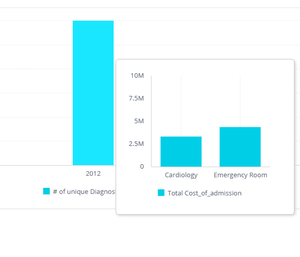
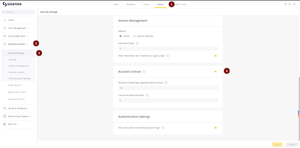
ContributionsMost RecentNewest TopicsMost LikesSolutionsDynamic filtering and embedding tooltips in Sisense dashboards Dynamic filtering and embedding tooltips in Sisense dashboards Overview This solution enhances Sisense dashboards by introducing dynamic filtering and embedding visual insights directly within tooltips. It allows users to quickly explore related data without navigating to a different screen, making data analysis faster and more intuitive. Supported by various types of charts: Line chart, Column chart, Bar chart, Pie chart. ALT text: A bar chart displaying data for "Total Cost of Admission" in a healthcare context. The chart compares costs for "Cardiology" and "Emergency Room" services across the years 2011, 2012, and 2013. The year 2011 has a bar for Cardiology at approximately 2 million and a higher bar for Emergency Room around 3.5 million. 2012 is not depicted, and 2013 shows substantial increases for both categories, with Cardiology around 3 million and Emergency Room approximately 4 million. A tooltip highlights specific values when hovering over the chart. How to Set It Up Prepare the Target Dashboard Create a new dashboard with a single widget. This widget will display the filtered data relevant to the user’s interaction. Ensure this dashboard focuses on specific details you want to highlight (e.g., sales by region or category, date). Add the Script to the Source Dashboard On the dashboard where you want to enable this functionality: Go into Edit Mode for the widget where tooltips will show embedded insights. Click the three dots on the widget, then select Edit Script. Replace the script logic with the provided code and update the following: Widget ID: The ID of the widget you’re editing. Dashboard ID: The ID of the target dashboard (created in Step 1). Number of Filters: Define how many filters you want to pass to the target dashboard. Adjust the Filters List Filters are passed to the target dashboard in the order they appear in the source dashboard’s filter list. If specific filters are critical (e.g., date or region), move them to the beginning of the filters list in the source dashboard. Test the Configuration Interact with the widget in the source dashboard to ensure the tooltip displays the filtered target dashboard correctly and includes the desired filters. How It Works User Interaction: When a user hovers over a data point, the script identifies the category or value of interest (e.g., region, date). Dynamic Filters: The selected category is passed as a filter to the target dashboard and other relevant filters from the source dashboard. Embedded View: The tooltip contains a mini, interactive version of the target widget, which provides detailed insights without requiring navigation. Where to Use It Sales Analysis: Hover over a region in a chart to view detailed sales figures for that region. Inventory Management: Quickly drill down into stock levels for a selected category. Customer Insights: See detailed demographic or behavior data tied to a selected group. Operational Monitoring: Provide instant access to system or process metrics based on high-level dashboard interactions. Benefits Streamlined Navigation: No need to switch between dashboards manually. Enhanced User Experience: Users access detailed data quickly and visually. Context Preservation: Filters maintain the relevance of displayed data. Improved Decision-Making: Faster access to insights enables quicker actions. Important Notes Ensure the target dashboard is optimized to display relevant data for the selected category. Filters passed to the target dashboard are processed in order, so prioritize essential filters by moving them to the top of the list. Users should test thoroughly to confirm all filters are passed correctly and that the embedded tooltip displays as expected. The tooltip may take a few seconds to load as it is a separate dashboard. Only one category is passed to the target dashboard This approach transforms Sisense dashboards, making them interactive and insightful while maintaining simplicity for users. Please note the solution provided is without official support from the Sisense side. How to unblock users after failed login attempts In this article, we’ll walk you through the process of unblocking users who have been locked out after multiple failed login attempts using Sisense’s REST API. We will explore the challenges this feature presents and how API calls can streamline the user management process for administrators. Re: Creating a Year-Over-Year Chart in Sisense Hello, I understand this might be a bit frustrating, but to achieve the described results, you'll need a normalized dates column. However, there's a way to simplify this process so you don't have to create this column in each table. You can use the date dimension file provided in this article: Date Dimension File. Once you import the xlsx file into your data model, you can link it to your existing Fact tables using the date field. This will allow you to create a normalized date column in the dimension table. On your dashboard, you can then use the normalized date from the dimension table as the X-Axis and use the original date column from the Fact table as a break-by. I hope this helps! If you have any questions or need further assistance, please feel free to reach out. https://created-cloud.uk/s/9Hyq8MKniJYm4Jc Re: Exporting Sisense User Lists to CSV Just a little bit easier way to achieve the same https://community.sisense.com/t5/knowledge-base/script-to-retrieve-the-user-list-with-first-name-and-last-email/ta-p/19359https://community.sisense.com/t5/knowledge-base/how-to-export-a-list-of-sisense-users/ta-p/8847 Re: Tricky Combo Chart in Sisense How? Hello, Here is another solution here. const opts = { targetValueDim: '[Commerce.Age Range]', targetColor: '#156082', otherColor: '#e97132', otherValue: 'Competitor' }; const tooltipHtml = `<div class="cartesian-tooltip"><div class="cartesian-tooltip-values" ng-repeat="item in model.points"><div class="cartesian-tooltip-seriesName">{{item.seriesName | unescape}}</div><div class="cartesian-tooltip-singleLineValue" data-ng-style="{color: item.valueColor}"><div class="cartesian-tooltip-value">{{item.value | unescape}}</div><div class="cartesian-tooltip-percentage" ng-class="{disabled: item.hasExcessiveSeries}" data-ng-show="item.showPercentage">/ {{item.percentage}}</div><div class="cartesian-tooltip-disclaimer" data-ng-show="item.hasExcessiveSeries">To view as a percentage, filter the categories to contain no more than 50 results.</div></div></div></div>`; widget.on('beforeviewloaded', (scope, args) => { const { targetValueDim, targetColor, otherColor, otherValue } = opts; const targetValueFilter = widget.dashboard.filters.item(true, targetValueDim); try { const targetValues = $$get(targetValueFilter, "jaql.filter.members"); args.options.series[0].data.forEach((point) => { const isTarget = targetValues.includes(point.selectionData[0]); point.color = isTarget ? targetColor : otherColor; if (!isTarget) { point.selectionData[0] = otherValue; } }); args.options.xAxis.categories = args.options.xAxis.categories.map((category) => { return targetValues.includes(category) ? category : otherValue; }); } catch(err) { console.error("Error processing filters: ", err); } args.options.plotOptions.line.dataLabels.enabled = false }); widget.on('beforedatapointtooltip', (scope, args) => { args.template = tooltipHtml; }); Kind regards Re: Using RSUM with with dashboard filters Hello, You can use the ALL() function in the formula to achieve your current goal. Here is the example : (Rsum([Total Cost]),ALL([Years in Date])) Kind regards. Redirecting Login Bypass Pages to the SSO Login Page Redirecting Login Bypass Pages to the SSO Login Page 1. Open the File Management: Navigate to `Admin -> App Configuration -> File Management`. If the "File Management" option is not available, enable it under `App Configuration -> Feature Management`. 2. Create the Plugin Folder: Open the `serverSidePlugins` folder and create a new folder with a descriptive name, such as `loginPageRedirect`. Inside this folder, create an `index.js` file with the following code: const ssoSettings = require(`${process.cwd()}/node_modules/@sisense/sisense-configuration`).sso; module.exports = { method: "GET", url: [ "/app/account/login", "/app/account" ], beginRequest: (req, res, next) => { if (ssoSettings.enabled) { const host = encodeURIComponent(req.get('host')); const { ssoType } = ssoSettings; const redirectionUrl = (ssoType === 'jwt') ? ssoSettings.loginUrl : (ssoType === 'saml') ? `/saml?address=${host}` : `/openid?return_to=${host}`; res.redirect(redirectionUrl); } else { next(); } } }; 3. Enable Server-Side Plugins: Ensure that server-side plugins are enabled in the configuration settings. Navigate to `Admin -> Server & Hardware -> System Configuration -> Configuration -> Show Advanced Settings`. Check if the "Server Side Plugins Enable" feature is enabled. 4. Save and Verify: Save the `index.js` file and verify that the server-side plugins are correctly enabled. This setup ensures that any attempt to bypass the login by using the workaround links will redirect users to the SSO login page, enhancing your security measures. Check out this related content: Academy Course Sisense Documentation Re: Can you plot a single point on a scatter map to indicate my office location vs my data plots Hello, Based on the following: https://leafletjs.com/examples/custom-icons/ You can use any of the publicly available image URLs, here is an example. const officeCoordinates = { latitude: 65.5859012851966, longitude: -105.75059585651 }; var greenIcon = L.icon({ iconUrl: 'https://leafletjs.com/examples/custom-icons/leaf-green.png', shadowUrl: 'https://leafletjs.com/examples/custom-icons/leaf-shadow.png', iconSize: [38, 95], // size of the icon shadowSize: [50, 64], // size of the shadow iconAnchor: [22, 94], // point of the icon which will correspond to marker's location shadowAnchor: [4, 62], // the same for the shadow popupAnchor: [-3, -76] // point from which the popup should open relative to the iconAnchor }); widget.on('beforeviewloaded', (scope, args) => { const { latitude, longitude } = officeCoordinates; if (!L.Icon.Default.imagePath) L.Icon.Default.imagePath = '/plugins/images/'; L.marker([latitude, longitude]).addTo(args.options.map); L.marker([51.5, -0.09], {icon: greenIcon}).addTo(args.options.map); }) Re: Can you plot a single point on a scatter map to indicate my office location vs my data plots Hello, The following path is useful for Linux instances. For Windows, you can create a folder inside of the plugins folder under the following path. C:\Program Files\Sisense\app\plugins\images Put the images there and define them in the widget script code if (!L.Icon.Default.imagePath) L.Icon.Default.imagePath = '/plugins/images/'; Kind regards, Vadim Re: Can you plot a single point on a scatter map to indicate my office location vs my data plots Hello, here is the widget-level script which will add the point from the picture on the scatter map. Please put 2 images under the "/branding/customImage/" folder with the following naming: marker-shadow.png marker-icon.png const officeCoordinates = { latitude: 65.5859012851966, longitude: -105.75059585651 }; widget.on('beforeviewloaded', (scope, args) => { const { latitude, longitude } = officeCoordinates; if (!L.Icon.Default.imagePath) L.Icon.Default.imagePath = '/branding/customImage'; L.marker([latitude, longitude]).addTo(args.options.map); }) You can apply further customization using the guide from : https://leafletjs.com/examples.html Kind regards, Vadim