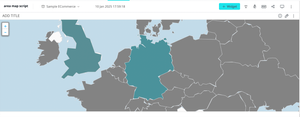
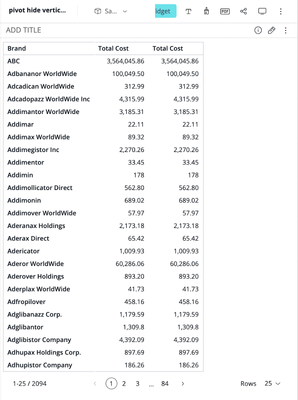
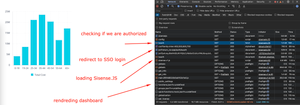
ContributionsMost RecentNewest TopicsMost LikesSolutionsRe: Applying Conditional Formatting to Specific Columns in Sisense Pivot2 Hello zach_myt Please reach out to Sisense Support on this matter via ticket. As for Excel it is expected that it does not contain any modifications (its export does not consider widget script by design), however for PDF export it might be expected to be seen there as well as in preview. Relevant team can help you to check this script in details. Best regards, Illia Re: 🌌 May the 4th Be With You, Sisense Community! 🚀 May the force be with you Auto zoom Area Map widget to a specific country on load (Linux) Auto zoom Area Map widget to a specific country on load To test this solution, you must create a dashboard based on Sample ECommerce and an Area Map widget based on a Country column. Once it is done - please go to the widget editor, click three dots select Edit Script, then paste the following script there: As a result, we have our Area Map widget zoomed to Germany on the initial load: const countryName = 'Germany' widget.on('processresult', (scope, args)=>{ saveMapObj() }) widget.on('domready', (scope, args)=>{ zoomToCountry(L.geoJson(widget.queryResult.geoJson), window.currentMap, countryName); }) function zoomToCountry(geoData, map, countryName) { // Create a new empty GeoJSON object to store only the selected country's feature(s) geoData.eachLayer(function (layer) { if (layer.feature.properties.name === countryName) { map.fitBounds(layer.getBounds()); // Zoom to country bounds } }) } function saveMapObj() { let leafletHookStatus = $$get(prism, 'autoZoomAreaMap.leaflet.initHookAdded') if(!leafletHookStatus) { L.Map.addInitHook(function () { window.currentMap = this }) $$set(prism, 'autoZoomAreaMap.leaflet.initHookAdded', true); } } [ALT Text: A map of Europe with colored regions indicating specific areas. Central Europe is highlighted in teal, while other areas appear in gray. The United Kingdom is visible to the northwest. The date displayed at the top indicates June 10, 2025.] DO NOT CHANGE!!! Disclaimer: This post outlines a potential custom workaround for a specific use case or provides instructions regarding a specific task. The solution may not work in all scenarios or Sisense versions, so we strongly recommend testing it in your environment before deployment. If you need further assistance with this please let us know. Hide vertical lines on the Pivot widget (Linux) Hide vertical lines on the Pivot widget To test this solution, you must create a dashboard based on any cube and create any Pivot widget. Once it is done - please go to the widget editor, click three dots select Edit Script, then paste the following script there: const howManyRowsToIgnore = 2; widget.on('ready', () => { const cells = element[0].querySelectorAll('.table-grid__cell'); let maxColIndex = 0; cells.forEach(cell => { const match = cell.className.match(/table-grid__cell--col-(\d+)/); if (match) { const colIndex = parseInt(match[1], 10); if (colIndex > maxColIndex) { maxColIndex = colIndex; } } }); cells.forEach(cell => { const colMatch = cell.className.match(/table-grid__cell--col-(\d+)/); const rowMatch = cell.className.match(/table-grid__cell--row-(\d+)/); if (colMatch && rowMatch) { const colIndex = parseInt(colMatch[1], 10); const rowIndex = parseInt(rowMatch[1], 10); if (rowIndex >= howManyRowsToIgnore) { if (colIndex !== 0) { cell.style.borderLeft = 'none'; } if (colIndex !== maxColIndex) { cell.style.borderRight = 'none'; } } } }); }); Please note there is a howManyRowsToIgnore parameter that specifies how many first rows to ignore. It is done to have the possibility to leave vertical lines for header values if needed. If you need to hide all vertical lines including header-related lines as well - just set this value to 0. As a result, we have a Pivot widget with hidden vertical lines: [ALT Text: A table titled "Budget" displaying a list of brands along with their corresponding total costs. The first entry, "ABC," shows a total cost of $3,564,045.86. The subsequent entries include brands such as "Addimax," "Adderax," and "Addulator Inc," along with their respective total costs, ranging from around $100 to several million. The table spans multiple rows and includes a total of 2094 entries. The header indicates columns for "Brand" and "Total Cost."] Disclaimer: This post outlines a potential custom workaround for a specific use case or provides instructions regarding a specific task. The solution may not work in all scenarios or Sisense versions, so we strongly recommend testing it in your environment before deployment. If you need further assistance with this please let us know. Re: How to hide environment variables when putting configuration file in plugin folder ducnv_resolve Greetings As it is all happening on front-end side, there are not much way of hiding the token, and in any case it will be possible to see it on a debugger on Mapbox related methods. What you can try is to whitelist Sisense URL for that token to make it non-usable outside Sisense and therefore there will be no need to hide it. Please check the article and let me know if you have any questions. https://docs.mapbox.com/accounts/guides/tokens/#:~:text=You%20can%20make%20your%20access,from%20the%20URLs%20you%20specify Best regards, Re: How to Hide a Download Button for a Particular Widget karengonzalez Hello Please try this script: prism.on('beforemenu', (scope,args)=>{ if(args.settings.name === 'dashboard'){ let downloadIndex = args.settings.items.findIndex(i => i.id === 'download') args.settings.items.splice(downloadIndex, 2) } }) Let me know how it goes. Best regards, Illia Re: How do we change the time period if we are using "Dashboard Filters (by Filter name)"? MuznahM Greetings As per our thread in the ticket, will also attach custom action implementation here: Custom action name: setFilterWithLevel Custom action code: let itemArr = prism.activeDashboard.filters.$$items; let OurFilter = itemArr.find(function (x) { return x.jaql && x.jaql.title === payload.data.filters[0].filterName }); OurFilter.jaql.level = payload.data.level; OurFilter.jaql.filter = payload.data.filters[0].filterJaql; payload.widget.dashboard.filters.update(OurFilter, {save:true, refresh: true}); Custom action accepted values (not necessary to specify particular values): { "type": "setFilterWithLevel", "title": "title" } Custom action usage example: { "title": "Last 30 Days", "type": "setFilterWithLevel", "data": { "level": "days", "filters": [ { "filterName": "Date Range", "filterJaql": { "selectedVal": "2", "last": { "count": 30, "offset": 1 }, "multiSelection": true } } ] } } Now level can be passed in the filter using pretty much same syntax as default OOTB action for filters. Best regards, Align Numeric Values to the Right on a Table Widget This article represents a solution for aligning numeric content to the right on any Table widget. As per the latest Sisense updates, 'domready' event changes are sometimes overwritten. This solution reacts to any Table widget change (new content displayed, the page has been changed, etc) and applies CSS formatting. Re: Disable Blox button once pressed Hello francoisvv Please find dashboard example attached, it contains BloX widget with the button and widget script that disables button on click. Best regards, SisenseJS silent login approach SisenseJS silent login approach Disclaimer: Please note that this blog post contains one possible custom workaround solution for users with similar use cases. We cannot guarantee that the custom code solution described in this post will work in every scenario or with every Sisense software version. As such, we strongly advise users to test solutions in their environment before deploying them to ensure that the solutions proffered function as desired in their environment. For the avoidance of doubt, the content of this blog post is provided to you "as-is" and without warranty of any kind, express, implied, or otherwise, including without limitation any warranty of security and or fitness for a particular purpose. The workaround solution described in this post incorporates custom coding, which is outside the Sisense product development environment and is, therefore, not covered by Sisense warranty and support services. Description: This article describes how to authenticate Sisense users on the parent application without any page refreshes or redirects. Starting from L2023.11.1, Sisense returns Sisense.JS libraries not depending on authentication. SSO flow will work with SSO.newReturnToValidationBehaviour enabled in Admin -> Server & Hardware -> System Management -> Configuration -> {5 clicks on logo} -> Base Configuration, however, it will redirect users back to the parent application causing page refresh which could be not suitable in terms of user experience. Prerequisites: Basic JS knowledge and Sisense.JS embedding sample (for example, from here: https://sisense.dev/guides/embeddingCharts/jsGettingStarted.html#example) Solution: This logic check if we are authenticated in Sisense, if not - it will get the SSO login URL from the response and create an Iframe with that URL as a source. Once Iframe is loaded and the Sisense session is generated - we will remove Iframe from the page and proceed with Sisense.JS logic. Here is an example of a silent login function: const silentLogin = async () => { let isauth = await fetch(url + '/api/auth/isauth', {credentials: 'include'}) let isauthJson = await isauth.json() if (!isauthJson.isAuthenticated && isauthJson.ssoEnabled) { //Check if we are not logged in and SSO is enabled iframesrc=isauthJson.loginUrl + '?return_to=/api/auth/isauth' } var iframe = document.createElement('iframe'); iframe.src=iframesrc ? iframesrc : url + '/api/auth/isauth'; // set SSO login URL if returned iframe.style.display = 'none'; // Hide iframe initially document.body.append(iframe); // Wait until page is loaded iframe.onload = function () { // Page is loaded, now remove the iframe document.body.removeChild(iframe); startSisense() }; } Once we authenticate the user in an Iframe, we can append the Sisense.JS script and once it is loaded on the page - we run further logic: const startSisense = async () => { const sisensejs = document.createElement('script') sisensejs.src=url + '/js/sisense.v1.js' sisensejs.onload = async () => { await renderdash() } document.head.append(sisensejs) } renderdash() in this case is our function where we connect to Sisense and render assets. Here is an example of full HTML code used for the example. Please note that the host and dashboard ID are coming from the local /config endpoint raised on my side, for local testing you need to replace those values manually or point to your configuration file. <!DOCTYPE html> <html> <head> <meta http-equiv="Content-Type" content="text/html; charset=UTF-8" /> </head> <body> <div id="sisenseApp" style="display: flex; width:100%"> </div> <div id="main" style="display: flex; flex-direction: column; justify-content: center; width: 80%"></div> <div> <div id="filters" style="width: 20%; min-width: 250px; min-height: 300px; height: 100%"></div> </div> <script type="text/javascript"> let app // Please make sure CSRF is disabled and your app domain is added to CORS allowed list const url = config.host //this value is from local config file, please specify host manually here or point to your configuration file const dashboardId = config.defaultDashboardSisenseJS //this value is from local config file, please specify dashboard ID manually here or point to your configuration file let iframesrc='' const silentLogin = async () => { let isauth = await fetch(url + '/api/auth/isauth') let isauthJson = await isauth.json() if (!isauthJson.isAuthenticated && isauthJson.ssoEnabled) { //Check if we are not logged in and SSO is enabled iframesrc=isauthJson.loginUrl + '?return_to=/api/auth/isauth' } var iframe = document.createElement('iframe'); iframe.src=iframesrc ? iframesrc : url + '/api/auth/isauth'; // set SSO login URL if returned iframe.style.display = 'none'; // Hide iframe initially document.body.append(iframe); // Wait until page is loaded iframe.onload = function () { // Page is loaded, now remove the iframe document.body.removeChild(iframe); startSisense() }; } const startSisense = async () => { const sisensejs = document.createElement('script') sisensejs.src=url + '/js/sisense.v1.js' sisensejs.onload = async () => { await renderdash() } document.head.append(sisensejs) } const renderdash = async () => { if (window.Sisense) { window.Sisense = {} } const main = document.getElementById("main") if (!window.Sisense.app) { app = await Sisense.connect(url, true) window.Sisense.app = app } const dash = await app.dashboards.load(dashboardId) window.Sisense.widgets = [] const widgetsRaw = await fetch(url + "/api/v1/dashboards/" + dashboardId + "/widgets?fields=oid,title", { method: 'GET', credentials: 'include' }) let widgets = await widgetsRaw.json() if (widgets.length) { widgets.forEach((w) => { window.Sisense.widgets.push(w) const widgetElement = document.createElement('div'); //widgetElement.style.minHeight = '400px' widgetElement.style.width = '400px' widgetElement.style.height = '400px' widgetElement.setAttribute("id", "widget_" + w.oid); let title = document.createElement('p') title.innerText = w.title main.append(title) main.append(widgetElement) dash.widgets.get(w.oid).container = document.getElementById("widget_" + w.oid) }) } dash.renderFilters(document.getElementById("filters")); dash.refresh() } silentLogin() </script> </body> </html> As a result, we can see the full trace of our flow in a Network tab of the browser: