How to remove pagination and display all data on a single page in Table and Pivot widgets [Linux]
Summary: Thalita Santos, Thalita Santos, provides a detailed guide on how to eliminate pagination in Sisense dashboards, specifically for Table and Pivot widgets. By increasing the data query limit and presentation page size to a large number, users can display all data on a single page, which is useful for instances where full dataset visibility is required. The steps include preparing the environment, applying a given code, and customizing it to fit various dataset sizes while being mindful of performance impacts. This solution works for cloud and on-premise deployments of Sisense 2026.1.2 on Linux. A disclaimer advises testing the solution in your environment before broader deployment.
Introduction
This article demonstrates how to remove pagination from Table and Pivot widgets in Sisense dashboards, forcing all data to be displayed on a single page. By default, Sisense Table and Pivot widgets paginate data into fixed-size pages, which can be limiting when users need to see the full dataset at once. This solution works by increasing the widget's data query limit and presentation page size to a very large number, and optionally hiding the pagination UI controls for a cleaner look. The solution works for both Table and Pivot 2 widgets on Linux deployments. The solution is tested on Sisense 2026.1.2 and works for both cloud and on-premise deployments.
Step-by-Step Guide
1. Prepare your environment
Open an existing dashboard that contains a Table or Pivot widget you want to display without pagination. Take note of the approximate number of rows your dataset returns, as you may need to adjust the maxDataRows value accordingly. We recommend not using very high numbers at first, as it can be hard to load it. Test it with a reasonable number and increase it little by little, to guarantee the weight of the query and processing will not be an issue for your use case.
2. Apply the code
Open the Table widget in Edit mode, go to the three dots menu, select Edit Script, and paste the following code:
/**
 * Remove Pagination (Show All Data on Single Page)
 *
 * Works by increasing the query data limit and the widget's page size
 * to a very large number, effectively forcing all data onto page 1.
 */

// 1. Increase the amount of data the widget requests from the ElastiCube
widget.on('beforequery', function(sender, ev) {
    // Set to a very high number to fetch all rows (adjust if needed)
    var maxDataRows = 2100;

    if (ev.query) {
        ev.query.count = maxDataRows;
    }
});

// 2. Increase the widget's presentation page size
widget.on('initialized', function(sender, ev) {
    var maxPageSize = 2100;

    // For standard Tables and older Pivots
    if (sender.style) {
        sender.style.pageSize = maxPageSize;
    }
});

// 3. Hide the pagination UI controls (optional, but requested for a "single page" look)
widget.on('domready', function(sender, ev) {
    var $el = $(element);

    // Hide standard table pagination
    $el.find('.table-grid__pagination').hide();

    // Hide Pivot 2 pagination (if applicable)
    $el.find('.pivot-pagination').hide();
});
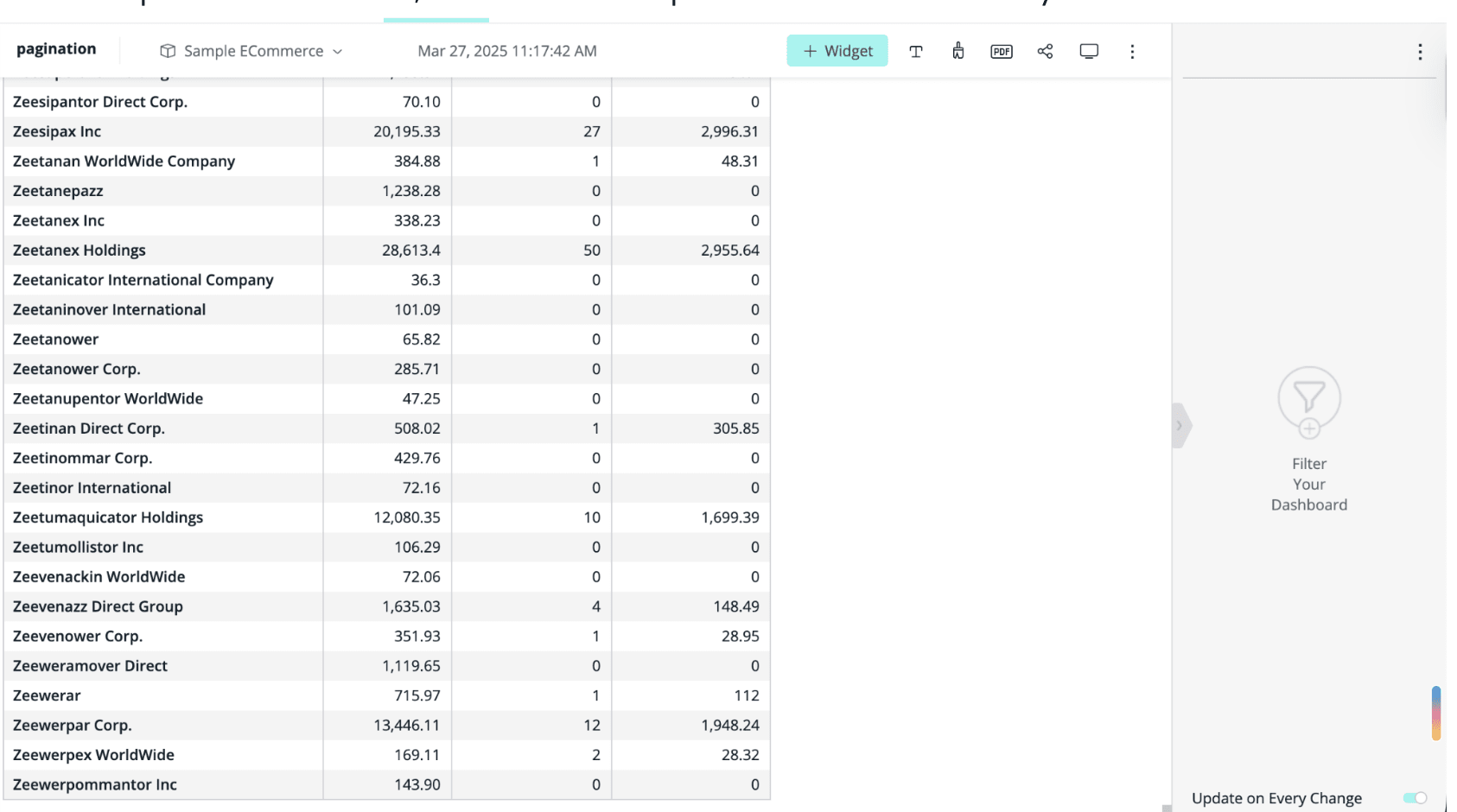
In our example we had 2094 rows, and it worked as expected with no issues or delays:
3. Customize the script for your use case
Before saving, consider adjusting the following:
maxDataRows – Set this to a number higher than the maximum number of rows your dataset is expected to return. The default is 50000, but you can increase or decrease it based on your data volume. Keep in mind that fetching very large datasets may impact dashboard performance.
maxPageSize – Should match maxDataRows to ensure the presentation layer also renders all rows on a single page.
Hiding pagination controls (step 3) – This part is optional. If you want to keep the pagination UI visible (even though it will only show one page), you can remove or comment out the domready block.
Conclusion
By combining an increased query row limit, an expanded presentation page size, and hidden pagination controls, you can effectively display all data in a Table or Pivot widget on a single page, or just build large pages under custom circumstances. This is particularly useful for dashboards where users need full visibility of the dataset without navigating through pages. The script is a flexible starting point – adjust the row limits to match your data volume, and toggle the pagination UI hiding on or off depending on your use case. Keep performance in mind when working with very large datasets, as loading all rows at once may increase widget render time.
References/Related Content
Disclaimer: This post outlines a potential custom workaround for a specific use case or provides instructions regarding a specific task. The solution may not work in all scenarios or Sisense versions, so we strongly recommend testing it in your environment before deployment. If you need further assistance with this, please let us know.

