How to export .ecdata/.sdata and .dash files
Summary: m4yv26 provides a comprehensive guide on exporting ElastiCube data and dashboard files using Sisense. The discussion covers different file types, specifically .sdata and .smodel, highlighting their contents and use cases: .sdata for complete backups and .smodel for lightweight model transfers. The export methods for both Windows and Linux platforms are detailed, including GUI and REST API methods, with considerations such as file size limits and security settings not included in exports. The process for exporting dashboards and creating sample ElastiCube files is also explained, emphasizing avoiding spaces and dates in file names and noting the 2 GB size limit for API exports.
Table of contents
Introduction
Understanding file types: .sdata vs .smodel
Exporting ElastiCube data
GUI method (both platforms)
REST API method (both platforms)
Linux (.sdata)
Windows (.ecdata)
Exporting dashboards (.dash)
Creating a sample ElastiCube (reduced data set)
Important notes
Introduction
This article demonstrates how to export your ElastiCube data file and dashboard .dash file from Sisense.
Purpose: Exporting these files allows you to easily import them into another Sisense environment and have your ElastiCube/Dashboard up and running quickly. This is useful for backups, migration between servers, and dev-to-prod promotion.
What these files contain:
The data file (.ecdata on Windows, .sdata on Linux) contains both the data and the logic structure of the ElastiCube model.
The .dash file contains the dashboard widget structure, layout logic, and the reference to the relevant ElastiCube.
Note: Security settings and users are stored in MongoDB and are NOT included in these export files.
Understanding file types: .sdata vs .smodel
When working with Sisense data models, you will encounter two different export file types. It is important to understand the difference:
.sdata
Contains: Model schema + connection settings + cube data
Use case: Full backup/migration - includes everything needed to rebuild the ElastiCube without re-importing from source
.smodel
Contains: Model schema + connection settings only (no data)
Use case: Lightweight transfer of the model design without cube data - requires a rebuild after import to populate data from the source
When to use .sdata:
You need a complete backup including all cube data.
You are migrating to a new server and want to avoid a full rebuild from source databases.
You are sharing a working model with the support team for troubleshooting purposes.
The source database is unavailable or difficult to reconnect on the target environment.
When to use .smodel:
You only need the model design and connection configuration.
You plan to rebuild from source after import.
File size is a concern (smodel files are much smaller since they exclude data).
You are doing version control / dev-to-prod promotion where data will be rebuilt anyway.
Exporting ElastiCube data
GUI method (both platforms)
This method works on both Linux and Windows via the Sisense web interface:
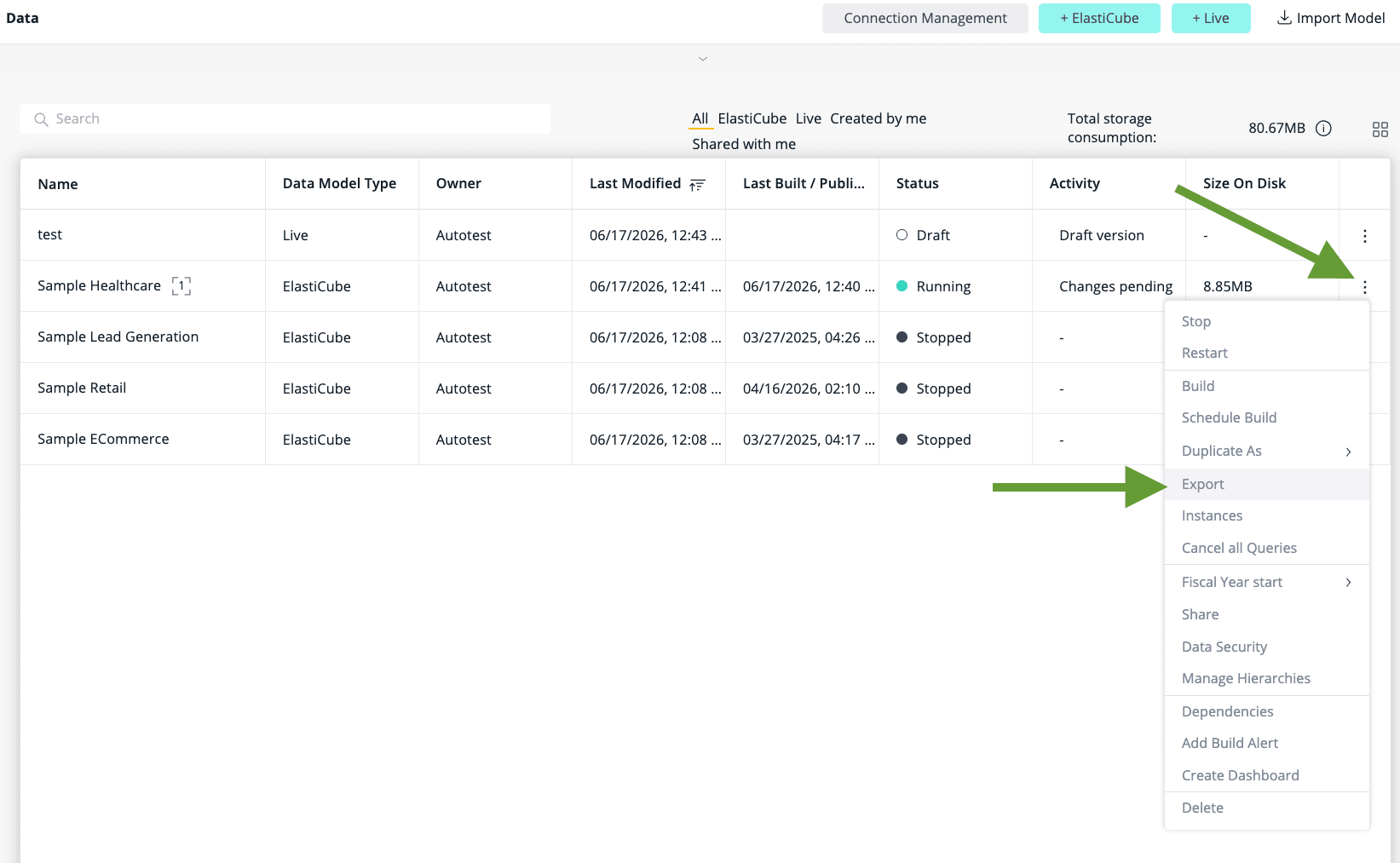
Open the Data page.
For the relevant ElastiCube, click the menu icon (...) and select Export Model.
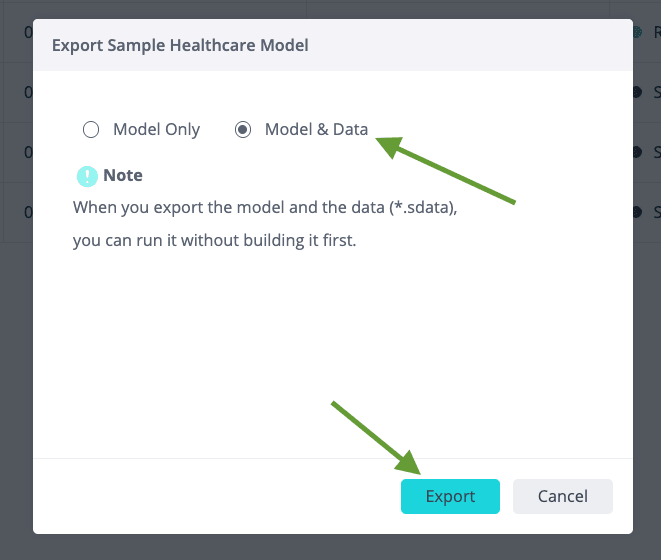
Select to export the model schema and the data.
Click Export.
The .sdata file will download to your local machine.
REST API method (both platforms)
Export full data model (schema + data):
Linux (.sdata)
Option 1 - Sisense CLI:
Use the Sisense CLI to export the .sdata file. Reference: Sisense CLI Commands
The export command should be used:
The ElastiCube is exported to /opt/sisense/storage/backups/ by default.
Option 2 - REST API (v2):
Export a full data model (schema and data) as a stream:
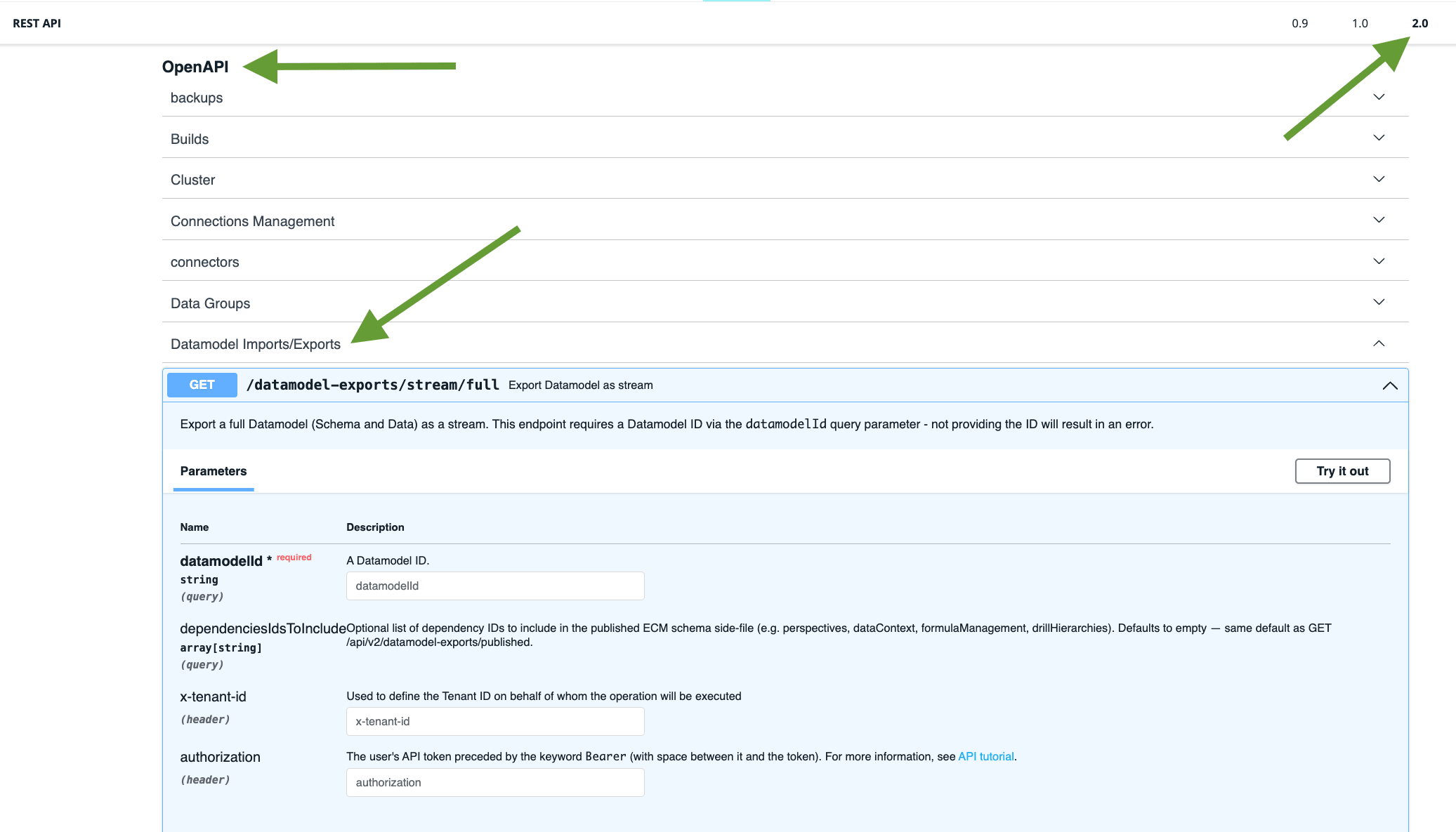
Limitation: There is a 2 GB size limit when using the REST API.
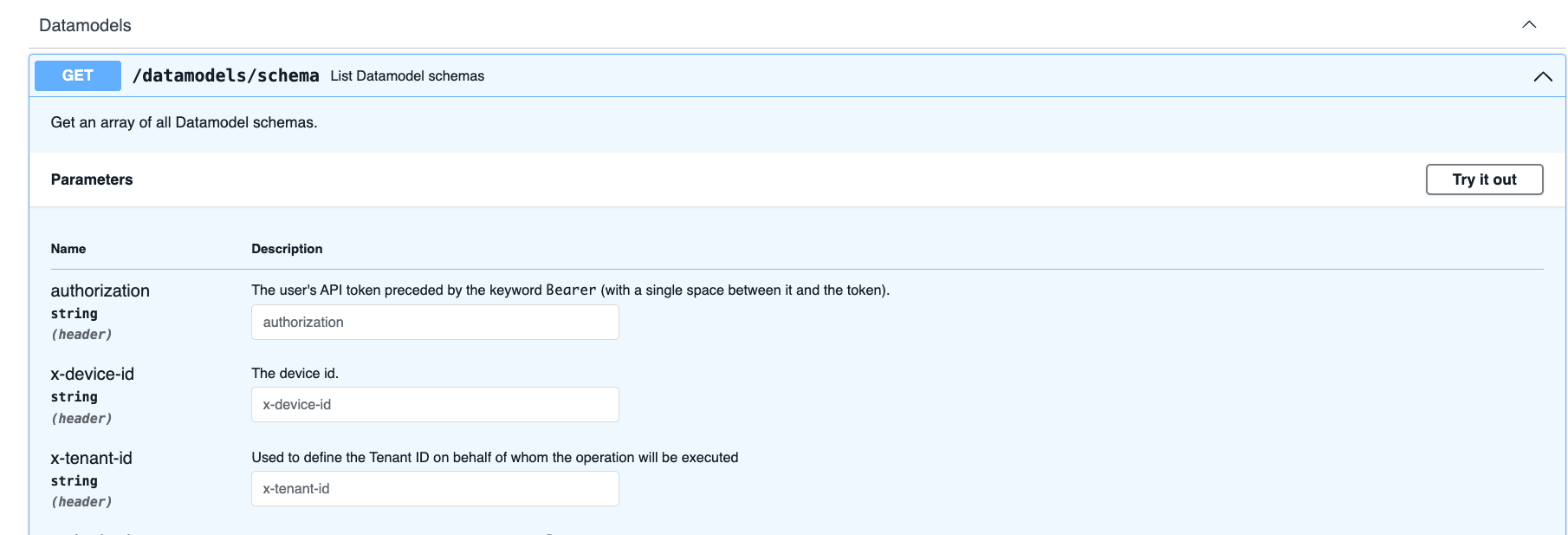
To get the ID of the model for API calls, use:
Windows (.ecdata)
Step 1: Open the ElastiCube Manager, go to Servers and choose Manage Servers to open the Sisense Server Console.
Step 2: Stop the relevant ElastiCube and click Export.
Step 3: Choose the save location for the .ecdata file.
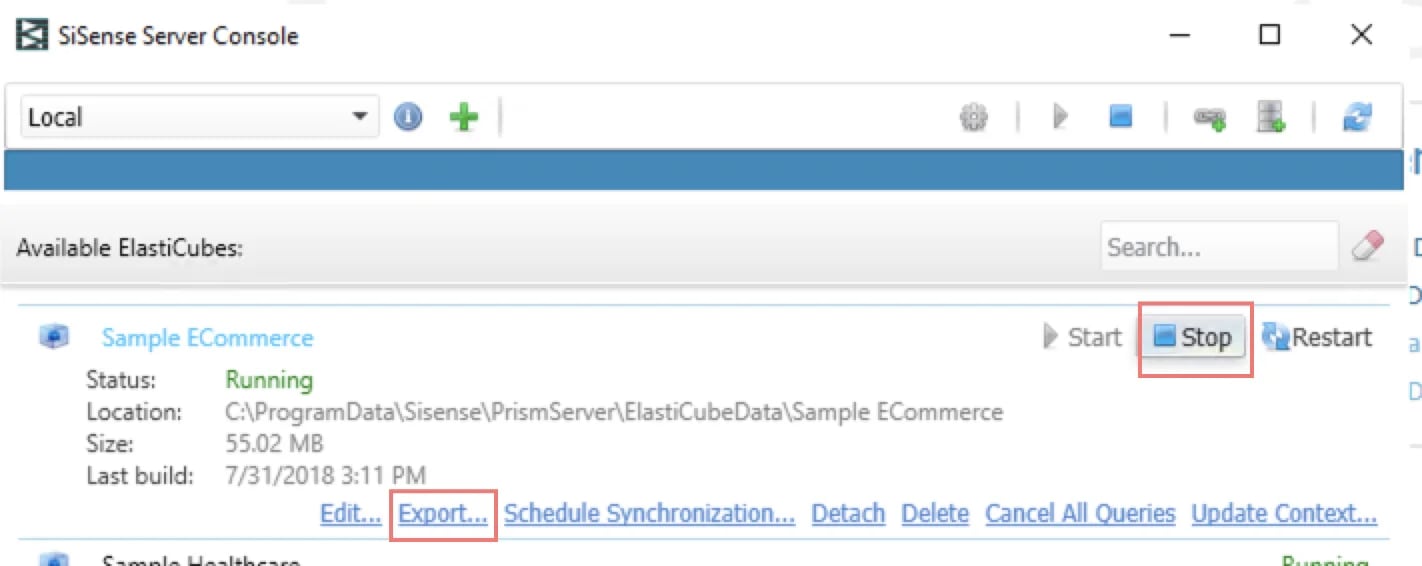
Note: If your ElastiCube is very large, the export can take a while to complete. We recommend stopping your Web server (IIS / IIS Express) to avoid the ElastiCube from automatically starting during this time as a result of incoming queries.
Exporting dashboards (.dash)
The process is the same for both Windows and Linux.
From the Sisense web UI:
Open Sisense web application.
Navigate to the relevant dashboard.
Click the more options menu (three dots) on the dashboard.
Choose Export Dashboard.
The dashboard will be downloaded to your local drive as a .dash file
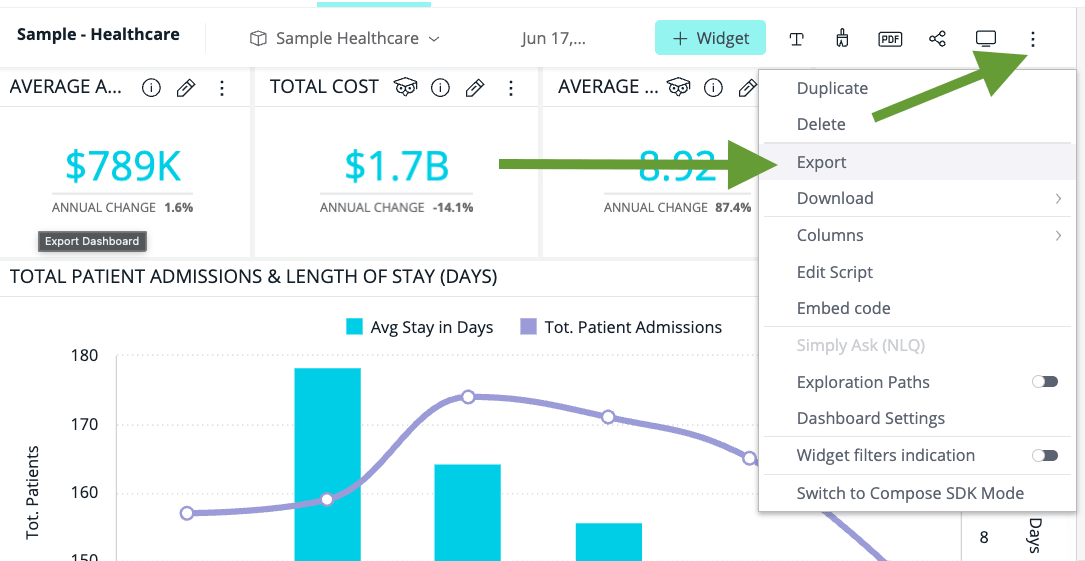
From the REST API:
Export a dashboard to a .dash file:
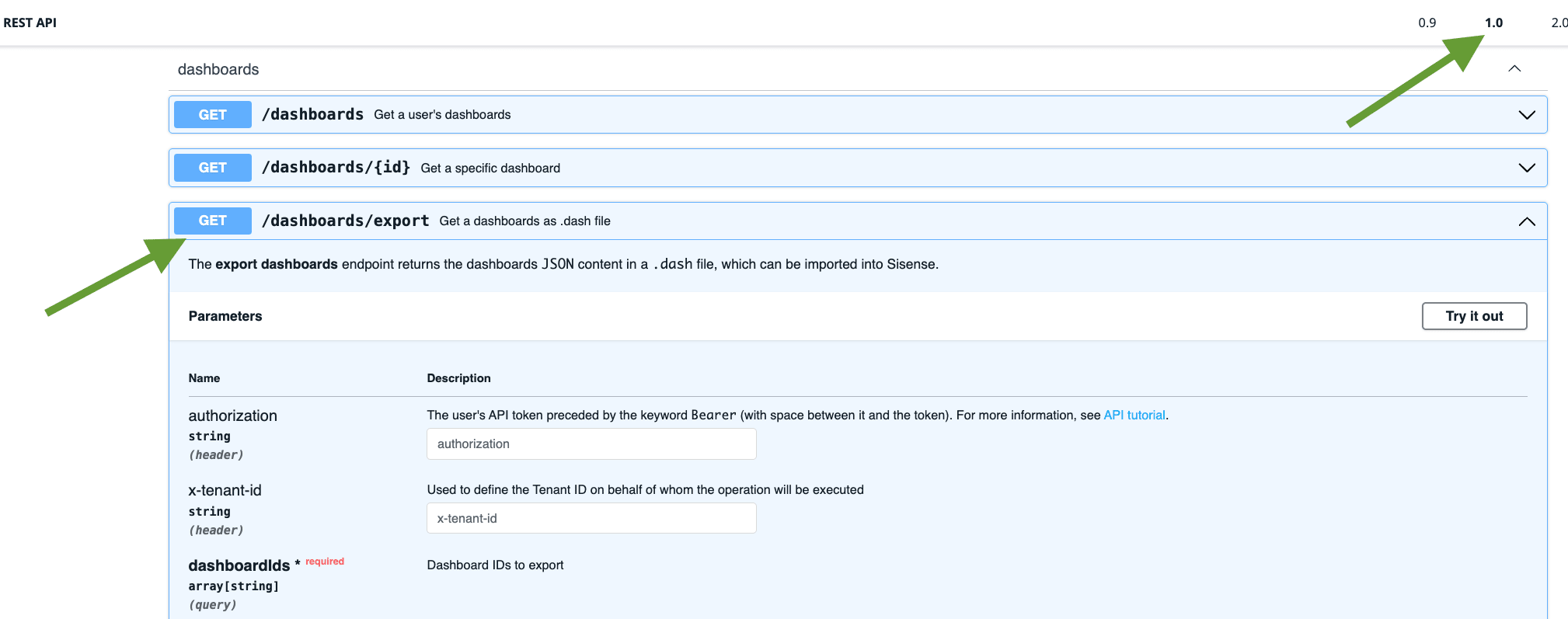
Note: When you export multiple dashboards, they are bundled into a single .dash file.
Creating a sample ElastiCube (reduced data set)
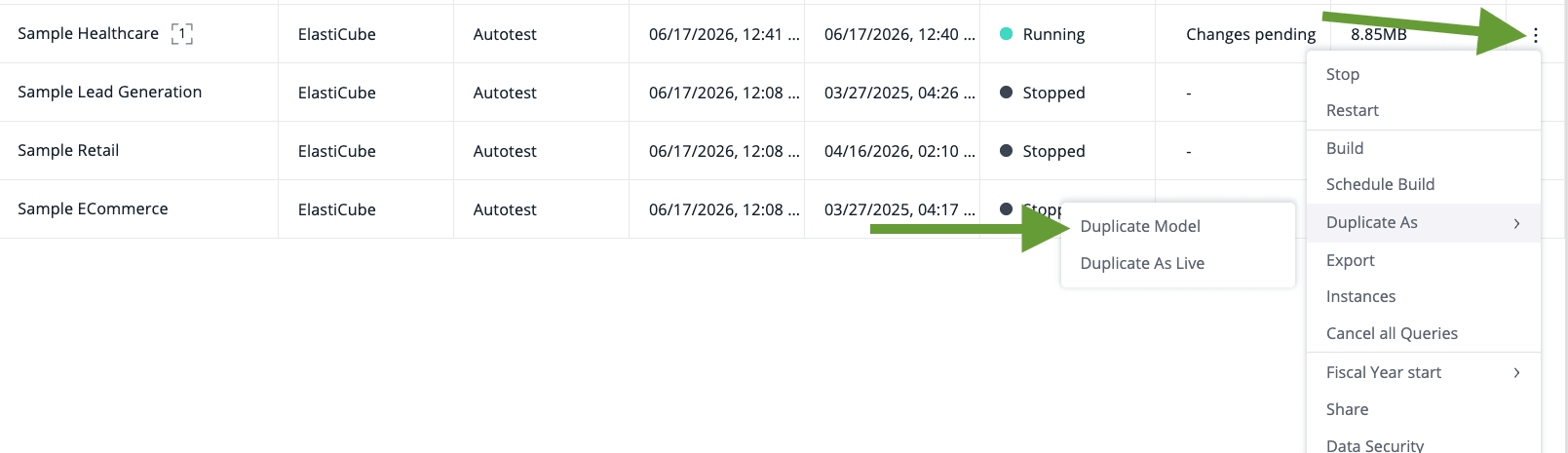
If the .ecdata/.sdata file is too large to transfer, you can create a smaller sample data set.
This method works on both Windows and Linux:
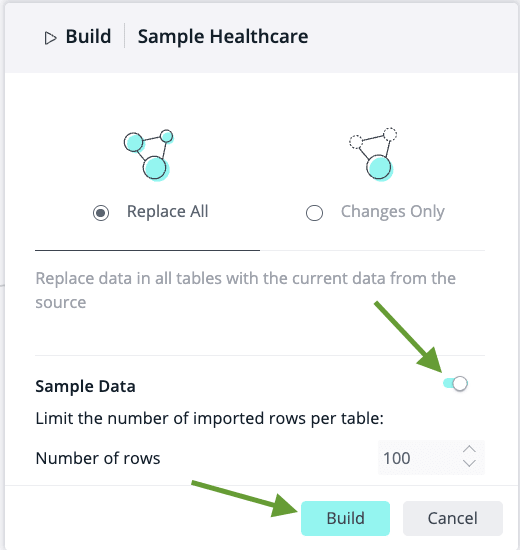
Duplicate the model - this ensures your original dashboards are not impacted.
Build the duplicated model with a limited number of rows - set a row limit during the build to produce a smaller data set.
Export the smaller model using any of the methods described above.
Important notes
File naming: When exporting .sdata files, avoid spaces and dates in file names for easier handling (e.g., use
SampleECommerce.sdatainstead ofSample ECommerce-2025-03-27.sdata).Security data not included: User permissions, security settings, and sharing configurations are stored in MongoDB and are not part of these export files.
API size limit: The REST API v2 datamodel export/import has a 2 GB size limit.

