Linux Command Line: The Essential Beginner’s Toolkit [LINUX]
Introduction:
For many, the Linux command line looks like a relic of the past, but it is actually the most powerful tool in a modern user's arsenal. While a mouse allows you to click on what you see, the terminal allows you to command the entire system with precision. By learning a few foundational text commands, you can navigate your computer faster and more efficiently than ever before. This guide introduces the essential "vocabulary" every beginner needs to start talking to their Linux system.
Step-by-Step Guide:
Mastering the Linux terminal starts with a few fundamental commands. Think of the terminal as a conversation with your computer: you give a command, and the system performs the action. For a beginner, navigating the file system and managing files are the first steps to becoming a power user.
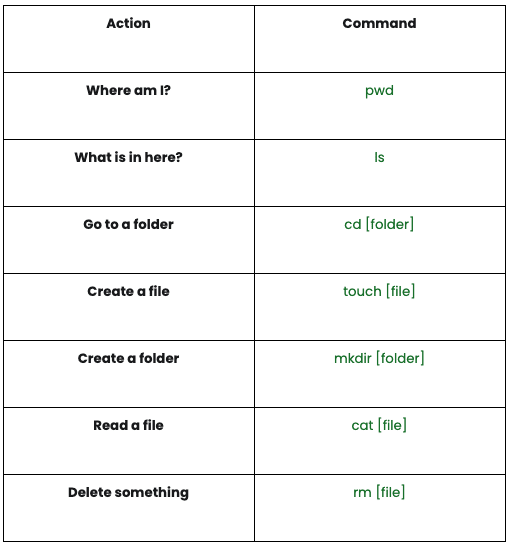
1. Navigating the System
Before you can manipulate files, you need to know where you are and how to move around.
pwd (Print Working Directory)
Linux doesn't always show you exactly where you are in the folder hierarchy. Type pwd to see your current location.
Example: /home/username/Documents

ls (List)
The ls command shows you all the files and folders inside your current directory.
Tip: Use ls -l to see more details (like file size and date) or ls -a to see hidden files.

cd (Change Directory)
This is how you move between folders.
Usage: cd FolderName moves you into a folder.
Usage: cd .. moves you up one level (to the "parent" folder).
Usage: cd ~ takes you straight back to your Home folder.

2. Creating and Viewing Files
touch
The fastest way to create a new, empty file.
Example: touch notes.txt creates a file named "notes.txt".

mkdir (Make Directory)
Used to create a new folder.
Example: mkdir newFolder creates a folder named "newFolder".

cat (Concatenate)
While it can do many things, beginners primarily use cat to quickly read the contents of a file without opening an editor like Nano or Vi.
Example: cat notes.txt displays everything written inside that file directly in the terminal.

3. Managing and Deleting
cp (Copy)
Copies a file or directory from one place to another.
Usage: cp source_file.txt destination_folder/

mv (Move / Rename)
This command serves two purposes. It moves a file to a new location, but it is also used to rename files.
Move: mv file.txt Documents/
Rename: mv oldname.txt newname.txt

rm (Remove)
This deletes files. Be careful: Linux does not have a "Trash Can" for the terminal; once you rm a file, it is usually gone forever.
Delete a file: rm file.txt
Delete a folder: rm -r FolderName (The -r stands for "recursive").

4. Helpful "Safety" Commands
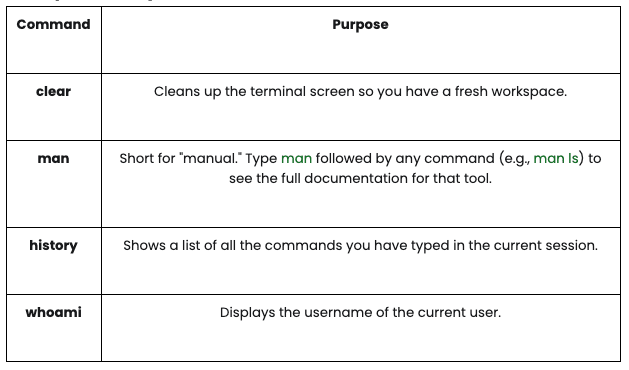
A Quick Summary Table for Beginners
One Final Tip: You don't have to type out long file names! Start typing the first few letters of a file or folder and hit the Tab key. Linux will "Auto-complete" the name for you, saving you time and preventing typos.
Conclusion:
Mastering the Linux command line is not about memorizing hundreds of obscure strings; it is about building muscle memory through daily use. The commands covered in this guide form the foundation of almost everything you will do in a Linux environment.
As you become more comfortable, you’ll find that the terminal isn't just a tool for "fixing" things; it’s a highly efficient workspace. Don't be afraid to use the man command or hit the Tab key frequently. Every expert was once a beginner staring at a blinking cursor—keep experimenting, and soon the terminal will feel like home.
References/Related Content
Pwd - https://man7.org/linux/man-pages/man1/pwd.1.html
Ls - https://man7.org/linux/man-pages/man1/ls.1.html
Cd - https://man7.org/linux/man-pages/man1/cd.1p.html
Touch - https://man7.org/linux/man-pages/man1/touch.1.html
Mkdir - https://man7.org/linux/man-pages/man1/mkdir.1.html
Cat - https://man7.org/linux/man-pages/man1/cat.1.html
Cp -https://man7.org/linux/man-pages/man1/cp.1.html
Mv - https://man7.org/linux/man-pages/man1/mv.1.html
Rm - https://man7.org/linux/man-pages/man1/rm.1.html
Disclaimer: This post outlines a potential custom workaround for a specific use case or provides instructions regarding a specific task. The solution may not work in all scenarios or Sisense versions, so we strongly recommend testing it in your environment before deployment. If you need further assistance with this, please let us know.

