Format Seconds to Time (HH:MM:SS) in a Pivot Table
Summary: edselv provides a detailed guide on converting seconds to a date-time format in a pivot table using a widget script. The instructions include modifying a column type, adjusting scripts, and handling potential issues like the reset of values in the second column. The guide includes steps like setting up the necessary JavaScript and troubleshooting tips.
This article will explain how to convert seconds into date-time format on a pivot table.
1. Ensure your seconds column is of type integer.
2. In the widget editor, add the widget script below. Information on how to add a widget script here: https://sisense.dev/guides/customJs/extensions/#dashboard-and-widget-javascript-extensions
var dateColumns = [4,5,6,7,8]; //select the time columns that should be transformed
var thousand_separator = ',' //replace , with your local thousands separator if needed
var time_separator = ':' //replace : with your local time separator if needed

var returnedData = "";
for (var i = 0; i < dateColumns.length; i++) {
returnedData += "td:nth-child(" + dateColumns[i] + ") div";
if (i < dateColumns.length - 1) returnedData += ",";

}

widget.on('ready', function(se, ev){
var e = element;
var w = widget;
var d = dashboard;

_.each($(returnedData , e).not('.wrapper, .p-head-content'), function(cell){

var num = parseFloat($(cell).text().split(thousand_separator).join(''));

var sign = num < 0 ? "-" : "";
num = Math.abs(num); //
console.log('num')
console.log(num)

if(isNaN(num)){
return;
} else{


var hours = (parseInt( num / 3600 ));
console.log('hours')
console.log(hours)

var minutes = parseInt( (num - (hours * 3600)) / 60 );
console.log('minutes')
console.log(minutes)

var seconds = num - (hours * 3600) - (minutes * 60) ;
console.log('seconds')
console.log(seconds)

var hoursText = hours < 10 ? "0" + hours : hours;
var minutesText = minutes < 10 ? "0" + minutes : minutes;
var secondsText = seconds < 10 ? "0" + seconds : seconds;

$(cell).text( sign + hoursText + time_separator + minutesText + time_separator + secondsText);
}
})
})
3. Adjust the dateColumns array (line 1) with the index of columns you would like to convert.
4. Save the script. Refresh the widget and click apply. You're all set!
Before and after the widget script is applied:
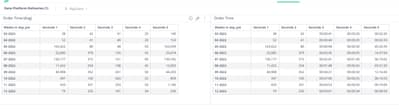
Notes: the script may reset the values in the second column to 00:00:00, if this happens simply refresh.

Alan Trapanese
Is there a way to format times when you export the pivot table to csv or excel?