StopDashboardLoadBeforeFilters Plugin - Block Dashboard Loading Until Filters Are Updated
Summary: A participant shared a plugin called StopDashboardLoadBeforeFilters, designed to prevent dashboards from loading data until filters are updated or previous selections are reapplied. The plugin helps reduce data load and optimize user experience by only running necessary queries. It integrates with the existing UI theme and can be applied globally or to specific dashboards. Installation involves uploading the plugin to the appropriate directory and configuring settings in the config.js file. Limitations include local storage dependency for skip periods and compatibility issues with certain embedding methods.
Download Link: StopDashboardLoadBeforeFilters.zip
Overview
This plugin stops dashboards from loading data when they first open. Widget queries are held back until the user either updates a filter or chooses to reapply their previous filter selections, so the data source only runs the queries users actually need.
When a dashboard opens, the widgets stay blank and a popup asks the user to review their filters. The popup offers two options:
Update the filters: closes the popup so the user can change their selections. The widgets load as soon as a filter is updated.
Apply the previous filters: loads the dashboard straight away using the filter selections already saved on the dashboard.
The popup automatically follows the instance's UI theme settings (brand color, primary and secondary button colors, background, text color and font), so it matches the rest of your Sisense instance without extra styling.
The plugin can be applied globally to all dashboards or only to a specific list of dashboards. It also:
Works with the Update on Every Change filter setting turned off, waiting for the user to click Apply as usual
We recommend turning off Update on Every Change, especially if the goal is to reduce query load. With it on, widgets start loading as soon as the first filter changes. With it off, they load only once users have set all their filters and clicked Apply.
Does not block widgets when the page is refreshed in the widget editor
Can skip the popup and the blocking for a configurable number of minutes after a user first sees it on a dashboard, even if they refresh the page
This plugin can be useful for:
Reducing load on the data source from dashboards with heavy widgets or large data models
Avoiding queries that are discarded as soon as users change the filters
Dashboards where users usually look at a different set of filters on each visit
Making it clear to users that filter selection is the first step
Implementation
Installation Steps
Download and unzip the plugin zip file.
Extract the files directly. Do not create an additional folder level; the plugin files are already organized correctly within the zip file.
Upload the
StopDashboardLoadBeforeFiltersfolder to the Sisense plugins directory (/opt/sisense/storage/plugins). This folder can be accessed from Admin tab -> App Configuration -> File Management -> plugins.Check the Add-ons page in the Admin tab under Server & Hardware and confirm the plugin is listed and enabled.
Open the
config.jsfile inside the plugin folder and set which dashboards the plugin applies to, along with any other settings (see the Configurations section below), then save the file.Wait approximately 30–60 seconds for the plugin service to restart.
Open one of the configured dashboards to confirm the popup appears and the widgets stay blank.
Configurations
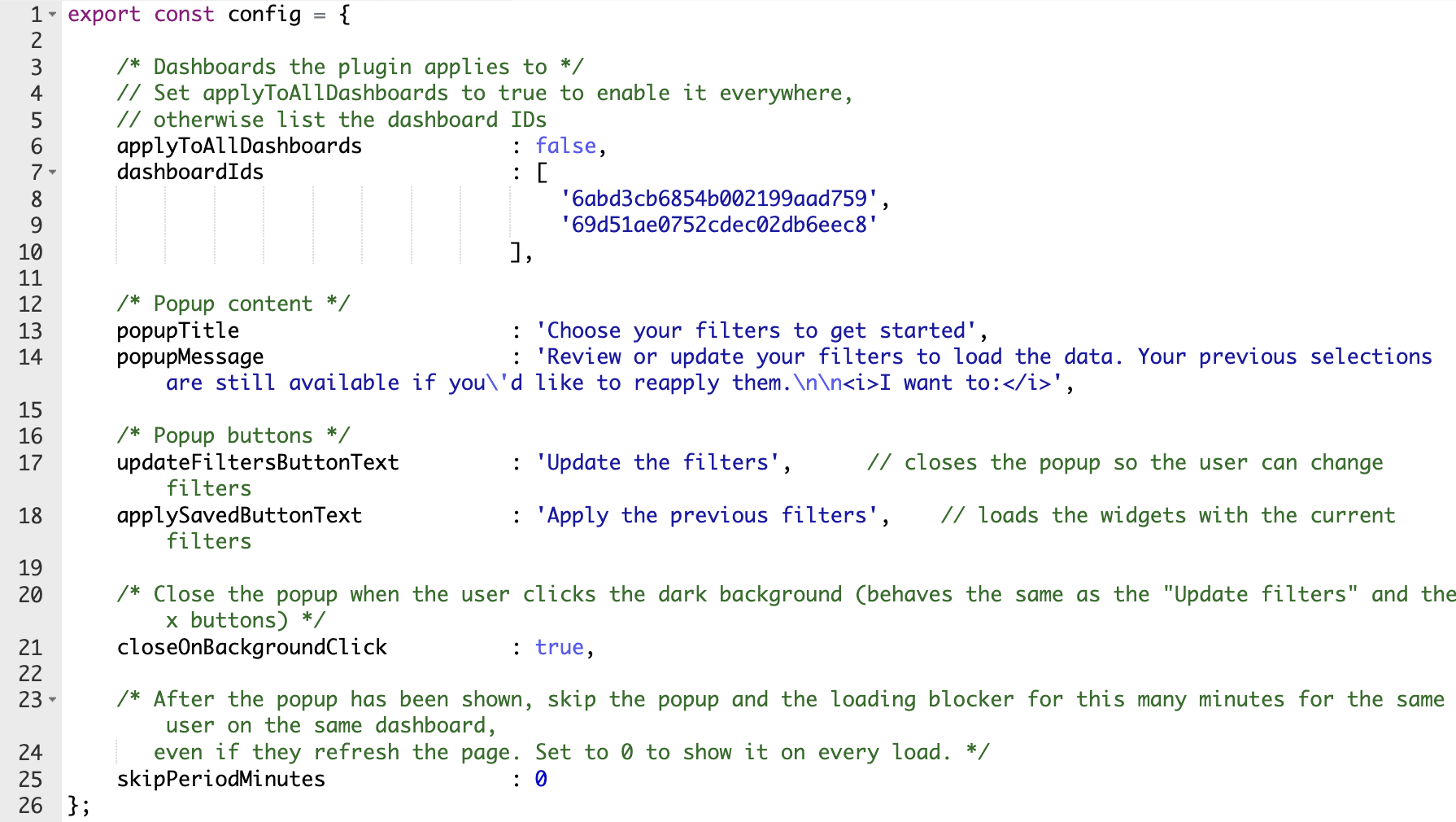
The following values in config.js can be customized.
applyToAllDashboards: set to true to apply the plugin to every dashboard on the instance. Set to false to apply it only to the dashboards listed in dashboardIds. Default: false.dashboardIds: the list of dashboard IDs the plugin applies to when applyToAllDashboards is false. The dashboard ID can be found in the dashboard URL. Example: ['6abd3cb6854b002199aad759'].popupTitle: the title shown at the top of the popup. Example: "Choose your filters to get started"popupMessage: the message shown below the title. Supports basic HTML such as <b>, <i> and <br>, as well as \n for line breaks. Example: "Review or update your filters to load the data. Your previous selections are still available if you'd like to reapply them."updateFiltersButtonText: the label of the button that closes the popup so the user can change the filters. Example: "Update the filters"applySavedButtonText: the label of the button that loads the dashboard with the filters already saved on it. Example: "Apply the previous filters"closeOnBackgroundClick: set to true to let users close the popup by clicking the dark background around it. This behaves the same as the update filters button. Default: true.skipPeriodMinutes: the number of minutes during which the popup and the blocking are skipped for the same user on the same dashboard after they first see it, even if they refresh the page. Set to 0 to show the popup on every load. Default: 5.
Limitations
The skip period is stored in the user's browser local storage, so it does not carry over to other browsers or devices. Where browser site data is blocked, including some cross-domain iframe embeds (particularly in Safari), the popup shows on every load.
Supported for dashboards opened in Sisense or embedded through an iFrame. It does not apply to Compose SDK or SisenseJS embedding.
Disclaimer
This post outlines a potential custom workaround for a specific use case or provides instructions regarding a specific task. The solution may not work in all scenarios or Sisense versions, so we strongly recommend testing it in your environment before deployment. If you need further assistance with this, please let us know.